
General Settings
The Settings section allows you to configure default values and behaviors for the data synchronized from WooCommerce to Bagisto. These settings ensure that when a record is created in Bagisto, it contains all the required fields.
Navigate to WC to Bagisto > Settings to access these configuration tabs.
User Settings
Configure how WordPress users (e.g., administrators, shop managers) are mapped to Bagisto users.
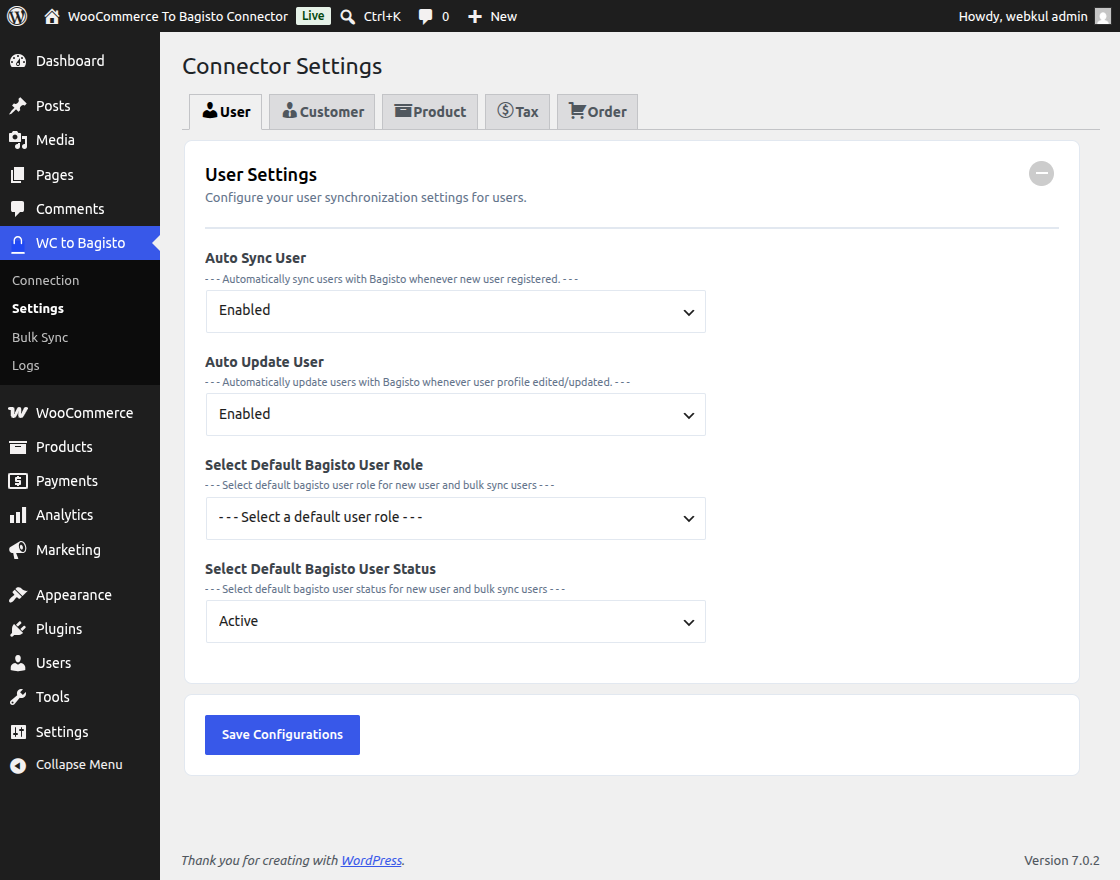
- Default Bagisto User Role: Select the Bagisto user role that should be assigned to synchronized users. The dropdown populates automatically with roles fetched from your Bagisto instance.
- Default User Status: Choose whether the synchronized users should be created as Active or Inactive in Bagisto.
Customer Settings
Configure how WooCommerce customers are synchronized.
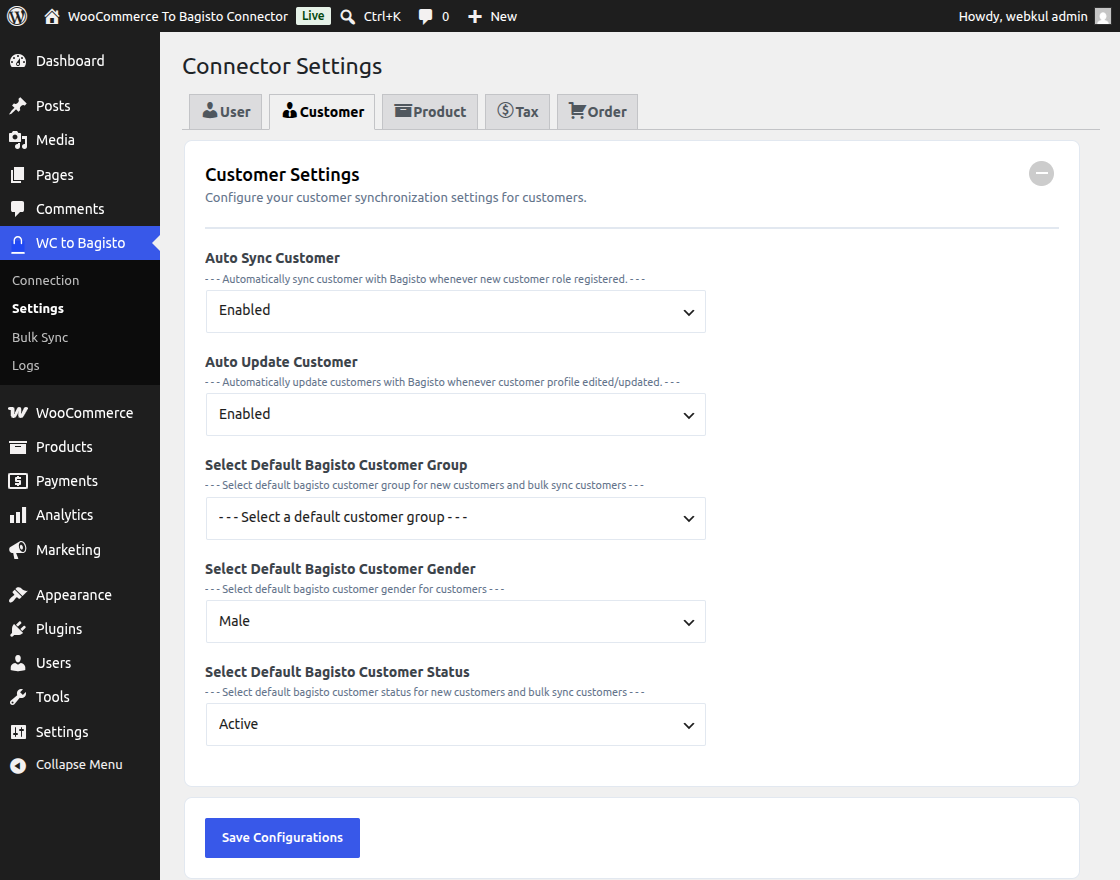
- Default Bagisto Customer Group: Select the customer group in Bagisto (e.g., General, Wholesale) to assign to newly synced customers.
- Default Gender: Set a default gender (Male, Female, Other) for customers if the data is not available in WooCommerce.
- Default Customer Status: Choose whether synchronized customers are Active or Inactive by default.
Product Settings
Define the synchronization rules for WooCommerce products.
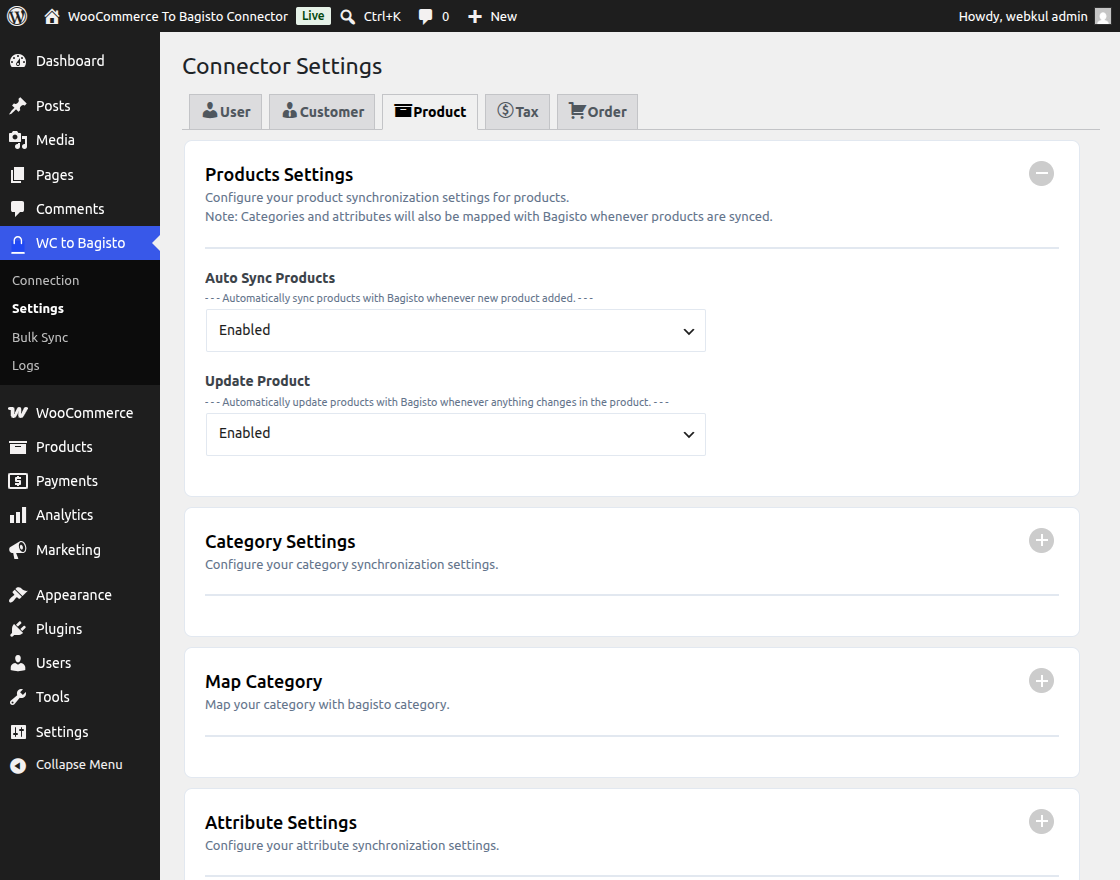
- Sync Products: Enable or disable automatic synchronization of products when they are created or updated in WooCommerce.
- Update Existing Products: If enabled, changes made to a product in WooCommerce will overwrite the existing product data in Bagisto.
- Default Attribute Family: Select the default Bagisto attribute family to use when creating new products.
Tax Settings
Ensure that your tax configurations remain consistent across both platforms.
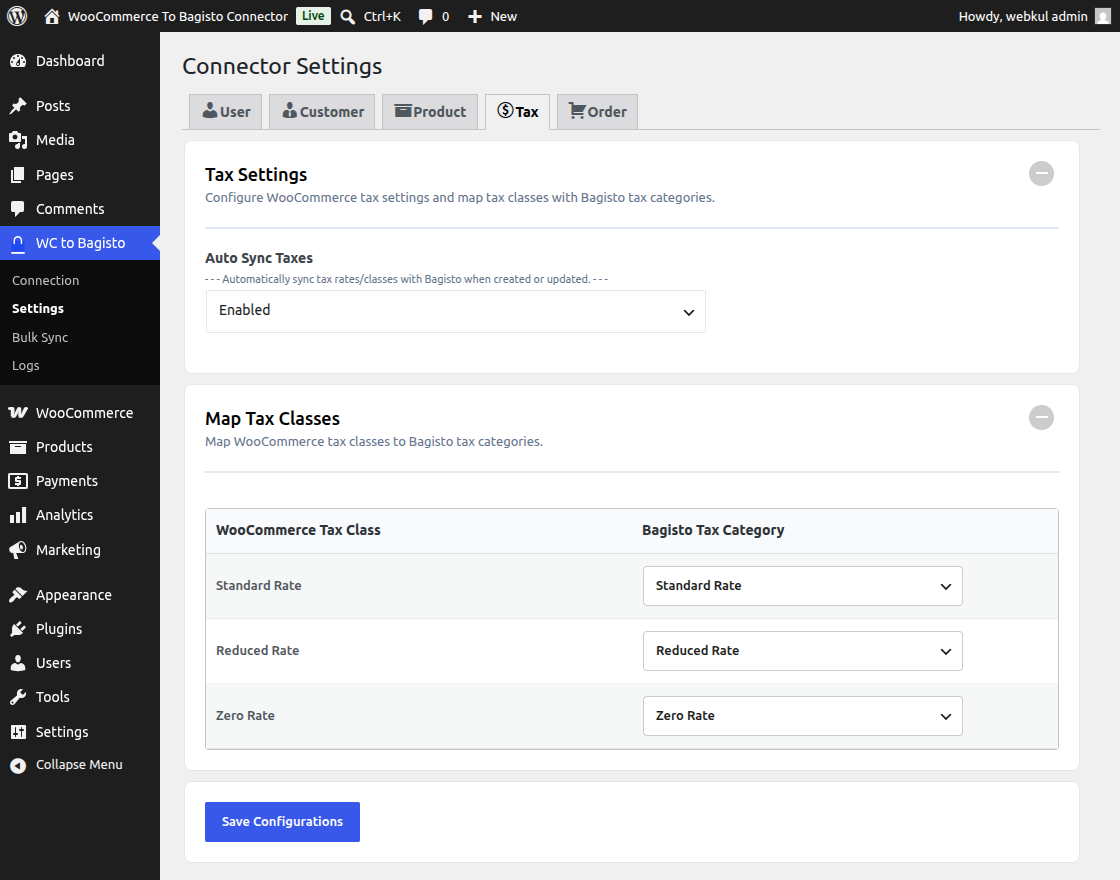
- Sync Taxes: Enable to synchronize WooCommerce tax rates and classes.
- Default Bagisto Tax Category: Select a default tax category in Bagisto to apply if a direct mapping is not found.
Order Settings
Determine how WooCommerce orders are transferred to Bagisto.
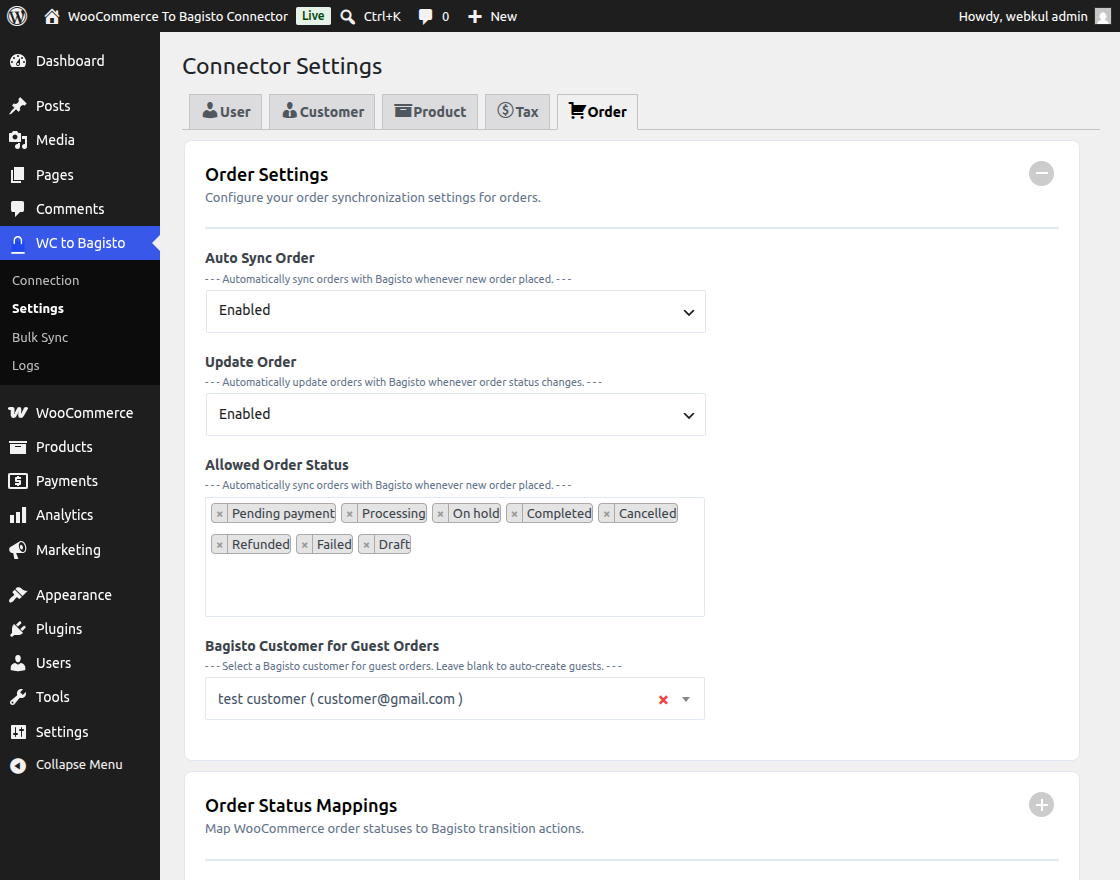
- Sync Orders: Enable this to automatically sync new orders to Bagisto when they are placed in WooCommerce.
- Default Order Status Mapping: Map WooCommerce order statuses (e.g., Processing, Completed) to equivalent Bagisto order statuses.
[!TIP] Always ensure you save your settings after making changes to any of the tabs before navigating to another section.