
License ValidatorLicense Validator
  • Account Setup
  • License Management
  • WooCommerce Multi Vendor Marketplace
  • WooCommerce POS – Point of Sale Plugin for WooCommerce Stores
  • Pre Order for WooCommerce
  • WooCommerce eBay Connector
  • Shopify Connector for WooCommerce
  • Wallet Plugin for WooCommerce
  • Show Price After Login for WooCommerce
  • Purchase Order for WooCommerce
  • Product RMA for WooCommerce
  • Medical Prescription Attachment for WooCommerce
  • Quick Order Plugin for WooCommerce
  • Group Buy for WooCommerce
  • POS Barcode Inventory Management for WooCommerce
  • WooCommerce Binary Multi Level Marketing [MLM]
  • WooCommerce POS Customer Checkout
  • Account Setup
  • License Management
  • WooCommerce Multi Vendor Marketplace
  • WooCommerce POS – Point of Sale Plugin for WooCommerce Stores
  • Pre Order for WooCommerce
  • WooCommerce eBay Connector
  • Shopify Connector for WooCommerce
  • Wallet Plugin for WooCommerce
  • Show Price After Login for WooCommerce
  • Purchase Order for WooCommerce
  • Product RMA for WooCommerce
  • Medical Prescription Attachment for WooCommerce
  • Quick Order Plugin for WooCommerce
  • Group Buy for WooCommerce
  • POS Barcode Inventory Management for WooCommerce
  • WooCommerce Binary Multi Level Marketing [MLM]
  • WooCommerce POS Customer Checkout
  • Quick Start

    • Account Registration & Sign In
    • License Management & Activation

Account Registration & Sign In

Follow these simple steps to register your purchase and access your dashboard.

You can access the License Portal here: Login to License Portal


1. Registration

Register your purchase using either your Envato details or your Webkul Store credentials.

Registration via Envato

If you purchased from CodeCanyon (Envato), use your purchase code to link your account.

Note: If you don’t have your purchase code or don't know where to find it, follow this guide: Where Is My Purchase Code?

Video Tutorial

👉 Follow this 5-minute video to quickly register and generate your license key
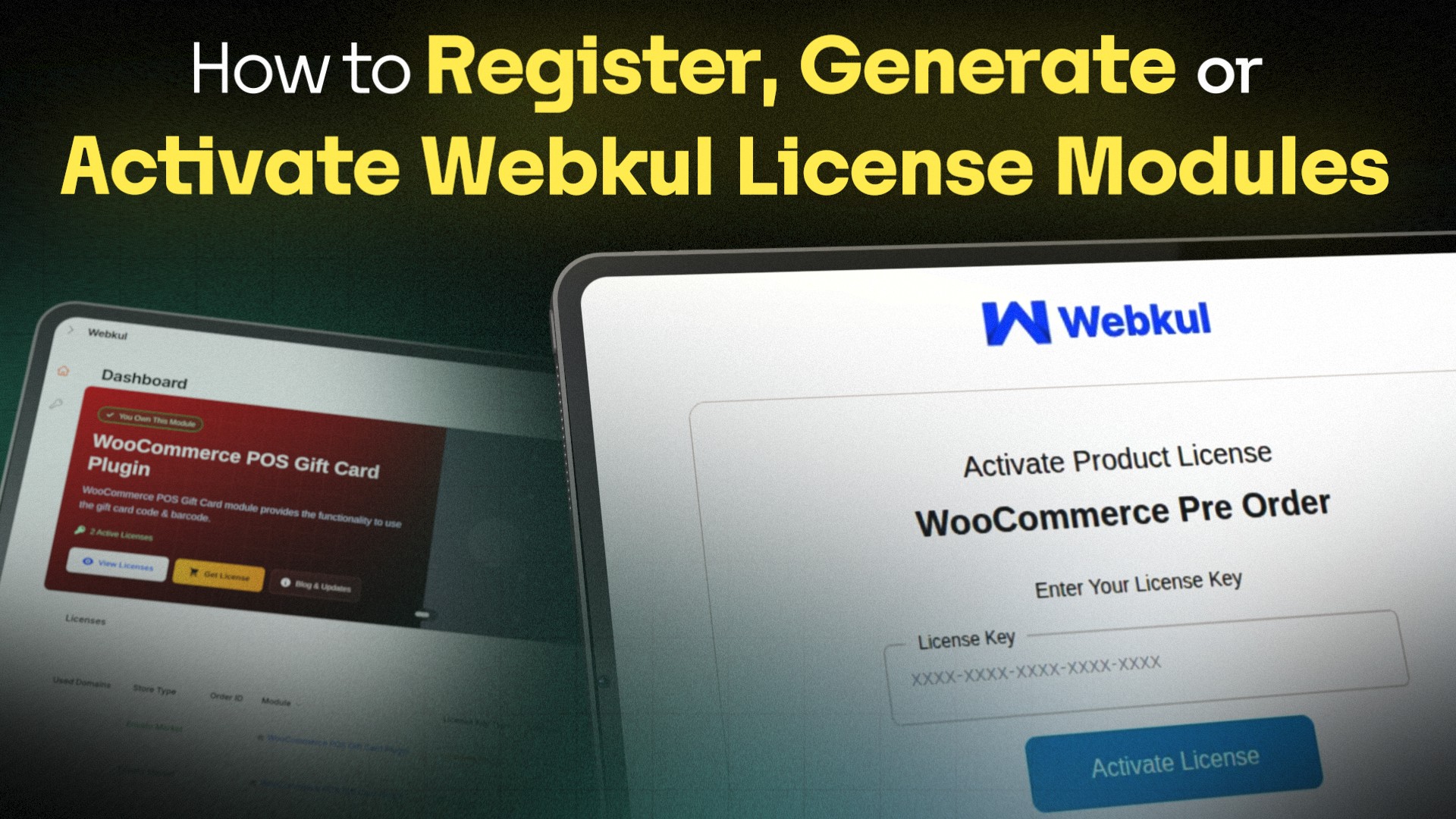
How to Register, Generate or Activate Webkul License Modules

Steps:

  1. Select Envato – Choose the Envato option on the registration page. Select Envato Option
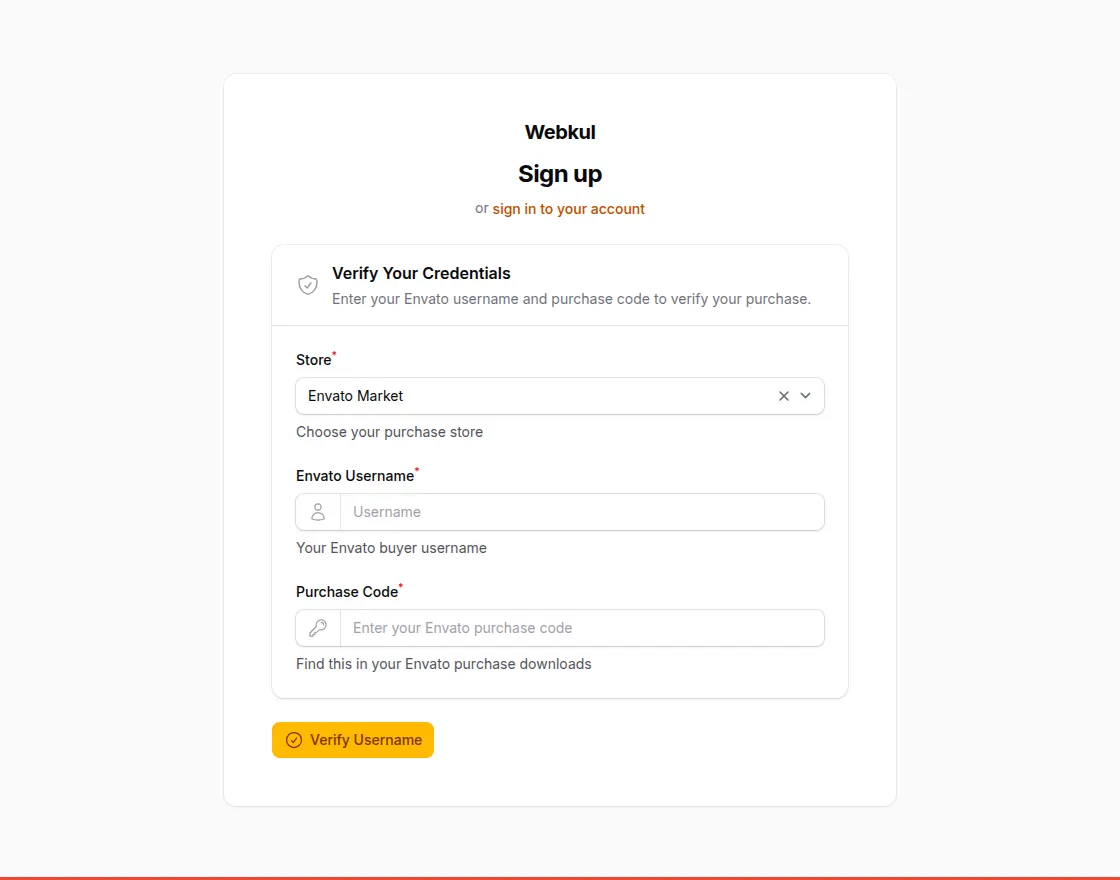
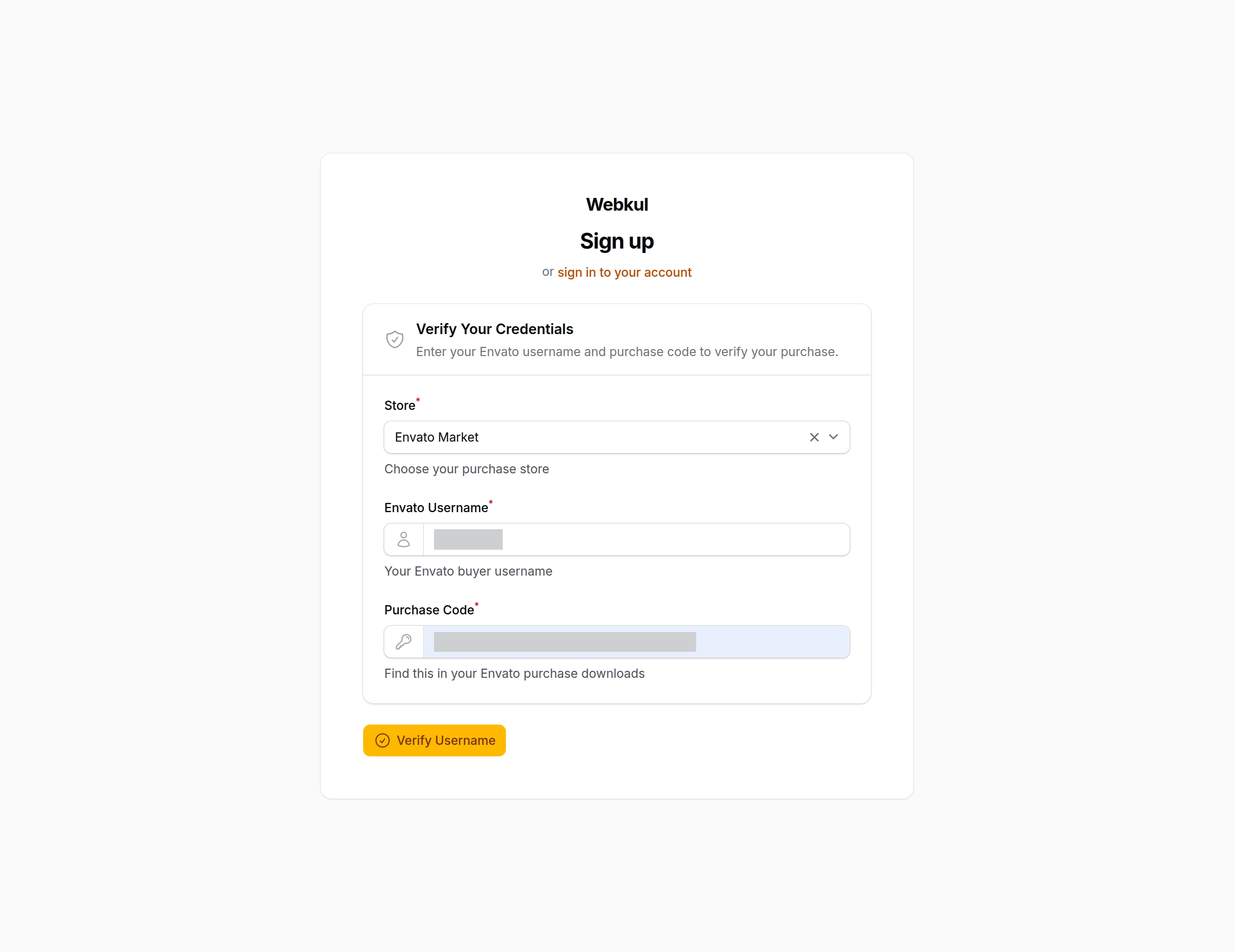
  2. Enter Purchase Details – Provide your Envato Username and the 36-character Purchase Code. Then, click on Verify User to validate your purchase. Enter Envato Details
  3. Enter Email – Once verified, provide an active email address for your account. and then input the One-Time Password (OTP) sent to your registered email address to complete the registration. Enter Email Address
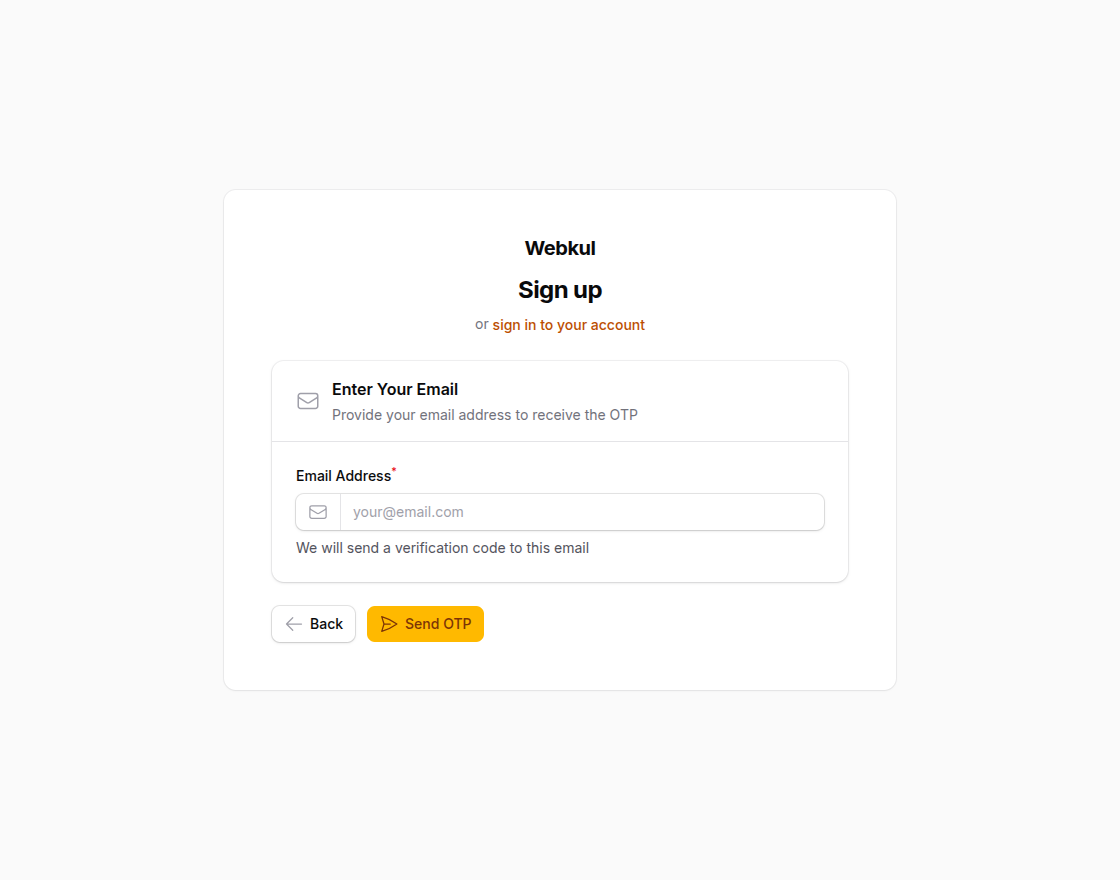
(Note: The email address can only be updated once from your profile.)


Registration via Webkul Store

If you purchased directly from the Webkul Store, use your Order ID.

Select Webkul Option

Steps:

  • Enter Order Information – Provide your Order ID and the email used during purchase.
  • OTP Verification – Enter the One-Time Password sent to your email to verify ownership.
Webkul Registration Form

2. Sign In (Email + OTP)

Once registered, you can log in anytime using your email. No password is required.

Sign In Page

Steps:

  • Enter Email – Enter your registered email on the Sign In Page.

  • Receive OTP – A 6-digit verification code will be sent to your inbox.

Enter Email for Sign In
  • Verify & Access – Enter the OTP to instantly access your dashboard.
Sign In OTP VerificationUser Dashboard
Next
License Management & Activation