
License Management & Activation
Manage your purchases and activate your WooCommerce modules in just a few steps.
1. User Dashboard
Your dashboard is the central hub for all your license management activities.

Key Features:
- Consolidated Purchases – View both Envato and Webkul Store purchases side-by-side.
- License Status – Instantly identify active, pending, or expired licenses.
- Domain Access – Update the domains linked to your software keys.
2. License Creation
Generate your license keys on-demand without manual approval delays.
Step 1 – Select Your Purchase
- Locate your product in the purchase history.
- Select either your Envato Purchase Code or Webkul Order ID to begin.

Step 2 – Configure & Generate Keys
- Enter Domain – Provide your Domain name (e.g.,
example.com). - Environment Support – Create keys for both staging and production environments simultaneously.

Step 3 – View License List & Details
- Retrieve the generated license key from the license list.
- Check the full configuration details and support eligibility.


3. Module Activation
The final step is to activate the module in your WordPress admin panel.
Steps:
Navigate to Settings – Open the module's specific settings page in the WordPress admin panel.
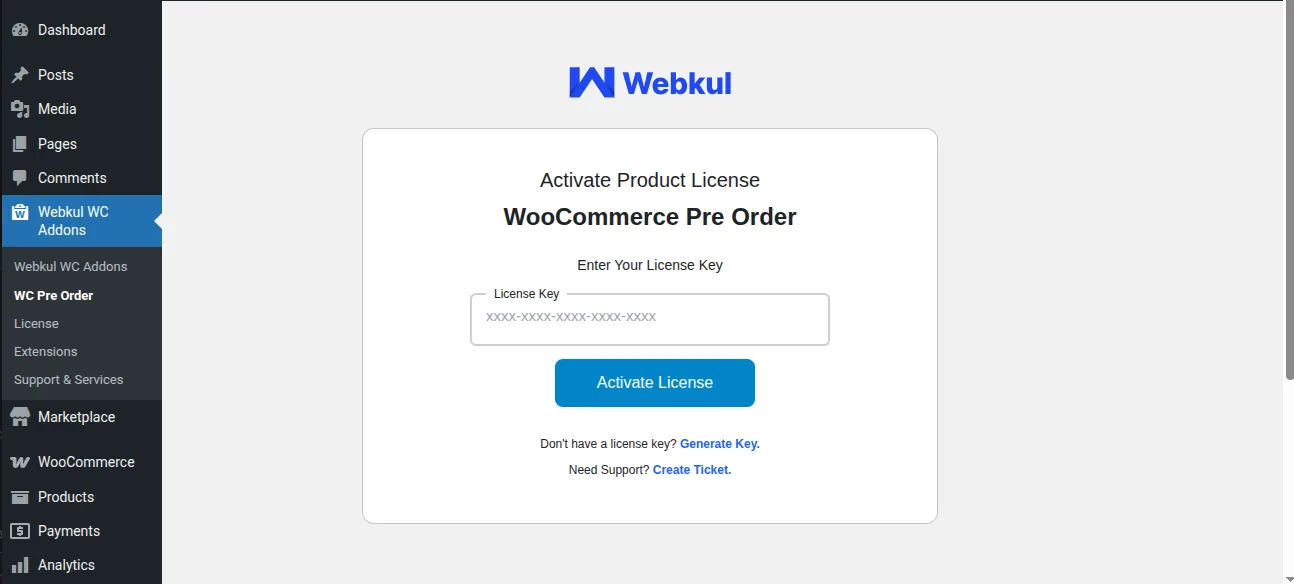
Enter License Key – Paste the generated key into the license key field and click Validate.
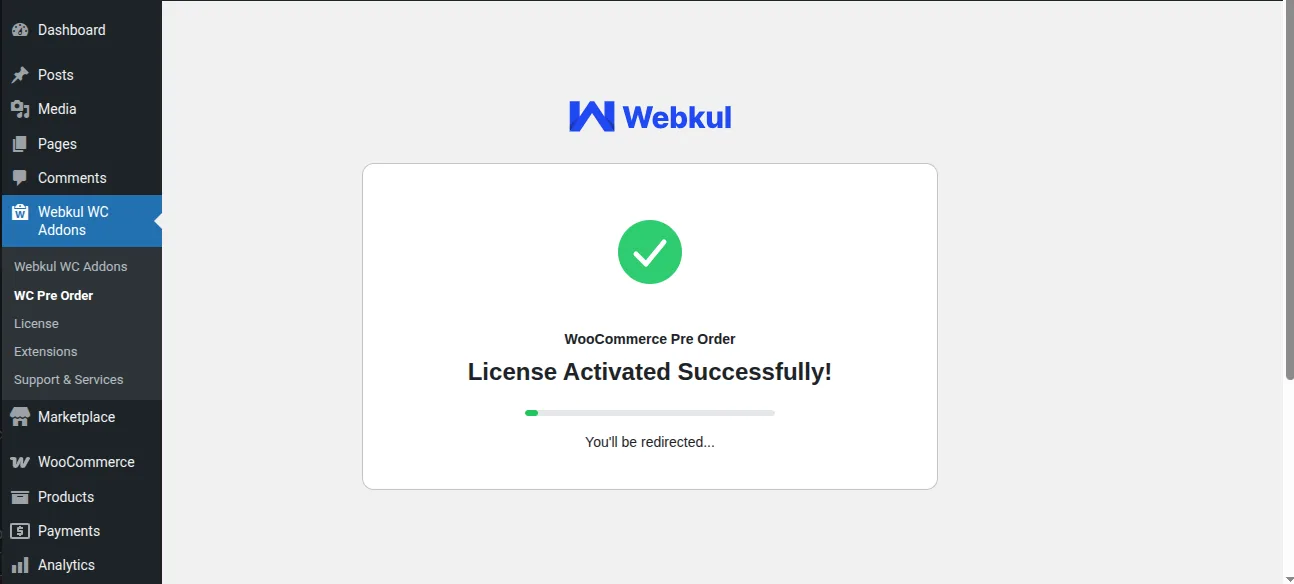


Successful Activation – Your module is now fully functional! 
[!TIP] Need help? Access our Support Portal or email us at [email protected].
Additional Resources
Explore WooCommerce Plugins:
View WooCommerce PluginsTry the Live Demo:
Open Live Demo