
Admin Configuration
Configure the global behavior, styles, countdowns, and checkout rules of the WooCommerce Pre-Order plugin. To access these settings, go to WooCommerce > Pre-Order List > Configuration.
1. General Settings
This section controls how pre-orders are registered, checkout coupons, default products pricing, and payment gateways.
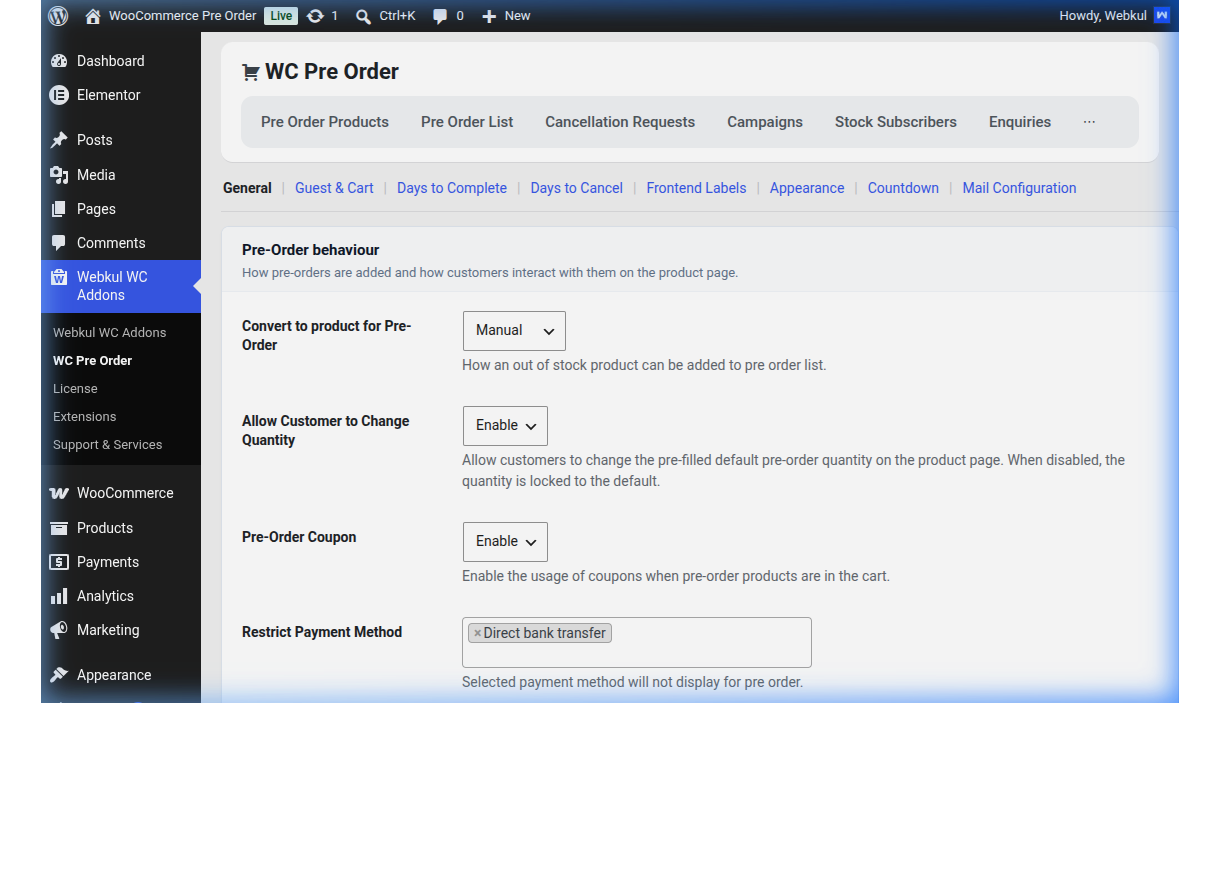
| Setting | Type / Option | Description |
|---|---|---|
| Convert to product for Pre-Order | Automatic | Automatically converts out-of-stock products to pre-orders when their stock levels fall to 0. |
Manual | Requires administrators to manually enable pre-order settings at the individual product level. | |
Both | Combines automatic conversion of out-of-stock items with the ability to manually list any product for pre-order. | |
| Allow Customer to Change Quantity | Enable | Disable | If set to Disable, the quantity selector is locked on the product page to the default pre-order amount. |
| Pre-Order Coupon | Enable | Disable | Control whether customers can apply standard WooCommerce coupons to pre-order items in their cart. |
| Restrict Payment Method | Multi-Select Gateways | Any checked payment gateways in this list will be hidden at checkout when the cart contains pre-order items. Useful for disabling cash-on-delivery (COD) for pre-orders. |
Default Product Configuration
These values act as the global baseline templates. Newly converted pre-order items inherit these properties, but you can override them on a per-product level:
- Payment Type: Choose Full Payment (collect 100% upfront) or Partial Payment (collect a deposit).
- Pre-Order Price (%): If using partial payments, specify the deposit percentage required (e.g.
30for a 30% deposit; do not input the%symbol). - Default Quantity: The pre-filled order quantity when a user views a pre-order product page.
- Available Date (in days): The default estimated restock window (e.g.,
30days). Used to calculate countdown timers if no static date is specified. - Default Pre-Order Discount Type: Apply a global promotional markdown for pre-order bookings:
None,Percent (%), orFixed Amount.
- Default Pre-Order Discount Value: The numeric rate or currency value to subtract from the standard price.
2. Guest & Cart Settings
Configure checkout access and mixed shopping cart behaviors.
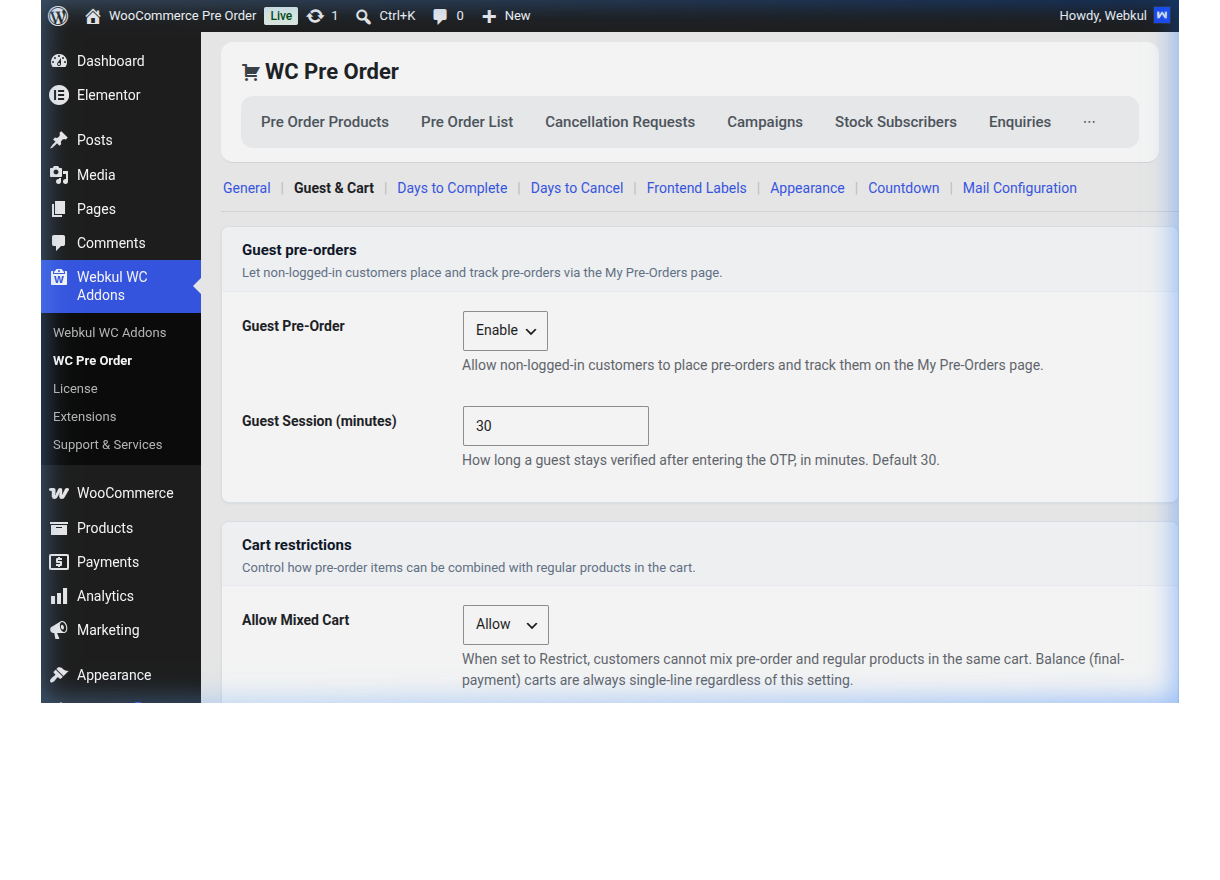
Guest Pre-Orders
Allow customers to place pre-orders without forcing them to register a WordPress user account:
- Guest Pre-Order: Select
Enableto allow non-logged-in checkouts.[!IMPORTANT] To use guest pre-orders, you must first enable Guest Checkout in core WooCommerce under WooCommerce > Settings > Accounts & Privacy.
- Guest Session (minutes): Time in minutes a guest remains securely logged into their order tracking portal after completing email OTP verification. Default is
30.
Cart Restrictions
Control whether regular products and pre-order products can be purchased in the same transaction:
- Allow Mixed Cart: Select
AlloworRestrict.- Allow: Customers can checkout with a mix of standard items and pre-order items.
- Restrict: Displays a custom warning block and blocks checkout if a customer mixes catalog items and pre-orders.
- Mixed Cart Message: Custom message shown to the user when they violate the mixed-cart restriction. E.g. "Pre-order products cannot be combined with regular products in the same cart."
3. Days to Complete
Manage deadlines for customers who purchase pre-orders with partial deposits.
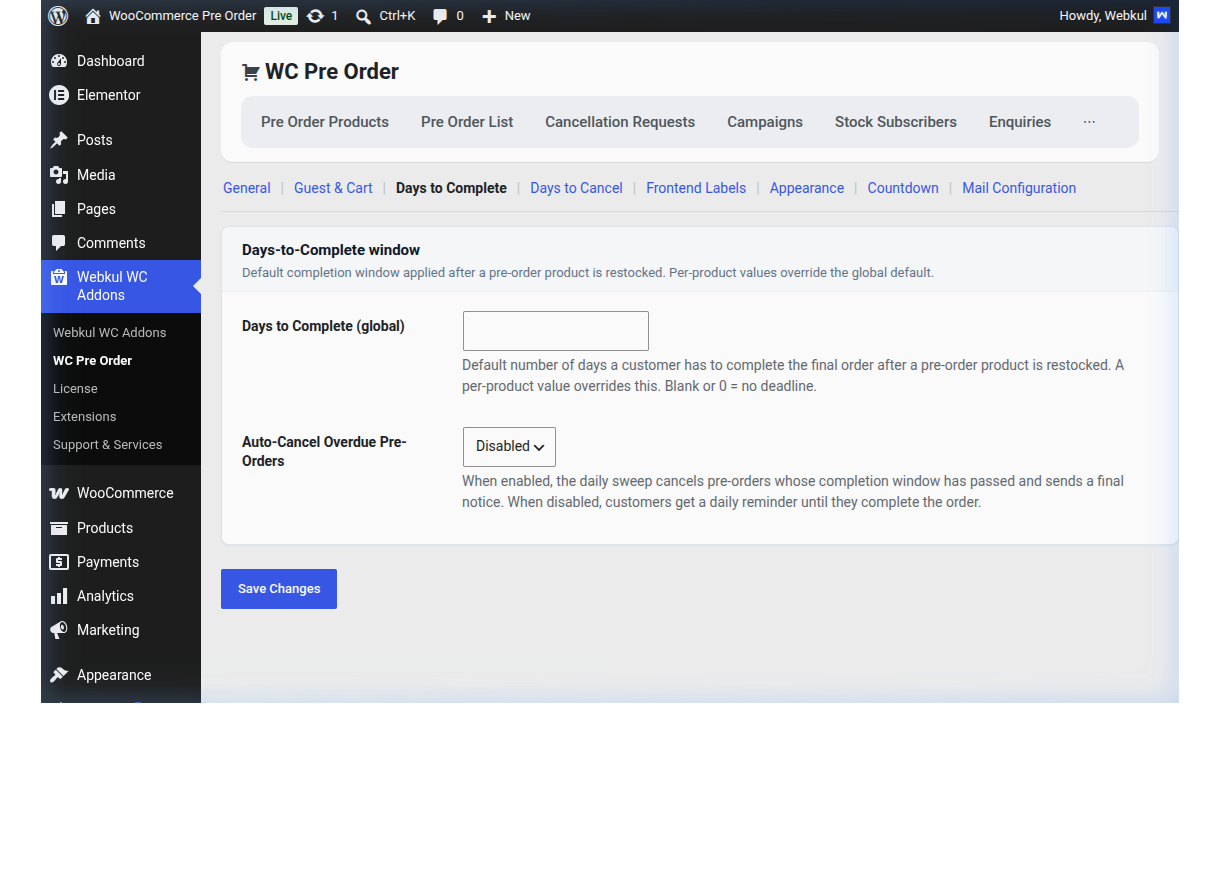
- Days to Complete (global): The number of days a customer has to pay their remaining balance after a product is restocked. Leave blank or
0for no deadline. - Auto-Cancel Overdue Pre-Orders:
Disabled:Overdue customers are sent daily email reminders until they pay.Enabled:The plugin runs a daily cron loop that automatically cancels overdue pre-orders, releasing the reserved stock back to the catalog, and sends a cancellation notice.
4. Days to Cancel
Configure customer eligibility and duration rules for pre-order cancellation requests.
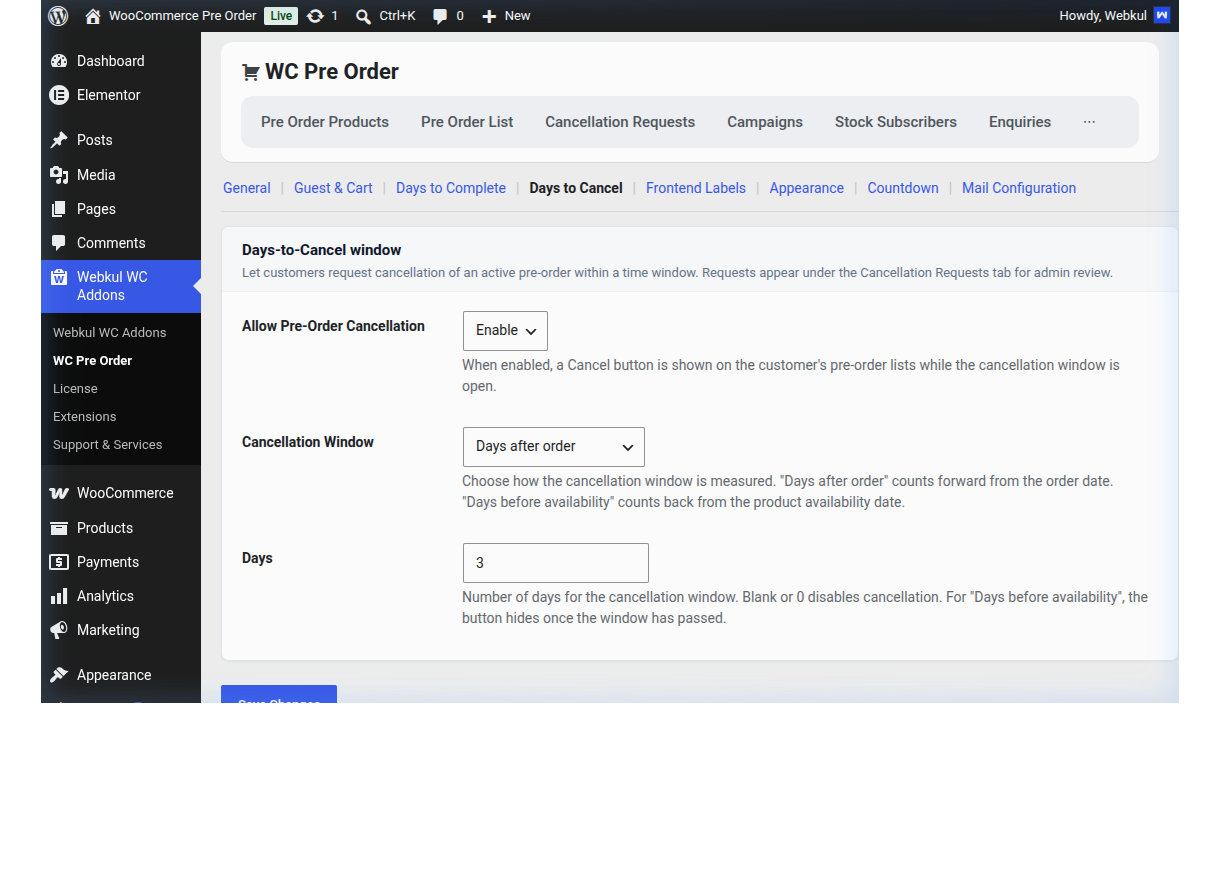
- Cancel Status: Toggle to enable or disable customer-initiated pre-order cancellation requests globally.
- Cancel Before (Days): Enter the number of days before the product release date during which the customer can submit a cancellation request. If left empty or set to
0, the customer can request cancellation anytime up until the actual release.
5. Frontend Labels
Customize the user-facing text strings rendered by the plugin without modifying source code. If a field is left blank, the translated default is displayed.
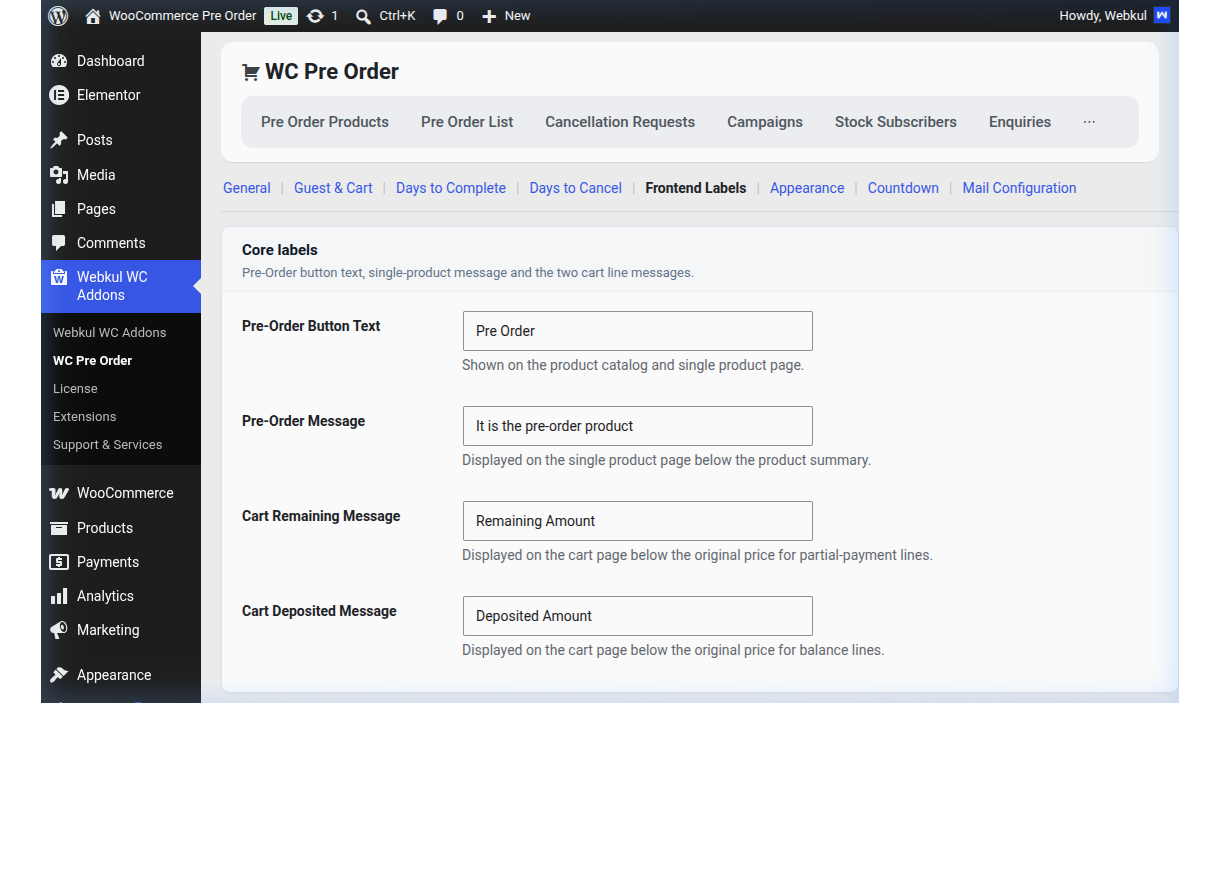
Core Labels
- Pre-Order Button Text: The label on the add-to-cart button for pre-orders (default:
Pre Order). - Pre-Order Message: Informative text printed below the product summary (default:
It is the pre-order product). - Cart Remaining Message: Text indicating the deferred balance (default:
Remaining Amount). - Cart Deposited Message: Text indicating the deposit paid (default:
Deposited Amount).
Group Labels
Collapsible groups in the admin settings allow you to override specific labels for:
- Single Product: Labels for deposits, date headings, and availability text.
- Notify-Me Modal: Forms and buttons for back-in-stock subscriptions.
- Guest Portal: Secure login screen, OTP entry instructions, and validation status text.
- Checkout Blocks: Customized strings for modern WooCommerce Cart and Checkout blocks.
6. Appearance
Customize the color scheme and layout styles of your pre-order components.
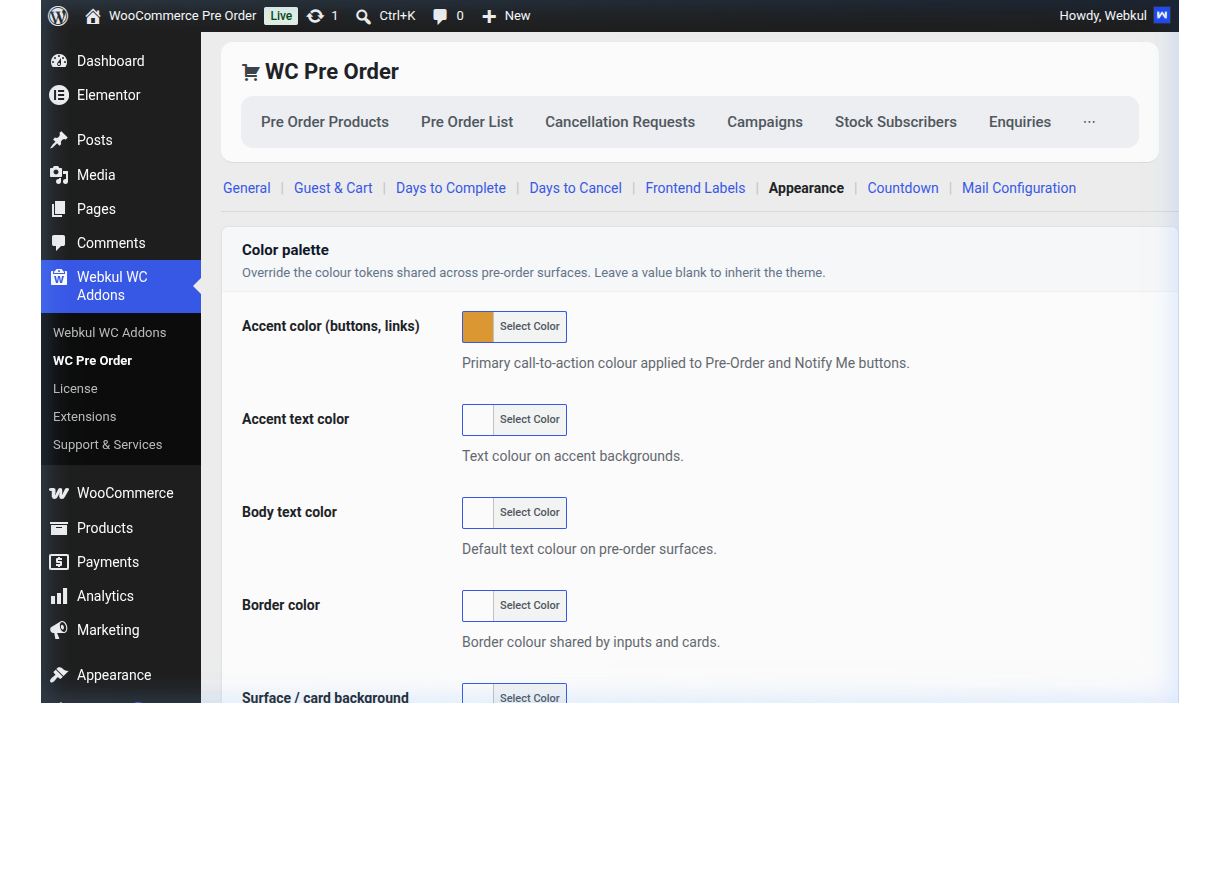
- Color Palette: Override core CSS tokens for buttons, pills, borders, and notification blocks. Leave fields blank to inherit colors from your active WordPress theme.
- Live Preview: An interactive admin widget showing a mockup of your buttons and pills based on your saved color tokens.
Shop Loop Pre-Order Badges
Display promotional badges on your product listing/category pages:
- Show Badges on Shop Loop: Enable or disable loop badges.
- Pre-Order Now Label: Custom text for open pre-orders (default:
PRE-ORDER NOW!). - Pre-Order Now Styling: Custom background color, text color, border-radius, padding, and font-weight.
- Pre-Orders Start Soon Label: Custom text for scheduled pre-orders whose start date is in the future (default:
PRE-ORDERS START SOON!). - Pre-Orders Start Soon Styling: Custom colors and layout.
Shop Loop Availability Message
Print availability timelines on catalog grids:
- Show Availability Message: Display text blocks beneath product titles.
- Pre-Orders Start Soon Message: Text displayed for future campaigns. Use the
{start_date}placeholder to print the scheduled start date. - Available for Pre-Order Heading / Detail Lines: Customize messages for open pre-orders. Use
{availability_date}to display the estimated restock date.
7. Countdown
Configure the countdown timer displayed on product pages that have an estimated availability date.
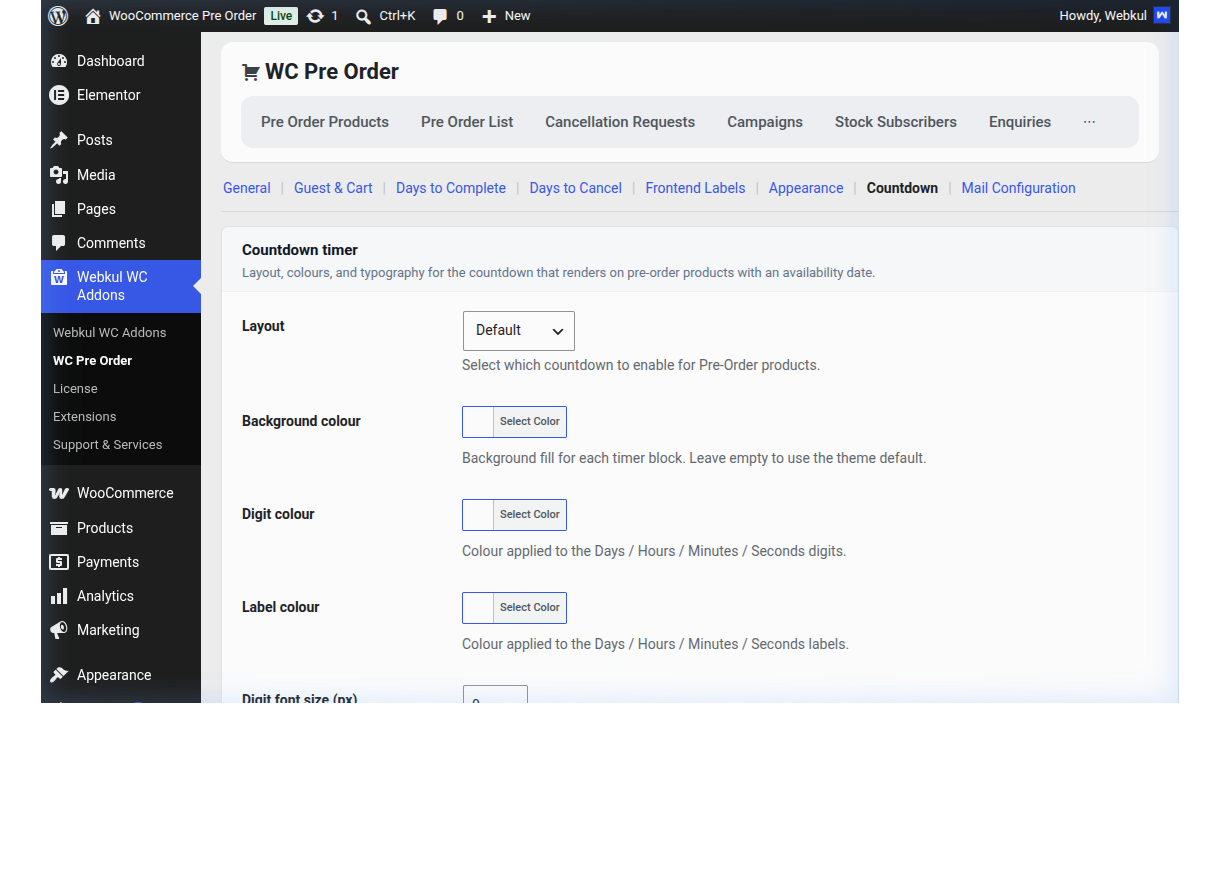
- Layout: Choose between four layout styles:
Default:Standard digital timer.Compact:Streamlined design for sidebars and small screens.Big Block:Large, prominent blocks with bold digits.Small Block:Subtle blocks styled as badges.
- Styles & Typography: Set custom background fills, digit colors, label colors, digit font sizes (px), and label font sizes (px).
8. Mail Configuration
Manage the transaction, notification, and broadcast emails sent by the WooCommerce Pre-Order plugin. To configure these, go to WooCommerce > Pre-Order List > Configuration > Mail Configuration tab.
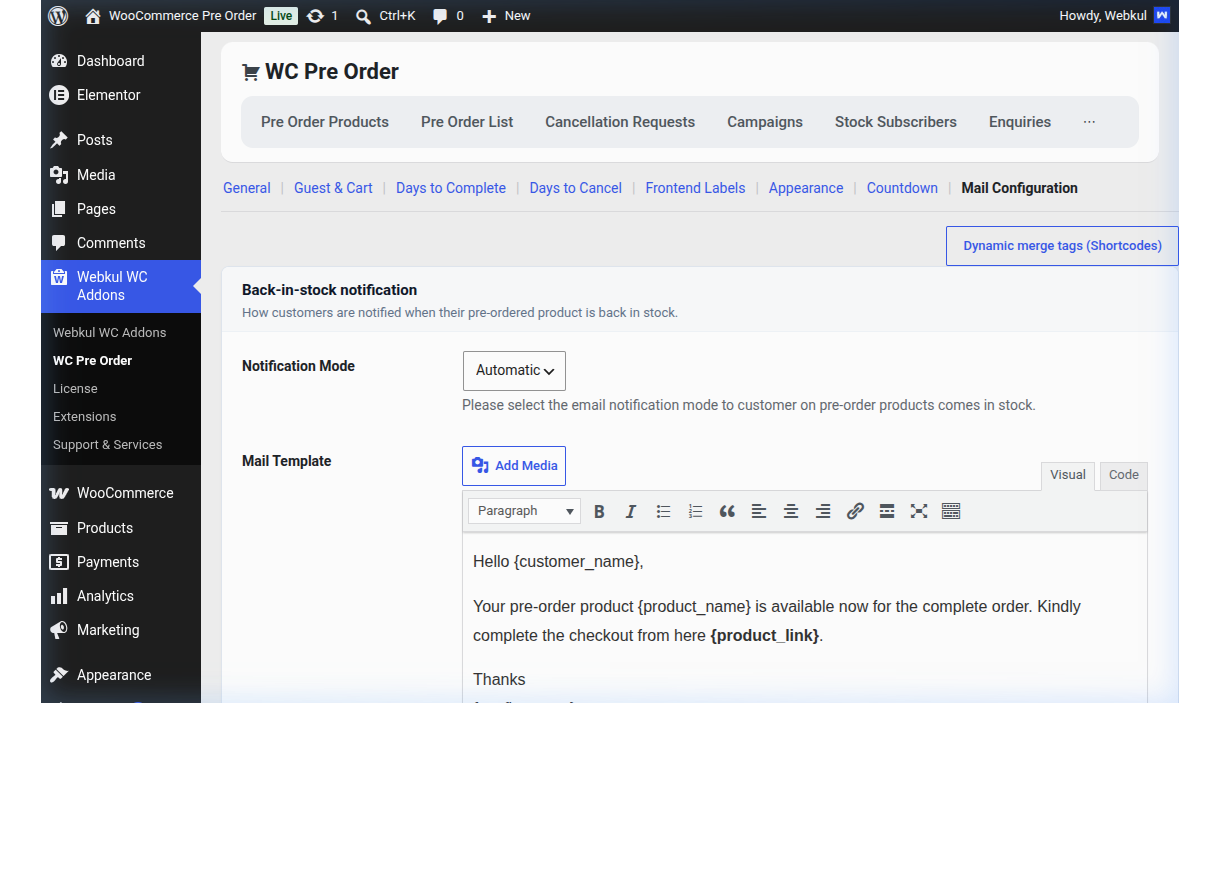
Notification Mode & Email Flow
When a pre-order product is restocked (either by updating its stock count to in-stock or manually turning off the pre-order status), the plugin determines how customers are notified:
- Automatic: The system automatically schedules and sends the restocked alert emails to all buyers as soon as the stock status changes.
- Manual: The store admin must navigate to the Pre-Order List, check the restocked items, and run the bulk action "Notify Subscribers" to trigger the emails.
- Both: The system prepares the email cues automatically, but admins retain the ability to manually trigger notifications or resend alerts.
Personalizing Emails (Merge Tags)
To personalize emails, you can use the following merge tags inside the email editors. They are replaced dynamically with actual order and customer details when the email is sent:
| Merge Tag | Value | Description |
|---|---|---|
{order_id} | Order ID | The WooCommerce order number of the pre-order transaction. |
{product_name} | Product Name | The title of the pre-ordered product. |
{product_link} | HTML Product Link | Clickable product name pointing to the storefront page. |
{product_url} | Raw Product URL | Plain text URL of the product. |
{product_quantity} | Quantity | The number of units purchased in the pre-order. |
{customer_name} | Customer Name | The customer's billing first and last name. |
{customer_email} | Customer Email | The email address where the notification is sent. |
{config_name} | Store Name | Your store name. |
{config_address} | Store Address | The physical shop address (from WooCommerce settings). |
{config_email} | Store Email | Your store's sender email address. |
{order_view_link} | View Order Link | URL directing logged-in users to their account order history page. |
{completion_deadline} | Deadline Date | The deadline date for balance payments (overdue templates only). |
Available Email Templates
Back-in-Stock Notification
- Trigger: Sent to pre-order buyers when the item is restocked. If they paid a partial deposit, this email includes the payment button to complete the balance.
- Purpose: Informs the customer that the product is now available and directs them to log in to pay their remaining balance.
New Pre-Order Reminder
- Trigger: A broadcast newsletter sent to all registered store customers when a new pre-order product is created. Use this to drive interest and collect bookings.
- Configuration: Can be toggled on/off in the configuration tab.
- Default Text: "We have launched a new pre-order product: {product_name}! Pre-order now to secure yours before release."
Days-to-Complete Overdue
- Trigger: Sent to customers who have not completed their balance payment within the configured deadline window.
- Configuration: Can be toggled on/off in the configuration tab.
- Frequency: If Auto-Cancel is disabled, this runs daily as a reminder. If Auto-Cancel is enabled, it fires once as a final cancellation notice when the deadline passes.
Back-in-Stock "Notify Me" (Waitlist)
- Trigger: Sent to standard waitlist subscribers (who registered via the "Notify Me" button on out-of-stock items) when the product stock quantity is updated.
- Configuration: Can be toggled on/off in the configuration tab.
- Default Text: "Good news! {product_name} is back in stock. Click here to buy it now: {product_link}"
[!TIP] Email Deliverability Best Practice: Since the plugin triggers automated emails in bulk upon product releases, ensure you have an SMTP plugin installed (such as WP Mail SMTP) configured with SPF and DKIM records to prevent notifications from going to spam folders.