
Admin Configuration
After activating the plugin, store administrators can customize promotional labels, control the storefront timer display, and tailor container styling to harmonize with their store's brand identity.
To access the configuration screen, open your WordPress Admin Dashboard and navigate to:
Webkul WC Addons → Happy Hours → Configuration
Alternatively, click the Settings link on the Plugins page or open URL admin.php?page=wkwc-hhd-happy-hours&tab=settings.
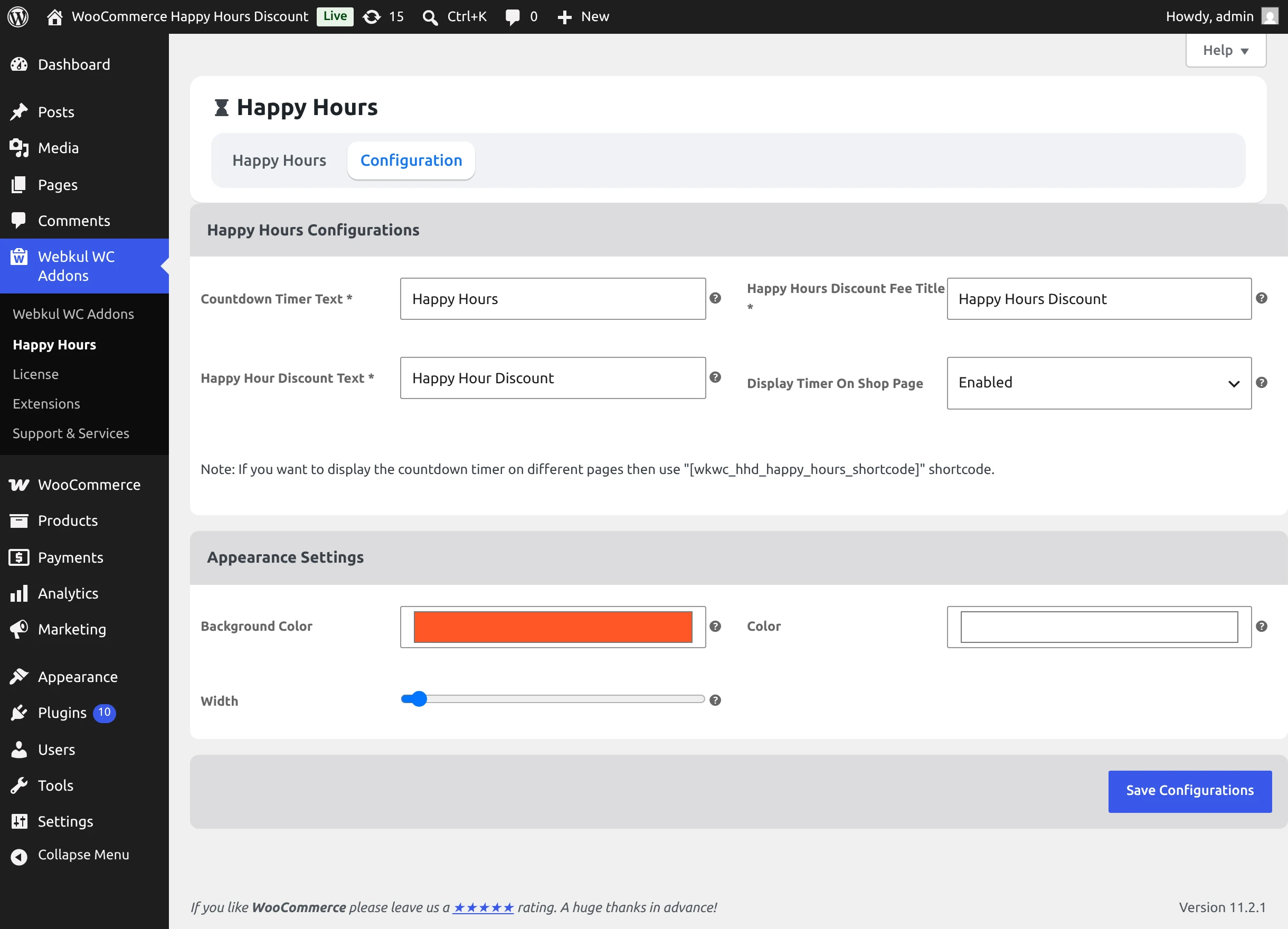
1. Happy Hours Configurations
The Happy Hours Configurations block controls the wording displayed to shoppers and determines where the countdown timer renders automatically.
Countdown Timer Text
- Default Value:
Happy Hours - Description: Enter the title string that appears inside the storefront hanging signboard widget above the live countdown clock. Keep this concise (under 12 characters is recommended for optimal display on smaller screens).
Happy Hours Discount Fee Title
- Default Value:
Happy Hours Discount - Description: Specify the fee label that appears on cart totals and order invoices when a Cart Total discount rule is applied. This appears as a negative fee line deduction.
Happy Hour Discount Text
- Default Value:
Happy Hour Discount - Description: Define the itemized promotional label displayed next to individual product lines in the shopping cart and order breakdown when Product or Category discount rules apply.
Display Timer on Shop Page
- Options:
Enabled/Disabled - Default Value:
Enabled - Description: When set to Enabled, the hanging signboard countdown timer automatically appears at the top of the main WooCommerce Shop page whenever an active Happy Hour rule is running. Set to Disabled if you prefer to place the countdown timer manually using the shortcode.
Shortcode Integration Note
The configuration panel highlights the built-in shortcode:
[wkwc_hhd_happy_hours_shortcode]
You can insert this shortcode into any WordPress page, post, block template, or widget area to render the live countdown timer outside the default shop archive.
2. Appearance Settings
The Appearance Settings block provides real-time styling controls so you can match the countdown signboard to your site's color scheme.
Background Color
- Default Value:
#ff5625(Vibrant Webkul Coral/Orange) - Description: Choose the background fill color for the hanging signboard container. Click the color picker swatch to select a hex color or enter a custom hex code directly.
Color (Text Color)
- Default Value:
#ffffff(White) - Description: Select the typography color used for the signboard title and countdown clock digits (
Days,Hours,Minutes,Seconds).
Width (Slider Control)
- Range:
0to50pixels - Default Value:
0 - Description: Drag the range slider to expand the horizontal width of the hanging signboard. The base width is
120pxand the slider adds between0pxand50pxadditional width (computed dynamically ascalc(120px + [value]px)).
Settings Reference Table
| Setting | Type | Recommended / Default | Description |
|---|---|---|---|
| Countdown Timer Text | Text | Happy Hours | Main header shown on the hanging timer signboard |
| Discount Fee Title | Text | Happy Hours Discount | Label for Cart Total negative fee deductions |
| Discount Text | Text | Happy Hour Discount | Itemized line label for product and category discounts |
| Display Timer On Shop Page | Select | Enabled | Automatically displays signboard on /shop/ |
| Background Color | Color | #ff5625 | Background color of the countdown signboard |
| Color | Color | #ffffff | Typography and digit color on the signboard |
| Width | Range | 0 | Additional width slider (0–50 px) |
Saving Changes
Once your configuration choices are complete, click the blue Save Configurations button at the bottom of the form. WordPress will save your settings, and changes will immediately reflect on the storefront.
Cache Invalidation
If you use page caching plugins (such as WP Rocket, W3 Total Cache, or LiteSpeed Cache) or server-level caching (Varnish, FastCGI Cache), remember to clear the page cache after updating appearance settings to ensure visitors see the latest color palette.
Next Step
With your store configuration ready, proceed to Rules Management to schedule your first promotional Happy Hour rule.