
Rules Management
The core power of WooCommerce Happy Hours Discount lies in its flexible rules management engine. Store administrators can schedule automated promotional campaigns, target specific customer segments, and configure multi-layered discounts.
To access the rules dashboard, navigate to:
Webkul WC Addons → Happy Hours → Happy Hours
The Happy Hours Rules Dashboard
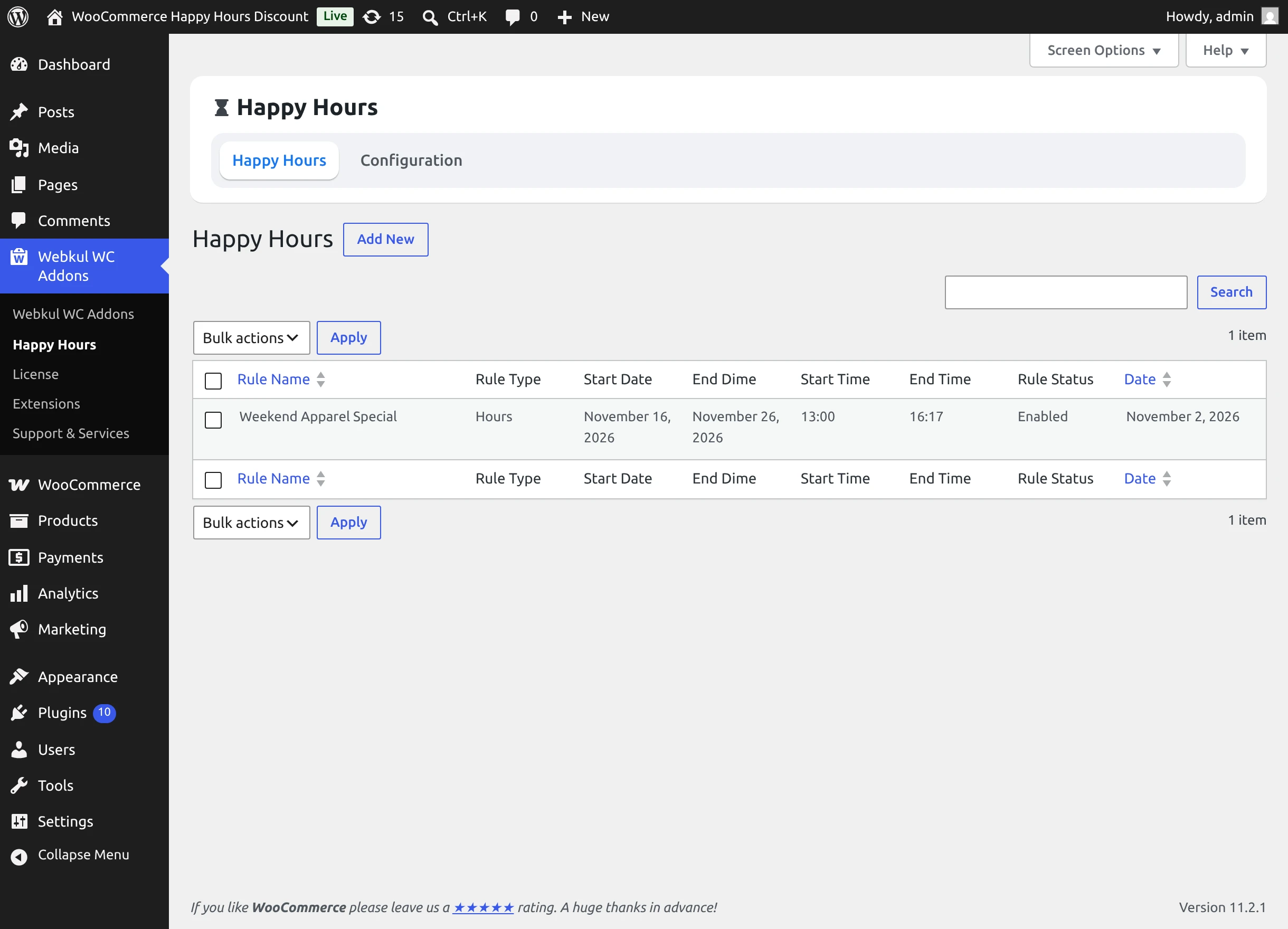
The rules list table displays all configured promotional campaigns with real-time operational status.
Dashboard Elements
- Rule Name: Descriptive name of the promotion. Hovering over a rule reveals quick Edit and Delete action links.
- Rule Type: Identifies the rule format (e.g.,
hoursfor timeframe-based promotions). - Start Date & End Date: Calendar window during which the promotion runs.
- Start Time & End Time: Daily start and end hours governing when the happy hour begins and concludes.
- Rule Status: Badge indicating whether the promotion is Enabled or Disabled.
- Date: Timestamp when the rule was first created.
- Search Filter: Use the top-right search box to quickly find promotional campaigns by keyword.
- Bulk Actions: Select multiple rules using the checkboxes and choose Enabled, Disabled, or Delete from the dropdown, then click Apply.
Creating a New Happy Hour Rule
To create a promotion, click the Add New button at the top of the rules list.
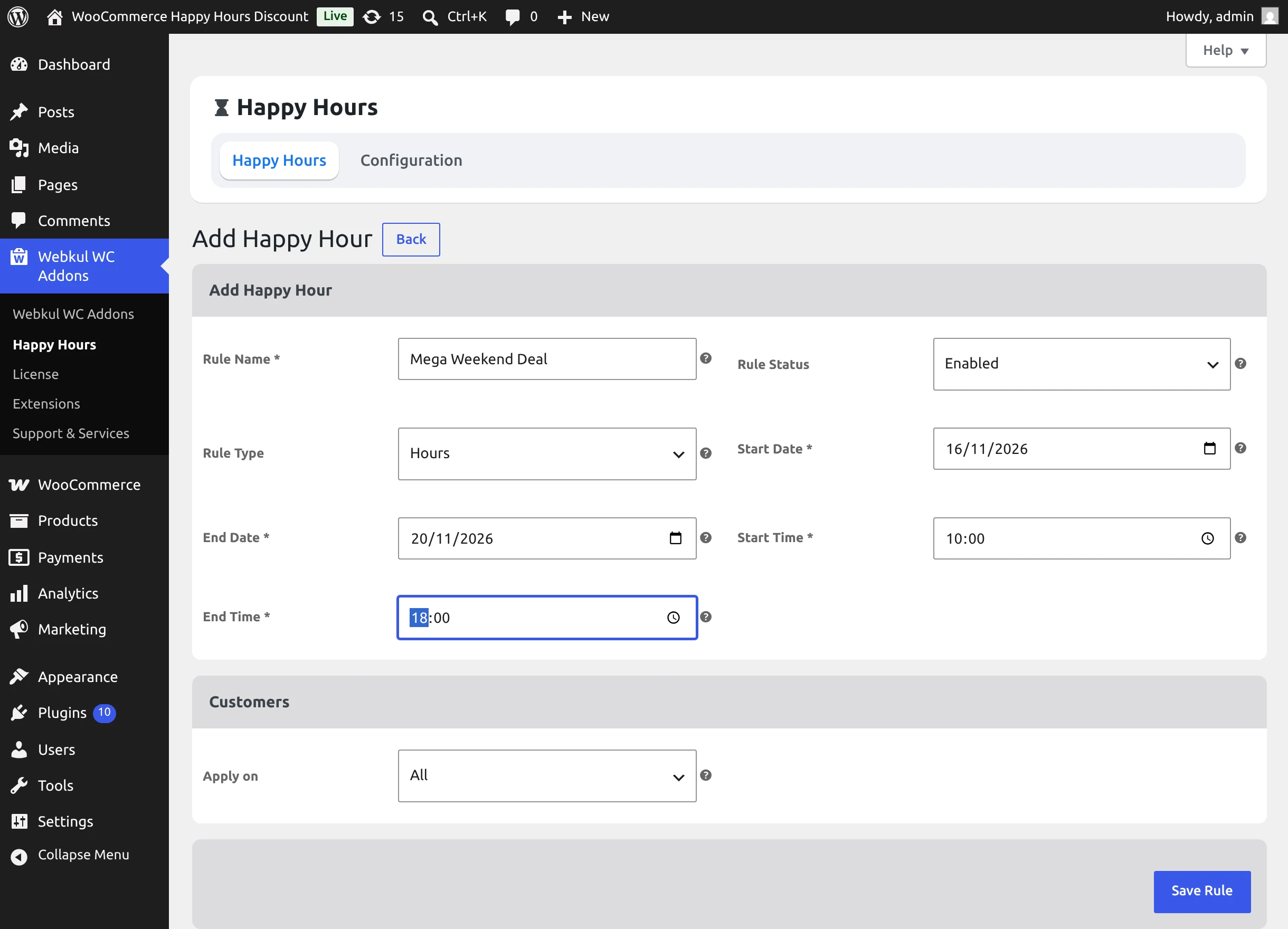
Step 1: Define Rule Identity & Timeframes
Fill out the primary parameters:
- Rule Name: Enter a recognizable promotion name (e.g.,
Mega Weekend Deal,Summer Flash Sale). Must be unique across your store. - Rule Status: Set to Enabled to allow the rule to execute during its scheduled timeframe, or Disabled to keep it in draft.
- Rule Type: Set to Hours (timeframe-based promotion).
- Start Date: Select the initial day when the promotion activates (must be greater than or equal to the current date).
- End Date: Select the concluding day (must be greater than or equal to the start date).
- Start Time: Specify the hour and minute when happy hour discounts go live (e.g.,
10:00). - End Time: Specify when happy hour discounts cease (e.g.,
18:00).
Overlap Prevention
The plugin enforces strict validation to ensure promotions remain clear: you cannot create two active rules whose date ranges conflict with one another. If an overlap is detected, WordPress will display an error message prompting you to adjust the dates.
Step 2: Customer Targeting & Eligibility
Under the Customers block, specify who qualifies for promotional discounts:
- All: Promotional pricing applies to every visitor, including guest shoppers and first-time buyers.
- Select Customer(s): Restricts the promotion exclusively to selected registered users. When selected, an interactive search input appears allowing you to search customers by username, display name, or email address.
Step 3: Configure Discount Rules
The Discount section allows you to define one or more discount conditions. You can click the Add discount button to chain multiple discounts within the same campaign.
1. Product-Level Discount Rules
Apply discounts directly to specific catalog products.
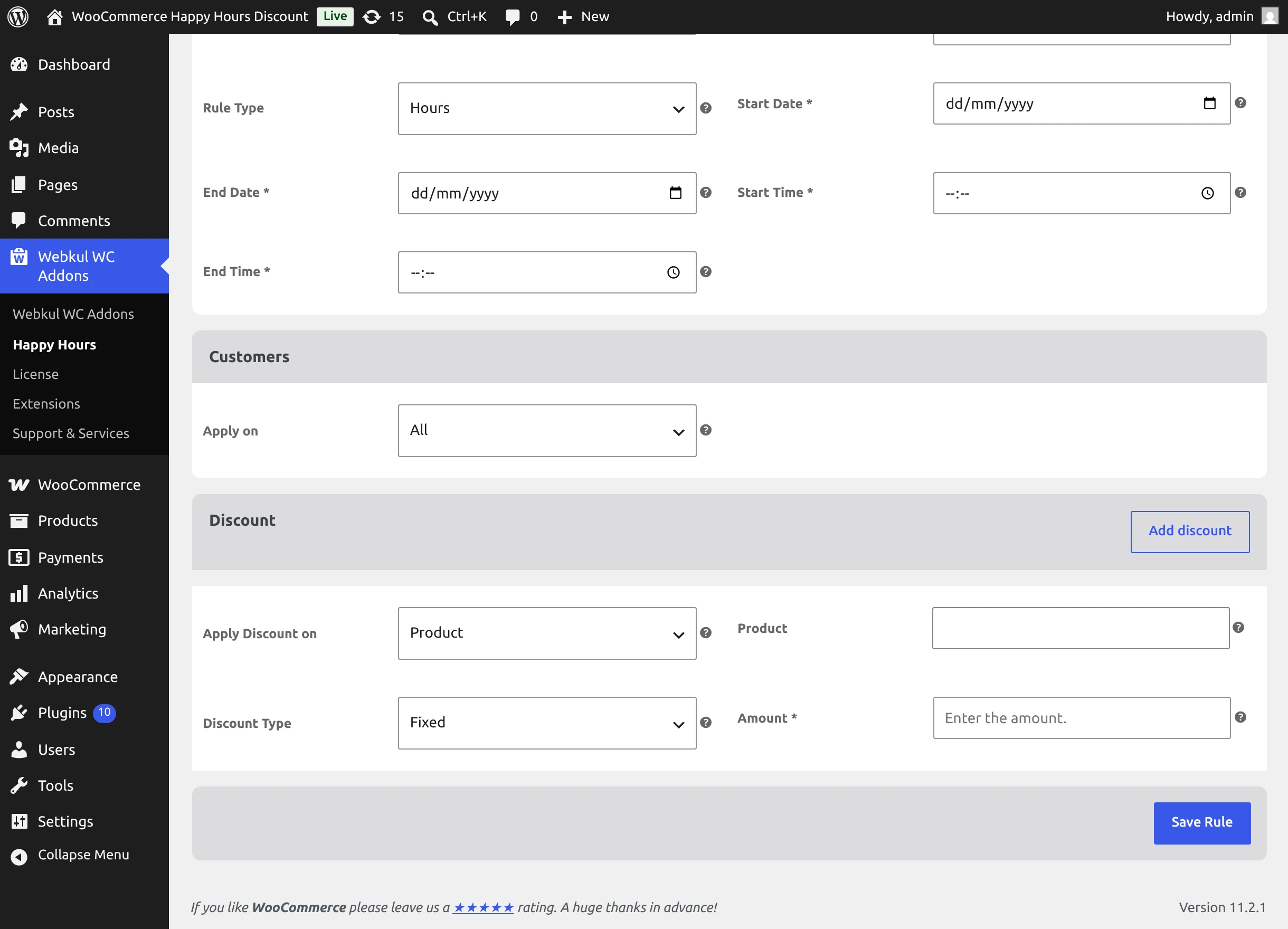
- Set Apply Discount on to Product.
- In the Product field, search and select one or more items from your catalog.
- Choose the Discount Type:
- Fixed: Deducts a specific amount (e.g.,
$7.00off each qualifying item). - Percentage: Deducts a percentage (e.g.,
20%off each item's regular price).
- Fixed: Deducts a specific amount (e.g.,
- Enter the numerical Amount value.
2. Category-Level Discount Rules
Apply discounts across entire catalog departments with a single rule.
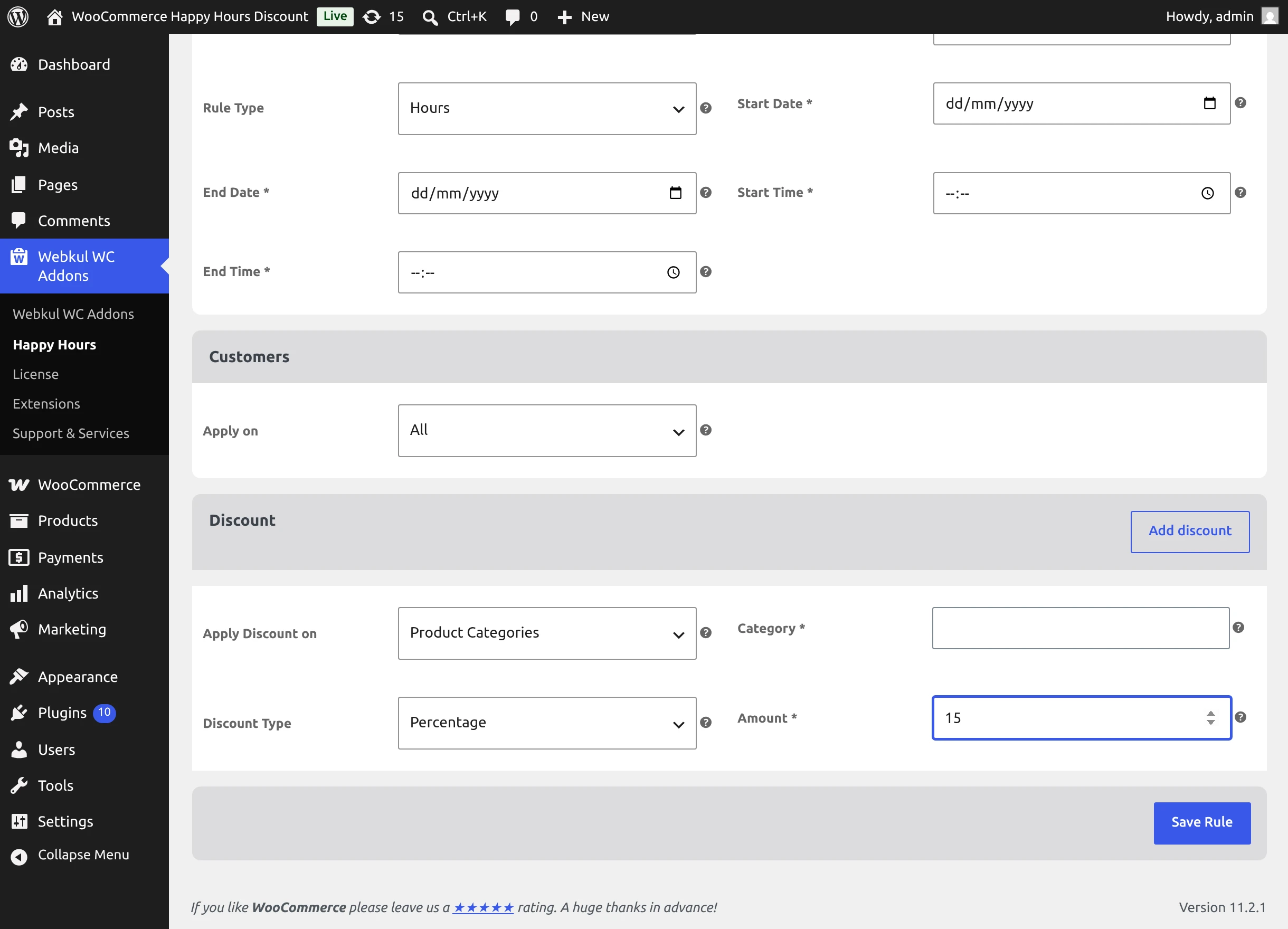
- Set Apply Discount on to Product Categories.
- Select one or more categories (e.g.,
Clothing,Accessories,Decor). - Choose the Discount Type (Fixed or Percentage).
- Enter the Amount to deduct from every product categorized within the selected taxonomy terms.
3. Cart Total-Based Discount Rules
Incentivize larger shopping baskets by granting tiered discounts based on overall order spend.
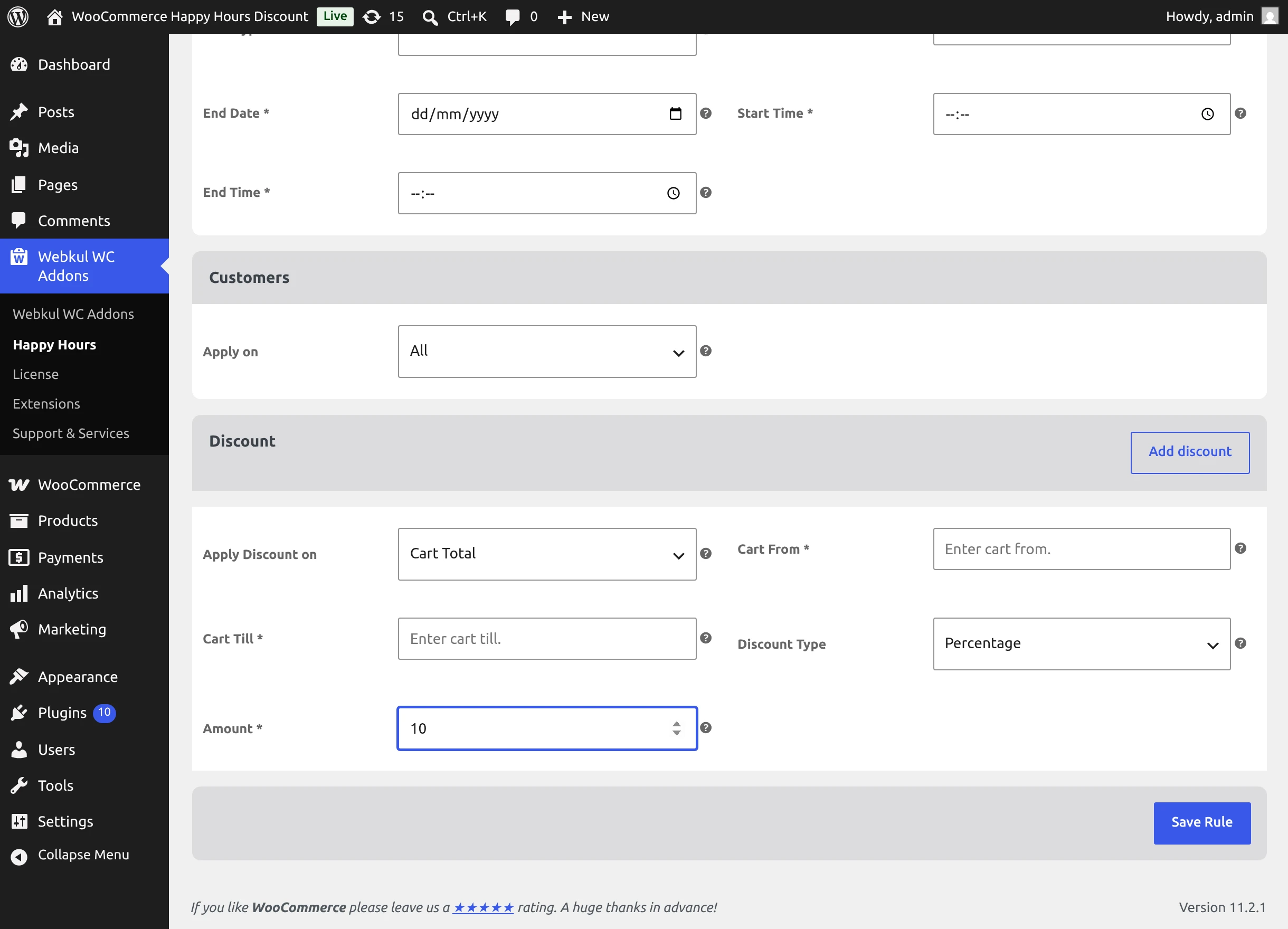
- Set Apply Discount on to Cart Total.
- Specify the Cart Total Minimum spending threshold (e.g.,
$50.00). - Specify the Cart Total Maximum spending cap (e.g.,
$250.00). - Select the Discount Type (Fixed dollar amount or Percentage).
- Enter the Amount.
When a customer's cart subtotal falls between the minimum and maximum threshold, the discount is automatically applied to their order as a dedicated negative promotional fee.
Multi-Level Discount Priority Logic
When a promotional campaign includes multiple discount criteria, the extension resolves calculations according to a strict priority hierarchy:
Product Discount (Highest Priority) → Category Discount (Secondary Priority) → Cart Total Discount (Order Level)
- Product Discount Priority: Specific product rules evaluate first and take precedence over category rules for matching items.
- Category Discount Priority: If an item does not have a dedicated product rule, any matching category discount applies next.
- Cart Total Priority: After all item-level product and category calculations are completed, the remaining cart subtotal is checked against the Cart Total minimum and maximum rules. If eligible, the cart discount is added as an overall order deduction fee.
Dual Protection
This priority hierarchy ensures products are not accidentally double-discounted at the item level, while still permitting merchants to reward high-value cart totals.
Saving & Managing Rules
- After configuring your dates, audience, and discount blocks, click Save Rule at the bottom of the form.
- The new rule will appear in your Happy Hours dashboard.
- To temporarily suspend a promotion without deleting it, change its status to Disabled or use the bulk actions on the list screen.
Next Step
Explore how these rules translate into the buyer's journey in Customer Workflow.