
Installation & Setup
Installing WooCommerce Happy Hours Discount takes only a few minutes. Follow the verified procedures below to install, activate, and configure the module on your WordPress and WooCommerce environment.
Prerequisites
Before beginning installation, ensure your environment meets the following conditions:
- WordPress 6.5 or higher installed and operational.
- WooCommerce 9.0 or higher installed and active.
- PHP 7.4 or higher (PHP 8.1+ recommended).
- An administrative account with plugin installation privileges.
Method 1: WordPress Admin Upload (Recommended)
- Log in to your WordPress Admin Dashboard.
- In the left navigation menu, navigate to Plugins → Add New Plugin.
- Click the Upload Plugin button located at the top of the screen to reveal the upload interface.
- Click Choose File and browse for the
happy-hours-discount-for-woocommerce.zipfile obtained upon purchase from the Webkul Store or CodeCanyon. - Click Install Now.
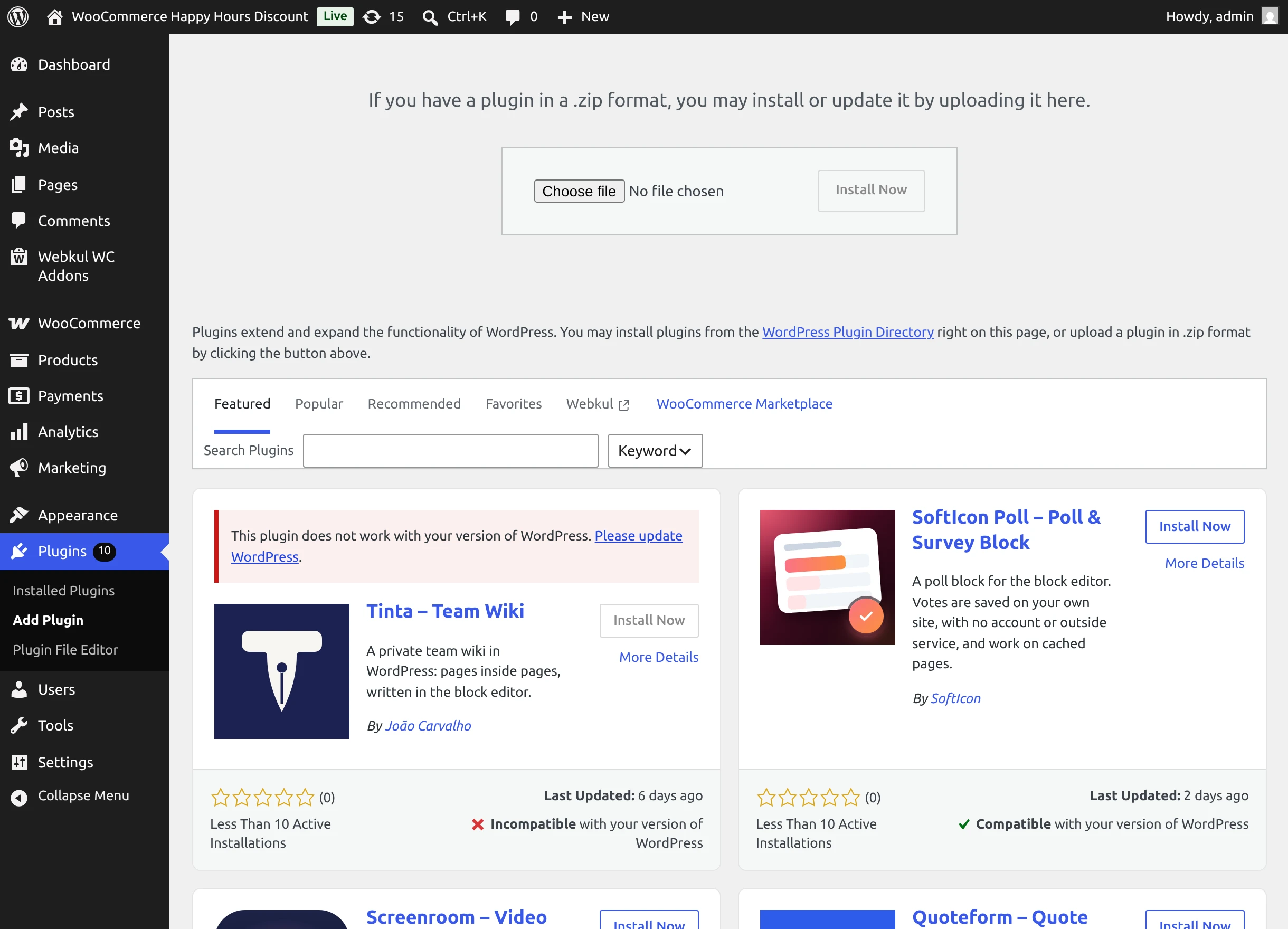
- Once WordPress finishes uploading and unpacking the archive, click Activate Plugin.
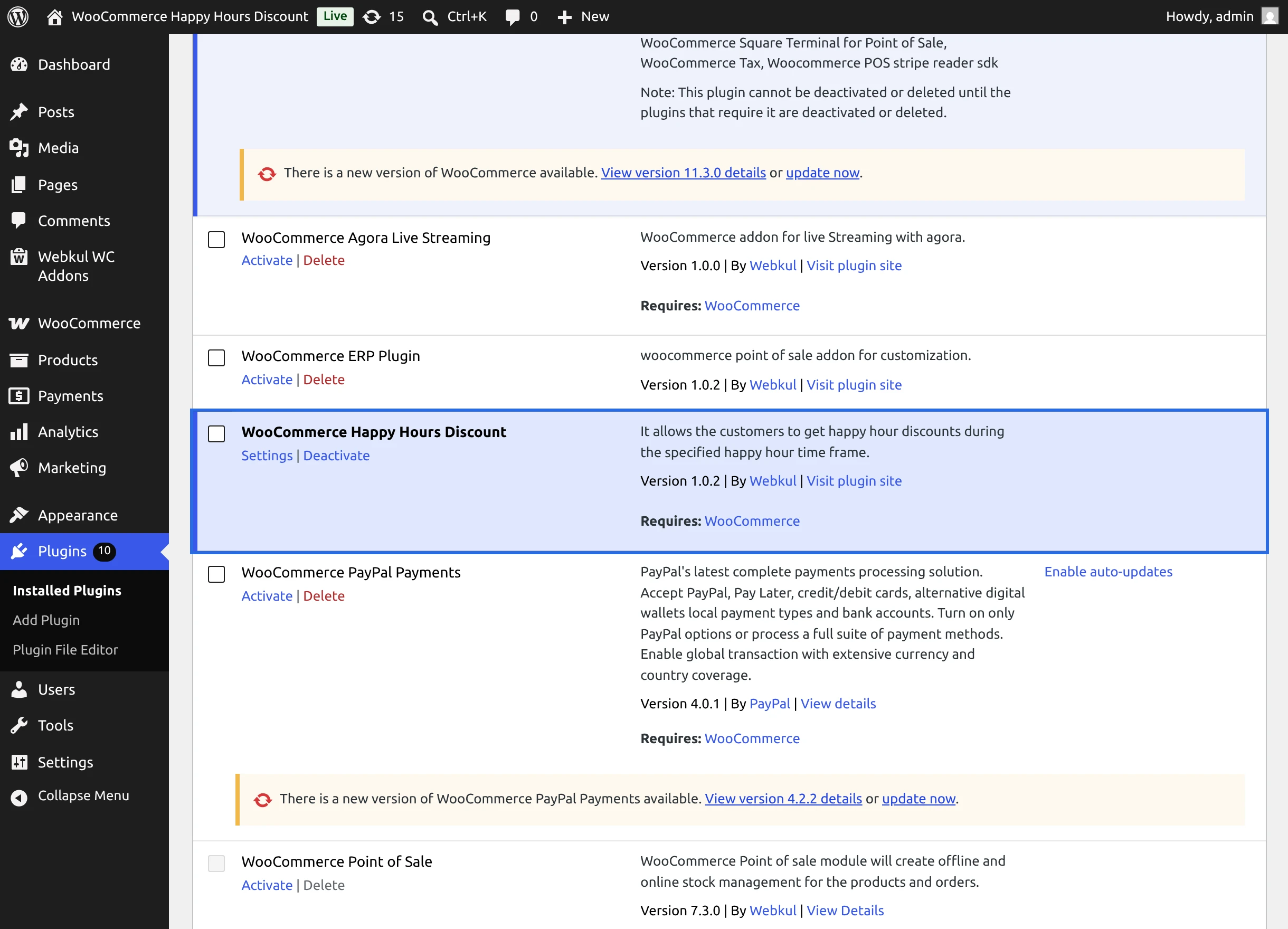
Upon successful activation, WooCommerce Happy Hours Discount appears highlighted in your Installed Plugins directory with active status, version 1.0.2 details, and a direct Settings action link.
Method 2: Manual Directory Installation (FTP / SSH)
If you manage your server via SFTP, SSH, or a hosting file manager:
- Extract the downloaded
happy-hours-discount-for-woocommerce.ziparchive on your local computer. - Connect to your server using your preferred SFTP or SSH client.
- Navigate to your WordPress installation's plugins directory:
/path-to-wordpress/wp-content/plugins/ - Upload the extracted
happy-hours-discount-for-woocommercefolder into the/wp-content/plugins/directory. - Ensure file permissions allow the web server to read the directory (typically
755for directories and644for files). - Log in to your WordPress Admin Dashboard, navigate to Plugins → Installed Plugins, locate WooCommerce Happy Hours Discount, and click Activate.
Multisite Network Compatibility
WooCommerce Happy Hours Discount is fully certified for WordPress Multisite networks:
- Network-Wide Activation: In the Network Admin dashboard (Network Admin → Plugins), click Network Activate on WooCommerce Happy Hours Discount.
- Automated Database Table Provisioning: The plugin automatically creates the dedicated database table (
wp_wkwc_hhd_happy_hoursor subsite-prefixed tablewp_{id}_wkwc_hhd_happy_hours) across all existing network blogs and any newly provisioned subsites. - Individual Subsite Configuration: Each subsite store retains its own independent promotional rules and appearance settings.
License Activation & Automatic Updates
To receive automatic updates and feature releases directly within your WordPress Plugins page:
- Navigate to Plugins → Installed Plugins.
- Locate the notification prompt for WooCommerce Happy Hours Discount.
- Enter your valid Webkul or CodeCanyon Purchase Code.
- Save the registration to link your license and unlock one-click updates.
Module Localization
The plugin comes complete with a .pot language template located in the languages/ directory. You can easily translate all admin and storefront strings into any language using Poedit or translation plugins such as Loco Translate.
Next Step
Once activated, proceed to Admin Configuration to configure your storefront banner settings and customize promotional labels.