
Customer End Workflow
The customer-facing experience in WooCommerce Happy Hours Discount is designed to maximize promotional impact while keeping the checkout process frictionless. Shoppers never need to memorize, copy, or paste coupon codes; all discounts are applied automatically when conditions are satisfied.
1. Storefront Hanging Signboard Countdown Banner
When a Happy Hour rule is active and Display Timer On Shop Page is enabled in settings, visitors navigating to your WooCommerce Shop page (/shop/) are greeted by a prominent hanging signboard banner.
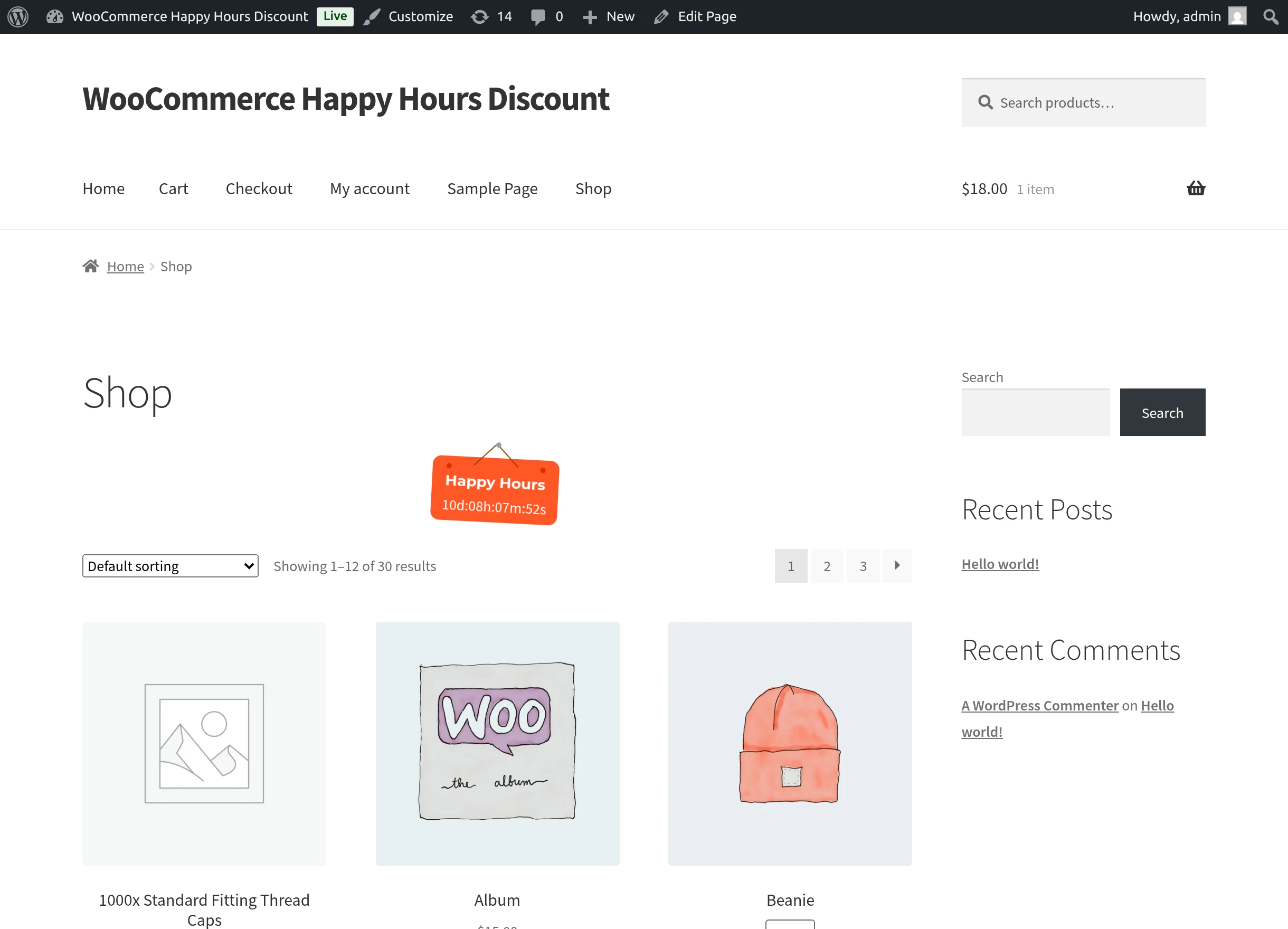
Visual & Interactive Highlights
- Hanging Signboard Motif: Features a distinctive hanging signboard design suspended by decorative strings and pins.
- Customized Branding: The header displays your customized Countdown Timer Text (e.g.,
Happy Hours) rendered in your chosen text color over the configured background hue. - Dynamic Real-Time Clock: Displays remaining time down to the second in the format:
Days : Hours : Minutes : Seconds(e.g.,10d:08h:14m:12s). - Zero-Flicker Client-Side JavaScript: The countdown animates smoothly every second via browser JavaScript without requiring any background page refreshes.
Sitewide Urgency with Shortcodes
To display this animated countdown signboard on your store's homepage, blog announcements, or promotional landing pages, insert the shortcode:
[wkwc_hhd_happy_hours_shortcode]
2. Automated Product & Category Cart Savings
When shoppers add promotional products or items from discounted categories to their shopping cart, the extension automatically recalculates line totals and applies discounts seamlessly.
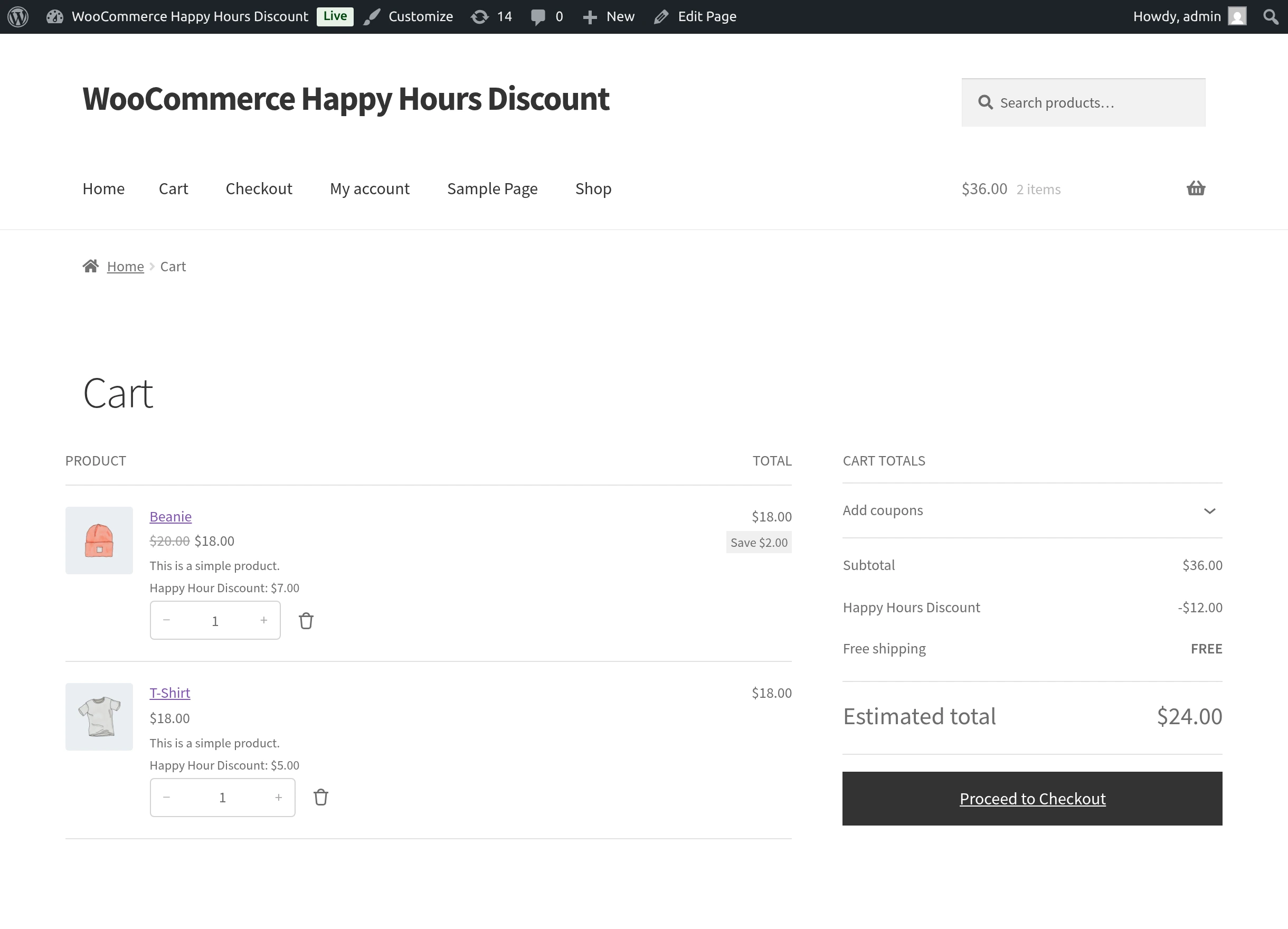
How Savings Appear in the Cart
- Itemized Line-Item Breakdown: Directly beneath qualifying products (both specific promotional items and eligible category items), shoppers see the configured Happy Hour Discount Text along with the exact dollar savings deducted per unit.
- Dynamic Fee Adjustments: The cumulative promotional discount is aggregated into a transparent negative fee line (e.g.,
Happy Hours Discount: -$12.00) in the cart totals summary. - Instant Recalculation: Adjusting quantities in the cart instantly recalculates per-unit savings and updates the estimated order total in real time.
3. Seamless Checkout Experience
The extension integrates smoothly with both classic WooCommerce checkout forms and modern block-based Cart & Checkout templates:
- Coupon Stacking: Happy hour discounts function alongside standard WooCommerce coupons (unless restricted by standard store coupon settings).
- Tax Accuracy: Negative happy hour discount fees are handled without introducing tax miscalculations, ensuring the merchant's net and gross totals balance perfectly.
- No Manual Steps Required: Customers proceed from cart to payment without needing to enter promo codes.
4. Order Confirmation & Customer Account Transparency
Following successful payment, the customer is directed to the standard WooCommerce Order Received (Thank You) confirmation page and can revisit the full itemized breakdown anytime under My Account → Orders → View Order.
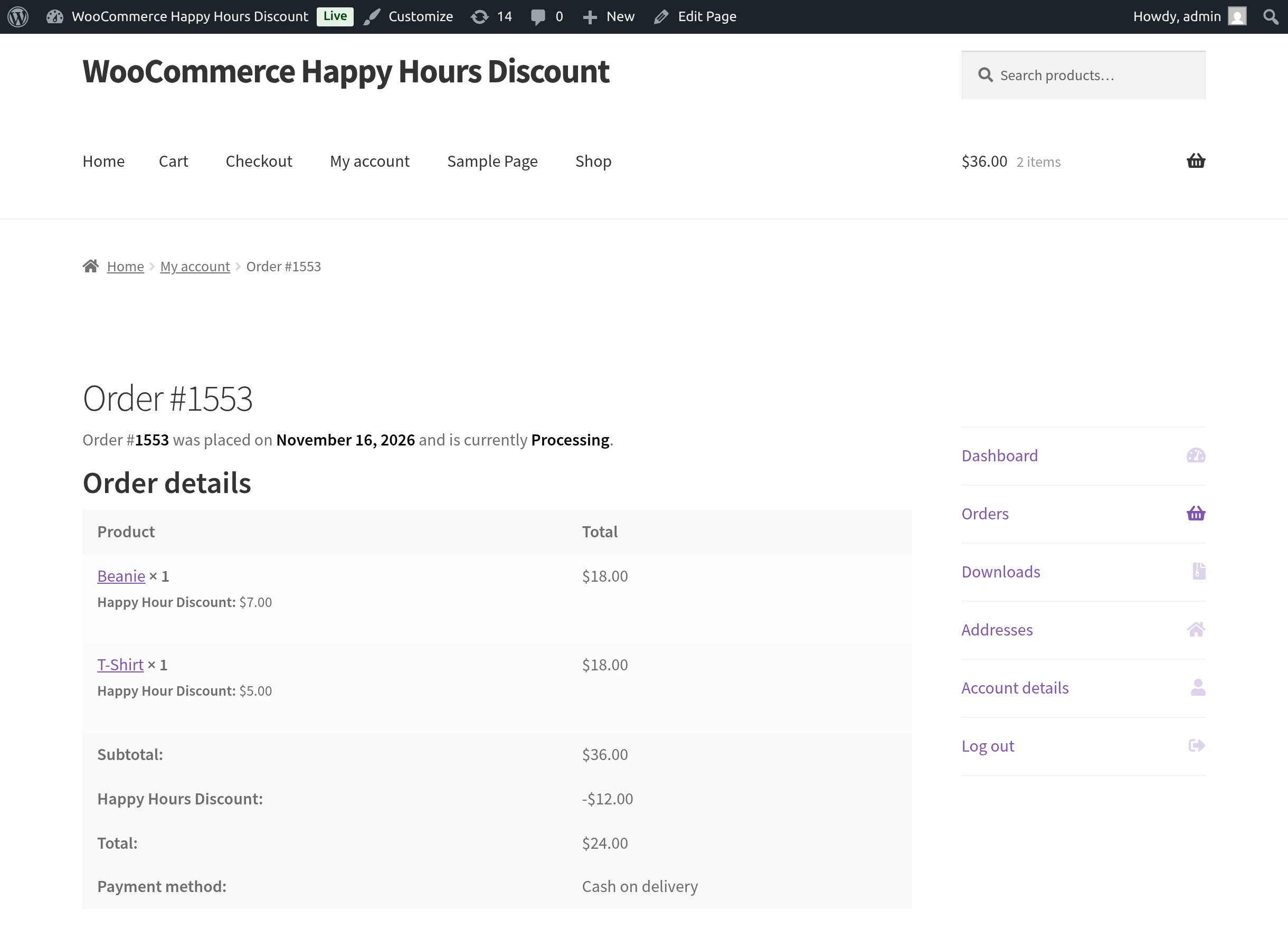
Where Happy Hour Details Are Recorded
- Order Received Screen: Itemized promotional savings appear directly alongside each purchased product line item and in the order totals summary.
- Order Confirmation Emails: Customers receive standard WooCommerce transaction emails containing the itemized happy hour discount metadata.
- My Account Order History: Customers can revisit My Account → Orders → View Order at any time to review the promotional discounts applied to their previous orders.
- Administrative Backend Records: Store administrators viewing orders under WooCommerce → Orders (or WooCommerce → Orders (HPOS)) see the identical promotional metadata recorded directly in the order line items.
Next Step
For technical specifications, compatibility details, and troubleshooting scenarios, refer to FAQ & Notes.