
Introduction & Overview
The Tranzila Payment for WooCommerce POS plugin is a secure, high-performance retail payment integration designed by Webkul. It serves as an addon for the POS for WooCommerce plugin, allowing store owners to link physical credit card terminals operated by Tranzila directly to their digital Point of Sale (POS) checkout interface.
By mapping unique terminal credentials (such as POS ID and Supplier Name) to specific retail outlets, the addon routes payments directly to the correct business accounts and logs reference codes in WooCommerce POS order metadata, eliminating manual accounting and entry errors at physical cash registers.
Integration Workflow
The Tranzila Payment for WooCommerce POS integration connects your physical payment terminal, WooCommerce POS register, and Tranzila payment gateway in a seamless process:
- Checkout Selection: The cashier selects Tranzila Terminal as the payment method in the POS register.
- Payment Processing: The POS system communicates with the mapped Tranzila physical terminal, forwarding transaction details and payable amounts.
- Transaction Authorization: The customer swipes, dips, or taps their card on the terminal device, and Tranzila authenticates the charge in real time.
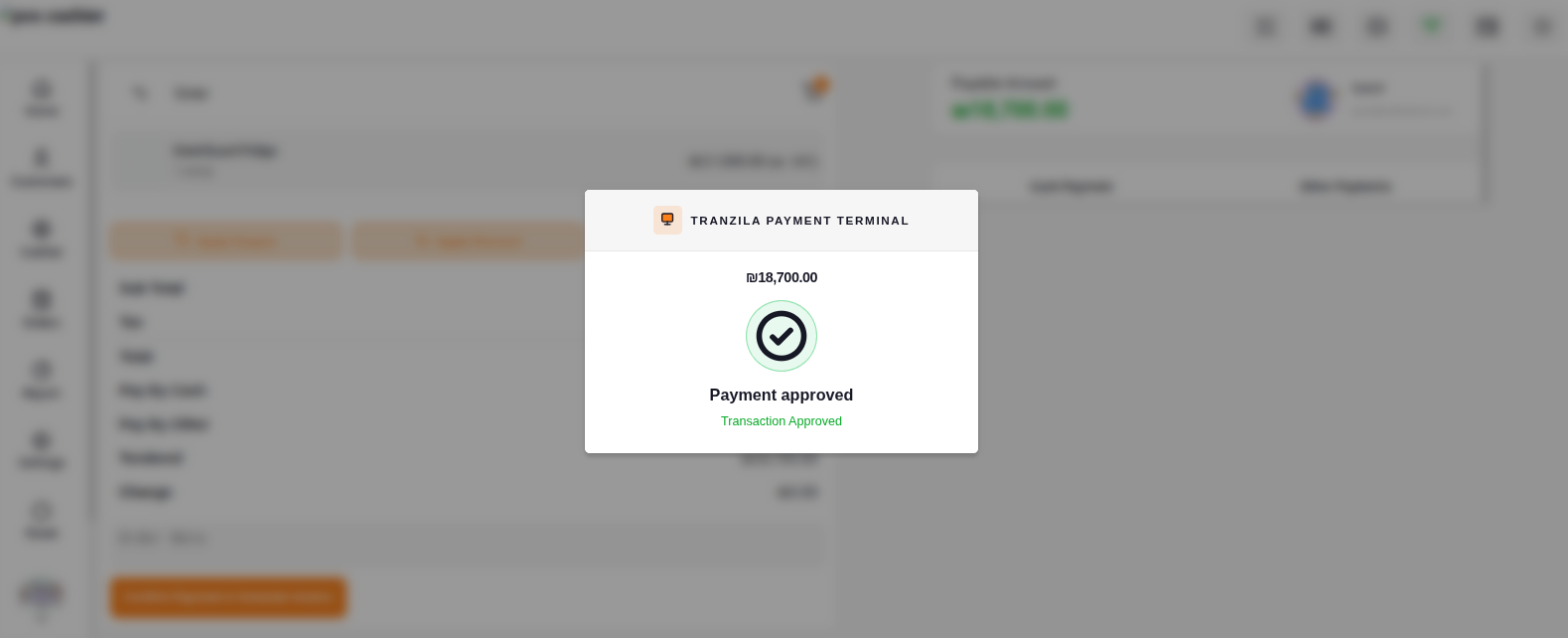
- Order Status & Audit: Upon successful authorization, WooCommerce POS automatically marks the order as Completed, logs transaction metadata (Authorization Code, Reference ID, POS ID), and presents the successful payment confirmation modal.
Real-Time Transaction Verification & Context
Once Tranzila authorizes the transaction:
- Immediate Feedback: A payment success modal displays the approved status along with order details directly on the cashier screen.
- Automatic Order State Transition: Order status in WooCommerce changes automatically from Pending to Completed, eliminating manual updates.
- Audit Metadata Logging: The system records essential audit fields including Order ID, Total Paid, Gateway Name, Authorization Code, Transaction Reference ID, and Terminal POS ID for complete traceability.
Core Customer & Staff Workflows
1. From the End-Shopper's Perspective
- Frictionless Card Payments: Customers complete checkout quickly by swiping or inserting their credit card into the physical Tranzila card reader located at the checkout counter.
- Unified Sales Receipts: Once the terminal processes the charge, the cashier prints a standard WooCommerce POS receipt showing details of the sale alongside the terminal payment auth reference.
2. From the Cashier & Operator's Perspective
- Automated POS Registration: Cashiers don't have to manually enter the transaction amount or transaction ID into the POS register. Selecting "Tranzila Terminal" automatically matches transaction status on the terminal to the cart order.
- Reduced Human Error: Direct API verification ensures that an order cannot be logged as "Paid" unless the terminal returns a valid success authorization token from Tranzila.
3. From the Store Owner / Admin's Perspective
- Isolated Multi-Outlet Accounts: Store owners with multiple physical storefronts can map separate Tranzila terminal accounts to different POS Outlets, ensuring sales revenue is deposited into the correct bank account.
- Environment Separation: Secure testing environments let administrators verify connection integrity with Tranzila servers using sandbox credentials before going live.
[!TIP] Performance Recommendation: Always match the Transaction Mode in your Outlet Settings to the active terminal configuration. Running a sandbox transaction on a live production terminal (or vice versa) will result in immediate API rejection.