
Configuration & Settings
To ensure tax calculations are calculated correctly, administrators must configure the credentials, verify the physical location settings for each retail outlet, and activate the POS settings.
1. Avalara AvaTax Credentials Setup
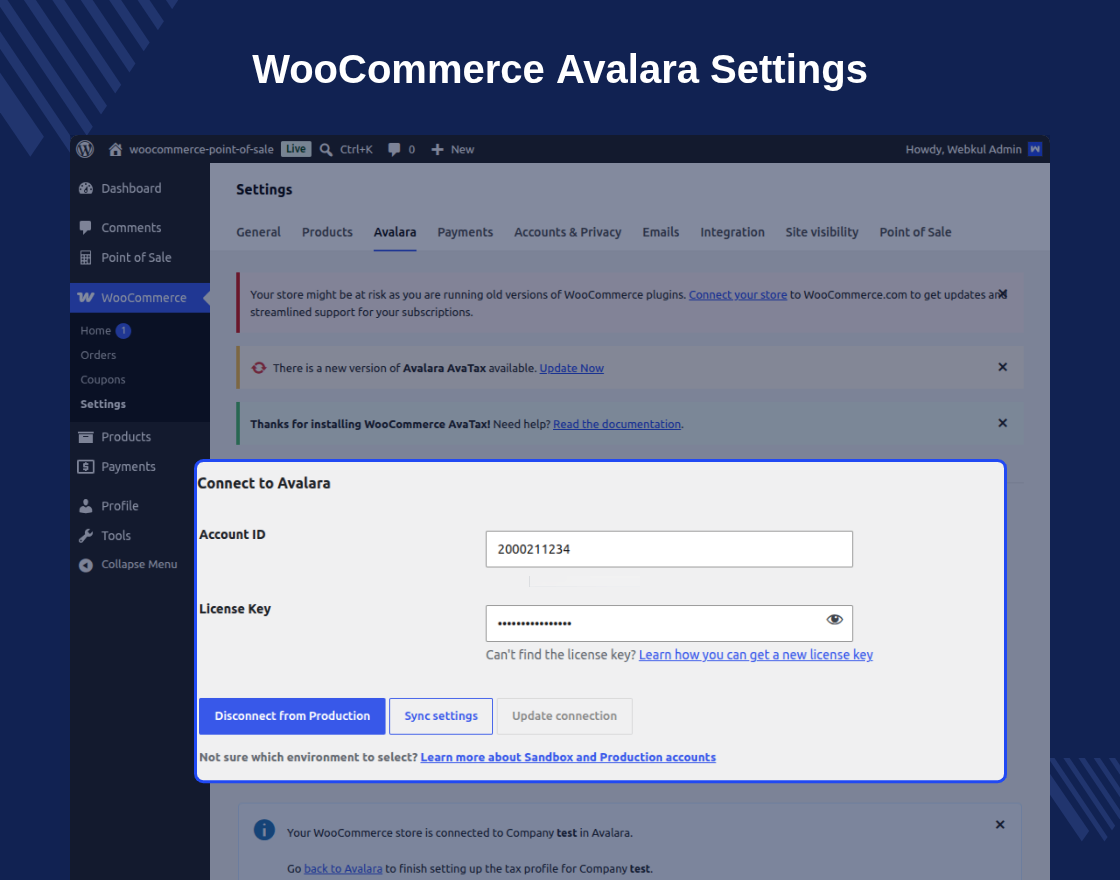
Because the plugin acts as a bridge for the official WooCommerce AvaTax extension, you must first input your API credentials in the core AvaTax configuration screen:
- Navigate to WooCommerce → Settings → Tax in your WordPress Admin.
- Click on the AvaTax subtab (or section).
- Set the following configuration settings:
- Environment: Select Sandbox (for testing) or Production (for live checkout transactions).
- Account ID & License Key: Enter the credentials obtained from your Avalara Admin Console.
- Company Code: Enter your active company identifier registered in Avalara.
- Click Save Changes to verify the credentials connection.
Additional Tax Calculations Settings
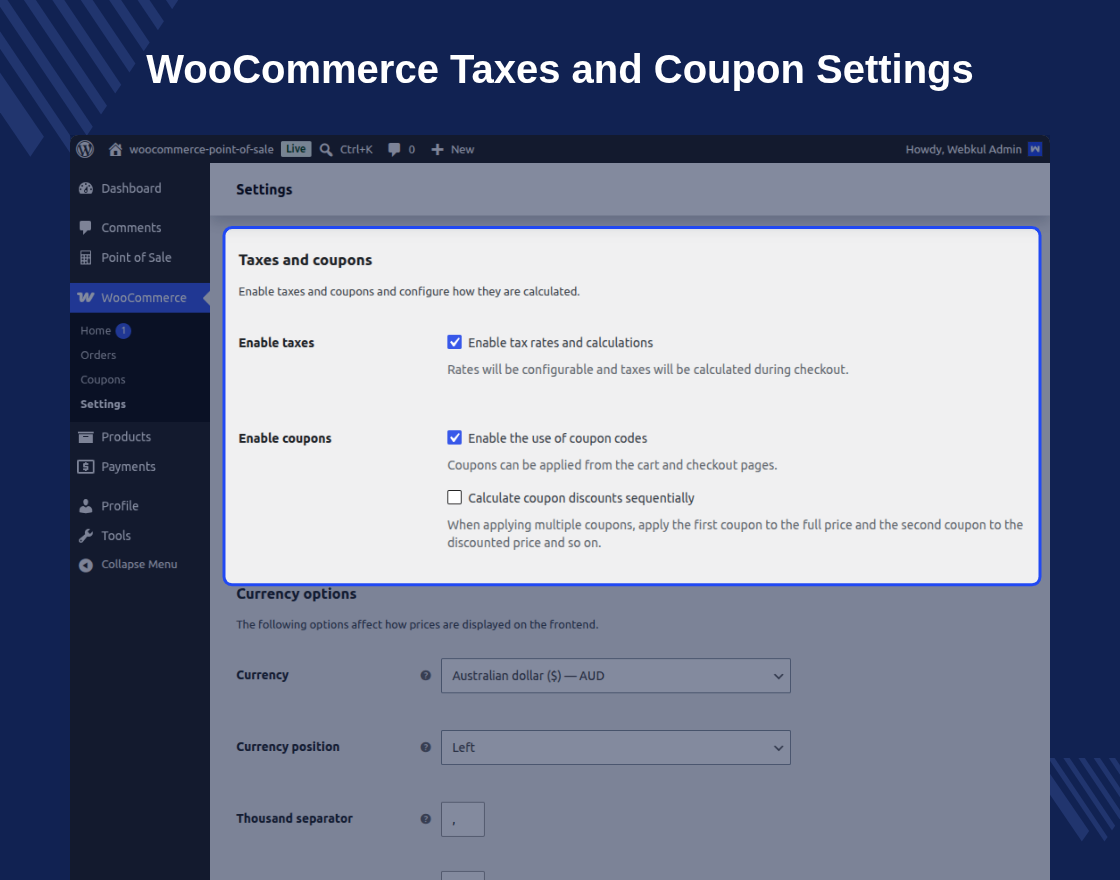
You can also specify how AvaTax handles customer calculations, addressing parameters, and coupons:
2. Setting Up POS Outlet Addresses
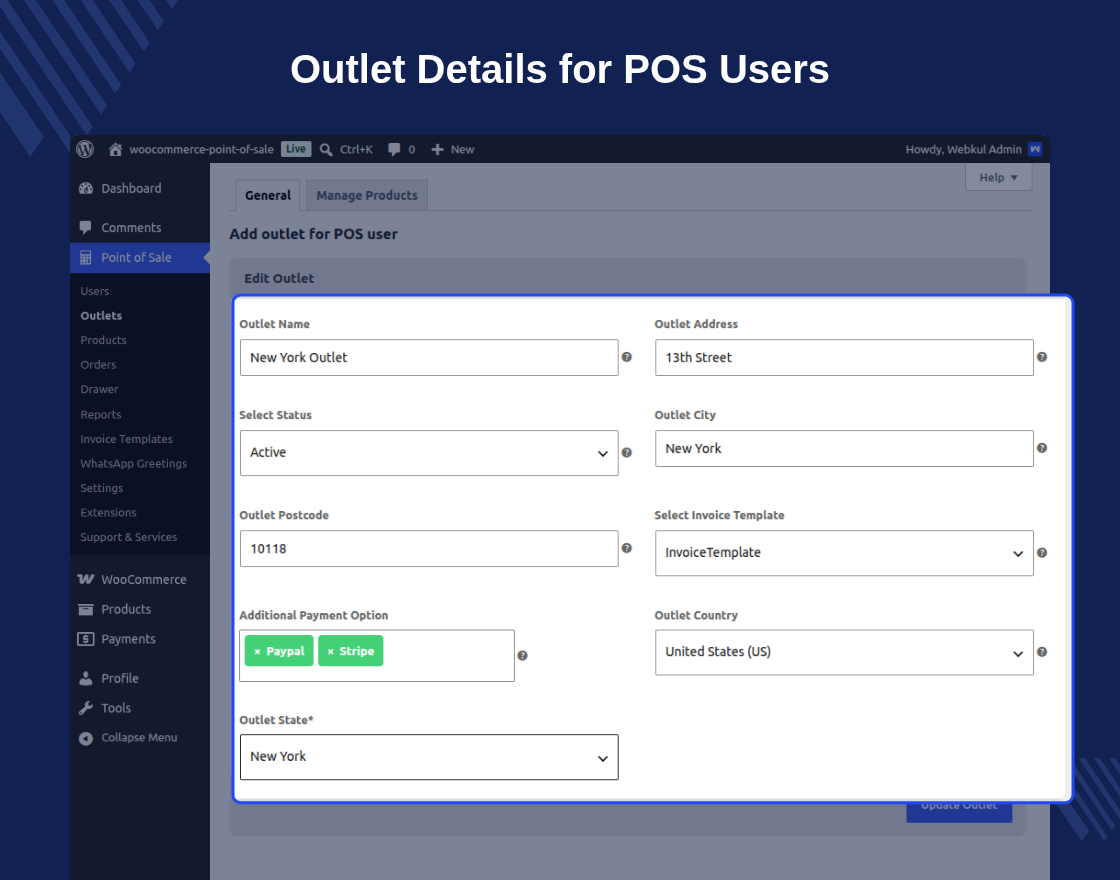
Since physical POS checkouts occur at the store register rather than the customer's shipping address, outlet addresses are used as both the tax origin and destination. Each outlet must have a complete, verified physical address.
To configure outlet addresses:
- Navigate to Point of Sale → Outlets in the WordPress menu.
- Click Edit on your existing outlet (or click Add New).
- Under the Outlet Address section, fill in all address components accurately:
- Street Address
- City
- State / Province (Use standard state codes, e.g.,
CAfor California) - Postcode / ZIP Code
- Country
- Click Update or Save.
[!WARNING] If an outlet's ZIP code or state code is missing or formatted incorrectly, the Avalara API may fail to resolve the tax jurisdiction. In this scenario, the plugin will fallback to native WooCommerce tax tables.
3. POS Settings & Tax Actions
No additional settings tab is required. Once both dependencies are active, the tax overrides are enabled automatically.
Triggering Tax Calculations
- Tax calculations occur automatically on the POS cashier screen whenever items are added or quantities are updated (debounced by 600ms to optimize API requests).
- Cashiers can also manually trigger a recalculation by clicking the Calculate Tax button located in the POS Cart Features menu.
4. Tax Exemptions & Customer Setup
To process tax-exempt sales (e.g., resale certificates or government purchases):
- Register the Customer: Create or search for a customer in the POS cashier interface.
- Assign Exemption Code: Under the customer's profile settings in WooCommerce, configure the Tax Exemption Code or Exemption ID supported by Avalara.
- When the customer is loaded into the POS checkout cart, the plugin transmits their exemption code to Avalara, resulting in tax-exempt calculation lines automatically.