
Customer Portal & Experience
The plugin ensures a seamless post-purchase experience by delivering branded documents directly to your buyers. This guide details how customers access and download their invoices.
Transactional Email Attachments
When a customer completes a purchase or their order status changes, they receive standard WooCommerce notifications. The plugin inserts generated PDFs directly into these emails as file attachments:
- Invoice PDF: Attached to the Order Completed or Customer Invoice email once payment is confirmed.
- Proforma PDF: Attached to the Order Processing email to serve as a preliminary payment receipt.
- Credit Note PDF: Attached to the Refunded Order email to confirm return details.
Customer "My Account" Portal
If enabled in settings, registered customers can access and download their historical invoices at any time from their personal dashboard.
1. The Orders History Grid
Under My Account → Orders, customers see a listing of their purchases.
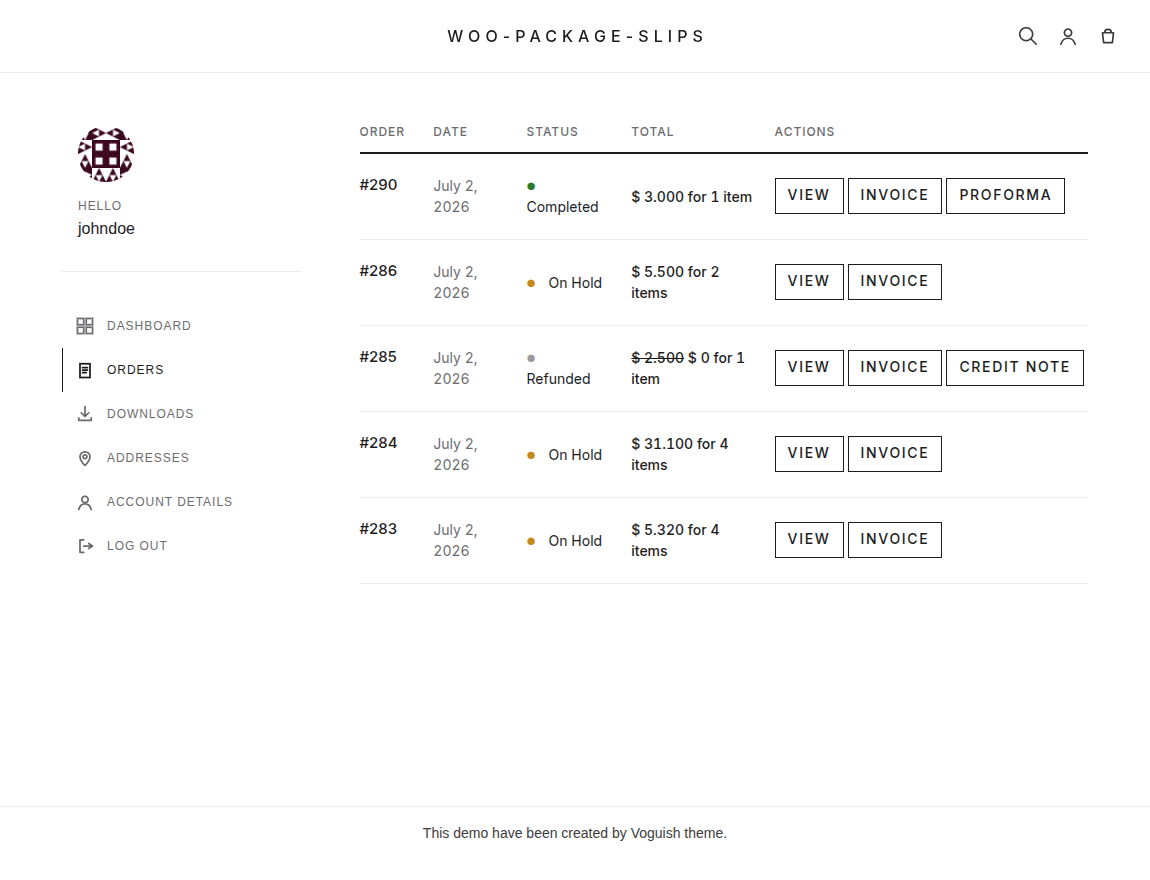
- Invoice Download Button: A dedicated link appears in the order table, allowing the customer to save their tax invoice locally with a single click.
2. The Order Detail Screen
When a customer views the details of a specific order (My Account → Orders → View), a download link is positioned under the order meta summary header.
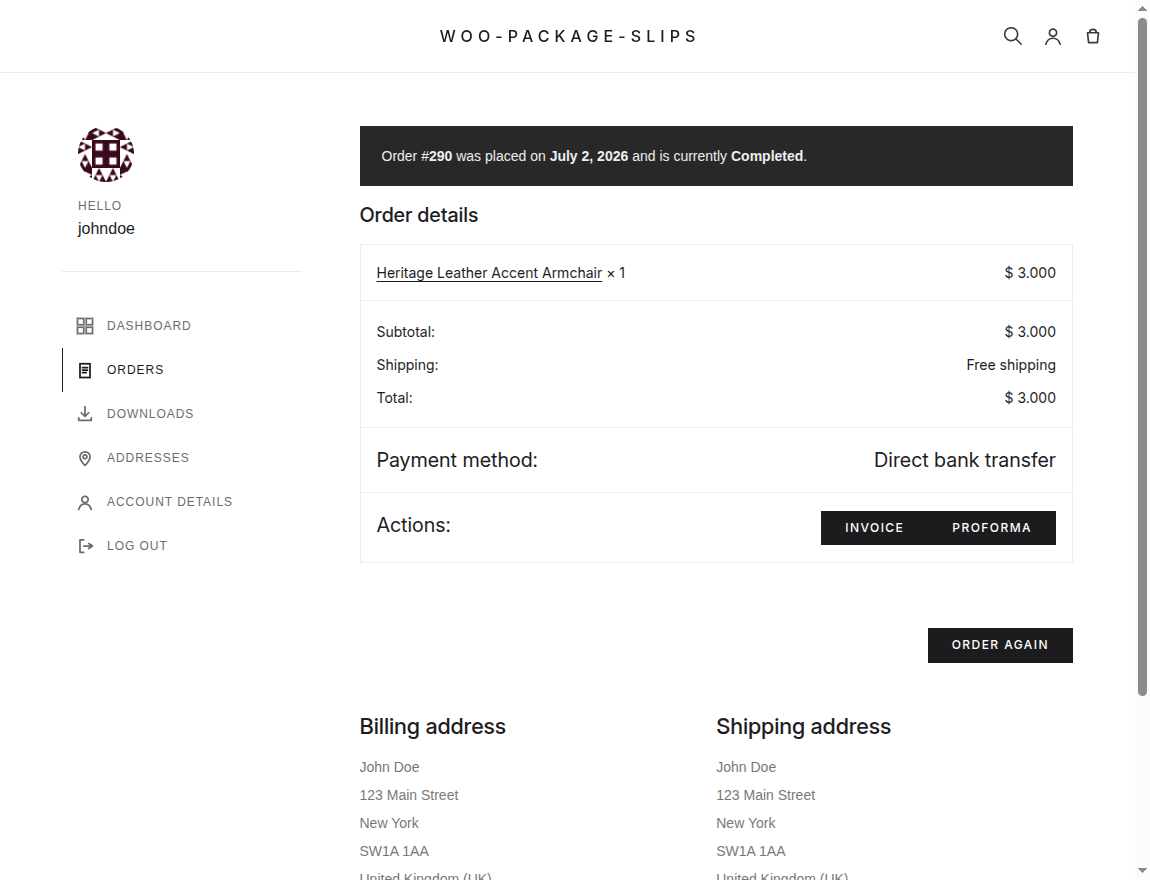
- Download Link: Clicking the Download Invoice button immediately serves the PDF using the shop's viewing mode configurations.
Sample PDF Document Preview
Below is a preview of a standard, branded invoice generated by the plugin's template engine:
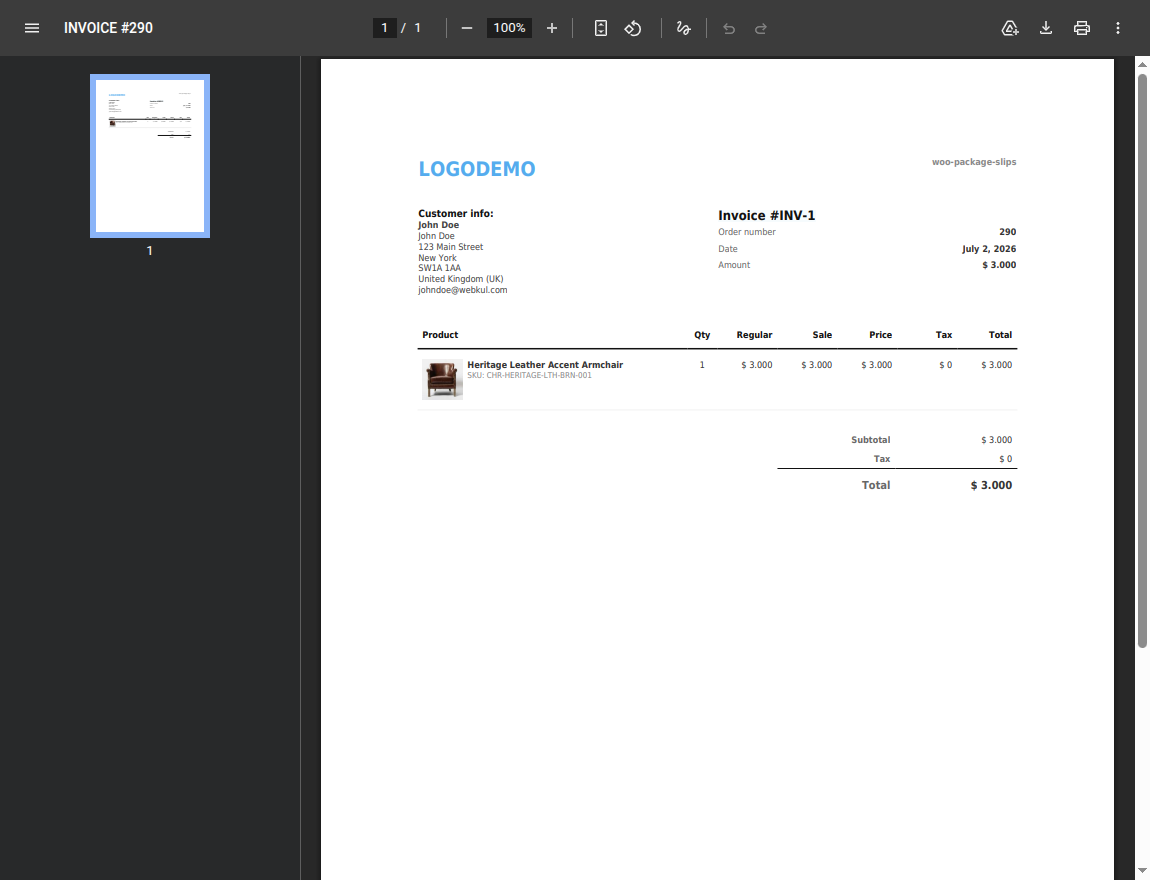
Highlighted Elements:
- Company Branding: Displays the custom uploaded logo, aligned left, with corporate header details.
- Metadata Grid: Clean table listing order date, order ID, payment method, and legal invoice sequence numbers.
- Billing & Shipping: Aligned side-by-side columns to separate payment responsibility from delivery details.
- Items Table: Item descriptions, quantities, price, and clear tax calculations.
- Totals Section: Detailed order totals with subtotal, tax breakdown, and shipping details.