Order Management & Fulfillment
The plugin integrates document controls directly into the WooCommerce order fulfillment process. Store owners and warehouse teams can manage documents individually from the order detail screen or process them in bulk from the main document portal.
Single Order Management Screen
When viewing or editing a single order (WooCommerce → Orders → Click on an order), a new PDF Documents meta box appears in the right-hand sidebar.
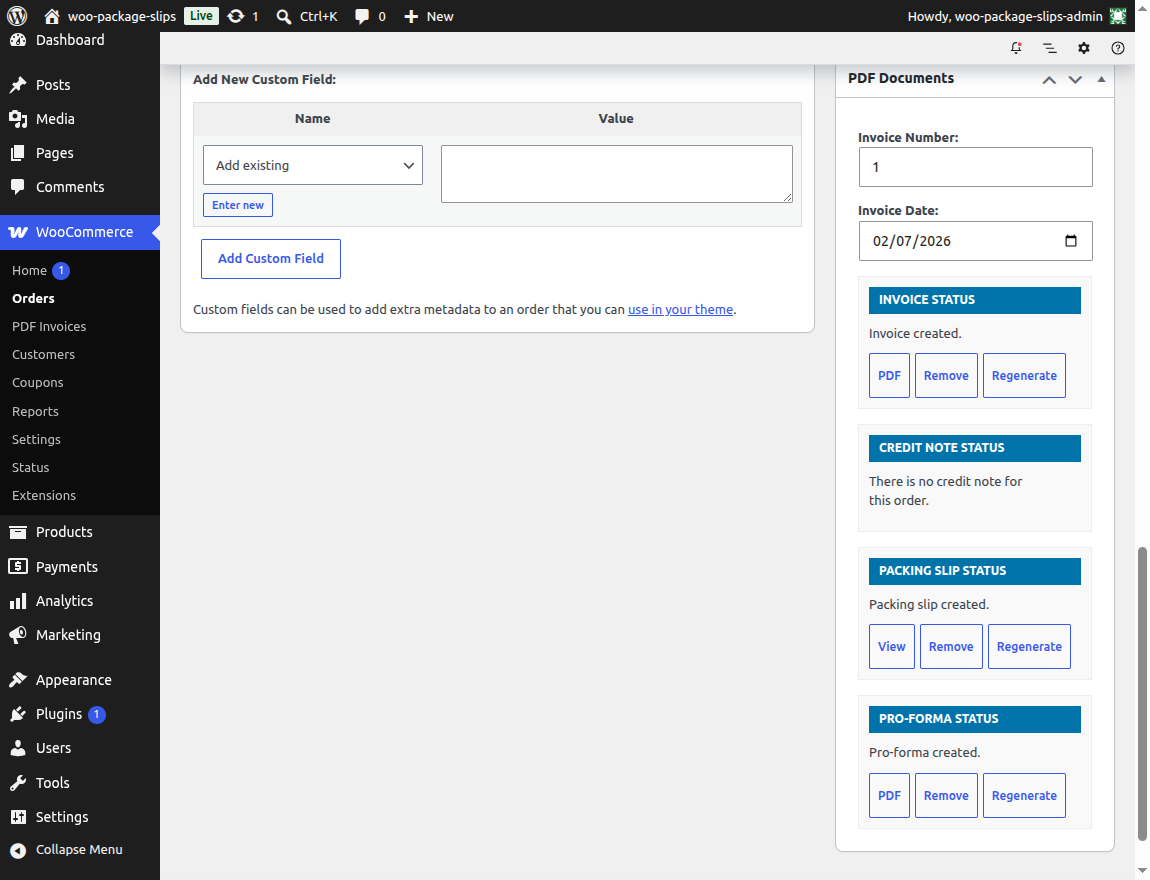
Available Sidebar Actions:
- View Document: Click on the document title (e.g., Invoice or Packing Slip) to open the PDF in your browser or download it (depending on your chosen Viewing Mode).
- Create Document: If a document type has not been generated for the order yet, click the Generate button to create it.
- Regenerate Document: Click the Regenerate (refresh icon) button if you modify the order items, customer addresses, or tax calculations. This updates the PDF document contents with the new billing totals.
- Delete Document: Click the Delete (trash icon) button to remove the document record from the database. Note that deleting a document allows you to reset the numbering sequence if needed.
WooCommerce Order List Columns
To save time during packing and fulfillment, shortcuts are embedded directly into the main WooCommerce Orders list table (WooCommerce → Orders).
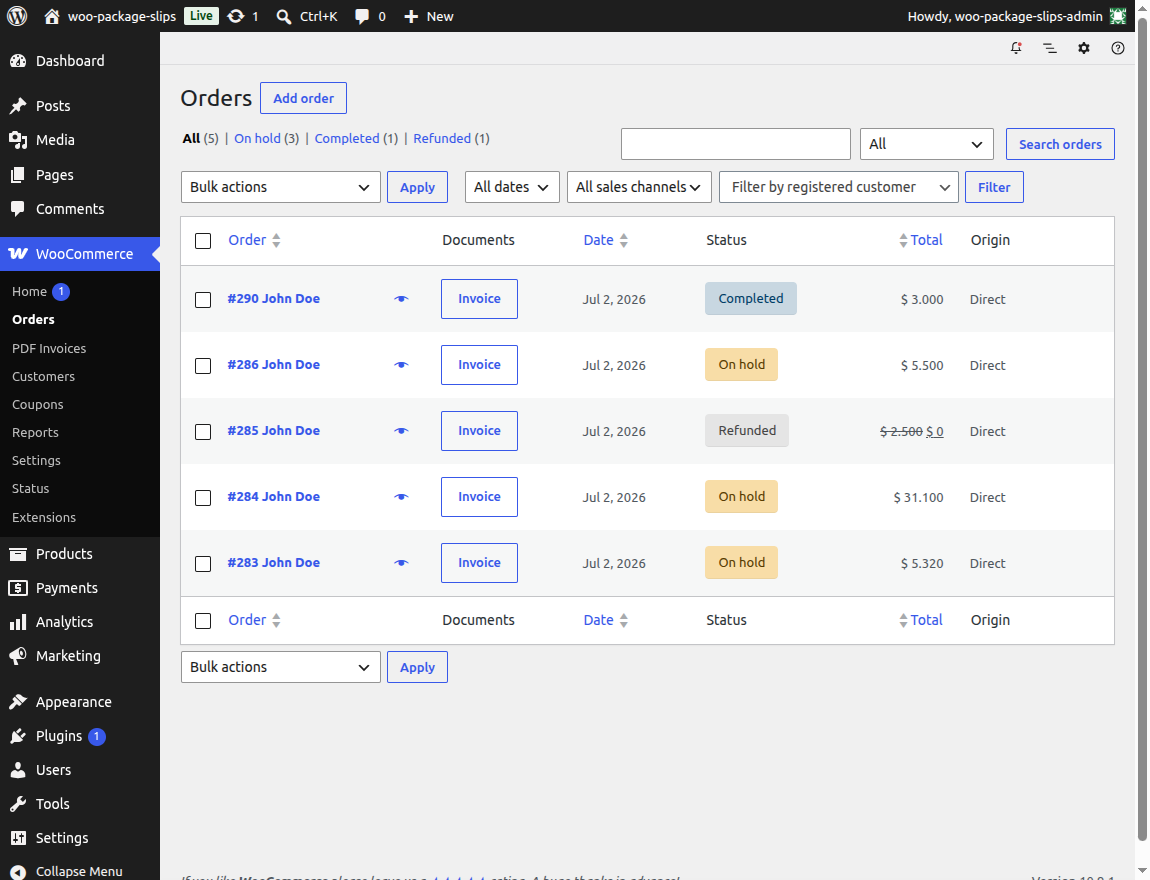
- PDF Documents Column: Renders action buttons for each enabled document.
- Fulfillment Action: Click the corresponding icon (e.g., Page icon for Invoice, Box icon for Packing Slip) to preview or download the file immediately without loading the entire order detail page.
Central PDF Invoices Dashboard Portal
Navigate to WooCommerce → PDF Invoices to view a central repository of all documents generated by your store.
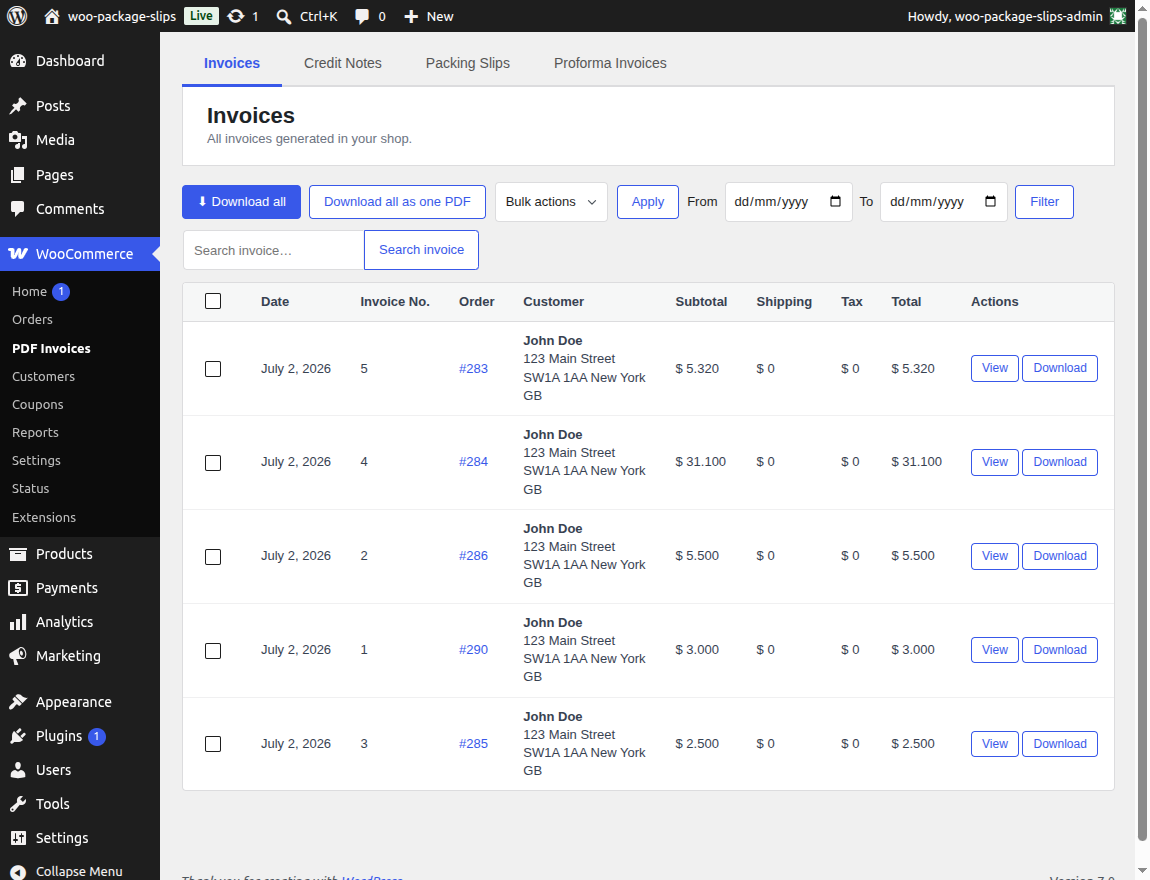
Key Portal Features:
1. Document Filter Tabs
Easily toggle between tabs to view list records of:
- Invoices
- Credit Notes
- Packing Slips
- Proforma Invoices
- Picking Lists
2. Search & Date Range Filters
- Search Field: Type an invoice number (e.g.,
INV-2026-00045) or order ID to find the matching transaction record. - Date Filters: Enter a From date and To date and click Filter to restrict the listing to a specific tax month, quarter, or year.
3. Bulk Operations
- ZIP Archive Download: Select multiple documents (or filter by date range) and click the Download all button. This compiles all selected invoices into a single structured ZIP file for your accounting archives.
- Merged PDF Download: Click the Download all as one PDF button to merge multiple documents into a single, continuous PDF file. This is highly useful for sending a single print command to a warehouse printer for all orders processed during a shift.
- Bulk Delete: Tick checkboxes next to documents, select Delete from the bulk dropdown, and click Apply to purge multiple records simultaneously.