
Order Barcodes & Packing Slips
Streamline fulfillment operations, automate shipping label prints at checkout, and handle order pickups and returns with order-specific barcodes.
1. Checkout Auto-Print Automation
Automate label printing at checkout counters or packing stations:
- How it works: When a customer completes an order online or at a POS terminal, the checkout thank-you page displays. The plugin hooks into
woocommerce_thankyou(loaded inclass-wcpb-front-hooks.php). - Execution: Behind the scenes, the hook loads the designated order template, parses order metadata (Order ID, date, customer address, line items), calls the auto-print scripts, and instantly pushes ZPL commands or image canvas data to your local label printer.
- Benefit: Cashiers or warehouse packers immediately get a printed sticker or invoice slip to slap onto the package without manually searching for the order in the WordPress dashboard.
2. Manual Order Barcode Printing
To print order labels or packing slips manually:
- Go to WooCommerce > Orders.
- Click on the order you want to fulfill.
- Locate the Order Barcode & Slip meta box on the sidebar.
- Click Print Label or Print Packing Slip to initiate printing via your default template layout.
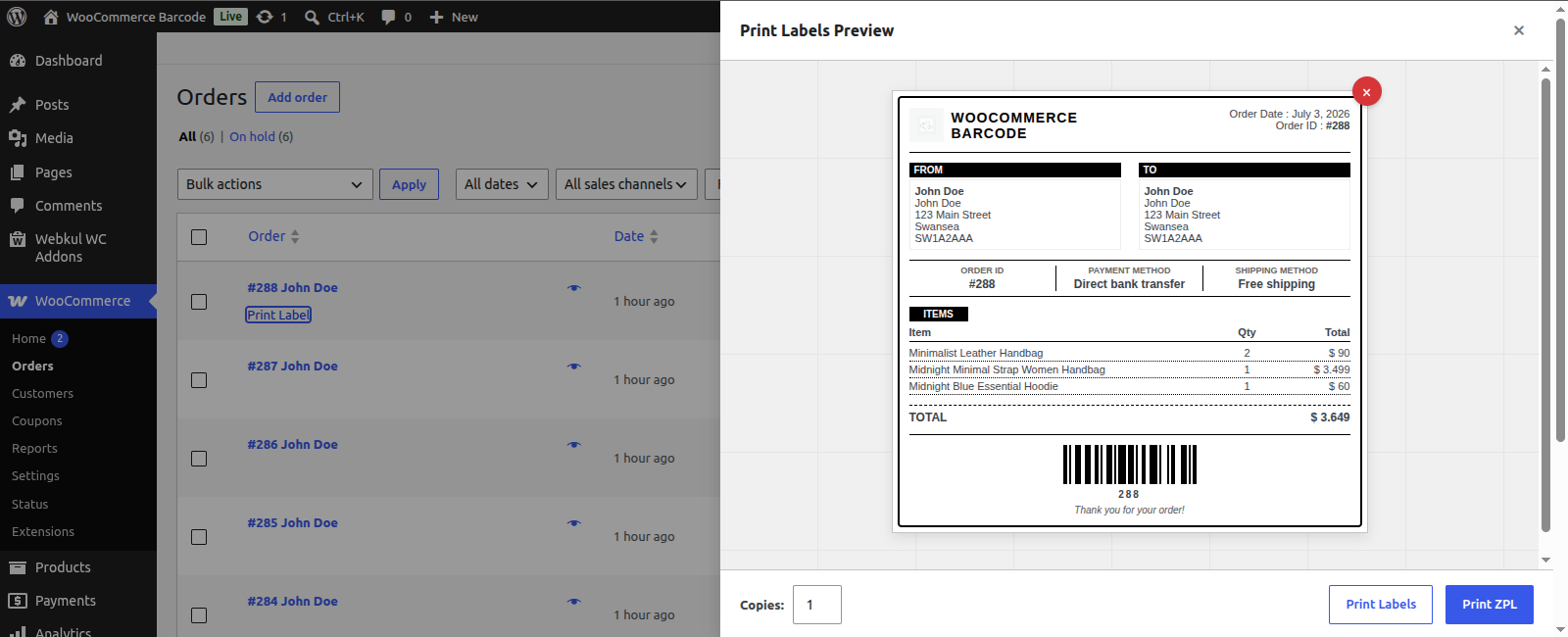
- Alternatively, select multiple orders from the orders list, choose Print Order Barcodes from bulk actions, and print all selected slips at once.
3. Frictionless Pick-ups & Returns
Simplify in-store order pickups and customer returns using barcodes:
graph TD
    A[Customer brings pickup slip / invoice barcode] --> B[Clerk scans barcode using scanner hardware]
    B --> C[WooCommerce admin receives Order ID hook]
    C --> D[System instantly loads Order Details screen]
    D --> E[Clerk verifies ID & hands over package or processes refund]
- Barcode Generation: Order labels print with a unique barcode representing the numerical WooCommerce Order ID (e.g., Code 128 format of
#10352). - Scanning: When a customer presents their printed slip for returns or pick-ups, the cashier scans it using a standard handheld USB scanner.
- Retrieval: The scanner input instantly redirects the cashier's dashboard to the edit-order page of that specific Order ID, bypassing manual name searches.
4. Packing & Fulfillment Checks
Fulfillment staff can use the printed order barcode labels to track stages of preparation:
- Fulfillment Scanning: Packers scan the box label barcode to register a package as packed, changing the order status to Shipped automatically.
- Courier Verification: Hand courier agents a master list of printed order barcodes. Scanning the sheet confirms carrier pickups in bulk.