
Product Barcodes Management
Create, edit, and print barcodes for simple and variable items directly from your catalog.
1. Setting Up Product Barcode Fields
The plugin adds a custom barcode field to the standard WooCommerce Product Data meta box:
- Navigate to Products > All Products and click edit on a product.
- Scroll down to the Product Data settings panel.
- Click on the Inventory tab.
- Locate the field labeled GTIN, UPC, EAN, or ISBN and input your custom barcode alphanumeric value.
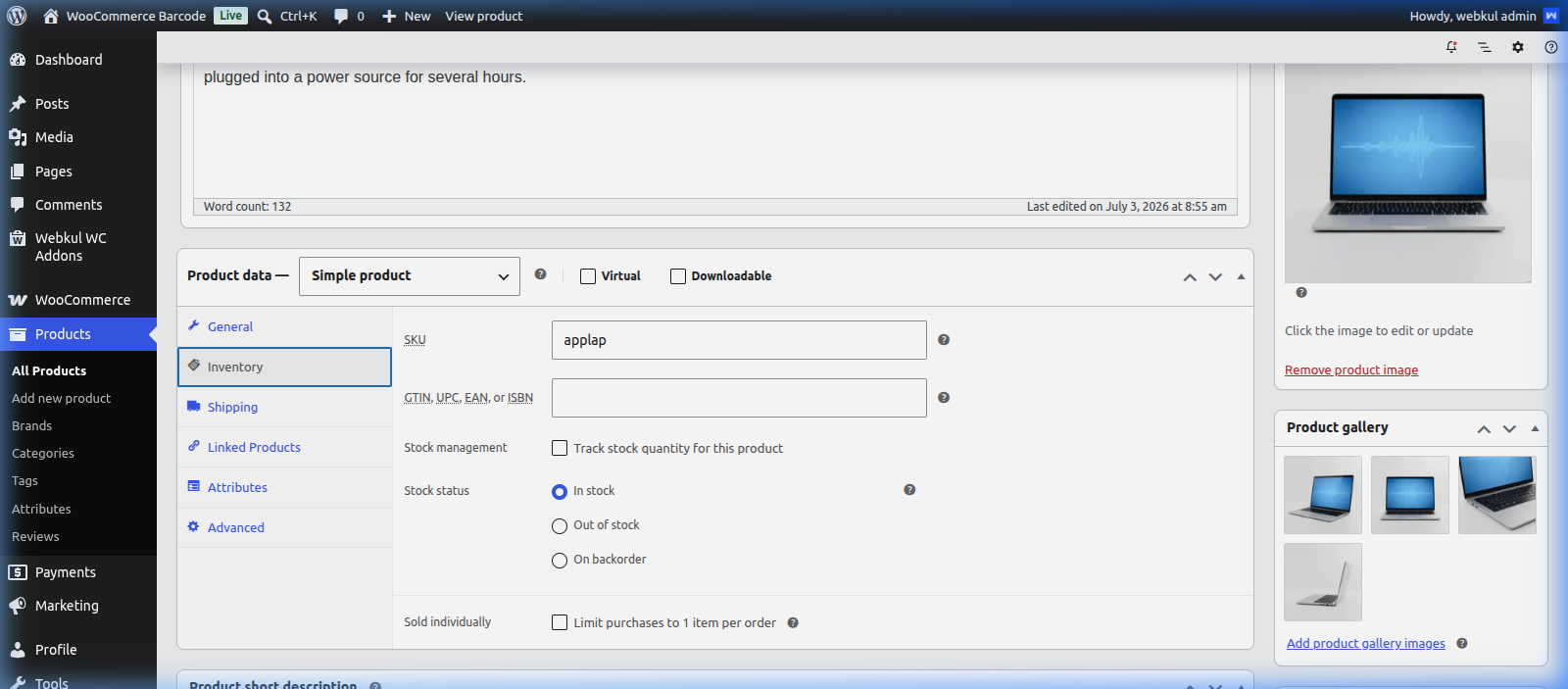
- Click Update or Publish to save your barcode details.
2. Printing Product Barcodes
Bulk Printing from Products Directory
To print barcode label stickers for multiple products at once:
- Navigate to Products > All Products.
- Select the checkboxes next to the products you want to print labels for.
- Open the Bulk Actions dropdown menu and select Print Product Labels.
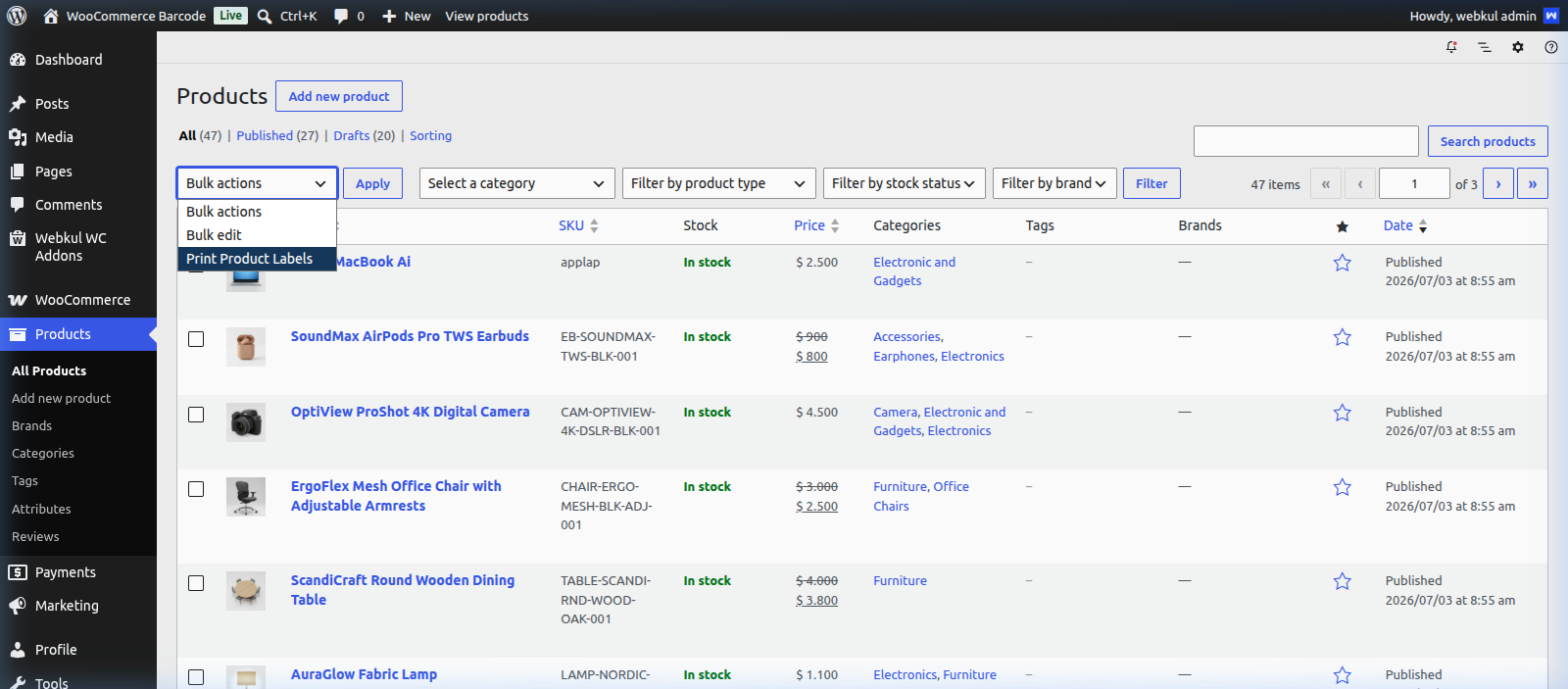
- Click the Apply button to launch the print queue setup drawer.
- In the printing window, select the target design template, verify barcode counts, and print the generated layouts.
3. Variable Products Support
Variable products (with attributes such as size or color) can have unique barcode values mapped to individual variations:
- Edit your variable product and go to the Variations tab.
- Expand a specific variation.
- Input the unique barcode under the variation's GTIN, UPC, EAN, or ISBN metadata field.
- Save the product changes.
4. Inventory Lookup & Scans
By integrating standard USB keyboard emulation scanners, you can use the barcodes to manage listings:
- Instant Search: Focus the WooCommerce product search box and scan a product tag to lookup the item immediately.
- Fulfillment Scanning: Scan physical barcode tags on checkout or inventory updates to check stock levels.
[!NOTE] Barcode Readability: Ensure that you fill in unique SKU values or GTIN numbers for each item. Leaving these fields blank will prevent barcodes from generating correct vector or canvas patterns.