
Configuring Happy Hours Settings
After activating the plugin, store administrators can customize the customer-facing and cashier-facing text strings that appear on the POS terminal countdown timer, cart discounts, and receipts.
Accessing Configuration Settings
- From the WordPress administrative sidebar, navigate to Point of Sale → Settings.
- Select the Happy Hours tab (indicated by an hourglass icon).
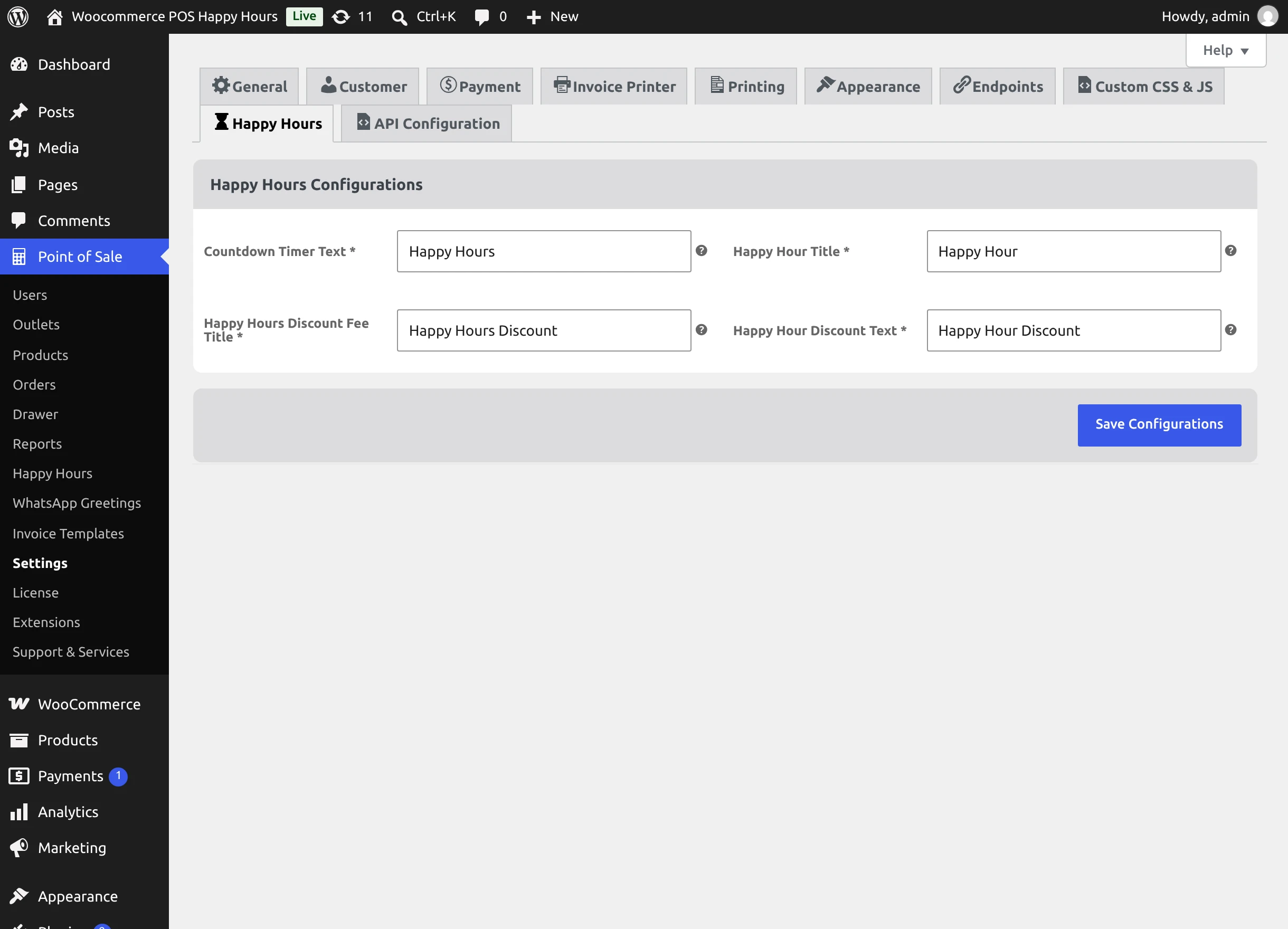
Configuration Fields
The settings page includes the following customizable fields:
| Field | Description | Default Value | Where It Appears in POS |
|---|---|---|---|
| Countdown Timer Text | The label shown on the interactive countdown timer widget in the POS header. | Happy Hours | Top-right header bar on the POS home and category screens during active promotional windows. |
| Happy Hour Title | The title identifying promotional discounts applied at the product or category level. | Happy Hour | Printed on POS order receipts and invoice summaries next to qualifying discounted items. |
| Happy Hours Discount Fee Title | The title assigned to overall basket and cart-level promotional savings. | Happy Hours Discount | The cart total summary row, payment modal breakdown, and printed invoice receipt. |
| Happy Hour Discount Text | The descriptive label displayed next to individual discounted product amounts. | Happy Hour Discount | Item line rows inside the POS active cart view (e.g. -$2.70 Discount). |
Step-by-Step Configuration
- In the Countdown Timer Text field, enter the heading you want cashiers and counter shoppers to see on the live clock (e.g.,
Flash DealorHappy Hours). - In the Happy Hour Title field, enter your preferred receipt label for itemized product promotions.
- In the Happy Hours Discount Fee Title field, specify the label for cart total discounts.
- In the Happy Hour Discount Text field, provide the tag for line-item cart deductions.
- Click the blue Save Configurations button at the bottom of the panel.
Once saved, WordPress updates the plugin options, and the updated labels are transmitted to all connected POS registers upon their next session load or browser refresh.
Next step: Creating & Managing Happy Hour Rules →