
Installation & Setup
Installing WooCommerce POS Happy Hours Discount takes just a few moments through the WordPress administrative dashboard.
Prerequisites Check
Before installing this extension, verify that the following prerequisites are installed and active on your WordPress instance:
- WooCommerce (version 9.0 or higher).
- WooCommerce Point of Sale System (version 6.2 or higher).
- At least one configured POS Outlet and an assigned Cashier/User.
Dependency Requirement
If you activate Happy Hours Discount for WooCommerce Point of Sale without having the core Point of Sale plugin active, WordPress will display an administrative warning notice:
Woo POS Happy Hours Discount is activated but not effective. It requires Point of Sale in order to work at Point of Sale end.
Method 1: WordPress Dashboard Upload (Recommended)
- Log into your WordPress administrative dashboard using administrator credentials.
- From the sidebar menu, navigate to Plugins → Add New Plugin.
- Click the Upload Plugin button located at the top of the screen next to the Add Plugins title.
- An upload pane will expand: click Choose File and select the
happy-hours-discount-for-woocommerce-pos.zipfile downloaded from your Webkul Store or CodeCanyon account. - Click Install Now.
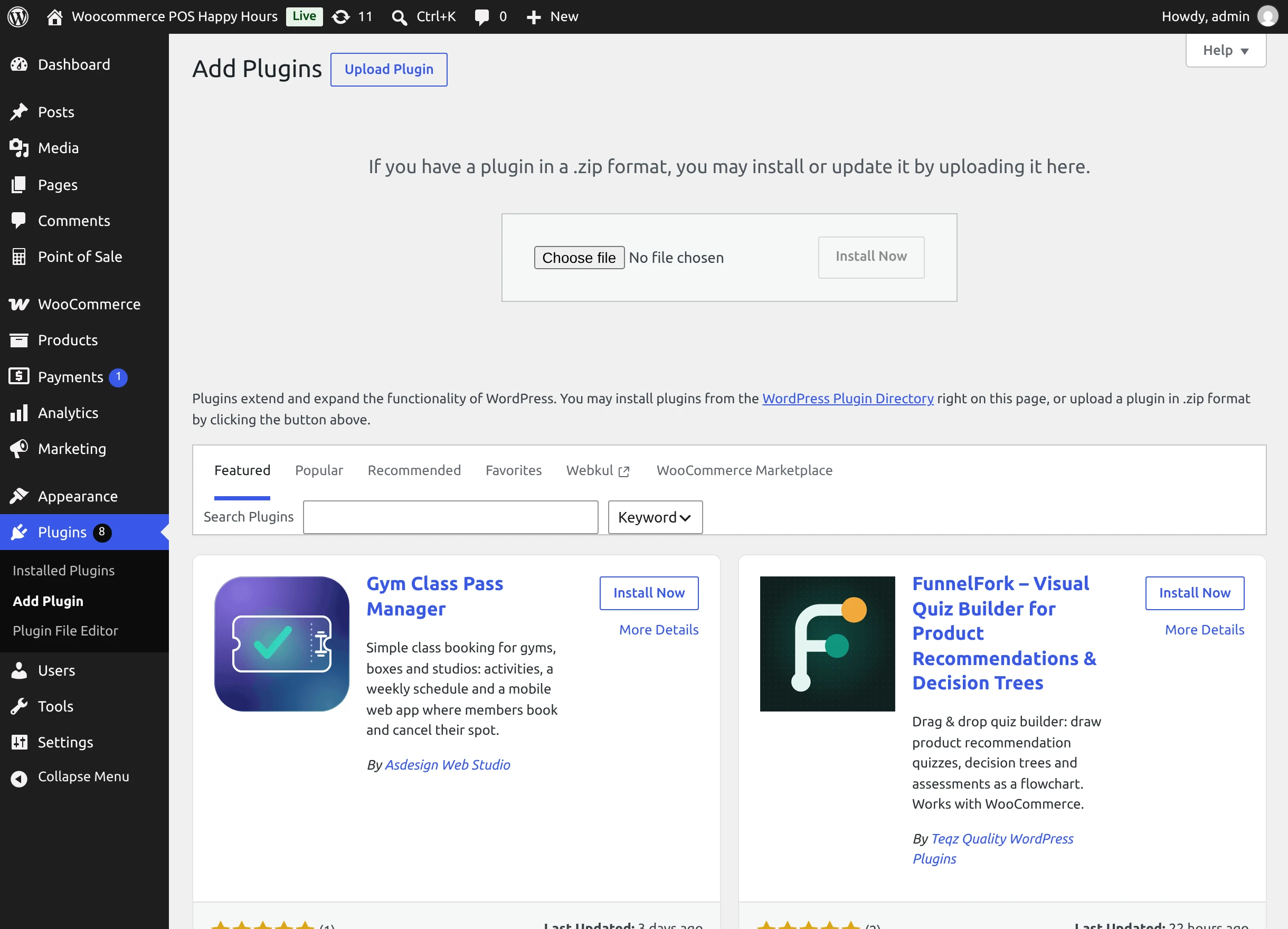
- WordPress will unpack the package and install the extension.
- Click the blue Activate Plugin button to enable the extension on your site.
Verifying the Installed Plugin
Once activated, go to Plugins → Installed Plugins to confirm that the extension is active:
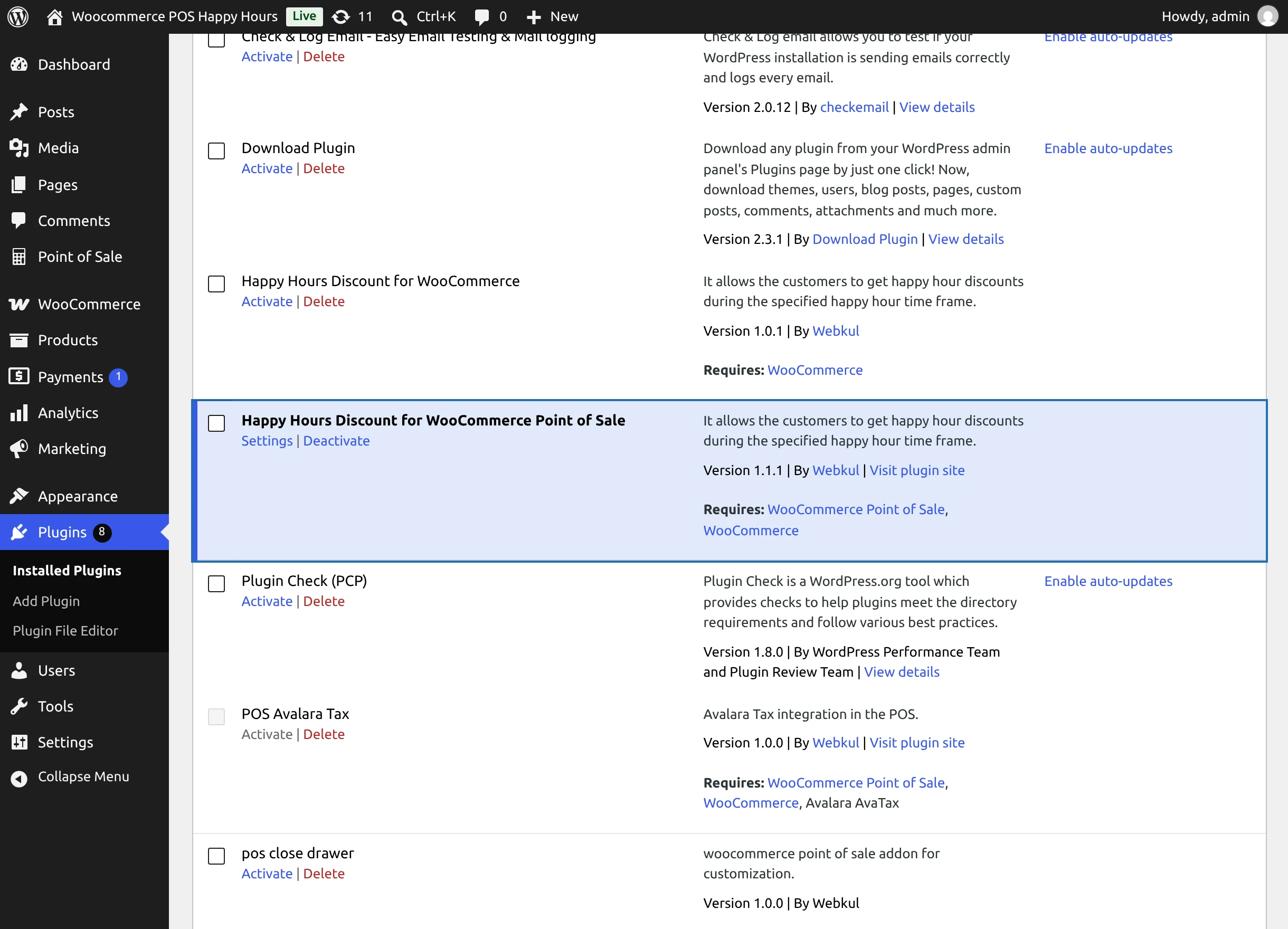
- The plugin entry displays Happy Hours Discount for WooCommerce Point of Sale with its current version (
1.1.1). - Direct management quick links appear beneath the plugin title:
- Deactivate: Disables the extension.
- Settings: Navigates directly to Point of Sale → Settings → Happy Hours (
admin.php?page=wc-pos-settings&tab=happy-hours-settings) to configure timer and receipt labels.
Method 2: Manual Installation via Filesystem / FTP
For administrators or staging environments requiring manual file deployment:
- Extract the downloaded
happy-hours-discount-for-woocommerce-pos.ziparchive on your computer. - Upload the unzipped
happy-hours-discount-for-woocommerce-posfolder directly to your WordPress web server directory:/wp-content/plugins/ - Set recommended directory permissions (
755for directories,644for files). - Go to WordPress Admin → Plugins → Installed Plugins.
- Locate Happy Hours Discount for WooCommerce Point of Sale and click Activate.
Multisite Network Compatibility
Beginning with version 1.1.0, the plugin includes full compatibility with WordPress Multisite networks:
Network-Wide Activation
- Super Administrators can navigate to Network Admin → Plugins and click Network Activate on the plugin.
- The plugin installer automatically creates the required
{$wpdb->prefix}wkposhhd_happy_hourstables for every existing site across the entire network.
Automated Subsite Handling
- When a new blog or subsite is provisioned within the multisite network, the plugin listens to the
wp_initialize_siteandwpmu_new_bloglifecycle events. - It automatically initializes the required Action Scheduler tables and deploys the Happy Hours schema to the new subsite without requiring manual administrator intervention.
Next step: Admin Configuration →