
Cashier Terminal Workflow
Once Happy Hour rules are active in the store administration, the WooCommerce Point of Sale cashier register automatically transitions into promotional mode without requiring manual terminal restarts or cache clears.
Cashier Login & Terminal Access
- The store cashier navigates to the POS terminal URL (
/pos/or your store's custom endpoint). - The cashier enters their POS credentials (e.g., username
vivek1and password1234). - Upon authentication, the POS interface initializes and fetches current store configurations and active Happy Hour campaigns.
Live Countdown Timer Widget
When the current local time falls within an active Happy Hour promotional window, an interactive timer widget appears in the top-right header of the POS terminal.
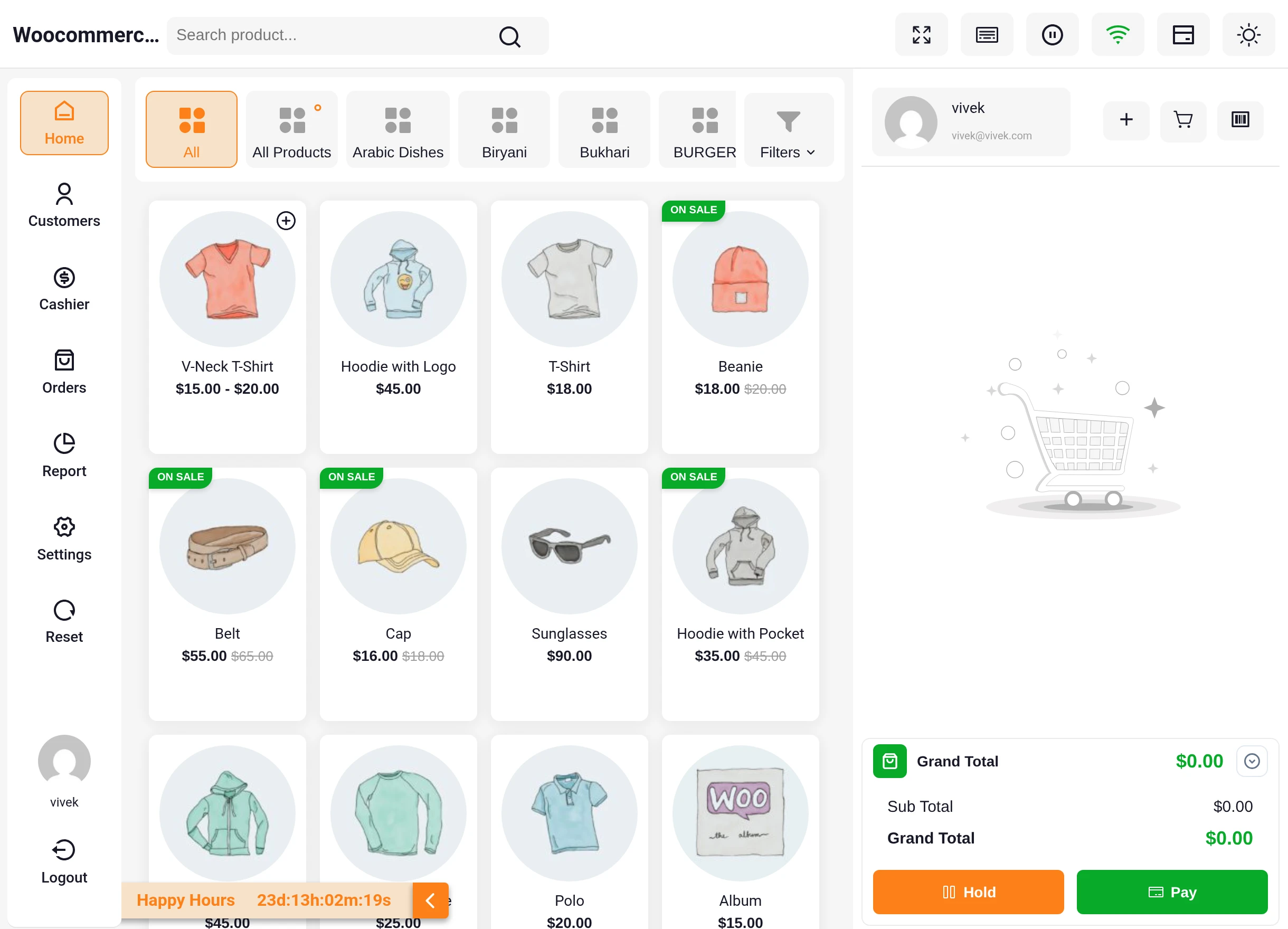
- Countdown Format: Displays the remaining campaign duration in real-time format:
DDd:HHh:MMm:SSs. - Title Display: Renders the custom text configured in admin settings (e.g.,
Happy Hours). - Expand / Collapse: Cashiers can tap the timer badge to toggle between compact and expanded views to preserve screen space during busy checkout lines.
- Automatic Expiration: When the countdown reaches zero, the timer disappears, and standard retail pricing seamlessly resumes.
Customer Discount Eligibility
To check which customers qualify for special promotional pricing:
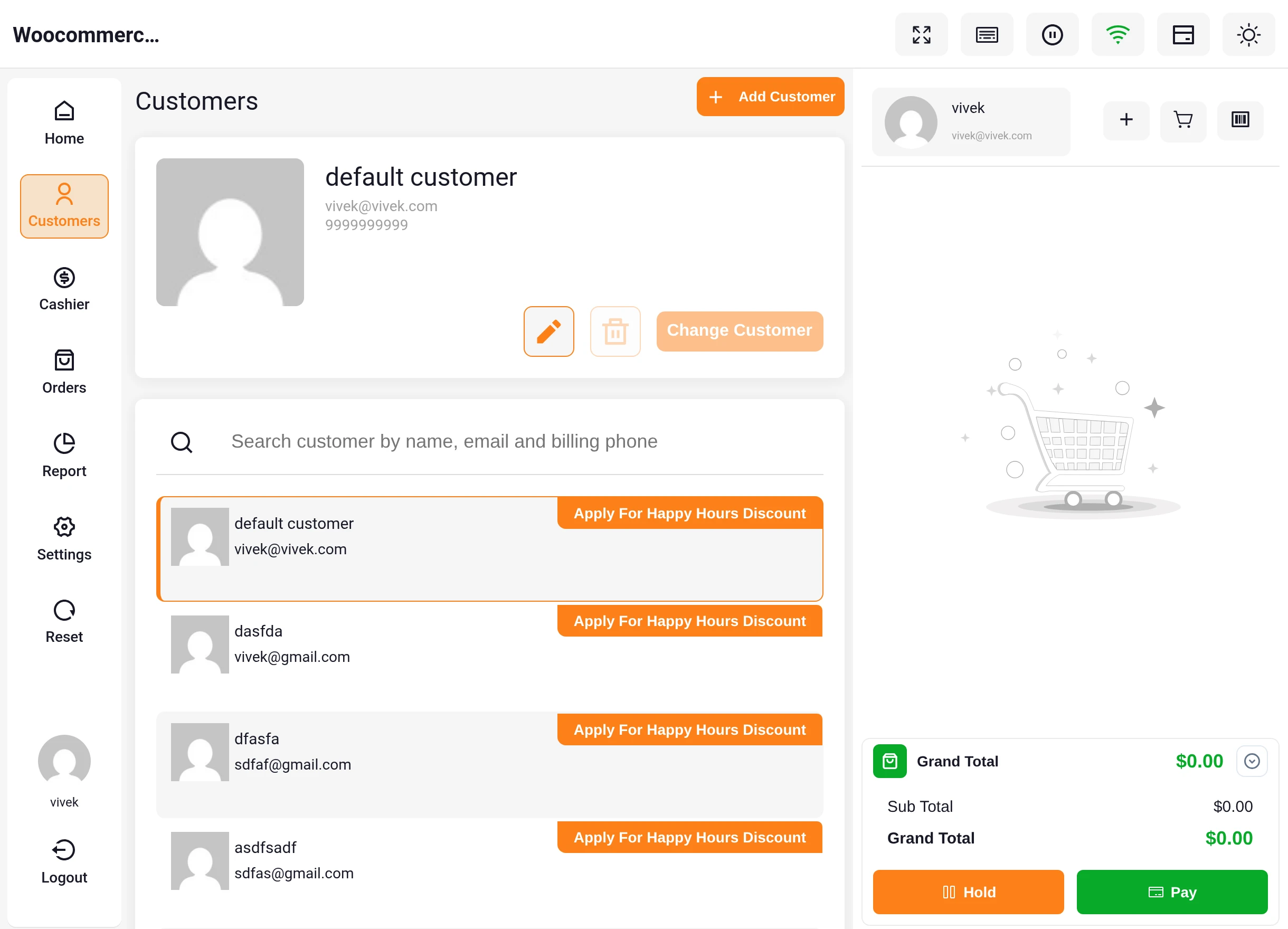
- Click Customers on the left-hand navigation sidebar.
- The customer selection modal opens, listing all registered shoppers.
- Every customer eligible for the active Happy Hour promotion features a bright badge reading Apply For Happy Hours Discount.
Targeted Campaigns
If an administrator configured a campaign restricted to specific VIP customers, only those selected accounts will display the discount eligibility badge. When an unassigned shopper is selected, standard non-promotional prices apply.
Adding Discounted Products to the Cart
When a cashier adds an eligible product or category item to the cart during active Happy Hours, the discount is calculated immediately:
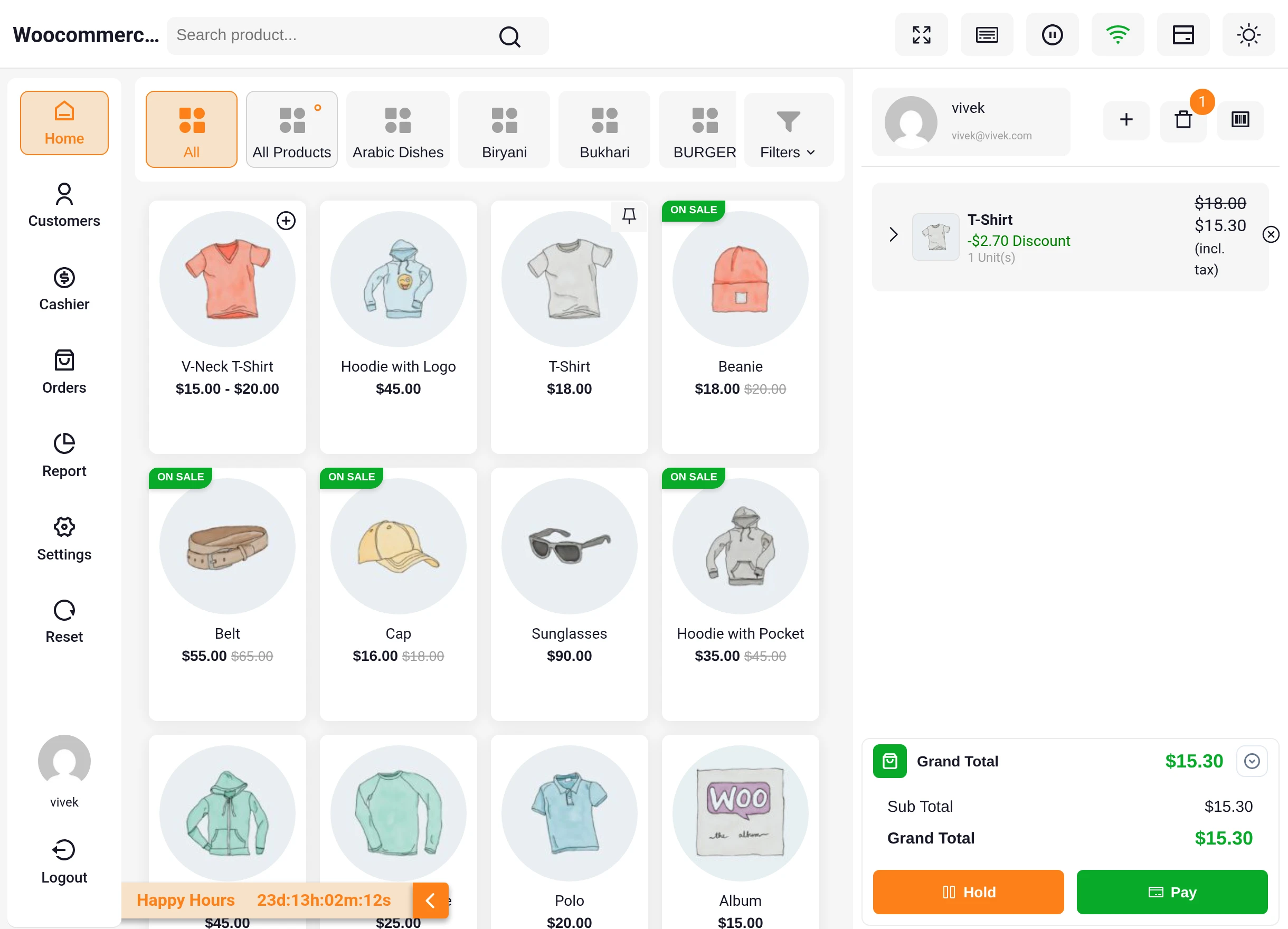
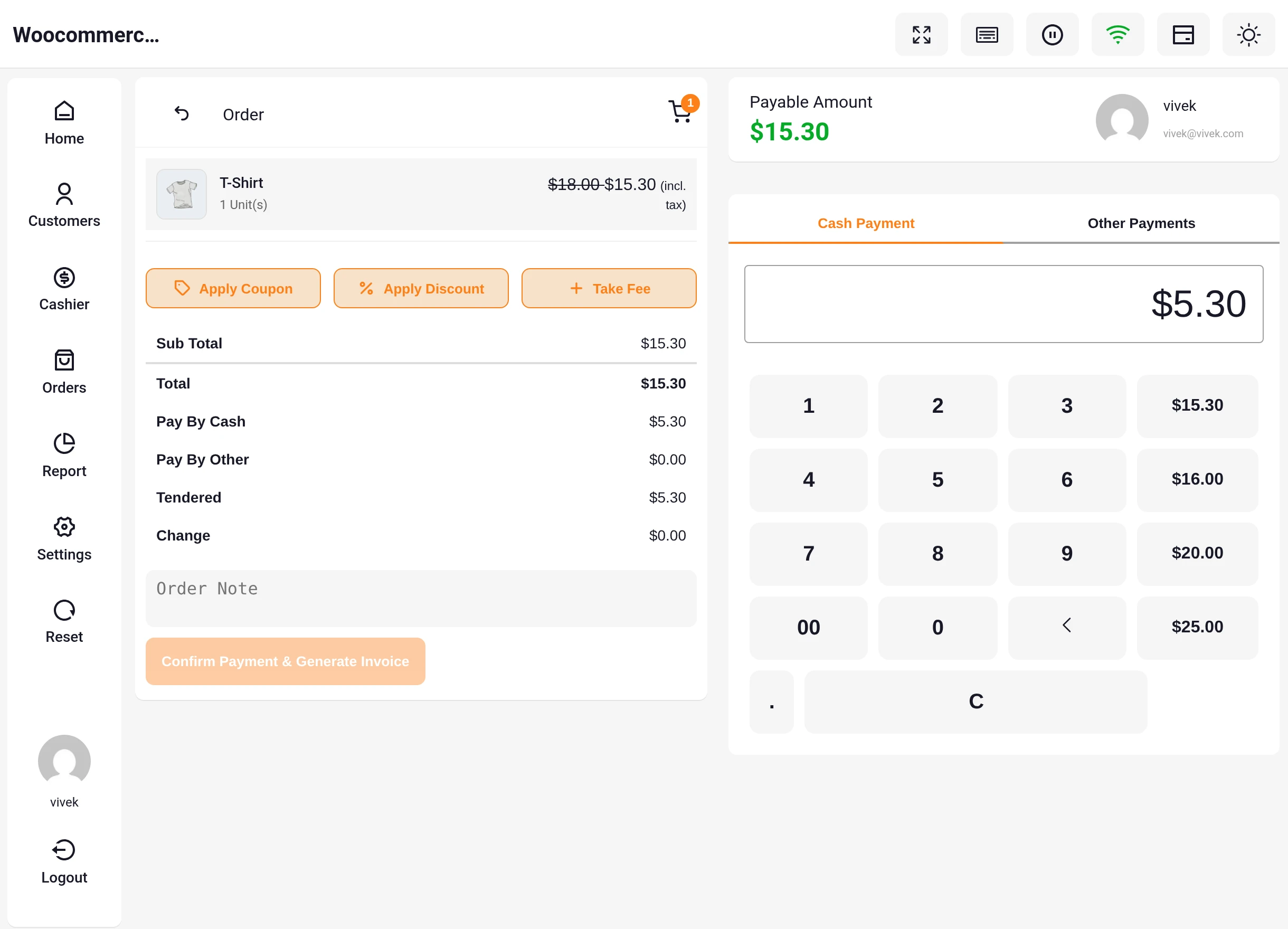
- Discounted Line Price: The main product price immediately reflects the discounted rate (for example, a $18.00 T-Shirt with a 15% discount calculates to $15.30).
- Strikethrough Price: The original price is displayed with a strikethrough next to the new price so both cashier and customer can see the exact savings.
- Line Item Tag: A dedicated tag (e.g.,
-$2.70 Discount) appears directly beneath the item title. - Automatic Tax Adjustment: Taxes dynamically adjust proportionally based on the net discounted unit price.
Discount Priority Hierarchy
When a transaction qualifies for multiple rules, the plugin enforces an automated priority hierarchy:
$$\mathbf{Product\ Discount} \quad \succ \quad \mathbf{Category\ Discount} \quad \succ \quad \mathbf{Cart\ Total\ Discount}$$
- Product Discount (Highest Priority): If an item has an individual product-level rule, that discount takes precedence.
- Category Discount: If an item does not have a direct product rule but belongs to a discounted category, the category rate applies.
- Cart Total Discount: If no item-level Happy Hour discount is active and the overall basket subtotal meets the configured
Cart FromtoCart Tillthreshold, the cart total deduction applies.
Margin Safety
This strict hierarchy guarantees that discounts do not inadvertently multiply on a single product, protecting merchant profit margins while rewarding shoppers.
Mid-Order Customer Protection Guard
Because promotional discounts may depend on specific customer accounts, changing the assigned customer mid-transaction could produce pricing mismatches.
If a cashier attempts to change the customer while items remain in the cart during active Happy Hours, the terminal presents a helpful notification:
Note: Happy hours are started, so the cart must be empty to update the customer.
To switch customers, simply clear the active cart or park the transaction, select the new customer, and add the items.
Checkout, Payment & Tender
- With all items entered in the cart, click the blue Pay button.
- The POS payment screen opens, displaying the order summary and tender keypad.
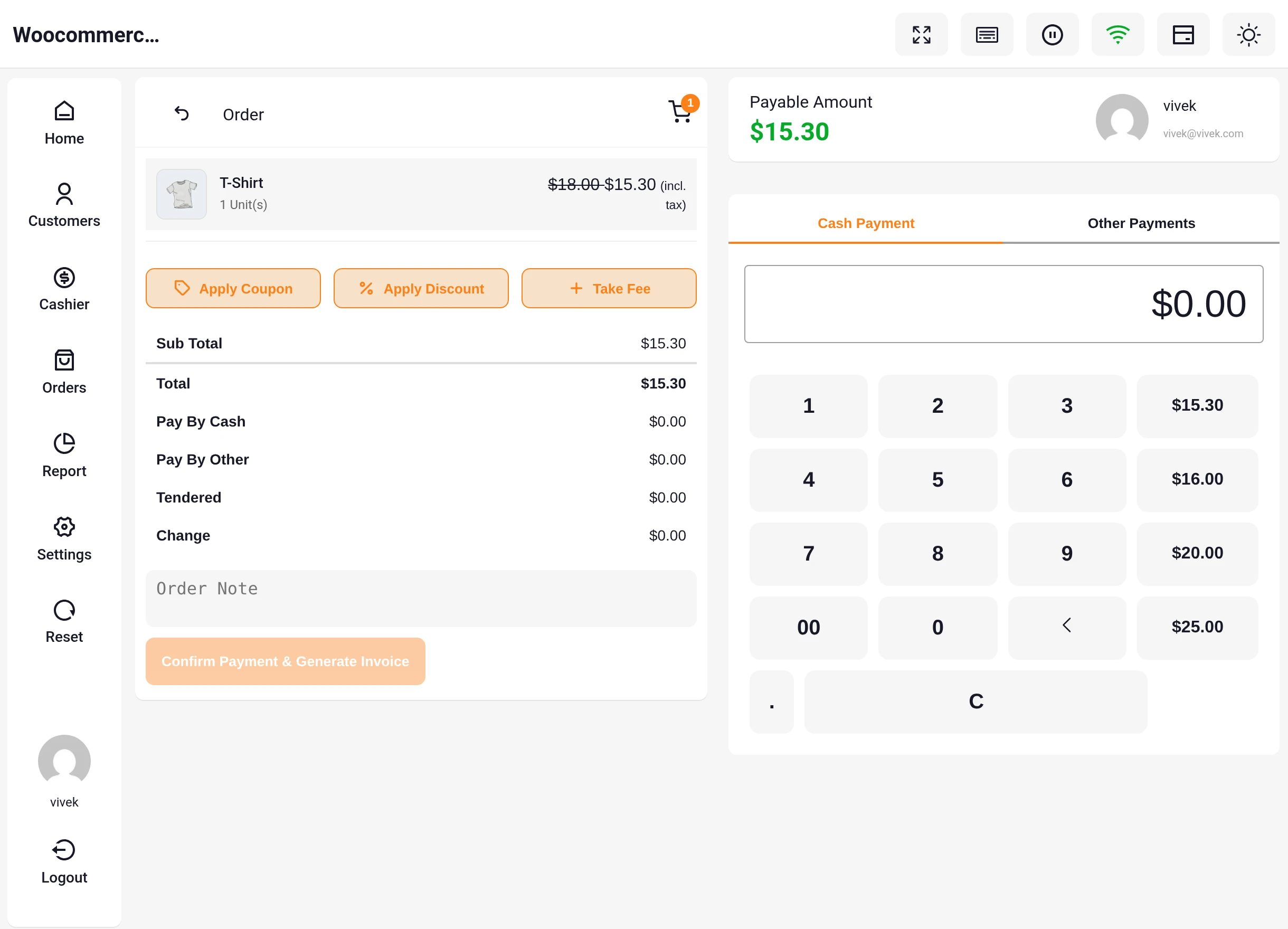
- The payment breakdown displays:
- Sub Total: The net discounted subtotal.
- Happy Hours Discount line: The total promotional savings.
- Total: The final amount payable.
- The cashier selects the payment method (Cash, Card, or other configured gateways), enters or clicks the quick-tender amount (e.g.,
$15.30), and clicks Confirm Payment & Generate Invoice.
Transparent Invoice & Receipt Reflection
Once payment is confirmed, the Point of Sale terminal prints the receipt and generates the transaction invoice.
- The printed receipt and digital invoice explicitly itemize the Happy Hour promotional deduction beneath the line items and subtotal.
- This clear itemization provides transparency for accounting records and confirms the customer's savings.
Next step: Frequently Asked Questions & Notes →