
Bulk Assignment
If you are installing the plugin on a store that already has hundreds or thousands of products without barcodes, you can use the Existing Products tab to bulk-assign codes to your entire catalog in a single run.
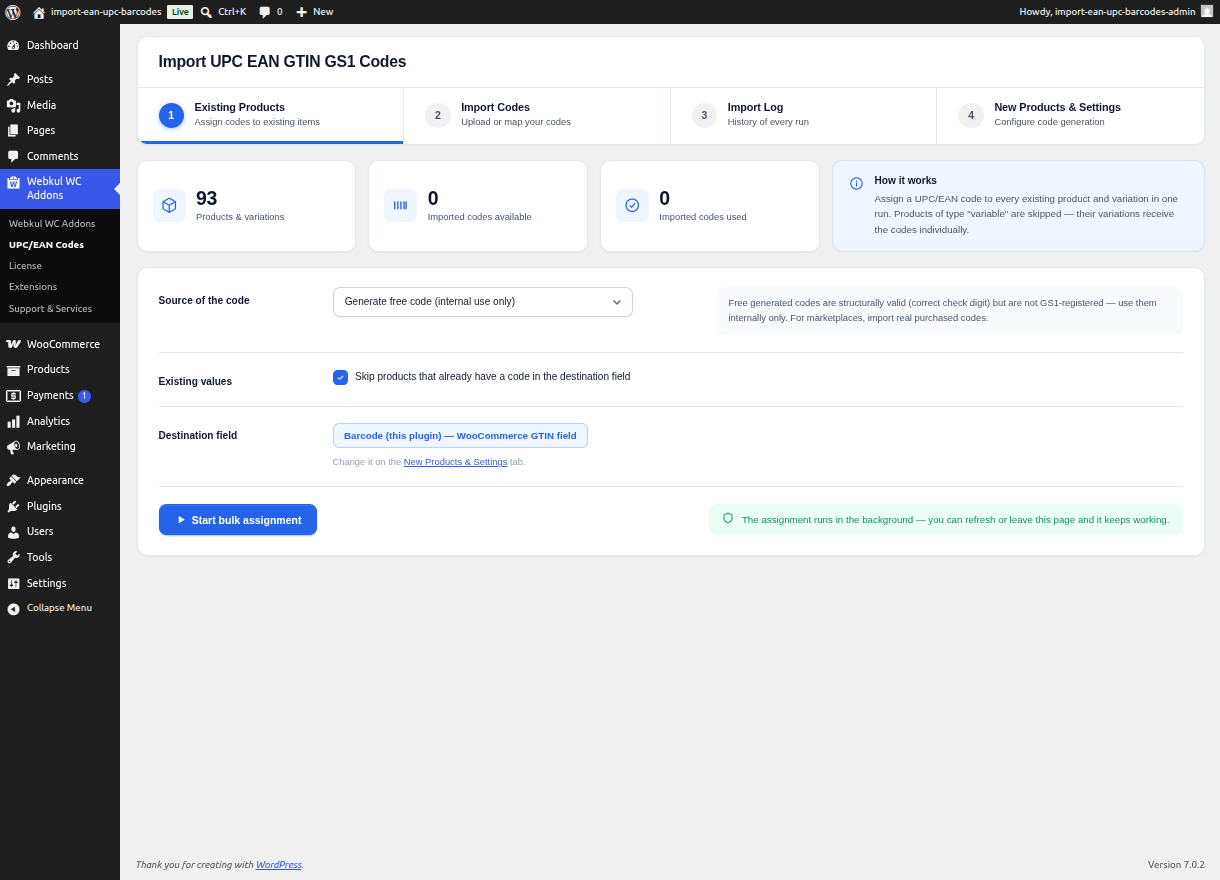
Running a Bulk Assignment
- Navigate to Webkul WC Addons > UPC/EAN Codes. By default, this opens the Existing Products tab.
- Select your assignment strategy from the dropdown:
- Assign codes from the imported pool: The engine will consume barcodes from your uploaded sequential files.
- Generate new free codes: The engine will algorithmically generate internal-use codes.
- Click the Start Assignment button.
The Progress Engine
Once started, an AJAX progress bar will appear. The bulk assignment engine processes products in small, safe batches (default 30 per batch) to prevent server timeouts.
- Supported Types: The engine scans your database and targets Simple products, External products, and individual Variations. Variable parent products are intentionally skipped as they do not physically hold barcodes themselves.
- Safe Resumption: If you accidentally refresh the page or lose your internet connection, the assignment will not break. When you return to the page, the UI will automatically resume polling the active job and pick up exactly where it left off.
- Cancellation: A running assignment can be cancelled at any time by clicking the Cancel button.
Skip Filled Protection
Before starting a bulk run, ensure you check your setting for Skip Filled Destination Fields on the New Products & Settings tab. If this is enabled, the bulk engine will check every product before assigning a code. If the product already has a barcode in the configured destination field, the engine will safely skip it and move to the next product, ensuring your existing data is never accidentally overwritten.