
General Settings
The General Settings control how the plugin generates codes and behaves when assigning them to products. You can access these settings by navigating to Webkul WC Addons > UPC/EAN Codes and clicking on the New Products & Settings tab.
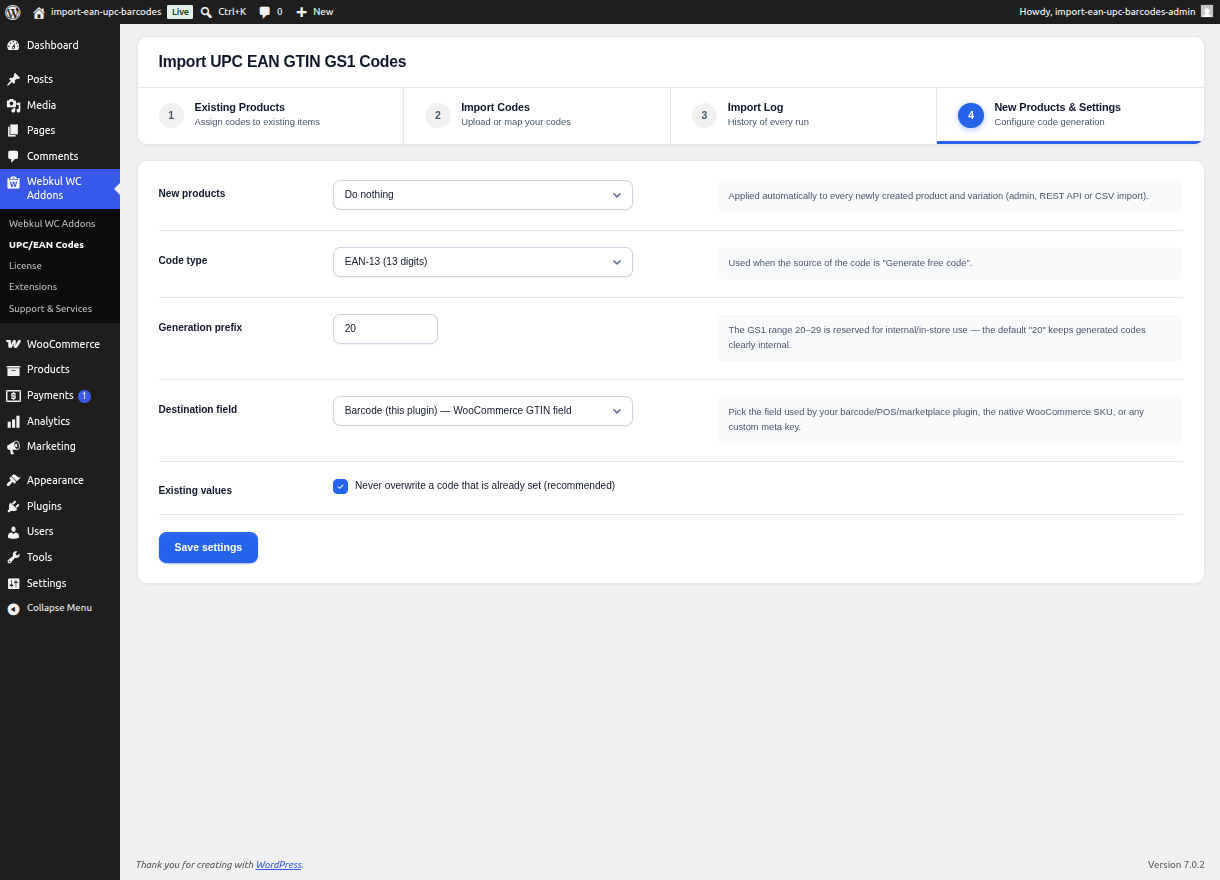
Code Generation Configuration
If you choose to use the plugin's built-in generator to create free internal-use codes, you can configure the specific format here:
- Code Type: Choose between EAN-13 (13 digits) or UPC-A (12 digits). The plugin will automatically calculate and append the correct modulo-10 check digit to ensure the code is structurally valid for barcode scanners.
- Generation Prefix: By default, the plugin uses
20, which is the GS1-designated range for internal store use. You can change this to any numeric prefix you prefer. The generator will use this prefix and pad the rest of the barcode with unique sequential numbers before calculating the check digit.
[!WARNING] Ensure your prefix only contains numbers. Letters or special characters will cause barcode scanners and validation algorithms to fail.
Overwrite Protection
By default, the plugin is designed to never overwrite an existing barcode.
- Skip Filled Destination Fields: If this option is enabled (recommended), the plugin will check the target destination field on a product. If a value already exists, the plugin will skip that product during bulk assignments or auto-assignments, preserving your existing data.
If you intentionally want to replace all existing barcodes in your store with new ones from your imported pool or the generator, you can temporarily disable this setting before running a bulk assignment.