
Sequential Pool Deep Dive
The Sequential Pool is the simplest and most automated way to handle barcode assignments in WooCommerce. When you import barcodes using the Sequential mode, the plugin stores them in an internal queue. Whenever a product needs a barcode (either automatically or in bulk), the plugin grabs the next available code from the top of this pool.
Why Use the Sequential Pool?
- Fastest Setup: You only need a simple list of codes (no headers, no mapping columns).
- Fully Automated: Once the pool is loaded, the plugin handles assigning codes to new products as they are created.
- Zero Mapping Errors: Because you aren't matching SKUs or Product IDs to specific codes, you avoid data matching errors.
1. Importing to the Sequential Pool
To feed barcodes into your pool, you must prepare a text file (.txt, .csv, or .xlsx) that contains nothing but valid barcodes.
Example File Structure:
195893240212
098234762912
834729103847
293847562910
- Navigate to Webkul WC Addons > UPC/EAN Codes > Import Codes.
- Select your prepared file.
- Choose Sequential Pool as the import mode.
- Click Import.
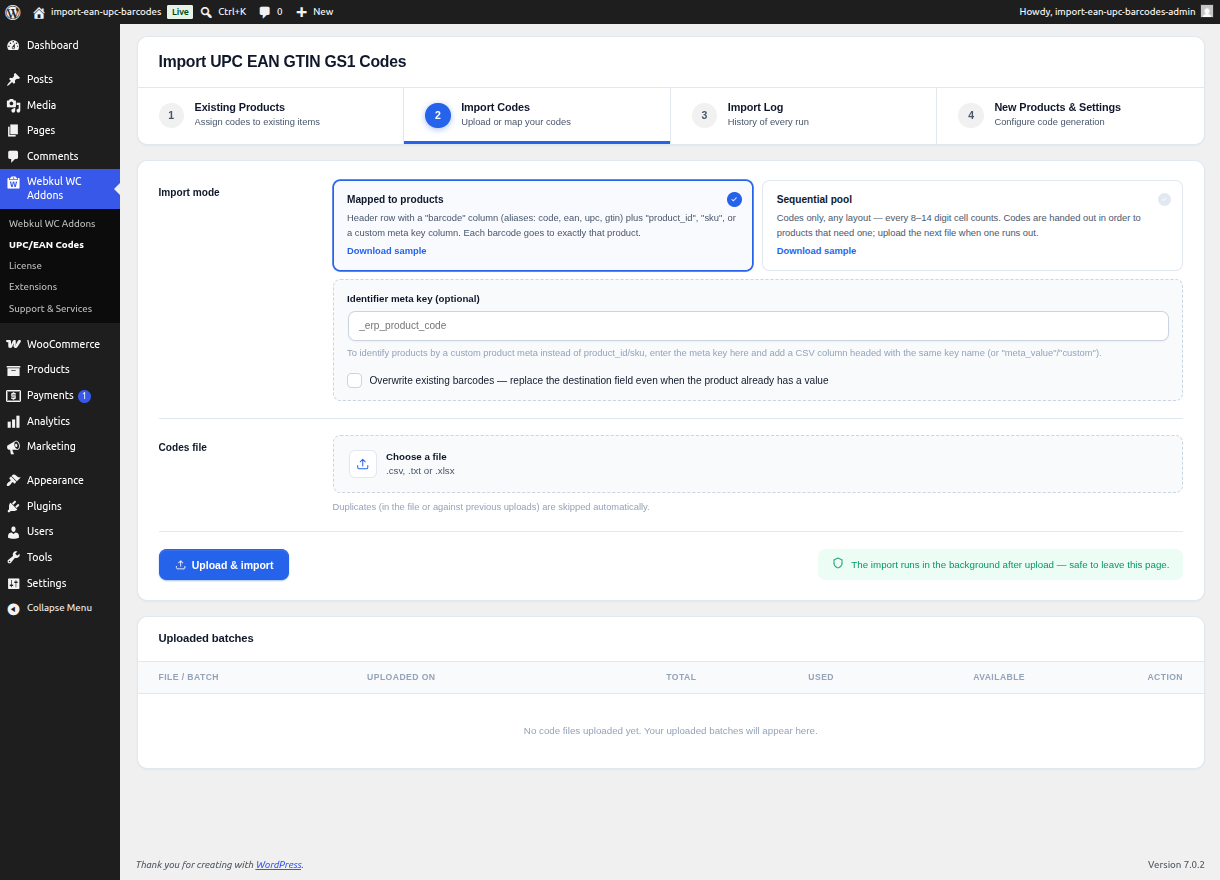
[!NOTE] All successfully imported codes will sit in a "Pending" status within the pool database until they are requested by a product.
2. Consuming the Pool (Auto-Assignment)
The most powerful feature of the Sequential Pool is Auto-Assignment.
If you enable Auto assign barcodes for new products in the General Settings, the plugin will automatically pull a code from the Sequential Pool the moment you hit "Publish" on a new WooCommerce product.
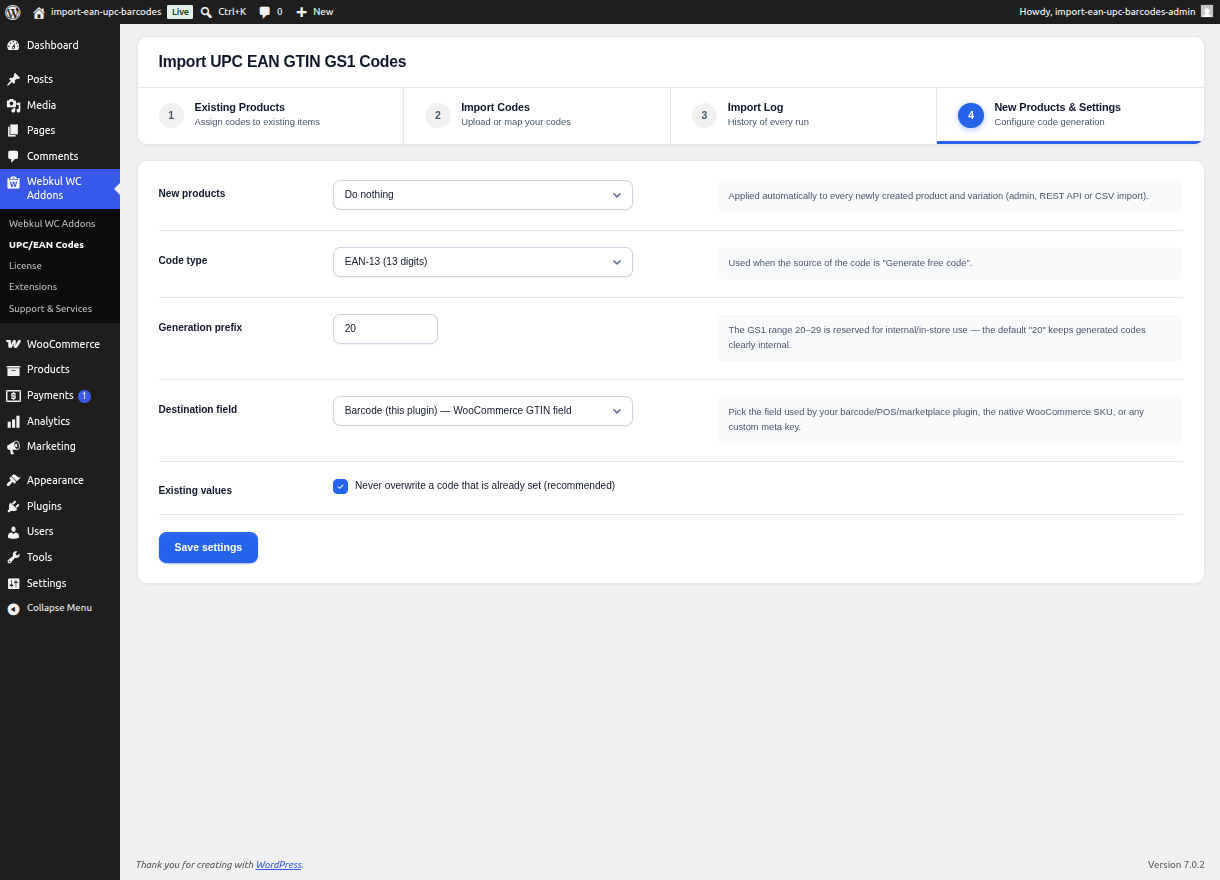
If the pool runs out of codes, the plugin will gracefully skip the assignment. You should periodically check your pool and import more codes as your catalog grows.
3. Consuming the Pool (Bulk Assignment)
If you have a large existing catalog without barcodes, you can drain the Sequential Pool rapidly using the Bulk Assignment tool.
- Go to UPC/EAN Codes > New Products & Settings.
- Scroll down to the Assign Barcodes to Existing Products section.
- Select which product types (Simple or Variable) should receive codes.
- Click Assign Barcodes.
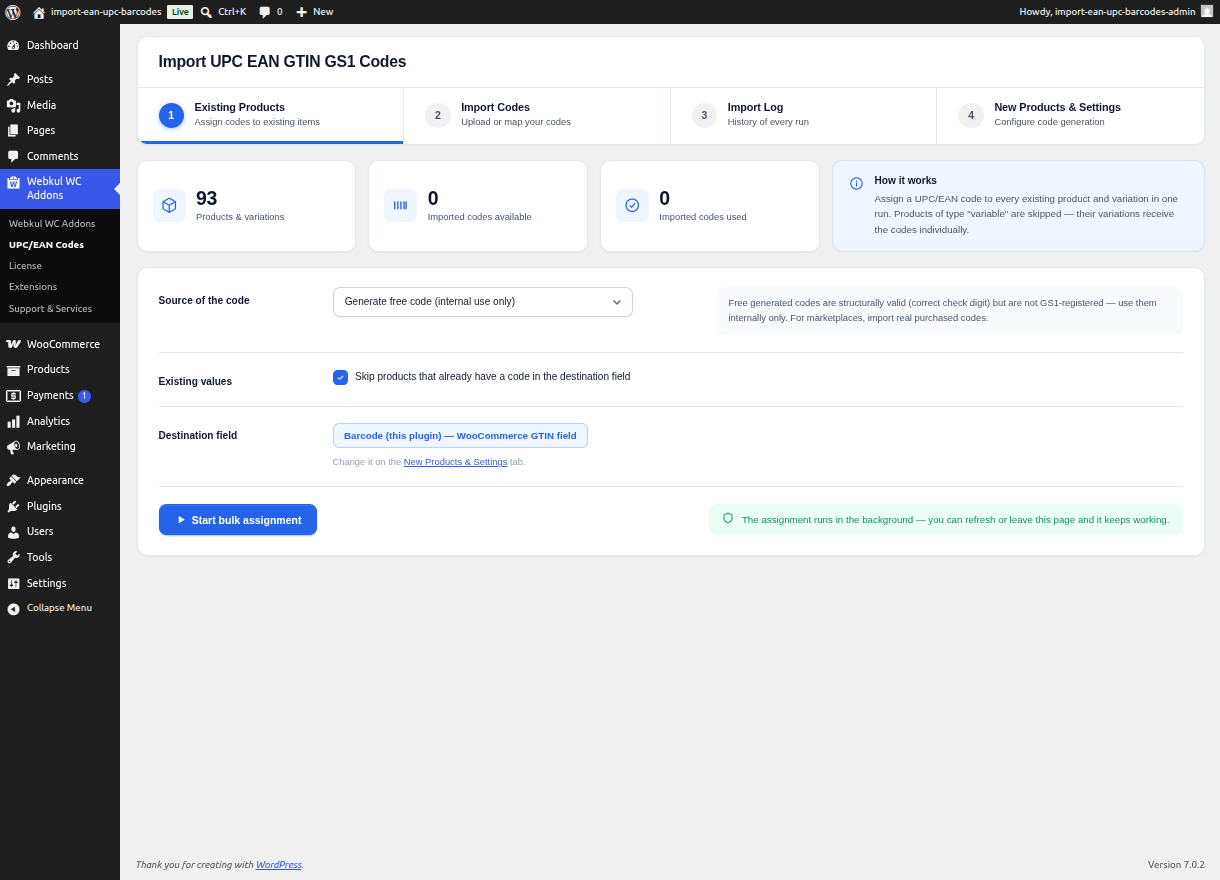
The plugin will iterate through every product that does not currently have a barcode, and pull a fresh one from the Sequential Pool until either all products have barcodes or the pool is empty!