
Configuration – WooCommerce eBay Connector
After successful installation and account setup, configure the plugin settings by navigating to WC eBay Connector → eBay Settings.
General Settings
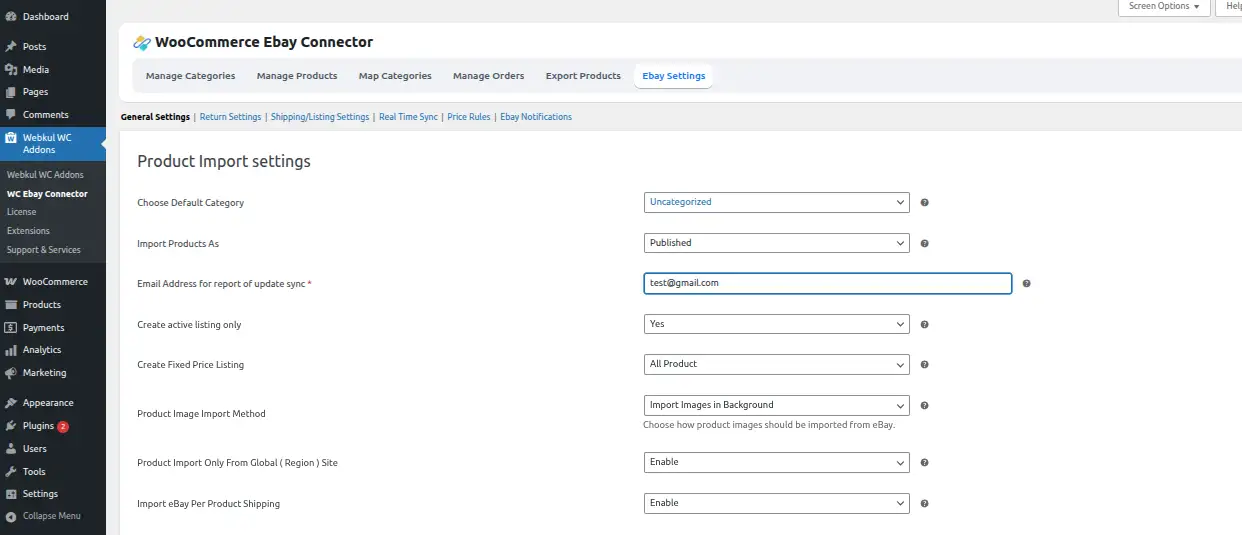
Product Import Settings
| Setting | Description |
|---|---|
| Default Category | If an eBay category isn't mapped in WooCommerce, products are placed in this default category |
| eBay Imported Order Status | Set default order status for orders imported from eBay |
| Default Product Quantity | Set the default product quantity for a product exported to eBay if the product quantity is zero in the store |
| Email Address for Report | Enter the email address to receive reports of every update sync |
| Pin code of Item Location | Enter the pincode of the item location |
| Global Shipping | Select Yes/No for global shipping depending on business need |
| Default Condition for Exported Product | If no product condition is selected, this default condition will be applied to exported products |
| Create Active Listing Only | Select Yes to create active listings only, else select No |
| Create Fixed Price Listing | Select All Products or Fixed Price Products |
| Product Image Import | Select In the Background (faster for large imports) or During Product Import |
| Product Import Only from Global Site | If enabled, only products belonging to the eBay global site chosen in settings will be imported |
Note: For large numbers of product imports, it is advisable to keep the Product Image Import setting as In the Background to import products at a faster pace.
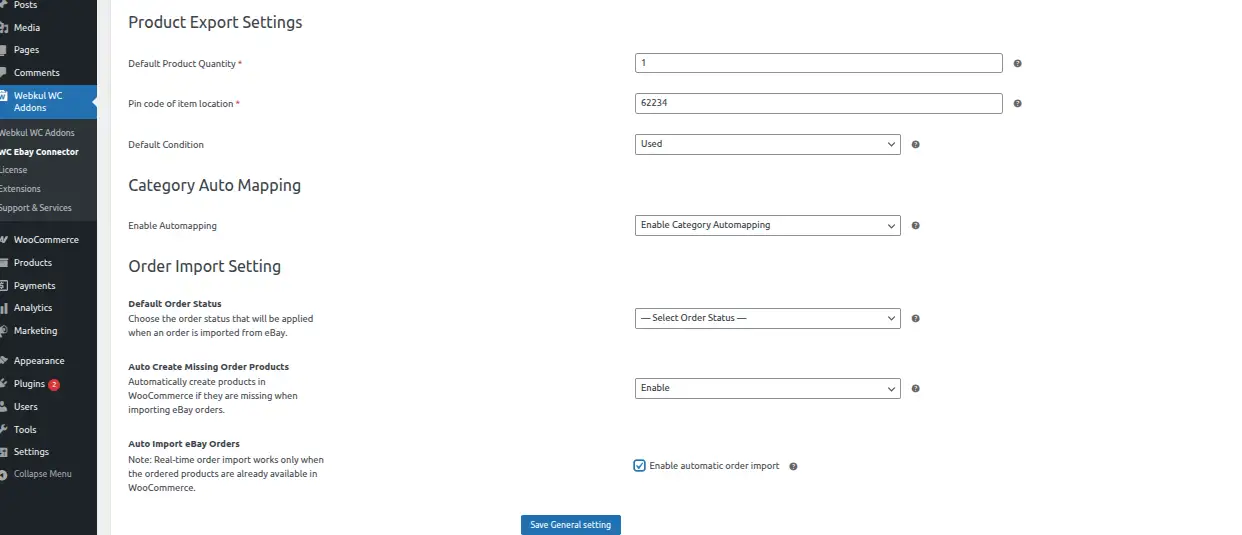
Product Export Settings
| Setting | Description |
|---|---|
| Default Product Quantity | Set the default quantity to export to eBay if the product quantity on store is zero |
| Pin code of Item Location | Enter the pin code of the item location |
| Global Shipping | Select Yes or No as per business requirement |
| Default Condition | Select the default condition of the product listing when exported to eBay (New, Open Box, Manufacturer Refurbished, Seller Refurbished, Used, etc.) |
Auto Mapping
Enable Auto Mapping: Enable or disable the category auto-mapping feature. Auto Order Import: Select the condition for auto order import. It executes every 10 minutes and retrieves orders placed within the last 15 minutes.
Note: All products must be imported for real-time order import.
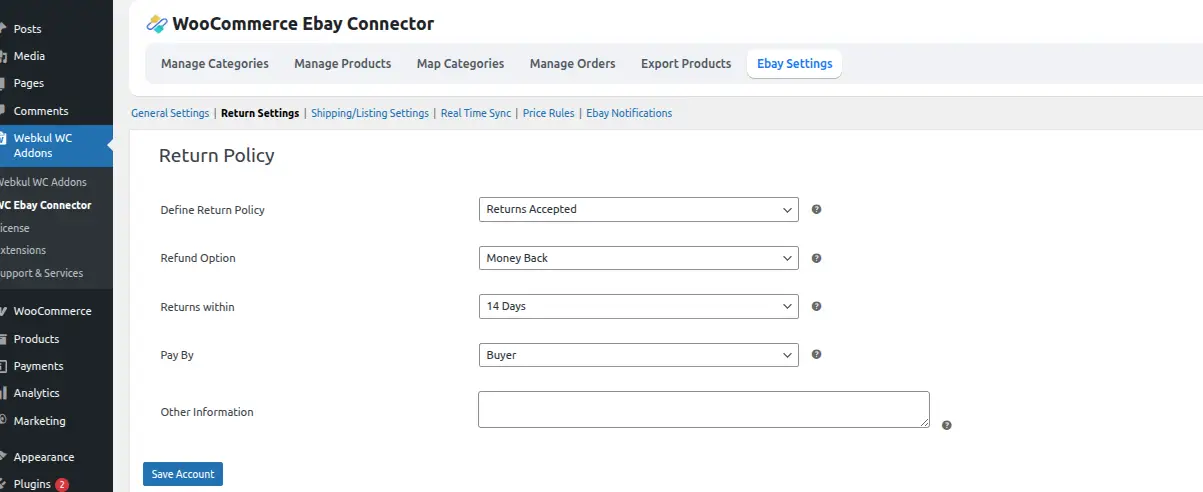
Return Policy
| Setting | Description |
|---|---|
| Define Return Policy | Select Returns Accepted or Not Accepted (for exported products) |
| Refund Option | Select Money Back or Replacement |
| Returns Within | Select the return duration for exported products |
| Pay By | Select who pays for the returned product – seller or buyer |
| Other Information | Write any additional information about the Return Policy |
Shipping / Listing Settings
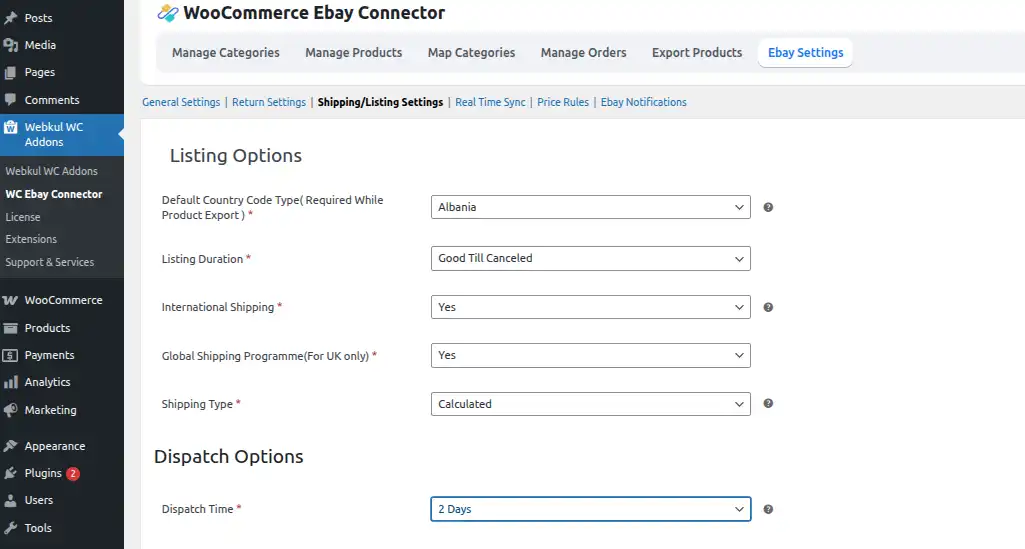
Listing Options
| Setting | Description |
|---|---|
| Default CountryCodeType | Enter the country code type required while exporting products |
| Listing Duration | Select Good Till Canceled, 1, 3, 5, 7, 10, or 30 days |
Dispatch Options
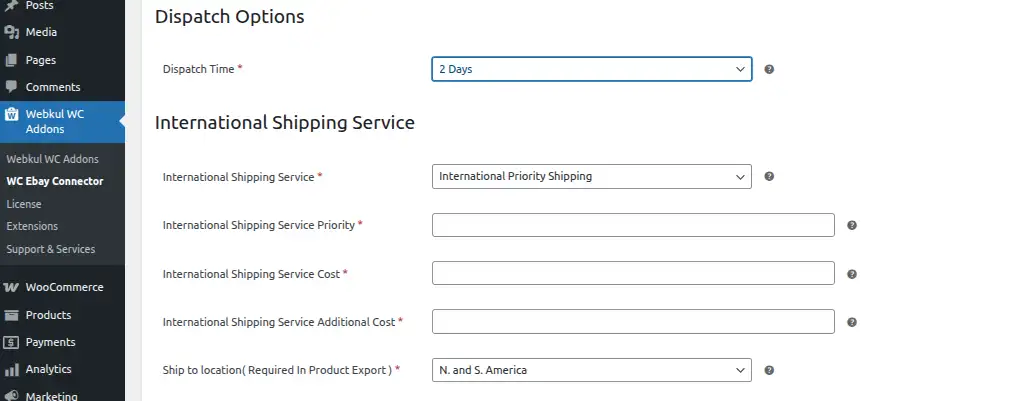
| Setting | Description |
|---|---|
| Dispatch Time | Select 1, 2, 3, 4, 5, 10, 15, 20, or 30 days |
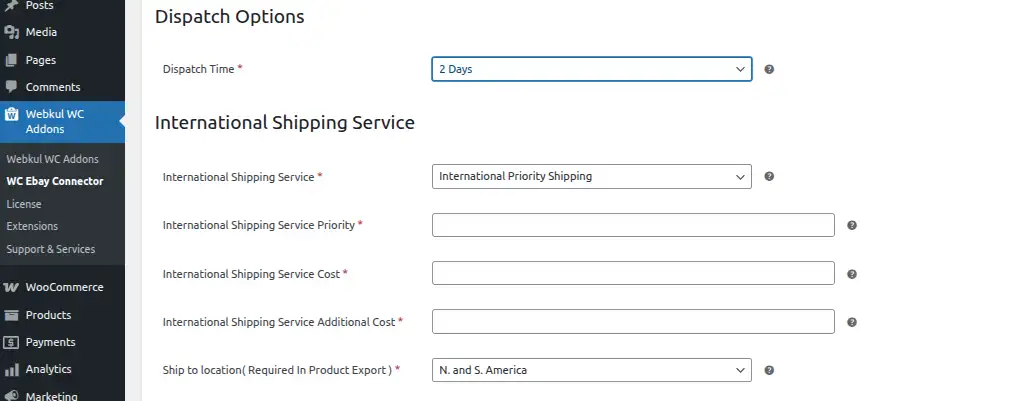
International Shipping Service
| Setting | Description |
|---|---|
| Shipping Service | Select the international shipping service from the dropdown |
| Priority | Enter the priority of the shipping service |
| Cost | Enter the shipping amount that applies when syncing with eBay |
| Additional Cost | Additional shipping amount when syncing with eBay |
| Ship to Location | Select the location where international shipping services are applicable |
Domestic Shipping Options
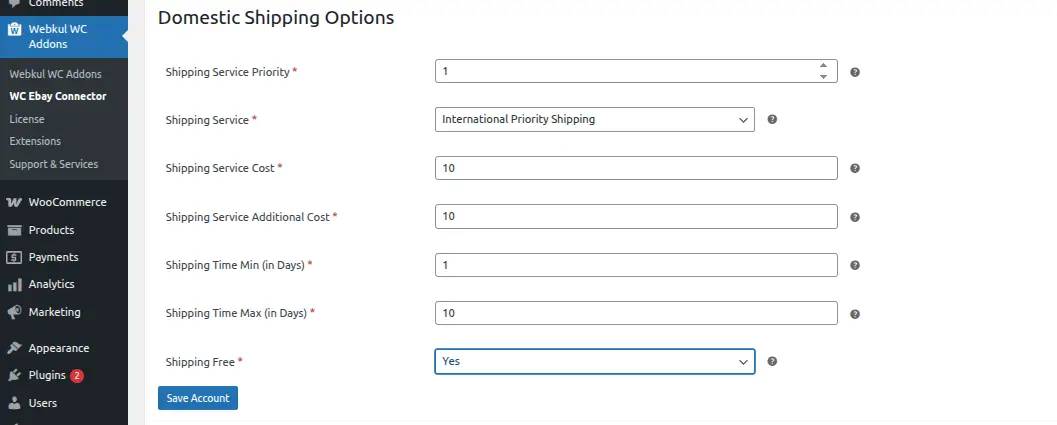
| Setting | Description |
|---|---|
| Priority | Enter the shipping service priority |
| Service | Select the shipping service for the WooCommerce product created on eBay |
| Cost | Set the shipping amount that applies when syncing with eBay |
| Additional Cost | Additional shipping amount (must be less than Shipping Service Cost) |
| Time Min | Set minimum shipping time for exported products |
| Time Max | Set maximum shipping time for exported products |
| Free | Select Yes or No |
Real-Time Sync Settings
Navigate to WC eBay Connector → eBay Settings → Real-Time Sync to manage synchronization settings.
The admin can enable real-time sync to update the WooCommerce store the same as the eBay store. Product information can be updated based on:
- Item Created
- Item Revised
- Item Sold-out
- Item Closed
Note: For real-time settings, eBay Connector does not work for sandbox credentials.
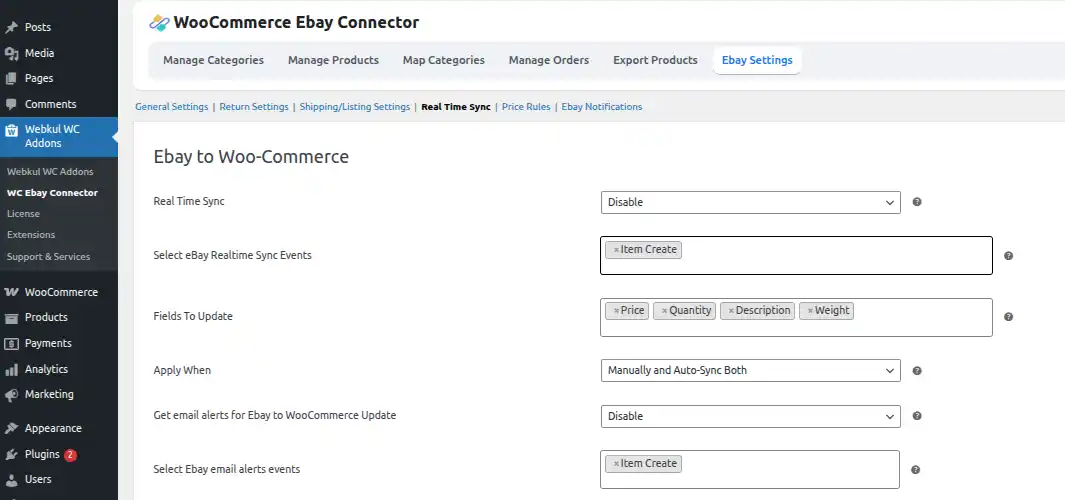
eBay to WooCommerce Real-Time Sync
Enable the status for eBay to WooCommerce real-time sync.
Select eBay Update Events
| Event | Description |
|---|---|
| Create | When a product is added on eBay, WooCommerce syncs its category, description, title, SKU, price, stock, images, and attributes. Auction-type products import as Simple type products. |
| Revised | WooCommerce automatically updates products edited on eBay with all details including category, title, SKU, price, stock, images, and attributes. |
| Sold-out | When an item goes out of stock on eBay, WooCommerce updates its stock accordingly. |
| Closed | Deleting an item on eBay automatically reflects in WooCommerce. |
| Transaction | When an item is purchased from the eBay store, the updates get reflected in the WooCommerce store. |
Additional Settings
| Setting | Description |
|---|---|
| Fields to Update | Select the attributes to update during product updates |
| Apply When | ## Real-Time Sync Settings |
Navigate to WC eBay Connector → eBay Settings → Real-Time Sync to manage synchronization settings.
The admin can enable real-time sync to update the WooCommerce store the same as the eBay store. Product information can be updated based on:
- Item Created
- Item Revised
- Item Sold-out
- Item Closed
Note: For real-time settings, eBay Connector does not work for sandbox credentials.
--- Set the condition: Auto-Synchronization, manual update, or both | | Get email alerts | Select if you want to receive emails for sync status | | Select eBay email alert events | Product information email will be sent based on the selected event | | Auto-delete WooCommerce products | Enable to auto-delete WooCommerce products when the linked eBay listing ends |
WooCommerce to eBay Real-Time Sync
Enable real-time sync between WooCommerce Store and eBay. Any updates at the WooCommerce store end will reflect at the eBay end instantly.
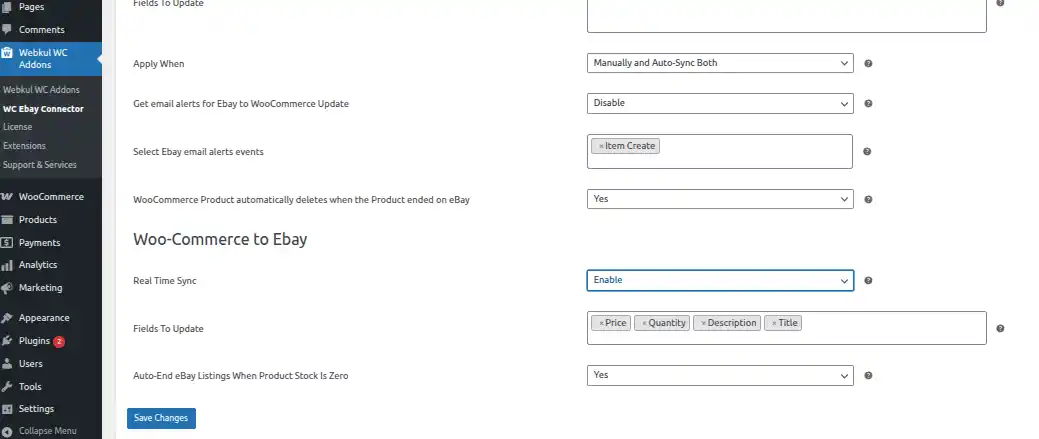
Synced Details (WooCommerce → eBay)
- Images
- Description
- SKU
- Title
- Category
- Condition ID
- Price
- Stock
- Return Policy
Note: For Item Sold and Refund, only stock updates will be applied.
Automatic Inventory Management
The WooCommerce eBay Connector features Automatic Inventory Management, streamlining inventory control and reducing manual work.
- When a product is sold or updated on eBay, WooCommerce automatically adjusts its stock.
- If a product goes out of stock on eBay, it is also marked out of stock in WooCommerce.
- This automatic inventory sync works both ways, based on the Real-Time Sync settings, ensuring WooCommerce changes also reflect on eBay.
---## Real-Time Sync Settings
Navigate to WC eBay Connector → eBay Settings → Real-Time Sync to manage synchronization settings.
The admin can enable real-time sync to update the WooCommerce store the same as the eBay store. Product information can be updated based on:
- Item Created
- Item Revised
- Item Sold-out
- Item Closed
Note: For real-time settings, eBay Connector does not work for sandbox credentials.
Sync Compatibility
| Product Type | eBay → WooCommerce | WooCommerce → eBay |
|---|---|---|
| Simple Products | ✅ | ✅ |
| Variable Products | ✅ | ❌ (only simple products) |
Separate Sync Logs
The plugin maintains separate logs for real-time sync events, allowing you to monitor and debug synchronization activity.
Real-Time Sync Settings
Navigate to WC eBay Connector → eBay Settings → Real-Time Sync to manage synchronization settings.
The admin can enable real-time sync to update the WooCommerce store the same as the eBay store. Product information can be updated based on:
- Item Created
- Item Revised
- Item Sold-out
- Item Closed
Note: For real-time settings, eBay Connector does not work for sandbox credentials.
Price Rule Fields
The store admin can add price rules for the WooCommerce products from Add Price Rule tab. 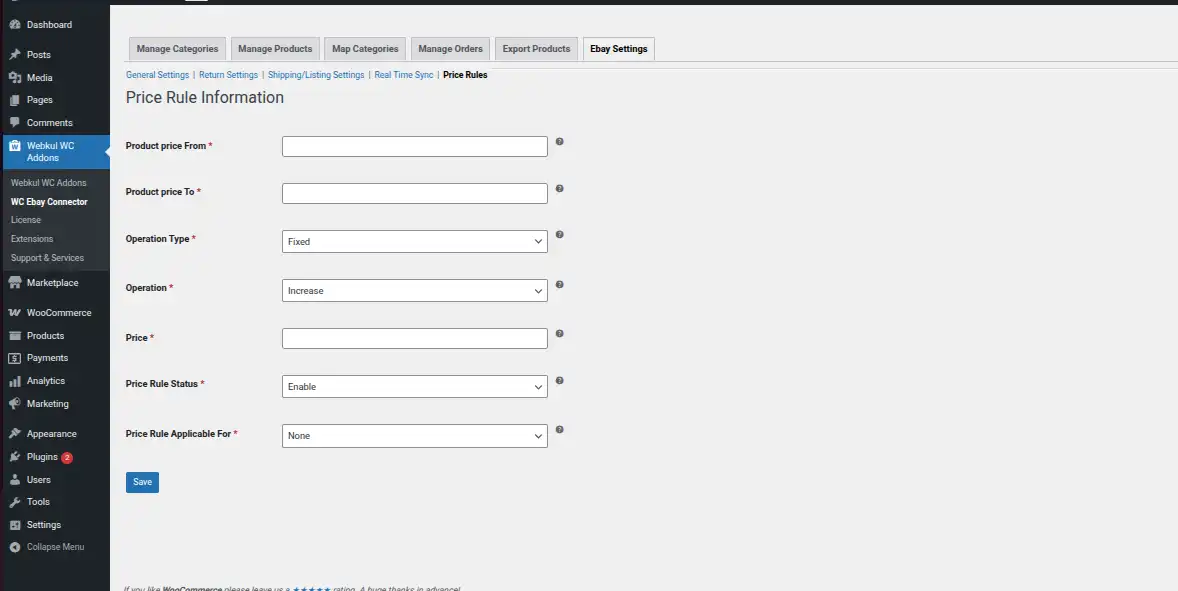
| Field | Description |
|---|---|
| Product Price From | Set the starting price to apply the rule |
| Product Price To | Set the last price for the applied rule |
| Price | Set the price for the price rule |
| Operation Type | Select Fixed or Percentage |
| Operation | Set the price rule operation as Increase or Decrease |
| Price Rule Status | Enable or disable the price rule |
| Price Rule Applicable For | Select Import, Export, or None |
Click Save to create the price rule.
Price Rule List
The created price rules for products will display in a list after saving. 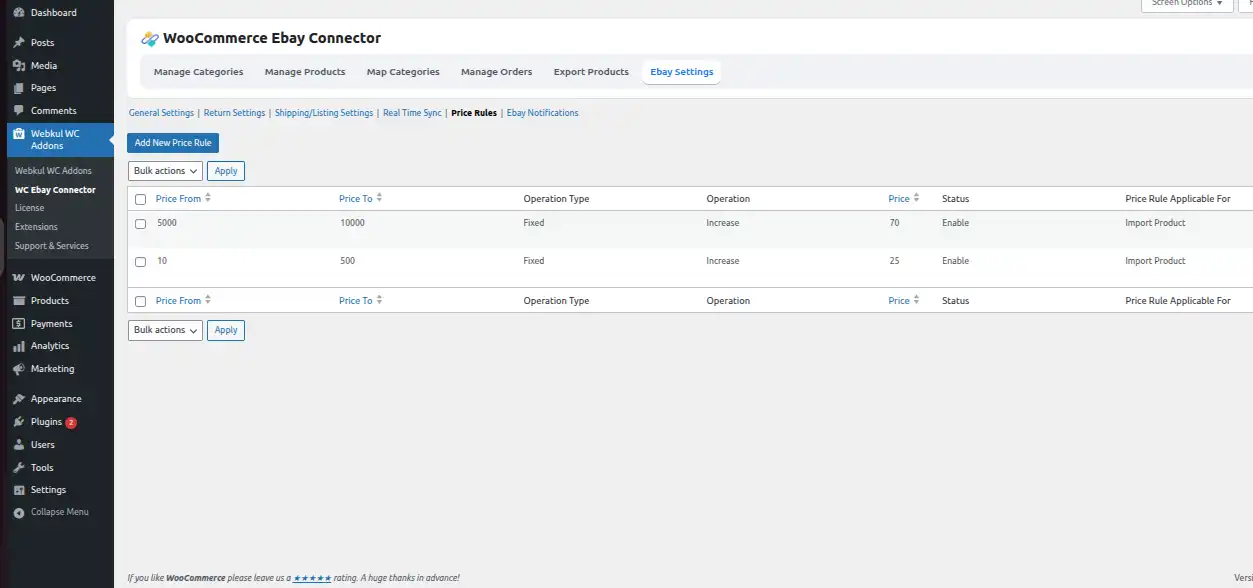
Bulk Actions
A button to Enable, Disable, or Delete a created price rule is provided for mass action.