
Configuration
After successful installation and account setup, configure the plugin settings by navigating to WC eBay Connector → eBay Settings.
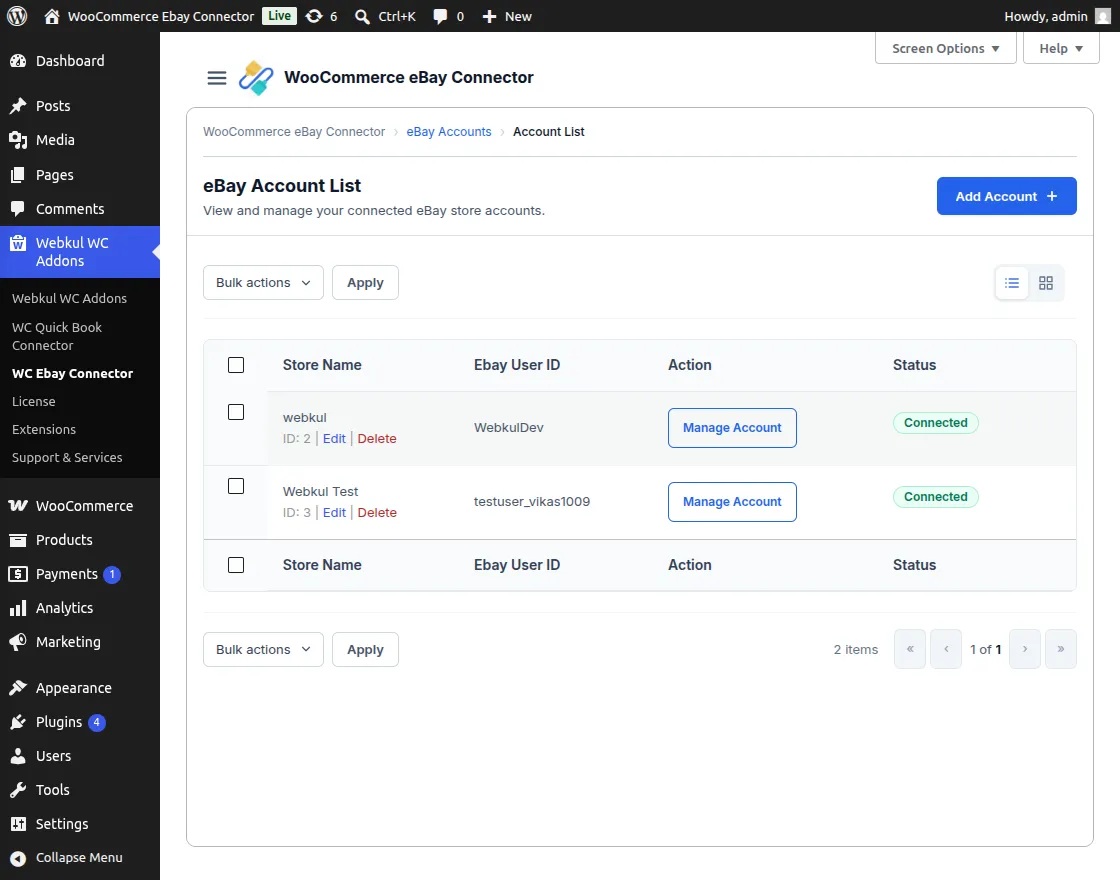
General Settings
The admin can manage the primary synchronization rules for products and orders in this section.
Product Import Settings
This section allows the admin to define how products are imported from eBay to the WooCommerce store.
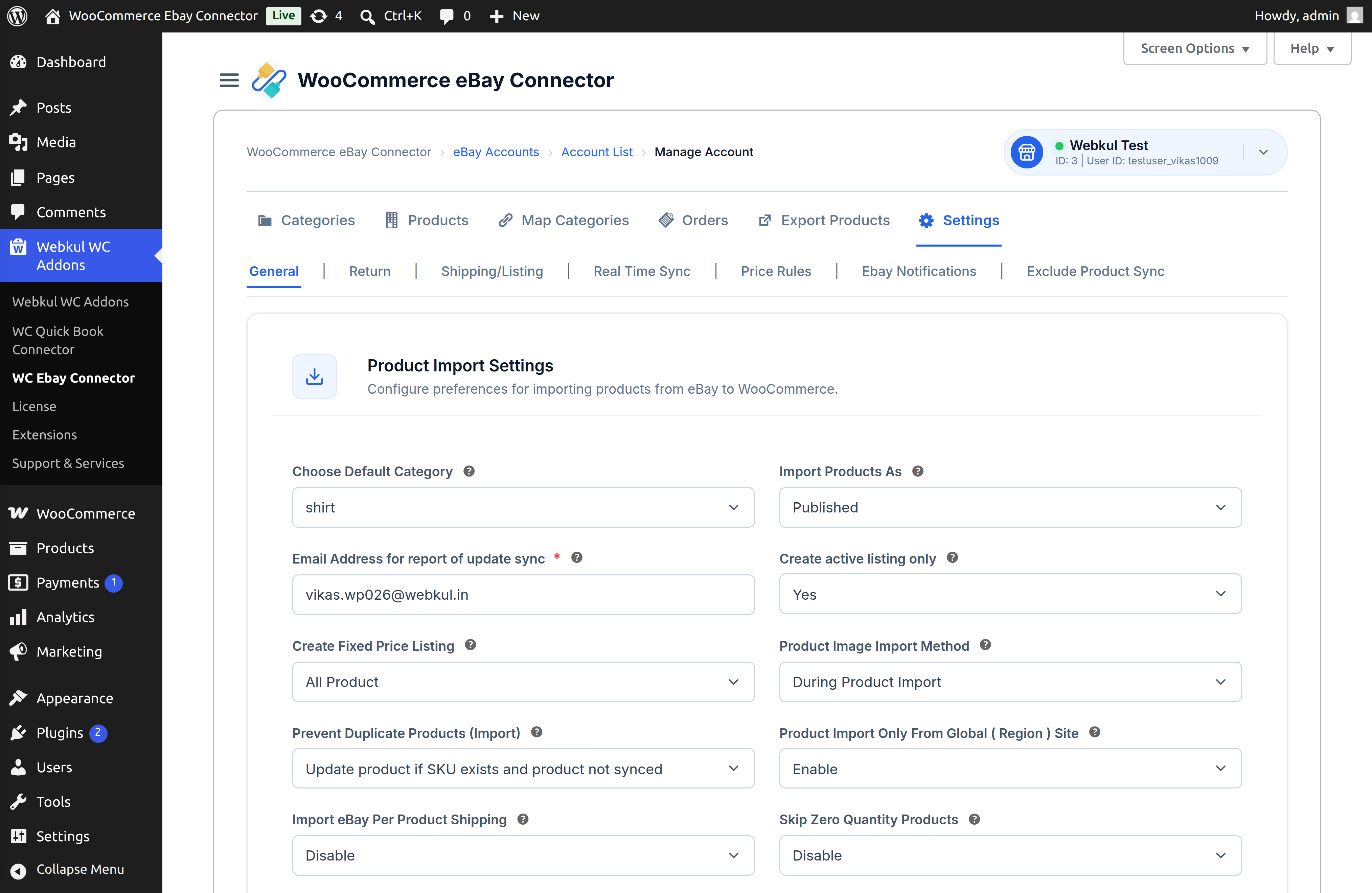
- Default Category: Choose the WooCommerce category where products will be placed if their eBay category is not mapped.
- eBay Imported Order Status: Set the default status for orders imported from eBay.
- Default Product Quantity: Define a default quantity for products if the eBay quantity is zero.
- Email Address for Report: Enter the email to receive synchronization update reports.
- Pin code of Item Location: Specify the pincode of the warehouse or item location.
- Global Shipping: Enable or disable Global Shipping according to business requirements.
- Default Condition for Exported Product: Set a default condition (e.g., New) for products exported to eBay.
- Create Active Listing Only: Select Yes to only create active listings during sync.
- Create Fixed Price Listing: Choose between All Products or Fixed Price Products for listings.
- Product Image Import: Select In the Background for faster parallel imports or During Product Import.
- Product Import Only from Global Site: If enabled, only products from the selected eBay global site will be imported.
- Import eBay Per Product Shipping: Enable or disable the import of product-specific shipping information from eBay. When enabled, the shipping information associated with an eBay product is imported along with the product into WooCommerce and can be viewed on the WooCommerce product edit page.
- Prevent Duplicate Products (Import): Define the action to take if a product with the same SKU already exists (e.g., update the product if the SKU exists and it is not synced).
[!TIP] For importing a large volume of products, it is recommended to set Product Image Import to In the Background to improve performance.
Product Export Settings
The admin can configure the default values for products being exported from WooCommerce to eBay.
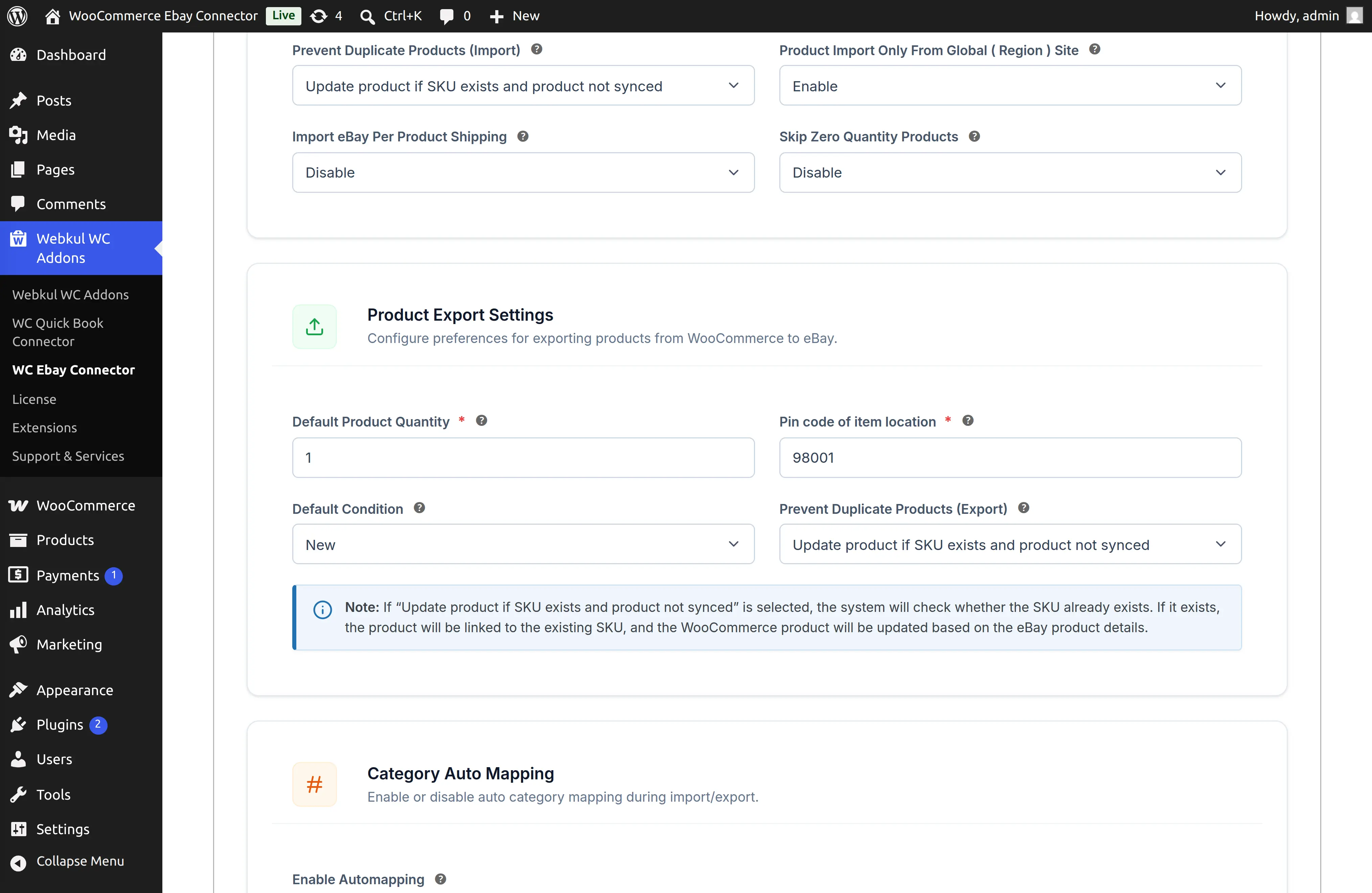
- Default Product Quantity: Set the default stock quantity for eBay if the WooCommerce store quantity is zero.
- Pin code of Item Location: Enter the location pincode for shipping calculations.
- Global Shipping: Choose whether to use eBay's Global Shipping program.
- Default Condition: Select the condition (New, Used, Refurbished, etc.) for exported product listings.
- Prevent Duplicate Products (Export): Enable this setting to prevent the creation of duplicate products on eBay if a product with the same SKU already exists.
Automatic Mapping & Order Import
This section allows the admin to automate the category mapping and order fetching process.
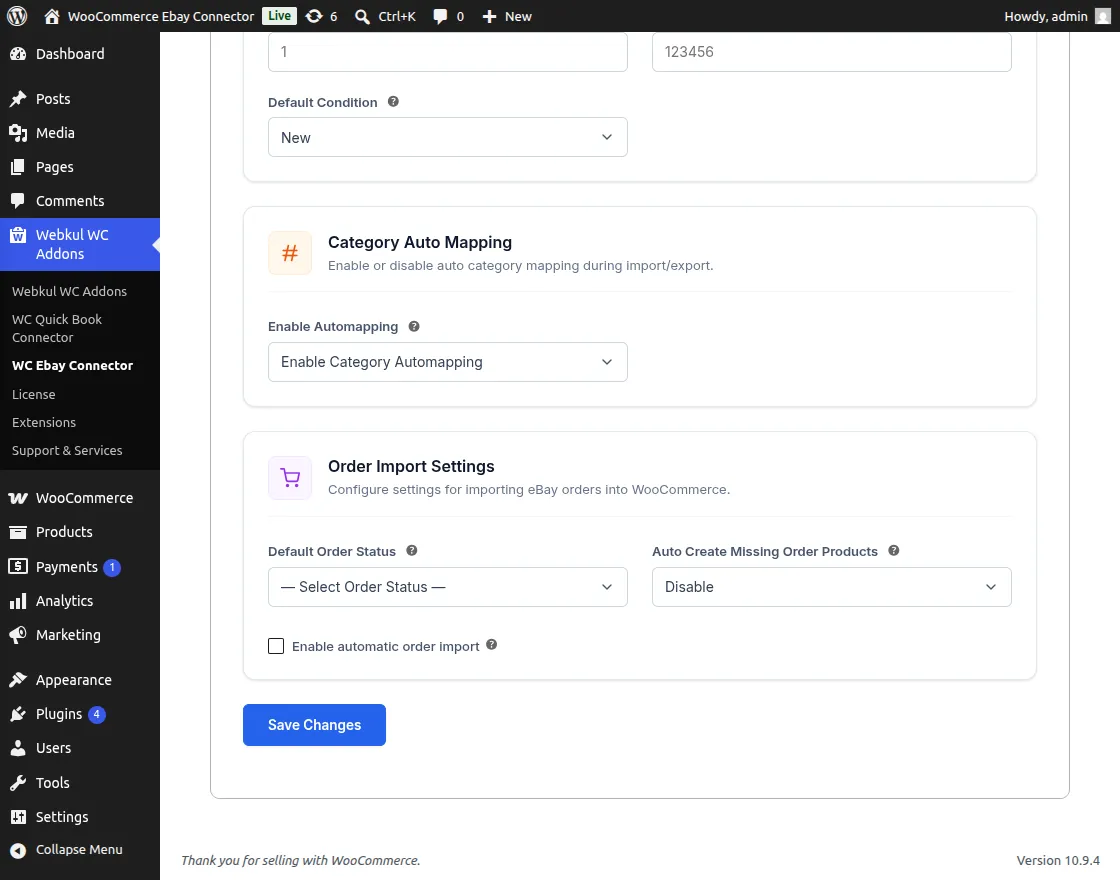
- Enable Auto Mapping: Toggle the category auto-mapping feature to simplify product organization.
- Auto Order Import: Configure the condition for automatic eBay order fetching.
- Sync Frequency: The system executes every 10 minutes to retrieve orders from the last 15 minutes.
- Auto Create Missing Order Products: When enabled, products referenced in imported eBay orders are automatically created in WooCommerce if they do not already exist.
[!NOTE] All products must be synchronized before real-time order import can function correctly.
Return Policy Settings
The admin can define the return and refund policies for products listed on eBay.
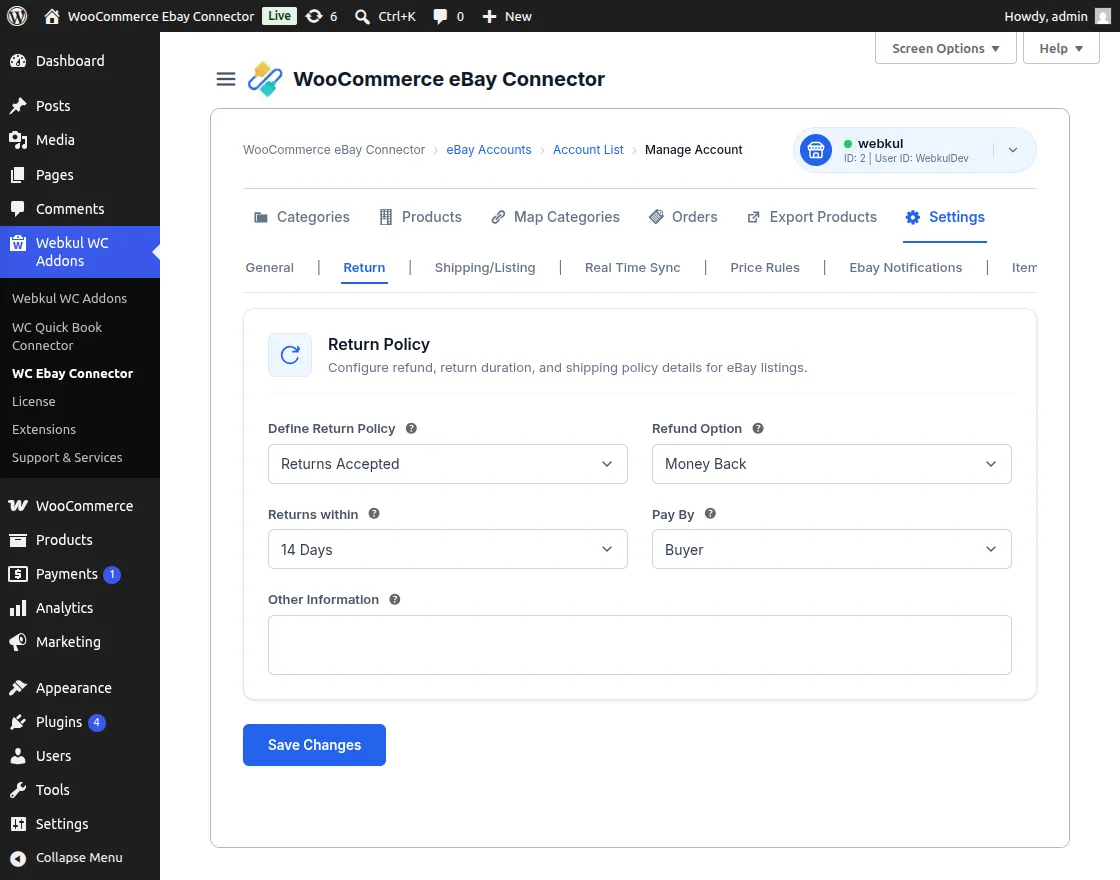
- Define Return Policy: Select between Returns Accepted or Not Accepted.
- Refund Option: Choose the refund method (Money Back, Replacement, etc.).
- Returns Within: Specify the duration (e.g., 30 days) within which returns are allowed.
- Pay By: Select whether the Seller or Buyer pays for return shipping.
- Other Information: Add any specific details or terms for the return policy.
Shipping & Listing Settings
This section allows the admin to manage how products are listed and shipped on eBay.
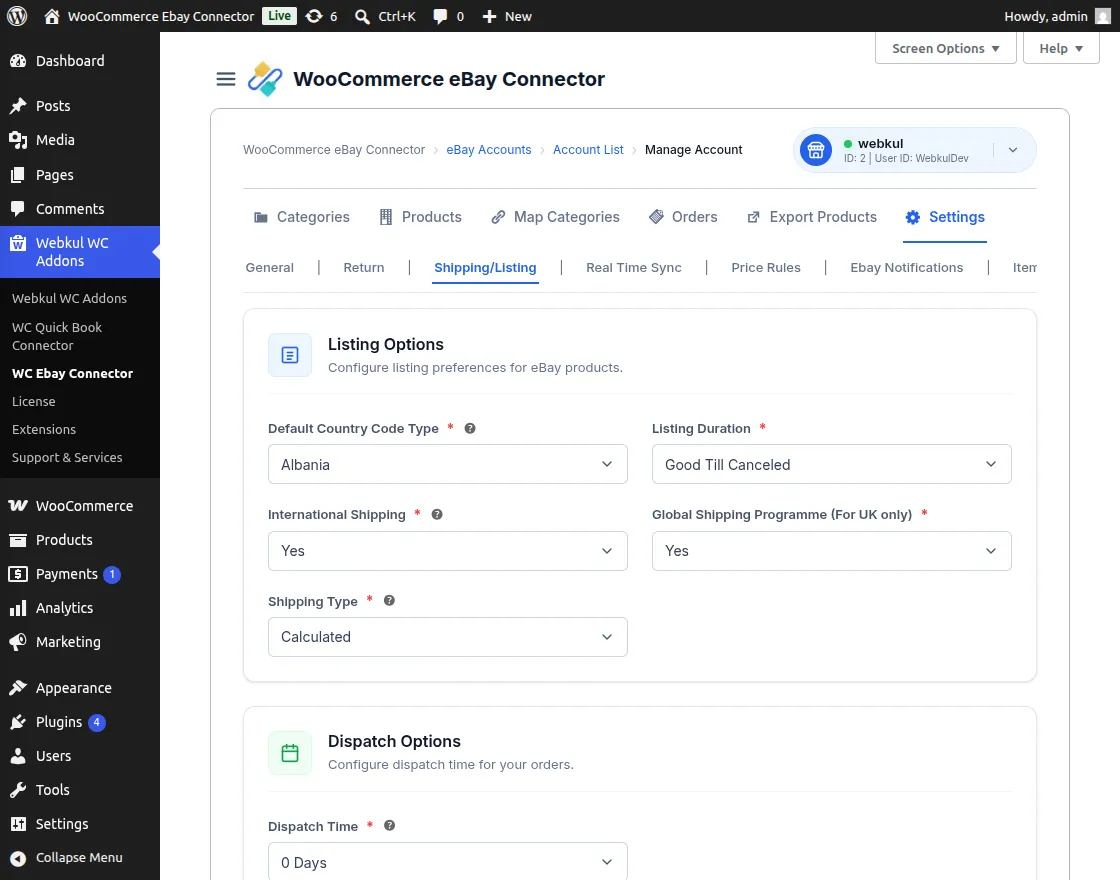
Listing Options
- Default CountryCodeType: Enter the country code required for product exports.
- Listing Duration: Choose the duration for eBay listings (e.g., Good Till Canceled, 7 days, 30 days).
Dispatch Options
The admin can set the handling time for order fulfillment.
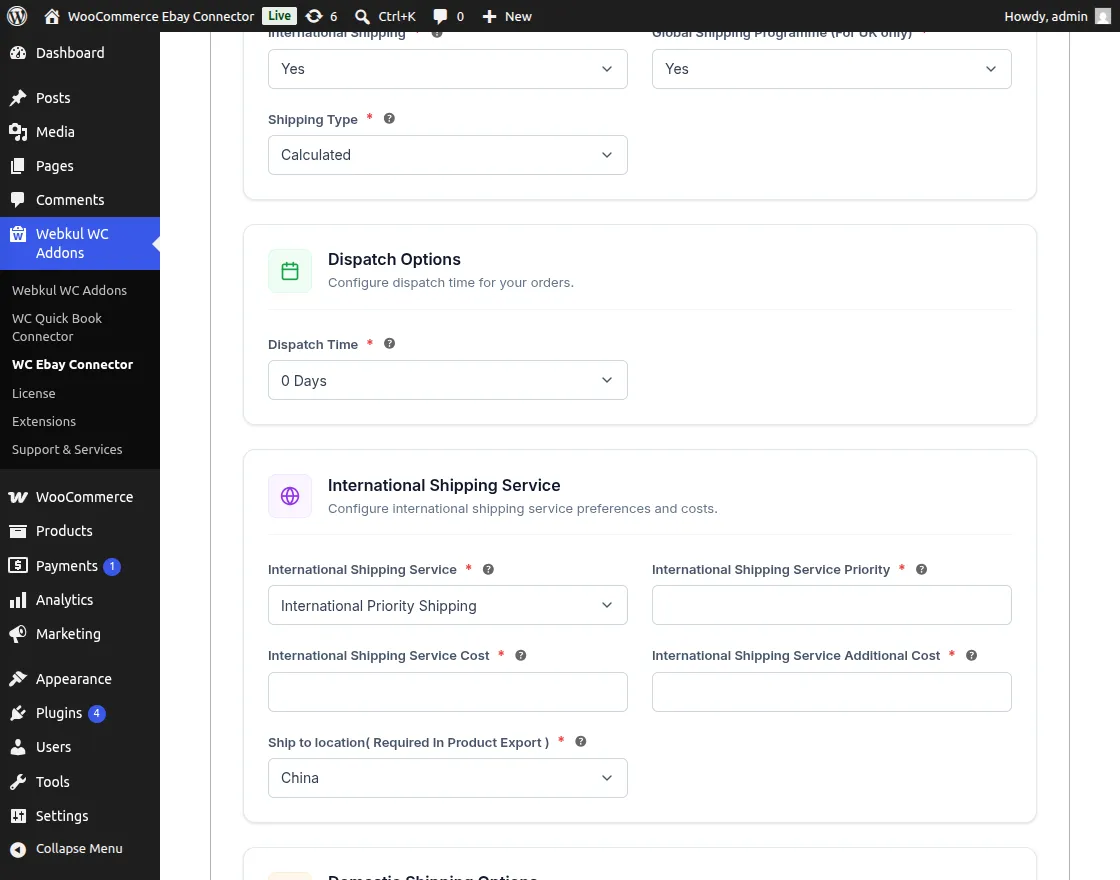
- Dispatch Time: Select the number of days required to ship the product after order placement.
International Shipping Service
Configure shipping options for international customers.
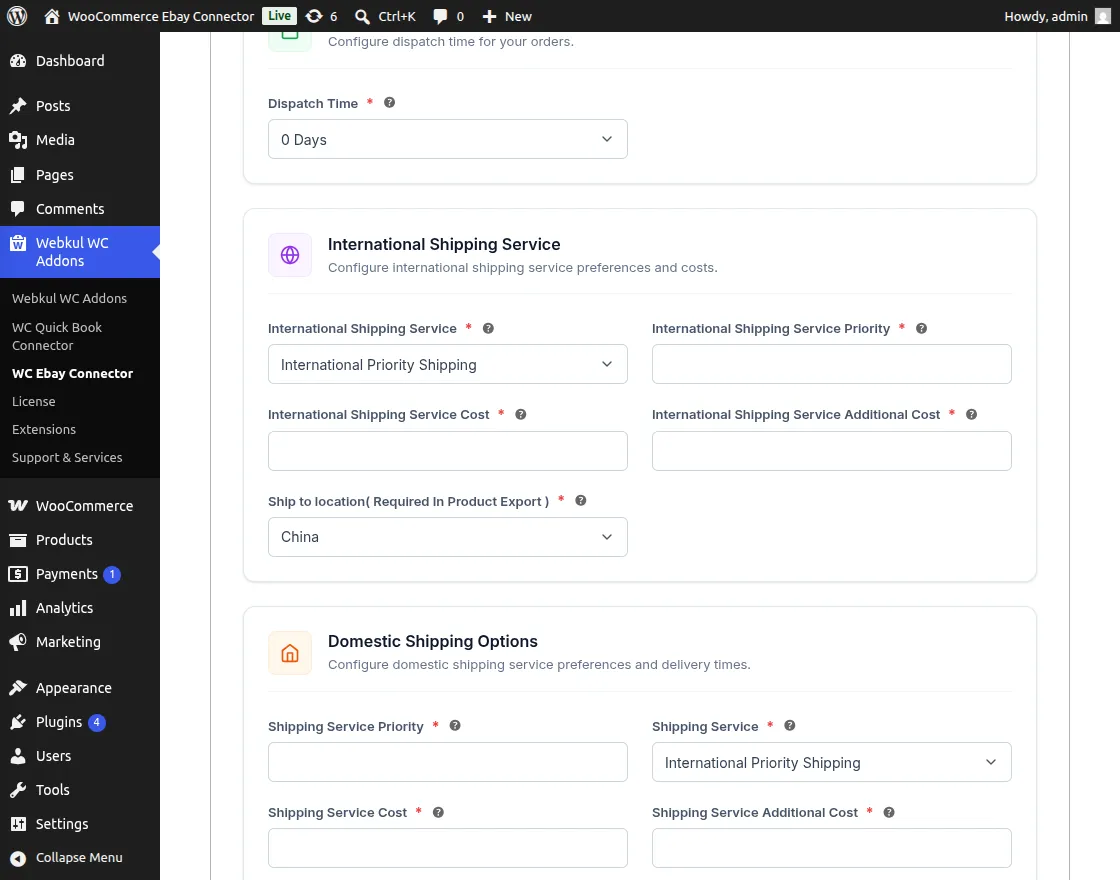
- Shipping Service: Choose the service provider from the supported list.
- Priority: Set the priority for this shipping service.
- Cost: Define the base shipping cost for eBay listings.
- Additional Cost: Set the cost for each additional item in the same shipment.
- Ship to Location: Select the global regions where this shipping service applies.
Domestic Shipping Options
Configure shipping for local customers.
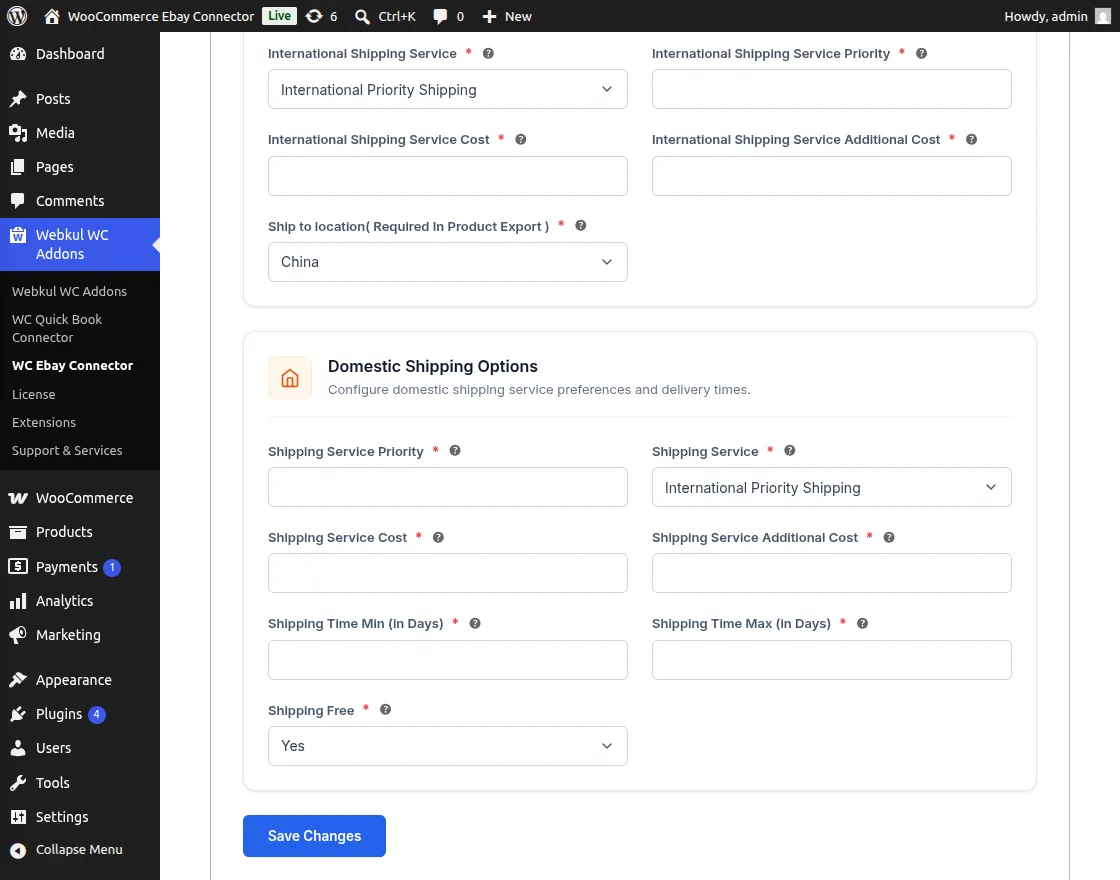
- Priority: Define the priority of the domestic shipping service.
- Service: Select the preferred domestic carrier.
- Cost: Set the primary shipping cost for local deliveries.
- Additional Cost: Specify costs for additional items.
- Delivery Time: Set the minimum and maximum estimated delivery days.
- Free Shipping: Toggle whether to offer free shipping for local orders.
Real-Time Synchronization Settings
The admin can automate the update process between WooCommerce and eBay through real-time synchronization. Navigate to WC eBay Connector → eBay Settings → Real-Time Sync.
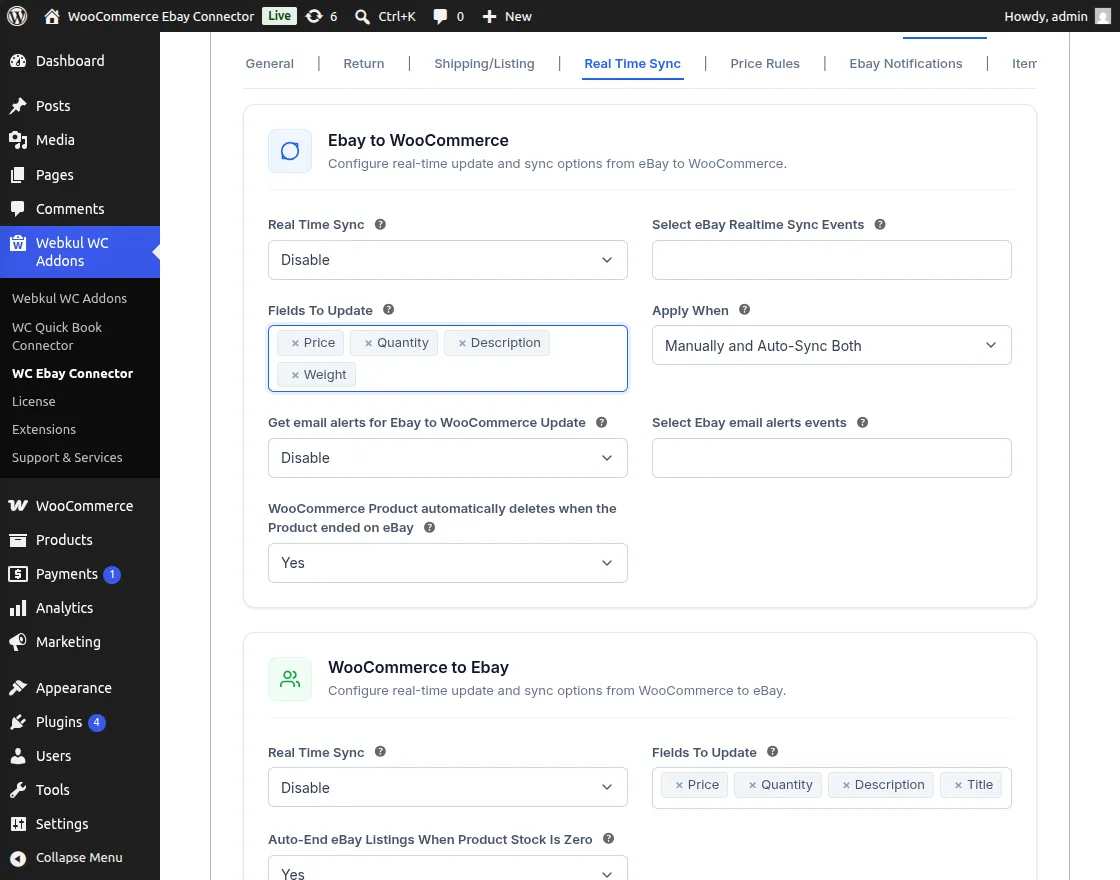
Supported Update Events
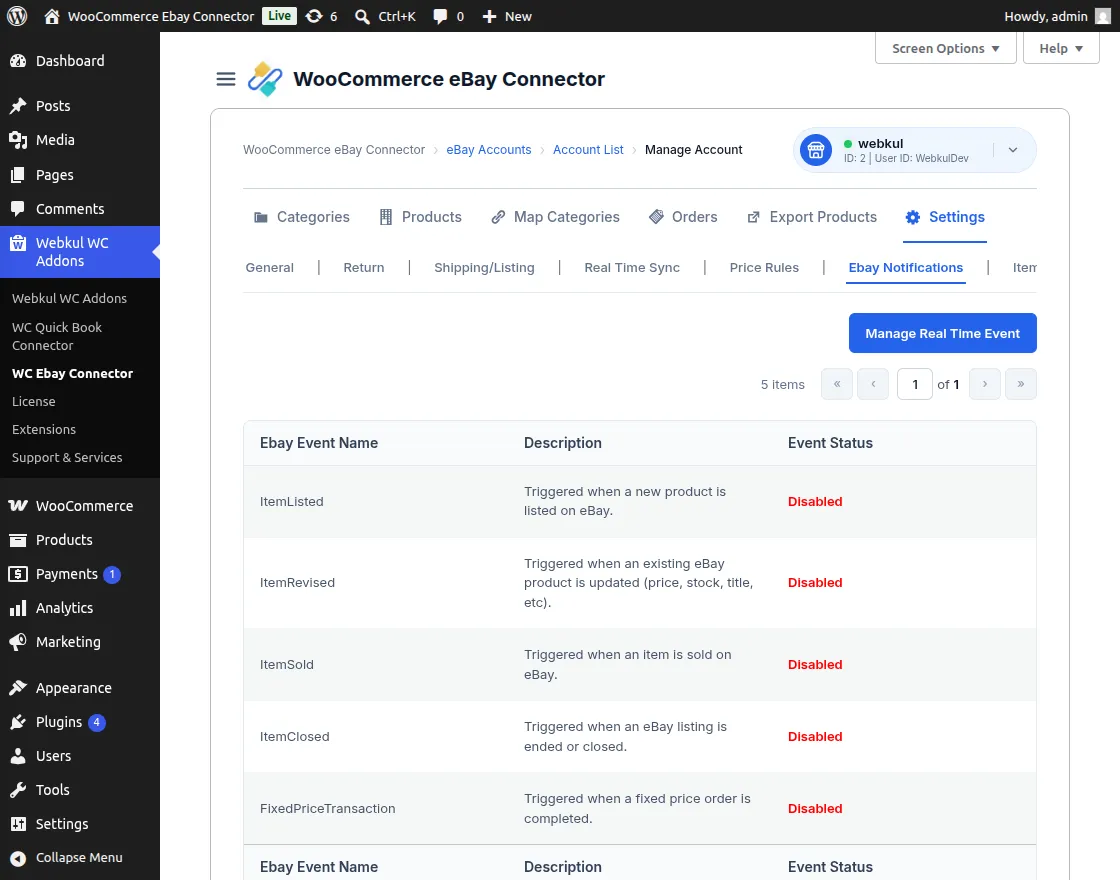
- Create: Automatically sync categories, descriptions, titles, SKUs, prices, stock, and images when a product is added to eBay.
- Revised: Reflect changes made to eBay products (titles, stock, prices) instantly in WooCommerce.
- Sold-out: Update stock levels in WooCommerce when a product is sold on eBay.
- Closed: Remove or disable products in WooCommerce when the eBay listing is ended or deleted.
- Transaction: Synchronize sales data and stock changes when a purchase occurs on eBay.
Additional Sync Controls
- Fields to Update: Select specific attributes (e.g., Price, Stock) to be updated during synchronization.
- Apply When: Choose between auto-synchronization, manual updates, or both.
- Email Alerts: Enable notifications for synchronization events and errors.
- Auto-delete Products: Automatically remove WooCommerce products when their eBay counterpart listing ends.
WooCommerce to eBay Real-Time Sync
This section allows the admin to enable instant updates from the WooCommerce store to eBay.
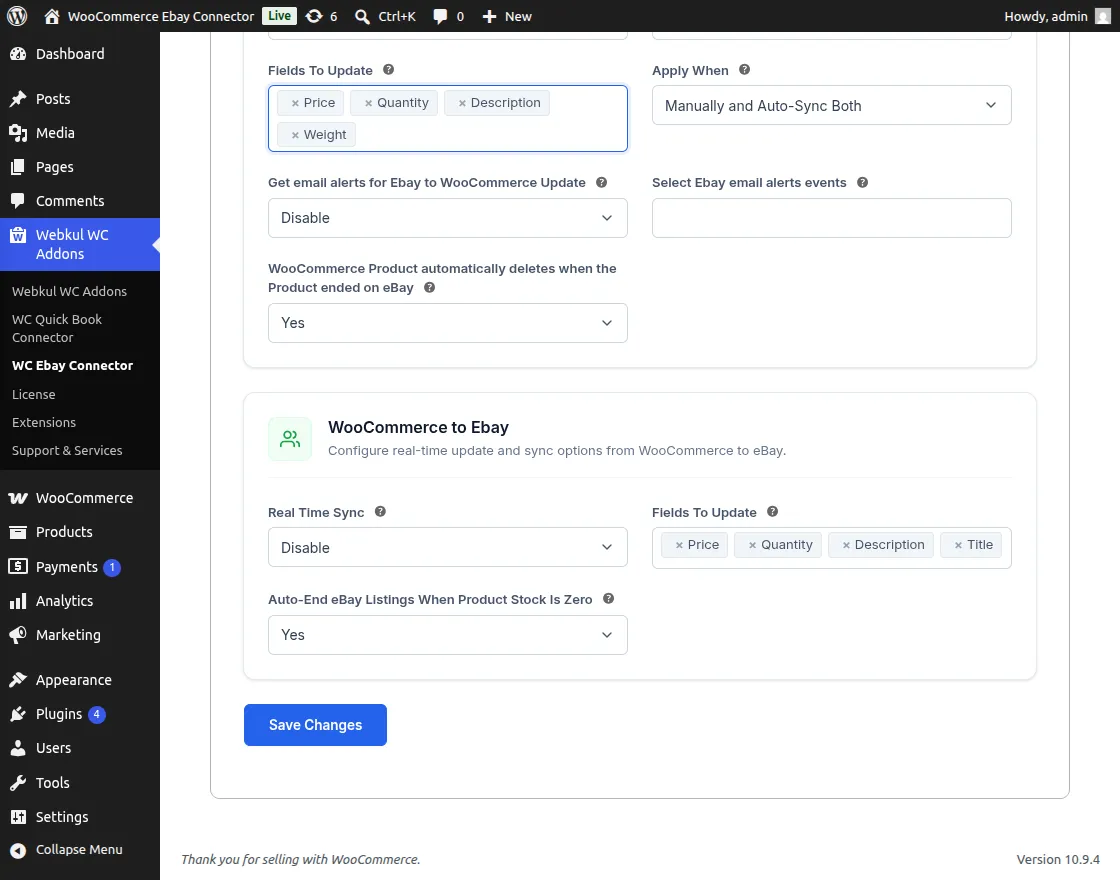
Synchronized Details
- Product Images & Description
- SKU & Product Title
- Category & Condition ID
- Price & Stock Levels
- Return Policy Updates, etc.
[!NOTE] For Item Sold and Refund events, only the stock quantity will be synchronized.
Automatic Inventory Management
The eBay Connector module streamlines inventory control by reducing manual intervention:
- Automatic Adjustment: WooCommerce stock is updated instantly when a product is sold on eBay.
- Out of Stock Sync: Products marked as out of stock on eBay are automatically updated in WooCommerce.
- Two-Way Flow: Changes made in WooCommerce are reflected on eBay based on the real-time sync configuration.
Price Rule Management
The admin can create specific rules to adjust product prices during the import or export process.
Price Rule Fields
Navigate to the Add Price Rule tab to create a new rule.
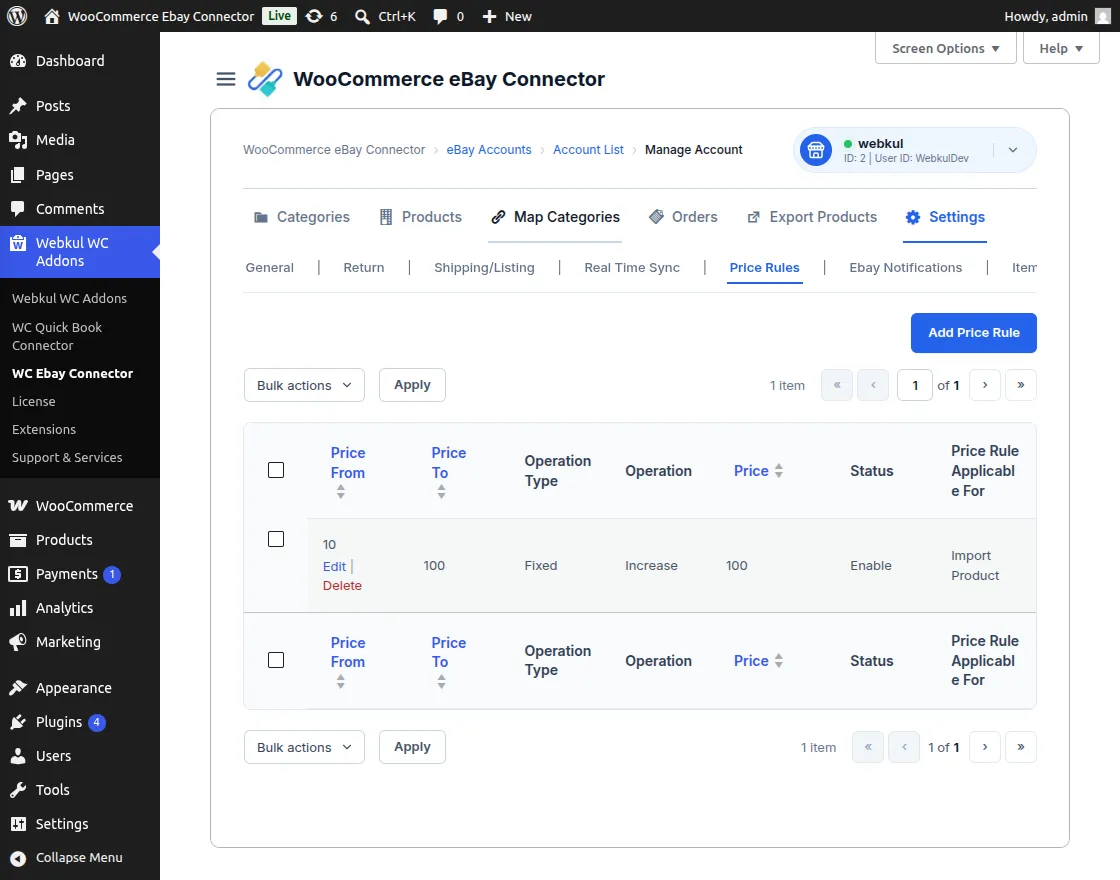
- Product Price From/To: Set the price range where this rule will be applied.
- Price: Enter the value for the adjustment.
- Operation Type: Choose between Fixed or Percentage adjustment.
- Operation: Select Increase or Decrease to apply to the original price.
- Price Rule Status: Enable or disable the rule.
- Applicable For: Choose whether the rule applies to Import, Export, or both.
Price Rule List
This section allows the admin to view and manage all created price rules.
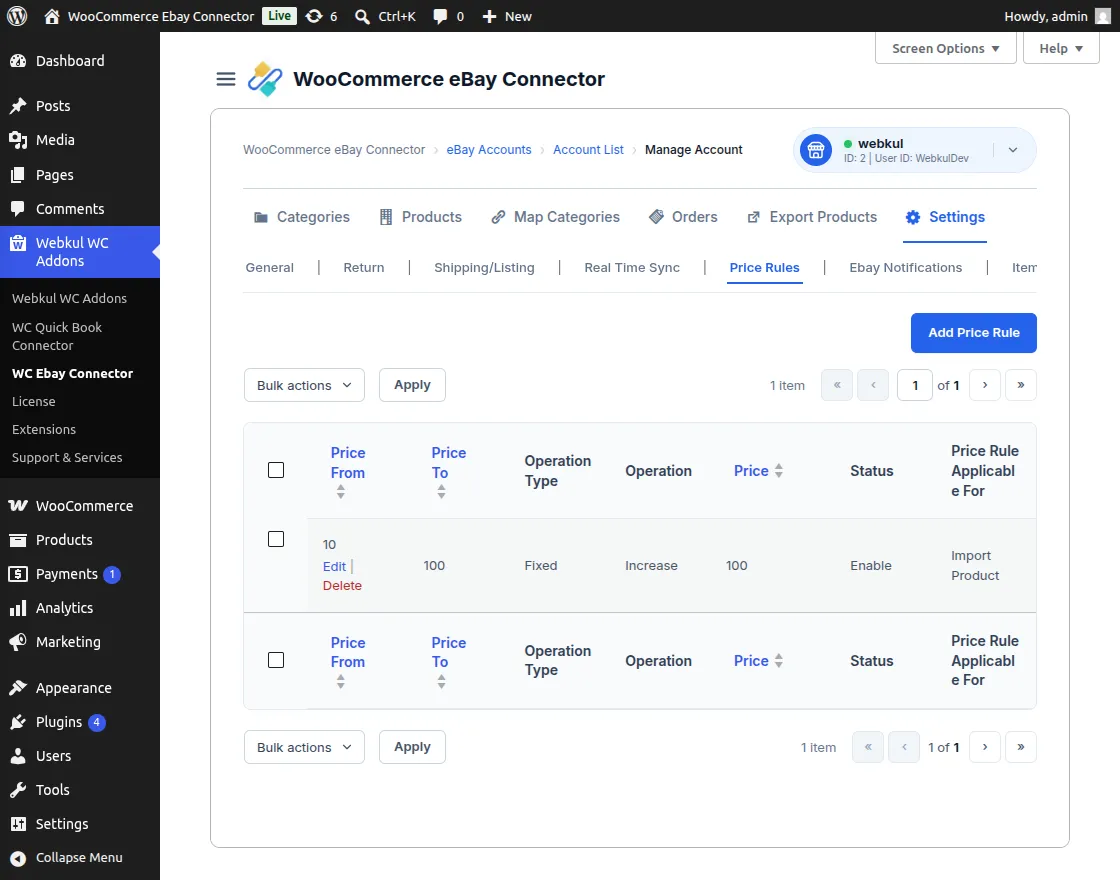
- Bulk Actions: The admin can Enable, Disable, or Delete multiple rules simultaneously.
- Status Management: Quickly toggle the active status of individual price rules.
eBay Notifications Tab
This section allows administrators to verify whether Real-Time Sync events configured in eBay are active and being received correctly.
Exclude Product Sync
The connector now provides dedicated controls to exclude specific products from synchronization between WooCommerce and eBay. Administrators can choose which products should participate in the synchronization process without affecting other products connected to the eBay account.
WooCommerce to eBay Product Exclusions (Export)
Administrators can prevent specific WooCommerce products from being exported or updated on eBay.
The WooCommerce to eBay Product Exclusions (Export) section allows the admin to search for WooCommerce products and add them to the exclusion list.
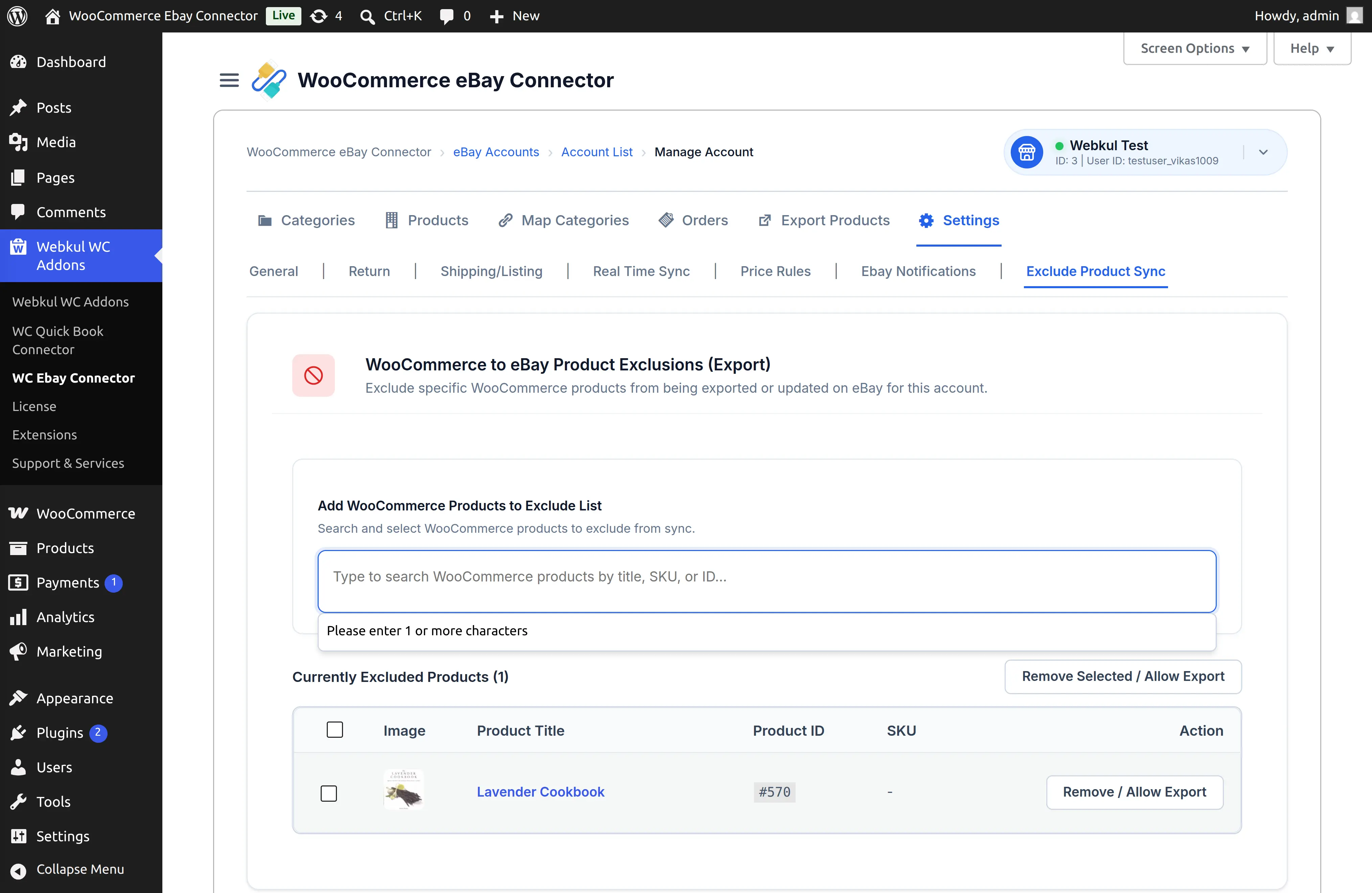
The admin can search for products using:
- Product name
- SKU
- Product ID
Once a product is added to the exclusion list, it will not be exported or updated on the selected eBay account. The excluded products are displayed in the Currently Excluded Products section, where the admin can remove a product from the list and allow it to participate in synchronization again.
eBay to WooCommerce Product Exclusions (Import)
Administrators can exclude specific eBay products from being imported or updated in WooCommerce.
The Exclude Product Sync section is available under the eBay Connector settings.
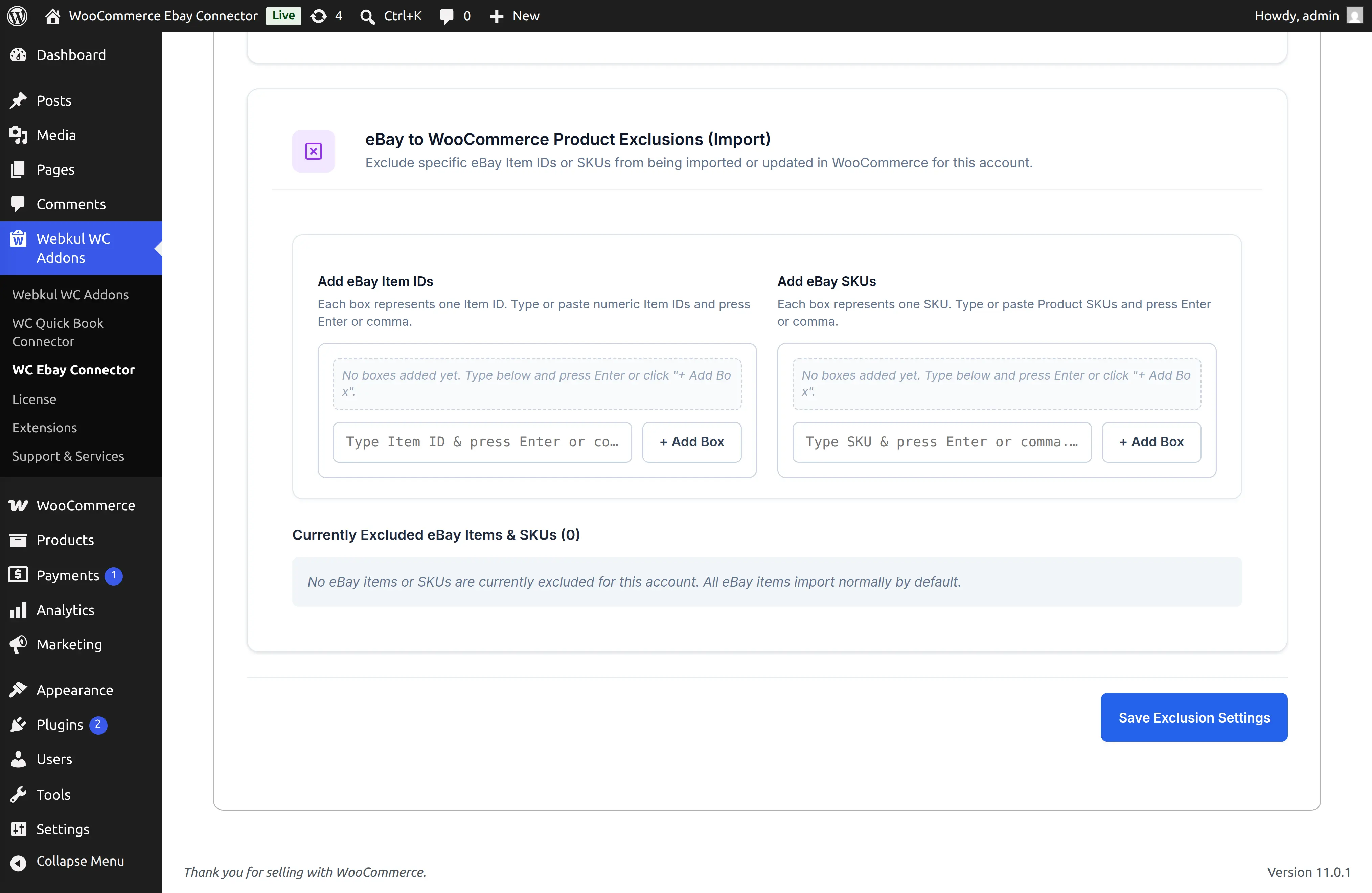
From this section, the admin can add:
- eBay Item IDs
- eBay SKUs
The admin can enter an Item ID or SKU and add it to the exclusion list. Multiple products can be added to the list.
Once a product is added to the exclusion list, the connector will skip that product during the eBay-to-WooCommerce synchronization process. This is useful when the admin wants to keep selected eBay products out of the WooCommerce catalog while continuing to synchronize the remaining products.