
POS Globalpay Terminal Payment DocumentationPOS Globalpay Terminal Payment Documentation
Buy Now
View Demo
  • Getting Started

    • Overview
    • Key Features
    • Installation
  • Configuration

    • Admin Settings
    • Node Server & SSL
  • Hardware & App

    • Mobile Terminal App
    • UPA Java Emulator
  • Operations

    • Checkout Workflow
    • Order Metadata
  • Support

    • Troubleshooting
    • FAQ
Core POS System
Buy Now
View Demo
  • Getting Started

    • Overview
    • Key Features
    • Installation
  • Configuration

    • Admin Settings
    • Node Server & SSL
  • Hardware & App

    • Mobile Terminal App
    • UPA Java Emulator
  • Operations

    • Checkout Workflow
    • Order Metadata
  • Support

    • Troubleshooting
    • FAQ
Core POS System
  • Getting Started

    • POS Globalpay Terminal Payment Documentation
    • System Overview
    • Detailed Features List
    • Plugin Installation
  • Setup & Configuration

    • Admin Gateway Configuration
    • Node.js Socket Server & Security Setup
  • Hardware & Emulator Setup

    • Globalpay Android Terminal App Setup
    • UPA Java Terminal Emulator Setup
  • Store Operations & Checkout

    • POS Checkout Workflow & Interactive Prompts
    • Order Fulfillment & Metadata Audit Logging
  • Help & FAQ

    • Troubleshooting Guide
    • Frequently Asked Questions (FAQ)

Plugin Installation

Follow this guide to install and activate POS Globalpay Terminal Payment for WooCommerce.


Step 1: Upload Plugin Package

  1. Log into your WordPress Administration Dashboard.
  2. Go to Plugins → Add New Plugin.
  3. Click Upload Plugin at the top of the page.
  4. Select wk-pos-globalpay-terminal-payment.zip and click Install Now.

Step 2: Activate Plugin & Verify Settings Link

  1. Click Activate Plugin once the upload completes.
  2. Go to Plugins → Installed Plugins and verify that a direct Settings link appears under POS Globalpay Terminal Payment for WooCommerce.
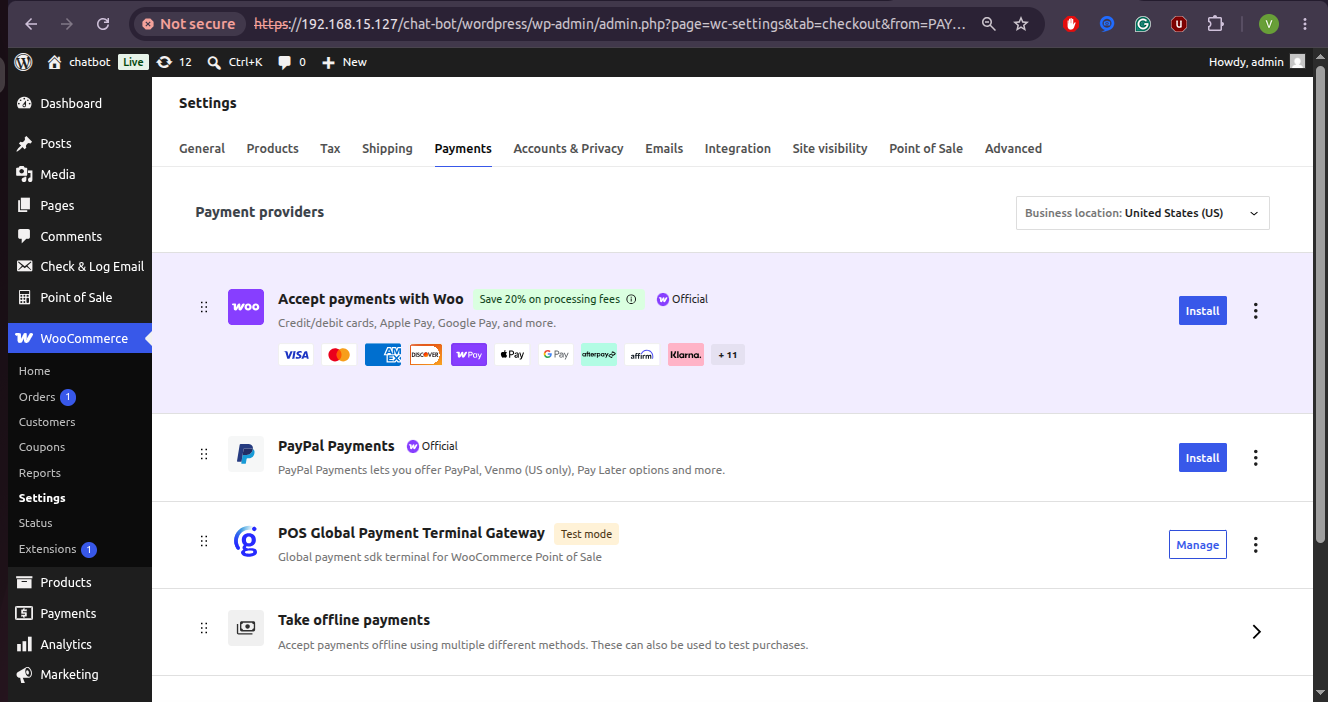
Payment Providers List


Step 3: Flush Permalinks

To ensure custom REST API endpoints are registered cleanly:

  1. Navigate to Settings → Permalinks.
  2. Click Save Changes at the bottom of the page.

Dependency Checklist

The plugin automatically checks for active prerequisite plugins:

  • WooCommerce: Required for order management and gateway APIs.
  • WooCommerce Point of Sale (POS): Required for cashier interface integration and Node server hooks.
Prev
Detailed Features List