
UPA Java Terminal Emulator Setup
For local testing, staging environments, or demonstration without physical card reader hardware, developers and store managers can run the UPA Terminal Emulator JAR Application.
1. Launching the Emulator via Console
Open your terminal or command prompt and execute the emulator JAR file:
java -jar UPA-EMULATOR-1.0.0.jar
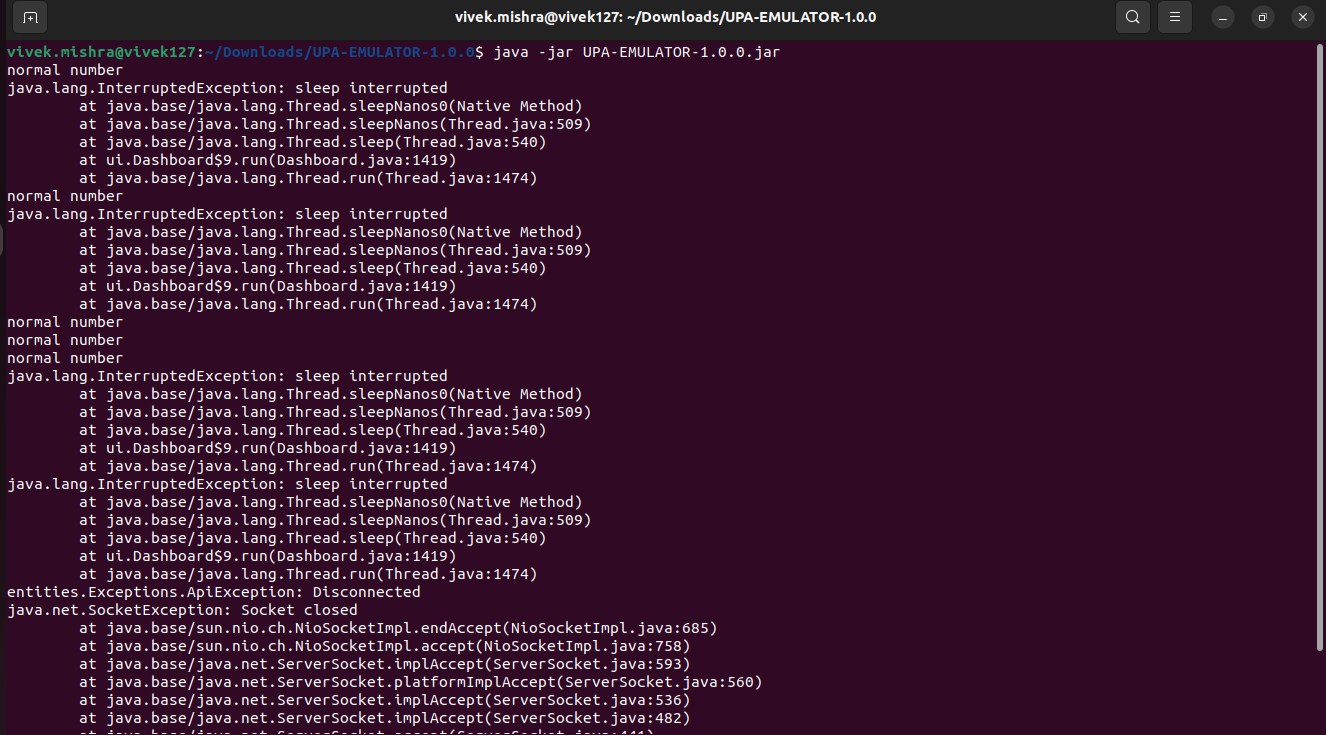
The console output logs thread initializations and socket server listener status (NioSocketImpl.accept).
2. Emulator User Interface Overview
Once launched, the UPA Emulator application window opens:
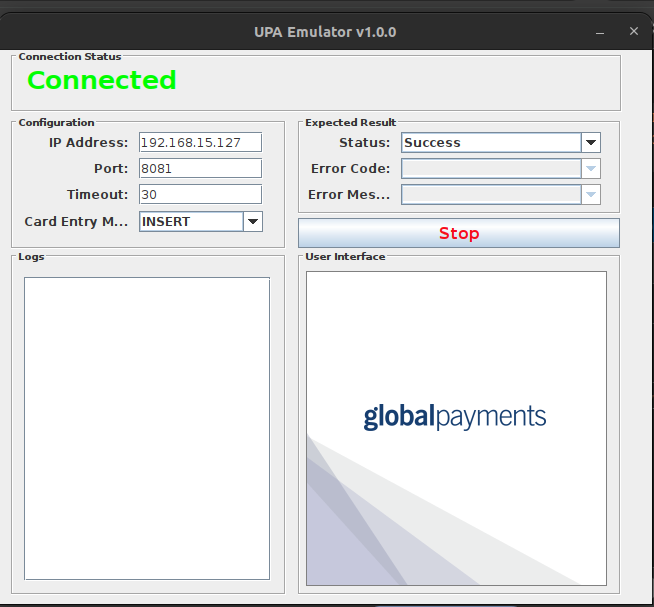
Control & Status Panels
- Connection Status: Displays
Connectedin green text when successfully bound to host192.168.15.127and port8081. - Configuration Panel:
- IP Address:
192.168.15.127 - Port:
8081 - Timeout:
30seconds - Card Entry Mode: Select
INSERT,SWIPE, orTAP.
- IP Address:
- Expected Result Panel:
- Status: Select expected test outcome (
Success,Declined,Error). - Error Code / Error Message: Input custom test error parameters.
- Status: Select expected test outcome (
- Logs Panel: Real-time JSON message payload inspector showing incoming
Salecommands and outgoing response objects. - User Interface Panel: Interactive simulated terminal screen displaying prompt steps (
Sale,ENTER USER #,RE-ENTER AMOUNT,CARD ENTRY,ENTER PIN,CONTACTING HOST,TRANSACTION APPROVED).