
Attribute Mapping
The most-used tab once you're past initial setup. It maps your custom WooCommerce attributes (taxonomies and product fields) to UnoPim attributes — scoped per channel and language.
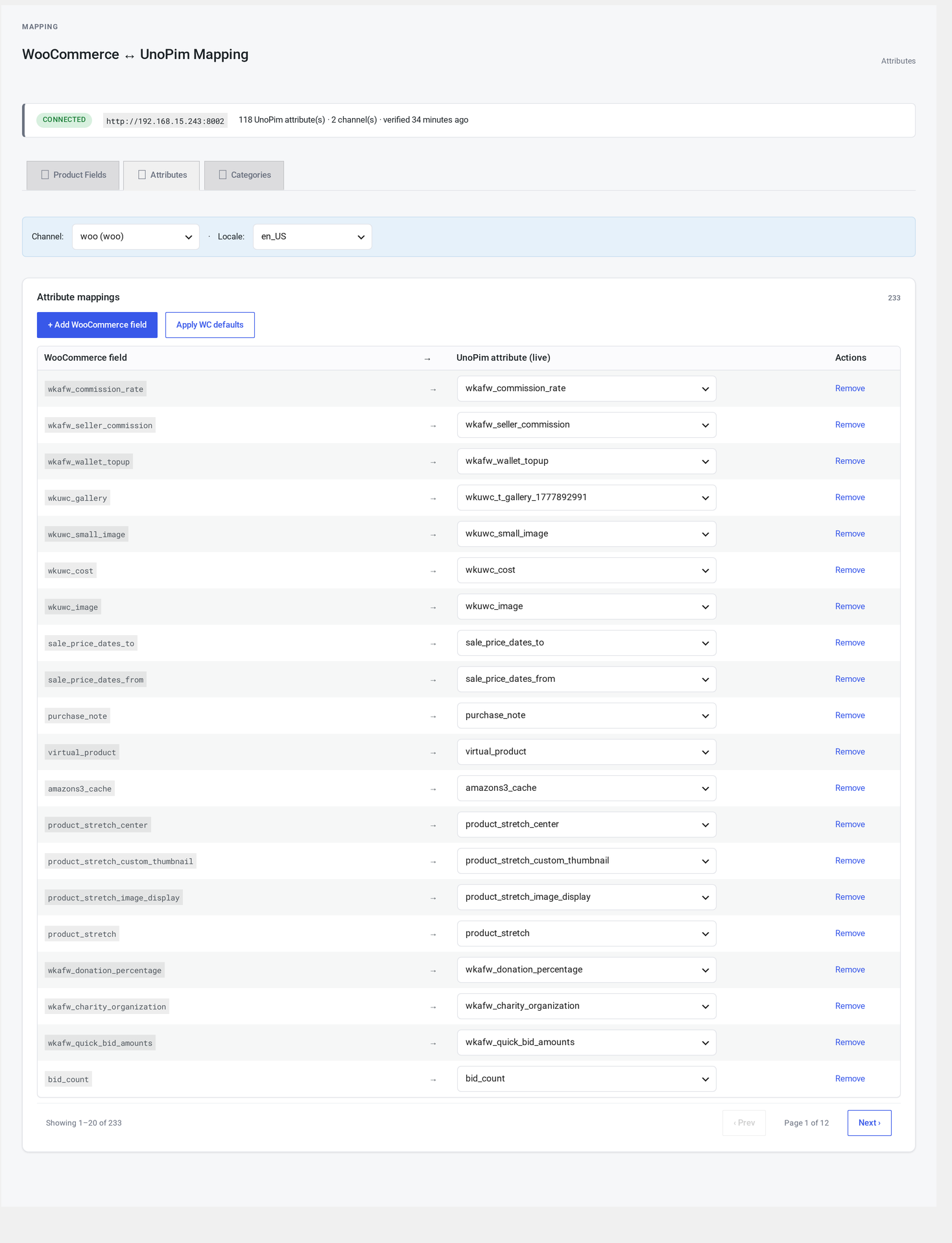
Where it lives
WordPress admin → UnoPim Configuration → Field Mapping → Attributes.
Why per channel and language
Real catalogues often need this:
- On the
webchannel,coloris apa_colortaxonomy. - On the
mobilechannel,coloris just a plain text field. - On the
b2bchannel,coloris irrelevant — sales reps don't need it on the listing.
Per (channel, language) scope lets you express all three on one screen without bleeding into each other. The language dimension matters less but is honoured for symmetry.
Page anatomy
┌─────────────────────────────────────────────────────────────┐
│  Channel: [web ▼]   Language: [en_US ▼]                     │
│                                                             │
│  ┌──────────────────────────────────┬──────────────────────┐│
│  │ WooCommerce field                │ UnoPim attribute     ││
│  ├──────────────────────────────────┼──────────────────────┤│
│  │ pa_color           [picker]      │ color   [picker]     ││
│  │ pa_size            [picker]      │ size    [picker]     ││
│  │ ...                              │ ...                  ││
│  ├──────────────────────────────────┴──────────────────────┤│
│  │ + Add WooCommerce field   + Add custom column           ││
│  │  Auto-map     Apply WC defaults    Save preset           ││
│  │  Save mapping     Clear     Refresh targets              ││
│  └──────────────────────────────────────────────────────────┘│
└─────────────────────────────────────────────────────────────┘
The table paginates 20 rows per page. Both columns are live, type-as-you-search pickers.
Scope picker
Two dropdowns at the top:
- Channel — defaults to your first channel
- Language — defaults to that channel's first language
Switching either:
- Saves any pending changes (with a confirm if you have unsaved edits)
- Loads the mapping for the new combination
- Repaints the table
Each combination has its own row set. If you mapped color → color on web:en_US, switching to web:fr_FR shows a separate empty mapping (until you copy it via a preset).
Adding a row
Two paths:
Path 1: + Add WooCommerce field
Click + Add WooCommerce field. A new empty row appears. Click the left-side picker and start typing — matches come from:
- All your WooCommerce attribute taxonomies (the
pa_*ones) - All product fields with at least one stored value
- Standard fields like weight and dimensions
- Anything you've added via + Add custom column
Pick the WooCommerce field, then click the right-side picker and pick the matching UnoPim attribute. Done.
Path 2: + Add custom column
If you have a product field the auto-detection didn't pick up, click + Add custom column.
A small modal appears: type the field key (and an optional human label). The key now appears in the source-side picker.
Auto-map
Click Auto-map. The connector:
- Loads the current channel's UnoPim attribute list.
- For each WooCommerce source field that doesn't yet have a mapping, scores possible UnoPim attributes by code match, lower-case match, and label similarity.
- Adds rows for the strongest matches.
A preview appears. Confirm to apply.
The button is non-destructive — your existing mappings are left alone. Click Clear first if you want a fresh slate.
Apply WC defaults
Inserts a baseline mapping for common WooCommerce field codes that have an obvious UnoPim equivalent (e.g. weight → weight, dimensions → dimensions, pa_color → color if those attributes exist on the active channel).
Useful as a starting point for a brand-new channel + language combination. Like Auto-map, it's non-destructive.
Presets
A preset is a named snapshot of your current scope's mapping.
Save preset
Click Save preset. A modal asks for a name (e.g. apparel_v2). Confirm.
Load preset
Click Load preset. Pick from the existing list. The current mapping is replaced with the preset's rows. Click Save mapping to commit.
When presets help
- Copy a mapping from
web:en_UStoweb:fr_FRwithout re-doing every row. - Roll back after a risky bulk edit (save before, load if it goes sideways).
- Replicate canonical mappings across channels.
Save, clear, refresh
| Button | What it does |
|---|---|
| Save mapping | Saves your current rows for the current channel and language |
| Clear | Drops all rows for the current scope (with a confirm) |
| Refresh targets | Re-pulls the UnoPim attribute list. Use after editing UnoPim attributes. |
Common patterns
Replicate a mapping across all languages of one channel
- On
web:en_US, click Save preset asweb_default. - Switch to
web:fr_FR. Click Load preset → web_default. Save. - Repeat for each language.
Replicate a mapping across all channels
Same as above, but switch the channel each time instead of the language.
Troubleshooting
| Symptom | Cause | Fix |
|---|---|---|
| Switching channel loses unsaved changes | The page warned but you clicked "leave anyway" | Save first |
| The picker finds nothing | The cache hasn't been built yet | Click Refresh targets |
| Auto-map matched the wrong UnoPim attribute | The codes are similar but represent different things | Edit the row by hand after auto-map |
| A custom column doesn't appear | The field has no values stored yet | Use + Add custom column to inject it manually |
| Mapping saved but pushes still drop the value | The family in UnoPim doesn't allow that attribute | Edit the family in UnoPim |
Language picker shows only en_US | The channel's languages list is empty | Edit the channel on Channels & Stores and add languages |
The connector also exposes hooks for developers who need to extend it.