
Channels & Stores
A channel in UnoPim is a sales surface — web, mobile, b2b, wholesale, and so on. Each channel has its own attributes, languages and currencies. This tab tells the connector how each UnoPim channel maps onto your WordPress install.
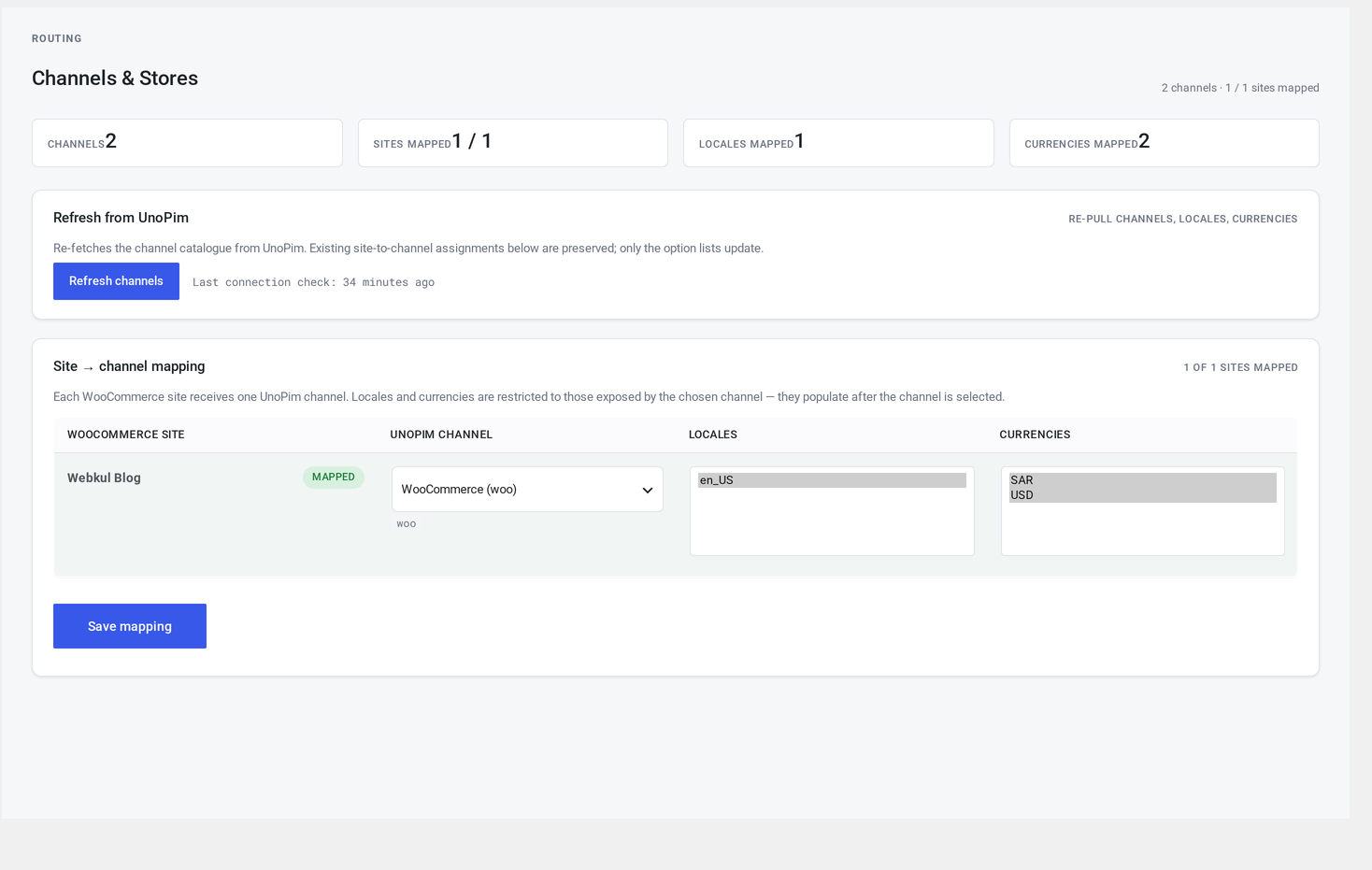
Where it lives
WordPress admin → UnoPim Configuration → Channels & Stores.
Available to administrators and shop managers.
At a glance
The page shows:
- A summary card: how many channels, how many WordPress sites mapped, total languages, total currencies
- A Refresh channels button
- One row per UnoPim channel, with all its settings inline
Submit button at the bottom: Save channels.
Refresh channels
Click Refresh channels to pull the latest channel definitions, languages and currencies from UnoPim.
The connector caches what it fetched, so if you edit a channel inside UnoPim, that change won't reach WooCommerce until you click Refresh.
Per-channel row
Each channel renders as a row with these controls:
Channel code (read-only)
The UnoPim channel name (e.g. default, web, mobile). You can't rename it from WooCommerce — change it in UnoPim and click Refresh channels.
Site (multisite only)
A dropdown of WordPress sites in your network. Pick which site this channel syncs to.
On a single-site install, this is hidden — there's only ever one target.
The mapping is consumed every time a pull or push needs to write into the right site. See Multisite.
Pull enabled
Toggle. When off, no UnoPim → WooCommerce sync runs for this channel.
Push enabled
Toggle. When off, no WooCommerce → UnoPim sync runs for this channel — even editing a product directly in WooCommerce won't push.
Use this for one-off imports
Toggle Push off before doing a one-time bulk import from UnoPim. Toggle it back on after you've reviewed the results. The channel still pulls; it just won't send back the partly-imported state.
Sync interval
How often the connector should automatically pull updates from UnoPim:
| Value | What it means |
|---|---|
| Disabled | No automatic syncs. Manual only. |
| Every 5 minutes | Load-sensitive — only on capable hosts |
| Every 15 minutes | Recommended for active stores |
| Every 30 minutes | A gentler middle ground |
| Hourly (default) | Safe for shared hosting |
| Twice daily | For relatively static catalogues |
| Daily | One sweep per day |
Faster schedules need a real cron
Schedules tighter than 15 minutes can pressure shared hosts. If your host kills long-running PHP, you'll see backlog grow. Watch your queue for a day after lowering the interval, and bump it back up if needed. See Troubleshooting → Cron not firing.
Cooldown seconds
A whole number, 0–3600. Default 60.
The cooldown prevents ping-pong loops. After a successful pull writes into WooCommerce, that same product will normally fire a save event that would push back to UnoPim. The cooldown remembers the recent pull and skips the push for this many seconds. The same applies in reverse.
0 disables the cooldown (you'll get echo loops if both sides actively edit). 60–300 is typical.
Languages
Multi-select. Pick which languages this channel actively syncs.
For example: a web channel might sync en_US, fr_FR and de_DE, while a mobile channel only syncs en_US. The Attribute Mapping tab scopes to (channel, language), so unselected languages stay out of the picker.
Currencies
Multi-select. Pick which currencies this channel uses.
Per-currency prices flow into WooCommerce's pricing fields. If you use a multi-currency plugin, see Multilingual & multi-currency.
What happens when you save
- The connector validates each field.
- It works out which channels just changed their sync interval.
- It re-registers the scheduled syncs accordingly.
- The page reloads with a success notice.
Common configurations
Single store, single language
default channel
  Site:        (the only one)
  Pull:        on
  Push:        on
  Interval:    Hourly
  Cooldown:    60s
  Languages:   en_US
  Currencies:  USD
The bare minimum that works.
Multilingual single store with WPML
default channel
  Pull:        on
  Push:        on
  Interval:    Hourly
  Languages:   en_US, fr_FR, de_DE
  Currencies:  EUR, USD
The WPML bridge resolves translations to the right WordPress translation per language. See Multilingual.
Multi-store with WordPress multisite
web channel        →  Site 1 (mainstore.example.com), pull+push, every 15 min
b2b channel        →  Site 2 (wholesale.example.com), pull only, hourly
mobile channel     →  Site 1, pull only, every 5 min
UnoPim is the source for B2B (no push); the consumer-facing main store has full two-way sync.
Migration mode (one-time pull, then schedule)
all channels:
  Pull:        on
  Push:        off
  Interval:    Disabled  ← run manually from Sync tab
Click Pull Full once. Review the results. Then turn schedules back on.
Troubleshooting
| Symptom | Likely cause | Fix |
|---|---|---|
| Refresh channels does nothing | Sign-in lost (token expired or address changed) | Re-save the Connection tab |
| Empty channel list after refresh | The UnoPim user can't read channels | Grant the right role inside UnoPim |
| Schedule isn't firing despite "Every 15 min" | WordPress cron isn't running | See Troubleshooting → Cron not firing |
| Push enabled but nothing pushes | The product's site doesn't match this channel's site | Check the channel-to-site mapping |
| Echo loops (the same product alternates pull/push) | Cooldown is set to 0 | Set it to at least 60 |