
Connection
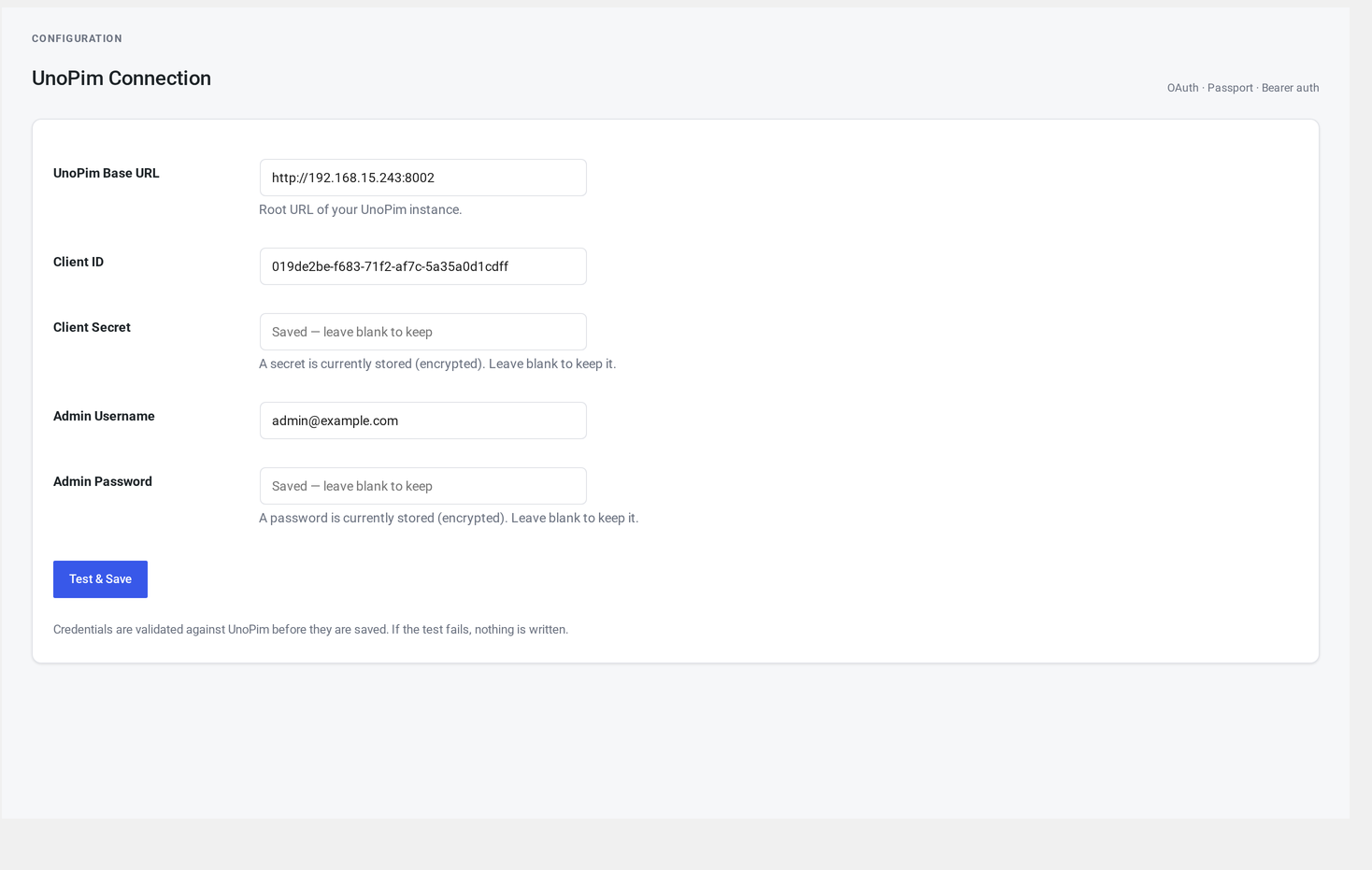
The first tab of UnoPim Configuration. Five fields, one button.
Where it lives
WordPress admin → UnoPim Configuration (the default tab on the main page).
Available to administrators and shop managers.
The form
| Field | Required | Notes |
|---|---|---|
| UnoPim address | yes | The web address of your UnoPim admin, with no trailing slash. Example: https://pim.example.com. |
| Client ID | yes | The API client ID from UnoPim. |
| Client Secret | yes (first save) | The API client secret. Leave blank when re-saving to keep what's already stored. |
| Admin Username | yes | A UnoPim user with API access. |
| Admin Password | yes (first save) | Leave blank when re-saving to keep what's already stored. |
Submit button: Test & Save.
What "Test & Save" does
- Sanity-checks your address and credentials.
- Signs in to UnoPim with what you typed.
- If sign-in succeeds: encrypts the secrets, saves them, and shows a green Connected badge.
- If sign-in fails: keeps the form filled in so you can correct it, and shows an error notice with the reason.
How credentials are stored
Your UnoPim password and API client secret are encrypted at rest using your site's standard WordPress security keys. Plain text is never written to the database.
Missing security keys?
If your wp-config.php doesn't have its standard WordPress security salts, the connector falls back to a less-secure storage method and warns you in the logs. Ask your host or developer to add the keys — every standard WordPress install already has them.
If you ever change those security keys later, your saved credentials become unreadable and you'll need to re-save the Connection form. (Same behaviour as WordPress's own login cookies — by design.)
Connection status badge
The top of the page shows a coloured pill:
| Badge | Meaning |
|---|---|
| Connected (green) | Your last sign-in succeeded |
| Token expired — refreshing (yellow) | Your session is being refreshed in the background |
| Not connected (red) | Either you haven't connected yet, or the last sign-in failed |
| Disabled (grey) | Connection saved, but pull and push are off everywhere |
Multiple UnoPim instances
The connector tracks each UnoPim address separately. Two consequences:
- Changing the UnoPim address keeps your old channel and mapping data isolated under the old address. Switch back later and your data is still there.
- Different WordPress sites can point at the same UnoPim safely. Each site keeps its own copy of channels, mappings and logs — no cross-site interference.
Updating credentials
Rotating your UnoPim password? Two safe paths:
Path A — keep the client ID, rotate the secret and password (most common):
- Rotate inside UnoPim first.
- Open the Connection tab.
- Paste the new client secret and password (leave the client ID and username unchanged).
- Test & Save.
Path B — full re-credential (e.g. moving to a different API client):
- Paste all five fields fresh.
- Test & Save.
After you connect
The connector doesn't pull anything yet. Connection is a prerequisite, not a trigger. The next steps:
- Open Channels & Stores and click Refresh channels.
- Then go to Field Mapping.
- Then Sync → Pull Full.
Troubleshooting
| Symptom | Likely cause | Fix |
|---|---|---|
| HTTP 0 | Your site can't reach UnoPim at all | Confirm the UnoPim address opens in a browser. Ask your host to allow outbound connections to your UnoPim domain. |
| HTTP 401 | Wrong credentials | Re-paste all five fields. Verify the client ID, secret, username and password inside UnoPim. |
| HTTP 404 | Wrong address | Use just the bare admin address, e.g. https://pim.example.com. Don't add any path. |
| HTTP 500 | Something on UnoPim's side | Check UnoPim's own logs |
| Connected, but Channels & Stores is empty | Sign-in works, but the user can't read channels | Inside UnoPim, give that user a role that includes channel read access |
More in Troubleshooting → Connection errors.