
Core Fields Mapping
The simplest of the three mapping sub-tabs. It maps UnoPim system attributes (sku, name, price, stock, description, status) to the matching standard WooCommerce product fields.
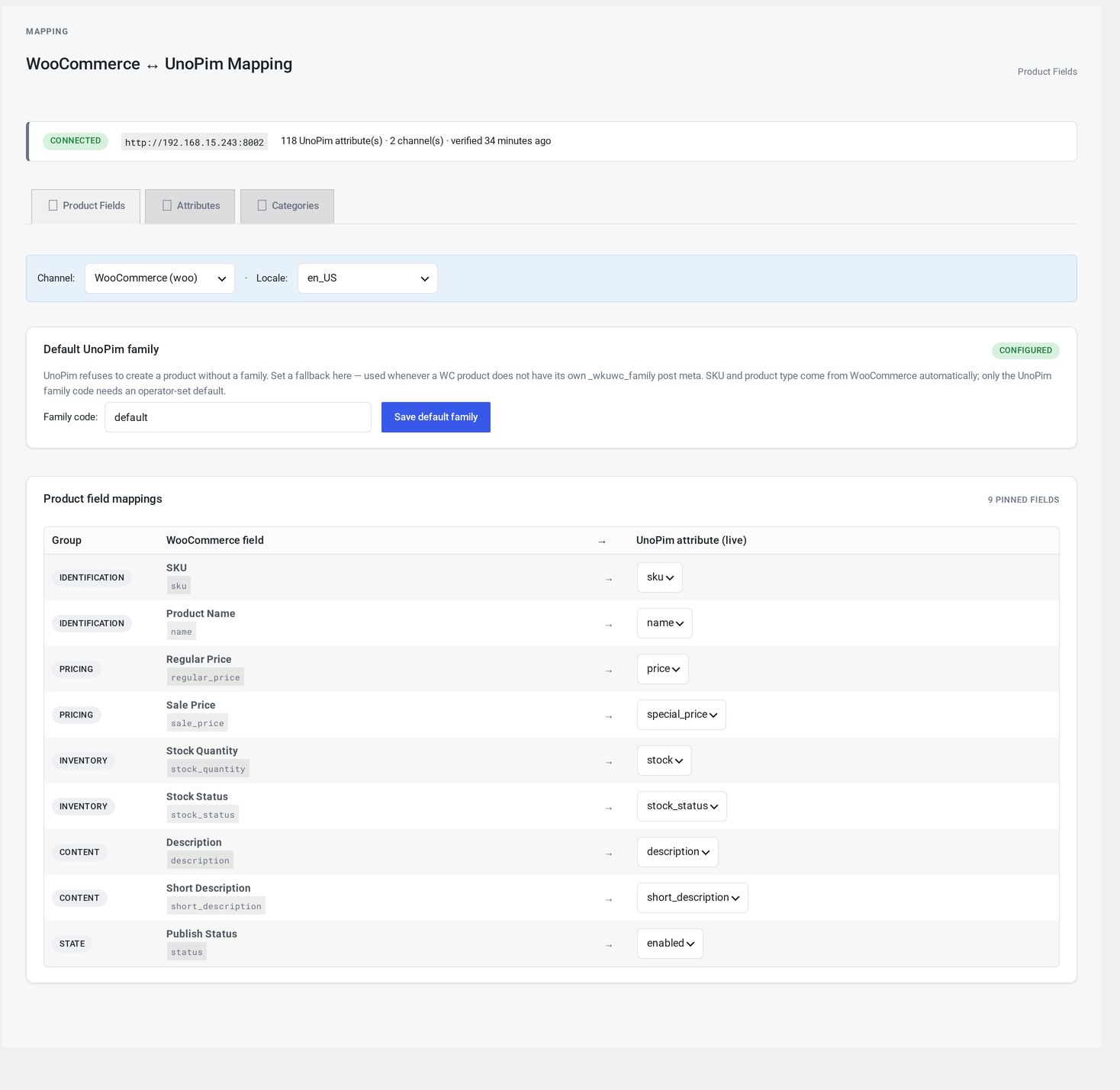
Where it lives
WordPress admin → UnoPim Configuration → Field Mapping → Core Fields.
This is the default sub-tab — it loads first when you click Field Mapping.
Why core fields are separate
Core fields are universal. SKU is SKU on web, on mobile, on b2b, in English and in French. There's no per-channel or per-language variant.
Putting them on their own tab:
- Lets you click Apply WC defaults and be done in one click for most stores.
- Keeps the more-complex per-(channel, language) attribute mapping uncluttered.
The pinned rows
The connector ships nine pinned rows. Each row maps a WooCommerce field to a UnoPim attribute:
| WooCommerce field | Typical UnoPim attribute |
|---|---|
| SKU | sku |
| Name | name |
| Regular Price | price or regular_price |
| Sale Price | special_price or sale_price |
| Stock Quantity | stock or inventory |
| Stock Status | stock_status |
| Description | description |
| Short Description | short_description |
| Publish Status | status |
Apply WC defaults
Clicking Apply WC defaults pre-fills every row with the standard UnoPim code (sku→sku, name→name, price→price, and so on).
The button is non-destructive — it only fills empty rows; it doesn't overwrite a mapping you already set. To wipe the slate, click Clear mapping first.
If your UnoPim install uses different codes (e.g. product_name instead of name), apply the defaults and then edit the rows that didn't match.
Editing a row
- Click the right-side picker.
- Type three or more characters — matching UnoPim attributes appear.
- Pick the one you want.
- The row turns yellow to show it has unsaved changes.
Save
Click Save mapping. A green flash bar appears on success.
If the save fails, an error notice tells you why. Your input stays in the form so you can retry.
Default family
Below the mapping table is a separate card: Default product family.
Pick the UnoPim family the connector should use when pushing a product to UnoPim and that product hasn't been told which family it belongs to.
The family is required because every UnoPim product must belong to a family — the family decides which attributes are valid.
Set this to your most common UnoPim family code (often default_family or your most popular product type).
What core fields look like in practice
On pull (UnoPim → WooCommerce)
The connector reads the matching UnoPim attribute and writes it to the WooCommerce field:
- Translatable attributes are picked using the active language (with a fallback chain).
- Channel-scoped attributes are picked using the active channel.
- Currency-scoped attributes (Regular Price, Sale Price) are picked using the matching channel currency. If multiple currencies sync, the first one in the channel's currency list is used.
On push (WooCommerce → UnoPim)
Each core mapping becomes a value in the data sent to UnoPim. If your family doesn't define one of the fields (e.g. the family has no short_description), that mapping is silently dropped. With dry-run on, the skip is logged.
Troubleshooting
| Symptom | Cause | Fix |
|---|---|---|
| Apply WC defaults does nothing | UnoPim hasn't pulled the attribute list yet | Click Refresh targets in any mapping tab, then retry |
| A row I changed reverted on save | The attribute you picked isn't allowed | Pick a different attribute |
| Push log says "family attribute mismatch" | The mapping points at an attribute that isn't in this family | Either update the family in UnoPim to include that attribute, or change the mapping |
| Stock Quantity won't sync | Your UnoPim stock attribute isn't a number | Map to a numeric attribute, or unmap and let WooCommerce manage stock locally |
The connector also exposes hooks for developers who need to extend it.