
Sync
The control room for manual sync operations. Use it for first-time imports, after schema changes, and for ad-hoc re-syncs without waiting for the scheduled tick.
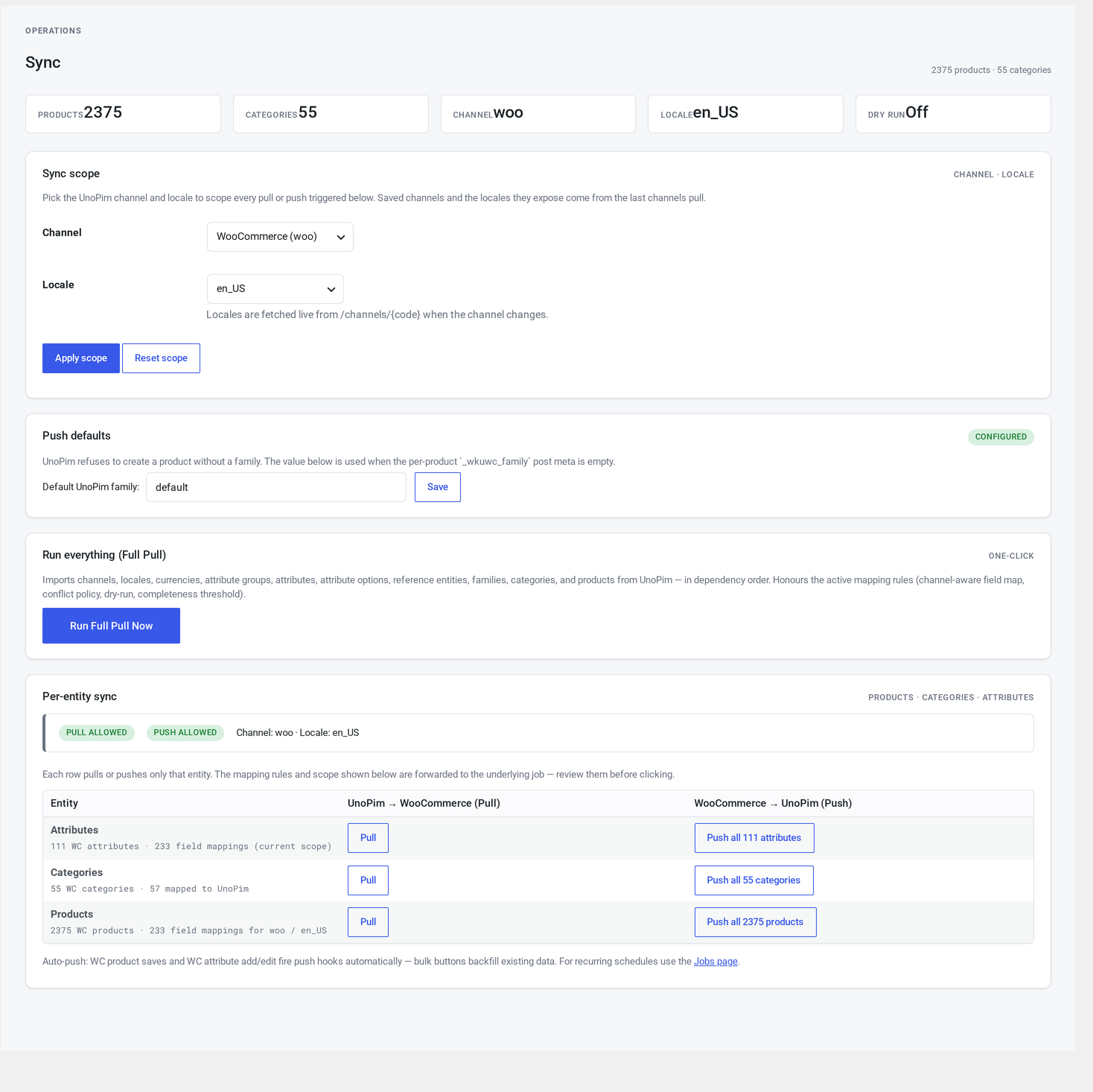
Where it lives
WordPress admin → UnoPim Configuration → Sync.
Available to administrators and shop managers.
At a glance
┌─────────────────────────────────────────────────────────────┐
│  Scope:  Channel: [web ▼]   Language: [en_US ▼]            │
├─────────────────────────────────────────────────────────────┤
│  Full sync                                                  │
│   [ Pull Full ]   ← UnoPim → WooCommerce, everything        │
├─────────────────────────────────────────────────────────────┤
│  Pull just one type                                         │
│   [ Pull channels ] [ Pull languages ] [ Pull currencies ] │
│   [ Pull families ] [ Pull attributes ] [ Pull options ]   │
│   [ Pull categories ] [ Pull products ] [ Pull variants ]  │
│   [ Pull associations ] [ Pull references ] [ Pull tags ]  │
├─────────────────────────────────────────────────────────────┤
│  Push everything                                            │
│   [ Push all products ]                                     │
│   [ Push all categories ]                                   │
│   [ Push all attributes ]                                   │
└─────────────────────────────────────────────────────────────┘
Scope picker
Two dropdowns at the top — Channel and Language. The selection becomes the scope for whatever button you click next.
Scope is per click, not per session
Each button reads the scope at click time. Picking web:en_US, clicking Pull products, then changing to mobile:en_US and clicking Push all products is fine — the second click uses the new scope.
Pull Full
The big green button. It enqueues a full UnoPim → WooCommerce sync and returns immediately with a notice — "Full pull queued. Check Logs for progress."
The connector then imports each entity type in order:
channels → languages → currencies → families
    ↓
attribute groups → attributes → attribute options
    ↓
reference entities → categories → tags
    ↓
products → variants → associations → images
Each step runs in chunks so a 10,000-product catalogue doesn't tie up one PHP process for 30 minutes.
One full pull at a time
If you click the button while a full pull is already running, the second click is ignored. Wait for it to finish, or watch the Logs page for activity.
Pull just one type
For when you only need one entity type re-imported. Each button is a thin wrapper around the same machinery as Pull Full, but limited to one type:
| Button | What it pulls |
|---|---|
| Pull channels | Channel definitions |
| Pull languages | Available languages |
| Pull currencies | Available currencies |
| Pull families | Product templates |
| Pull attribute groups | Attribute groupings |
| Pull attributes | Attribute definitions |
| Pull attribute options | Select-type attribute values |
| Pull categories | The category tree |
| Pull products | Product data |
| Pull variants | Variation data |
| Pull associations | Upsells, cross-sells, grouped products |
| Pull reference entities | Brands, collections, materials, etc. |
| Pull tags | Product tags |
Each button enqueues one job. Watch progress on the Logs page.
Push everything
Three flavours. All scoped to the active channel and language:
Push All Products
Loads all products in the current scope, batches them, and sends each one to UnoPim.
Good for:
- After a mapping change — re-push everything to UnoPim with the new mapping.
- After enabling Push for a channel that had it disabled — backfill UnoPim with the current state.
- Migration: WooCommerce is your existing source of truth and you want UnoPim to match.
Push All Categories
Same shape. Iterates your WooCommerce categories.
Push All Attributes
Same shape. Iterates your WooCommerce attribute taxonomies.
Bulk push respects all the same gates
Channel toggles, the cooldown window, and any custom rules still apply. The bulk button just batches the input — every product still goes through the same checks as a normal save.
Dry-run
If Dry run is on in General Settings, every pull and push logs what it would do without writing anything. The Sync page makes no distinction — clicking buttons in dry-run mode produces log entries with no real changes.
Cron vs. Sync page
| Question | Cron | Sync page |
|---|---|---|
| Who triggers it | The scheduled tick | A click |
| When it runs | At the channel's interval | Within seconds of the click |
| What it pulls | Just what changed since last time | Configurable: full or single type |
| When to use | Steady-state | First-time imports, after-schema-change re-imports, ad-hoc fixes |
Troubleshooting
| Symptom | Cause | Fix |
|---|---|---|
| "Already running" notice | A previous full pull didn't finish cleanly | Wait a few minutes; if it persists, ask your developer to clear the lock |
| Click does nothing visible | The background queue isn't draining | See Troubleshooting → Cron not firing |
| Some entities pull, others don't | One pull failed; others are independent | Check the Logs page filtered by errors |
| Pull Full button is grayed out | Your account doesn't have the right permissions | Sign in as an administrator or shop manager |
The connector also exposes hooks for developers who need to extend it.