
Bulk Product Management
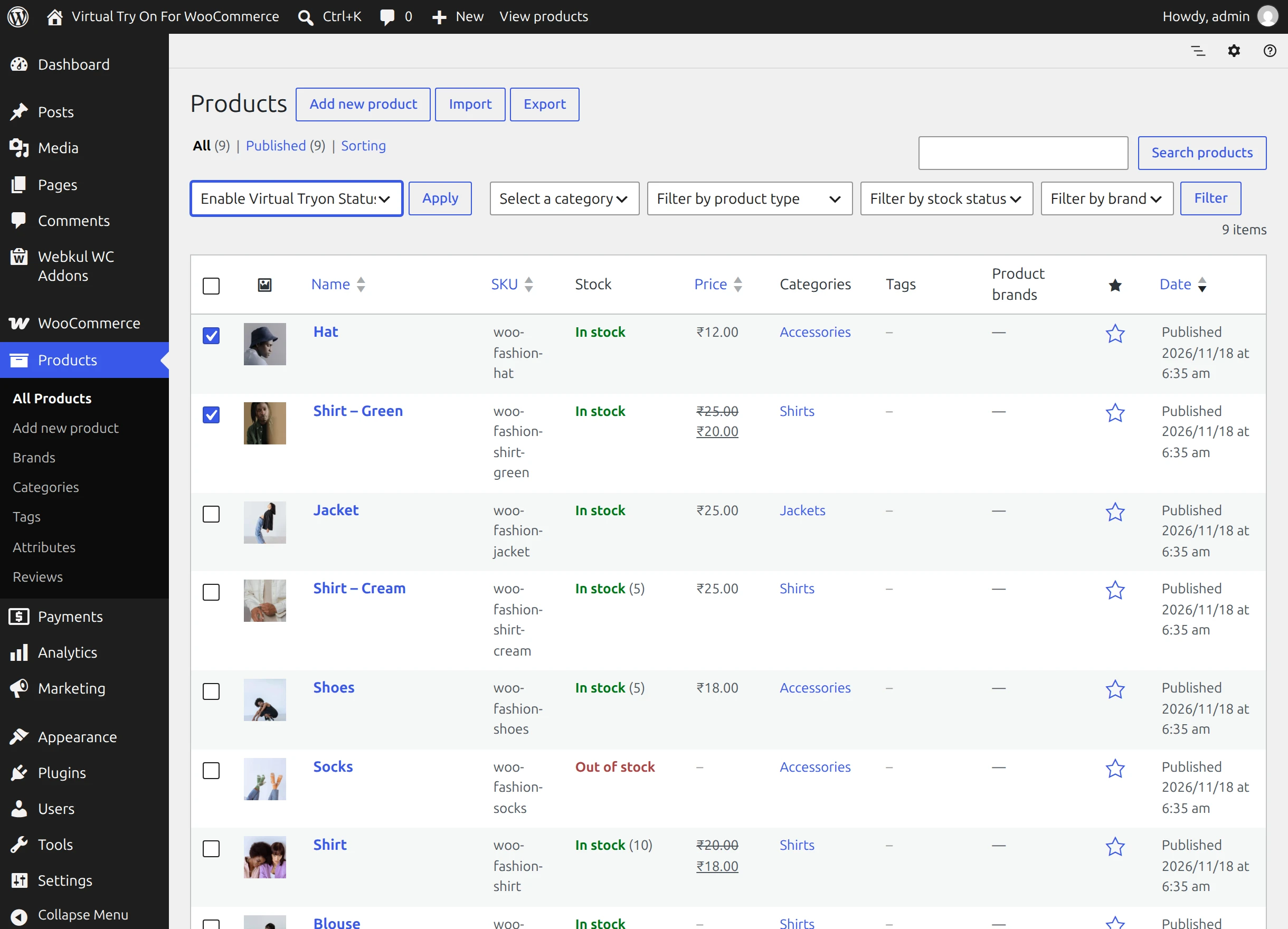
Enabling or disabling virtual try-on product by product across large catalogs can be time-consuming. Virtual Try On for WooCommerce integrates seamlessly into the native WordPress bulk actions system, enabling store administrators to update dozens of items in seconds.
Using Bulk Actions
Follow these steps to apply try-on status updates to multiple products simultaneously:
- Navigate to Products → All Products in your WordPress Admin.
- Select the checkbox next to each product you wish to modify, or click the master checkbox in the table header to select all products on the current page.
- Click on the Bulk actions dropdown menu located above or below the products table.
- Select one of the two dedicated actions:
- Enable Virtual Tryon Status: Sets
wkvton_vton_statustoenablefor all checked products. - Disable Virtual Tryon Status: Sets
wkvton_vton_statustodisablefor all checked products.
- Enable Virtual Tryon Status: Sets
- Click Apply.
Administrative Feedback
Upon clicking Apply, WordPress processes the selected post IDs, updates the corresponding product meta records in the database, and displays a success notification banner at the top of the screen:
The Virtual Tryon Status has been updated successfully.
Recommended Catalog Workflows
- Seasonal Apparel Launches: Filter products by category (e.g., Summer Dresses or Winter Jackets), select all items, and choose Enable Virtual Tryon Status to launch try-on across the whole collection at once.
- Temporary Provider Maintenance: If your AI provider experiences downtime or API limit maintenance, quickly select your active try-on items and execute Disable Virtual Tryon Status to temporarily suppress the storefront button without losing individual product prompt configurations.
- Excluding Non-Clothing Categories: Ensure non-wearable products (such as shoes, gift cards, or beauty items) remain set to
disableso customers only encounter try-on triggers where applicable.