
Virtual Try On for WooCommerce – Complete User Guide & Feature Walkthrough
Online fashion retail offers unmatched convenience, but sizing uncertainty and fit hesitations remain the leading cause of abandoned carts and high merchandise returns. Customers frequently wonder: “How will this shirt look on my body type?” or “Will this color flatter my skin tone?”
Virtual Try On for WooCommerce bridges the gap between digital shopping and in-store fitting rooms. Powered by cutting-edge artificial intelligence, this extension enables shoppers to visualize clothing directly on interactive, demographic-tailored models or on their personal uploaded photos before making a purchase.
In this comprehensive guide, we walk through everything store owners and merchants need to know—from installation and AI provider integration to product-level prompt customization and storefront shopping workflows.
Key Features & Highlights
- Multi-Provider AI Engine: Native support for Google Gemini, OpenAI, Alibaba Cloud Qwen, and arbitrary Custom API endpoints.
- Real-Time Model Discovery: Query provider APIs dynamically to fetch and select active image models with a single click.
- Dual Customer Try-On Modes:
- AI Generated Models: Customize age (5–100), gender, body build (small, mid, plus), and 8 distinct skin tones.
- Personal Photo Upload: Upload a personal photo to preview the garment draped naturally over your real physique.
- Admin Catalog Gallery Generator: Generate photorealistic AI model images inside the product editor and save them directly into the WooCommerce product gallery.
- Granular Prompt Variables: Override default AI prompts using dynamic tokens (
${gender},${age},${skinColor},${bodyType},${country}). - One-Click Bulk Operations: Enable or disable try-on functionality across multiple products simultaneously from the WooCommerce catalog list.
- Flexible Guest Shopper Policy: Allow instant try-on access for first-time visitors or restrict features to registered accounts.
- Enterprise Security & HPOS Compatibility: API keys remain securely encrypted on the server backend; fully declared compatible with WooCommerce High-Performance Order Storage (
custom_order_tables).
System Requirements
Before installing the extension, ensure your environment meets these standards:
- WordPress Core: 6.5 or higher (tested up to 7.1)
- WooCommerce: 9.0 or higher (tested up to 11.3)
- PHP: 7.4 to 8.4
- HTTPS: Required for secure API communication and browser media features
Installation & Setup
- Log into your WordPress Admin panel and navigate to Plugins → Add New Plugin.
- Click Upload Plugin at the top of the screen.
- Click Choose File, select
virtual-tryon-for-woocommerce.zip, and click Install Now. - Once installation completes, click Activate Plugin.
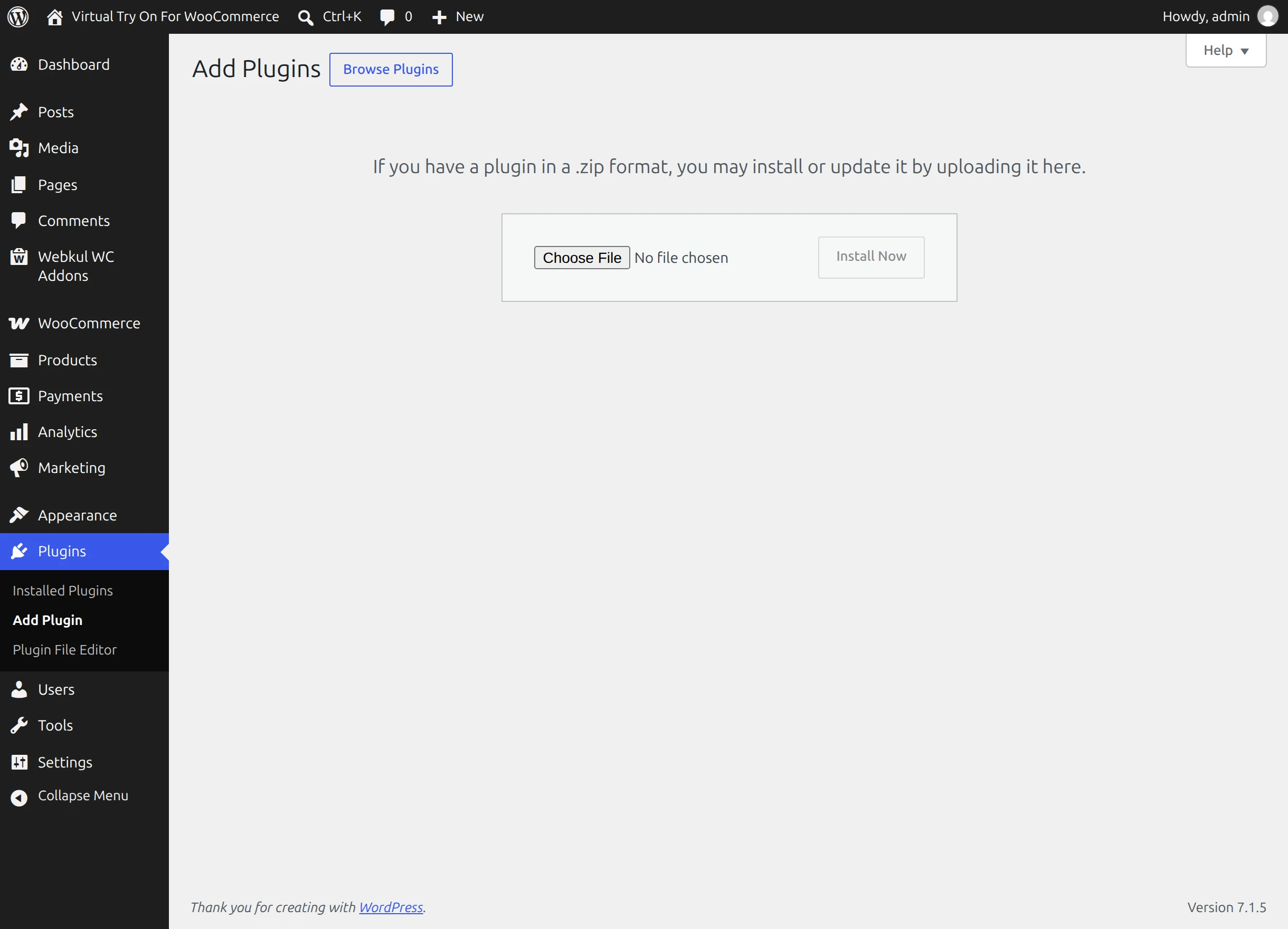
Upon activation, a new menu entry titled Virtual Try On appears under the Webkul WC Addons menu.
Configuring Global Plugin Settings & AI Providers
To configure storewide settings and connect your AI provider, navigate to Webkul WC Addons → Virtual Try On.
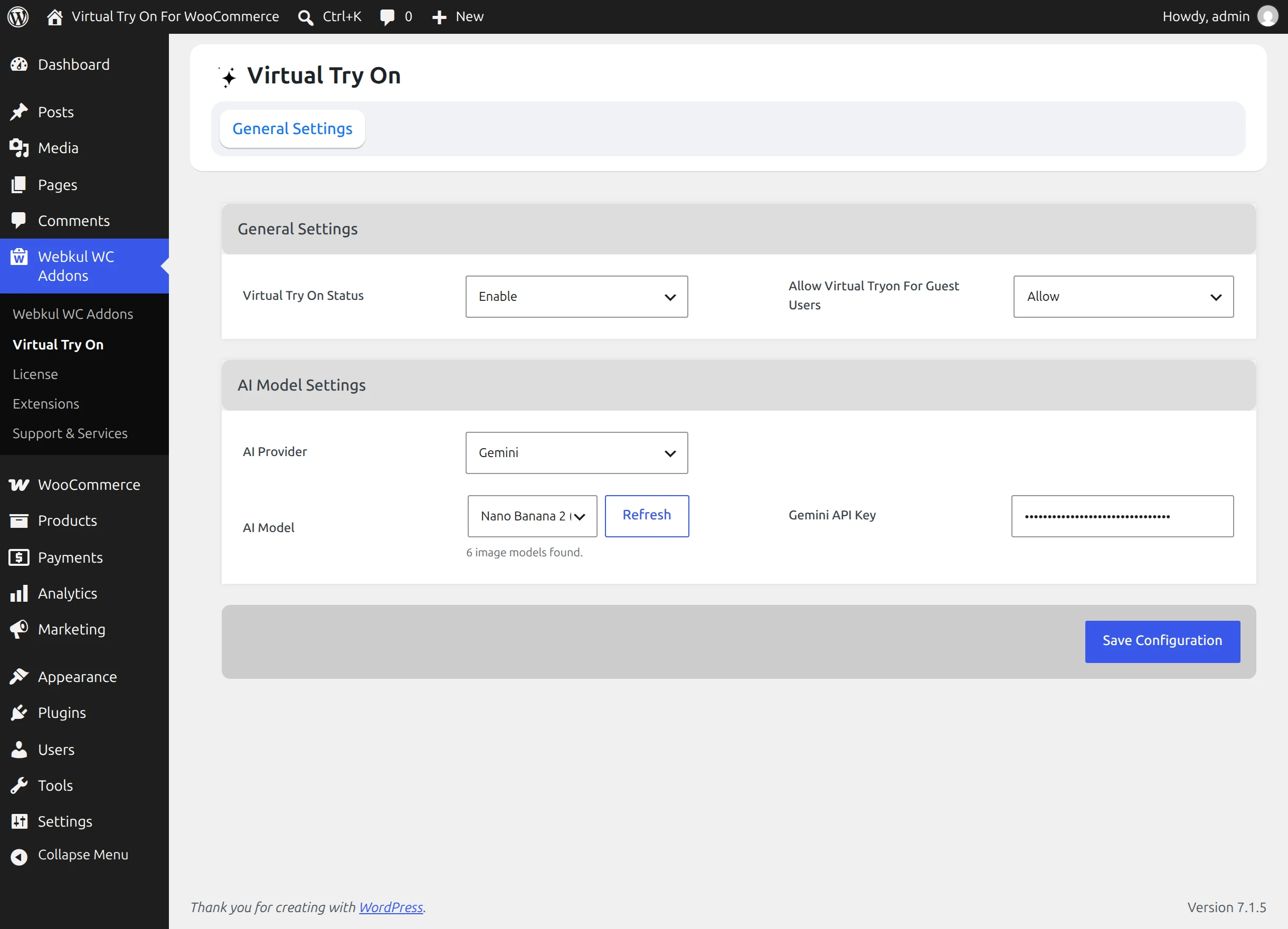
1. General Settings
- Virtual Try On Status: Toggle between
EnableandDisableto control the feature across your store. - Allow Virtual Tryon For Guest Users: Select
Allowto enable try-on for unregistered visitors orDisallowto require user login.
2. AI Model Settings
Select your preferred AI engine from the AI Provider dropdown:
- Google Gemini: Enter your Google AI Studio API key, click Refresh to discover image models (e.g.,
gemini-3.1-flash-image), and save. - OpenAI: Enter your OpenAI API secret key, click Refresh, and select your target vision model.
- Alibaba Cloud Qwen: Enter your DashScope API key to access specialized apparel editing models (
qwen-image-edit). - Custom Endpoint: Connect an internal proxy or self-hosted model by entering your Base URL, Model Name, and API format adapter (
OpenAI compatible,Gemini compatible, orQwen compatible).
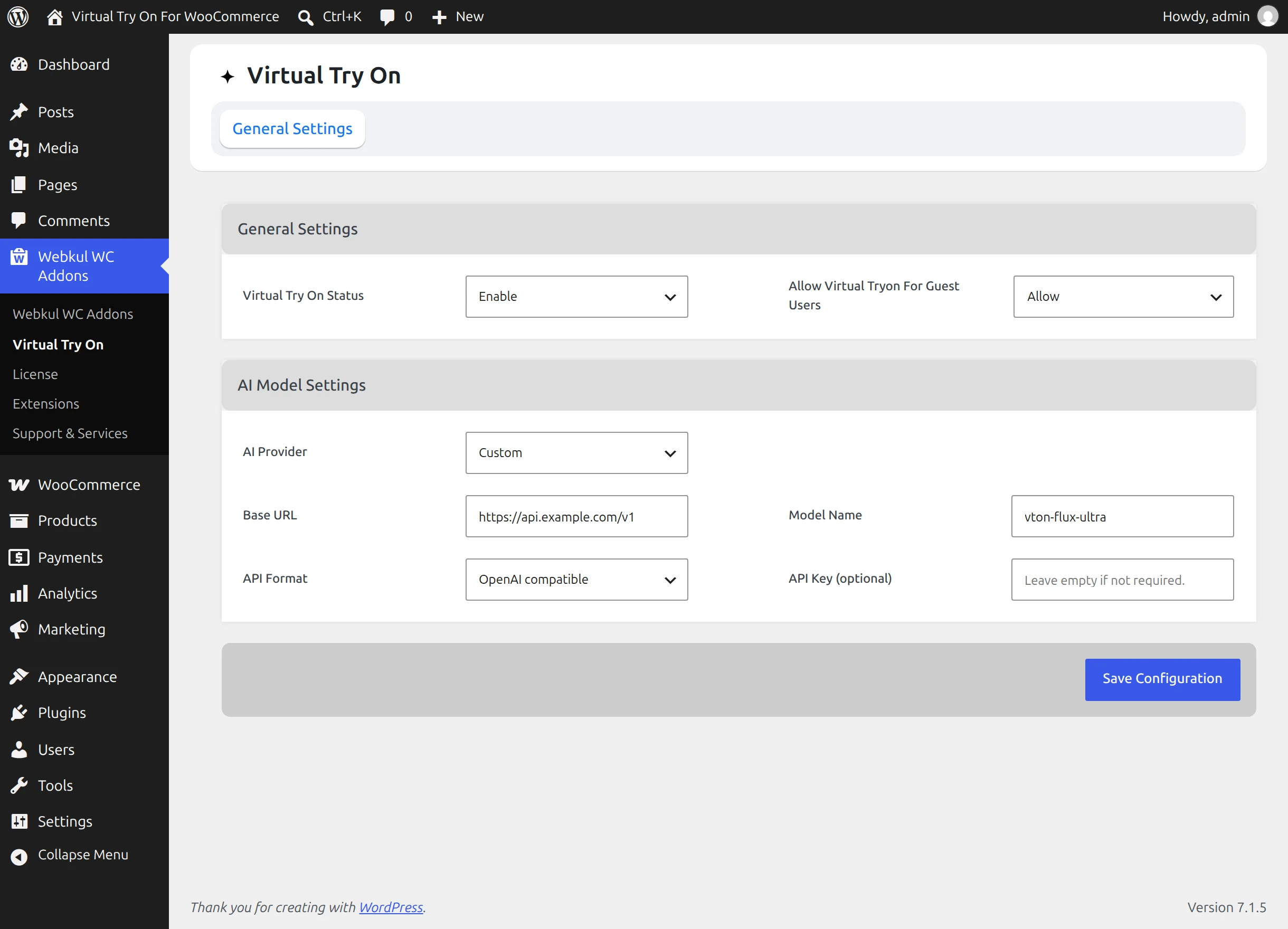
Configuring Virtual Try-On on Individual Products
The extension allows you to tailor try-on behavior for each product in your catalog:
- Go to Products → All Products and click to edit an apparel product.
- In the Product Data panel, click on the Virtual Try On tab.
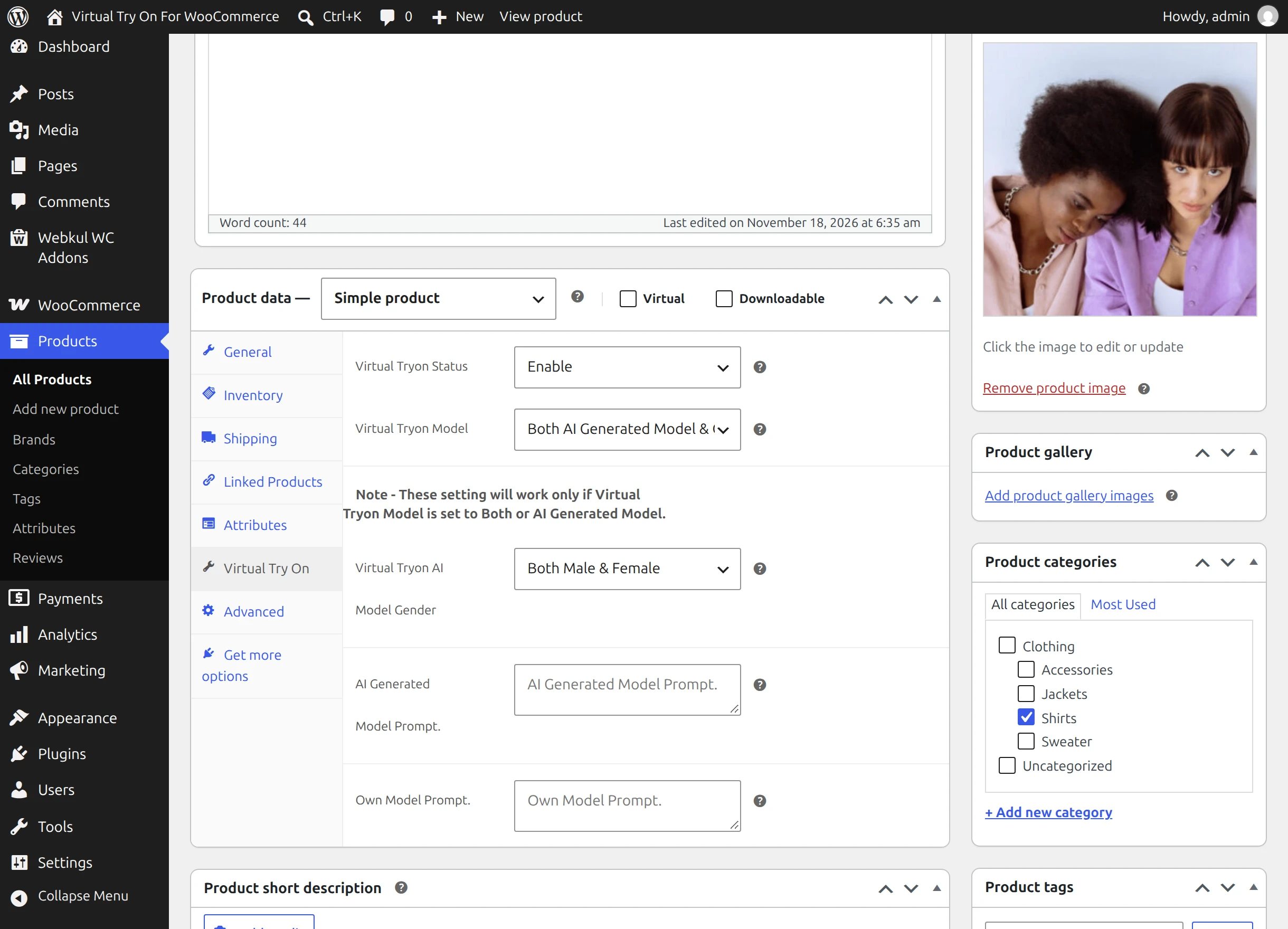
Configurable Product Options:
- Virtual Tryon Status: Enable or disable try-on for this specific item.
- Virtual Tryon Model: Choose between
Both AI Generated Model & Own Model,AI Generated Modelonly, orOwn Modelonly. - Virtual Tryon AI Model Gender: Restrict demographic options to
Male,Female, or allowBoth. - Custom Prompts: Tailor prompt text using dynamic variables:
${gender}— Model gender${age}— Selected age${skinColor}— Skin complexion${bodyType}— Build type (small, mid, plus)${country}— Country code
Admin Catalog Gallery Generator
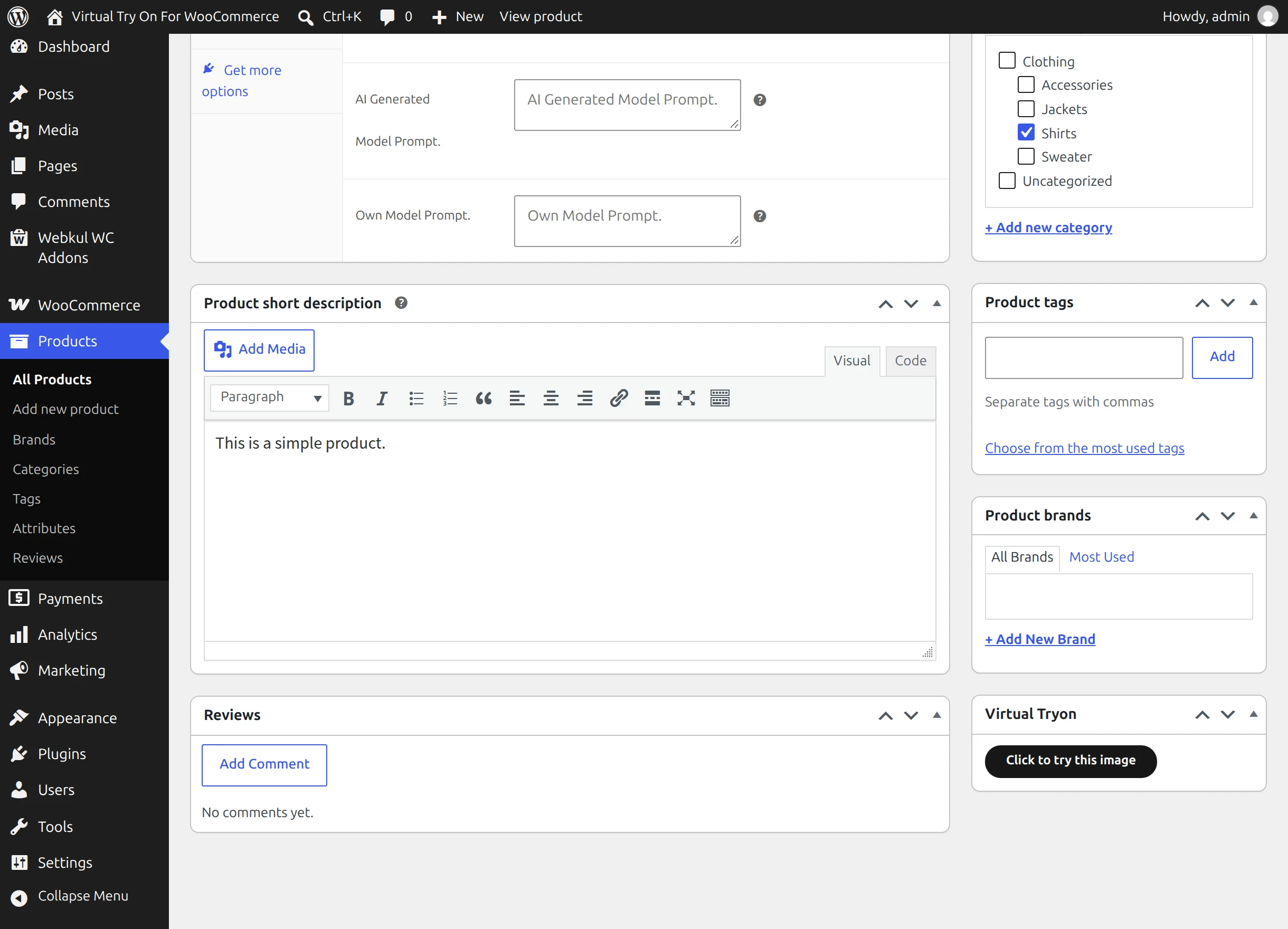
Store administrators can generate marketing visuals right inside the product editor and save them to the WooCommerce product gallery:
- On the product edit page, check the right-hand Virtual Tryon metabox.
- Click Click to try this image.
- Select desired model demographics (gender, age, skin tone, build) and click TRY NOW.
- When the rendered visual appears, click Yes to save the picture in the product gallery.
- The image is sideloaded into the WordPress Media Library, attached to the product gallery, and the page reloads automatically.
Managing Products in Bulk
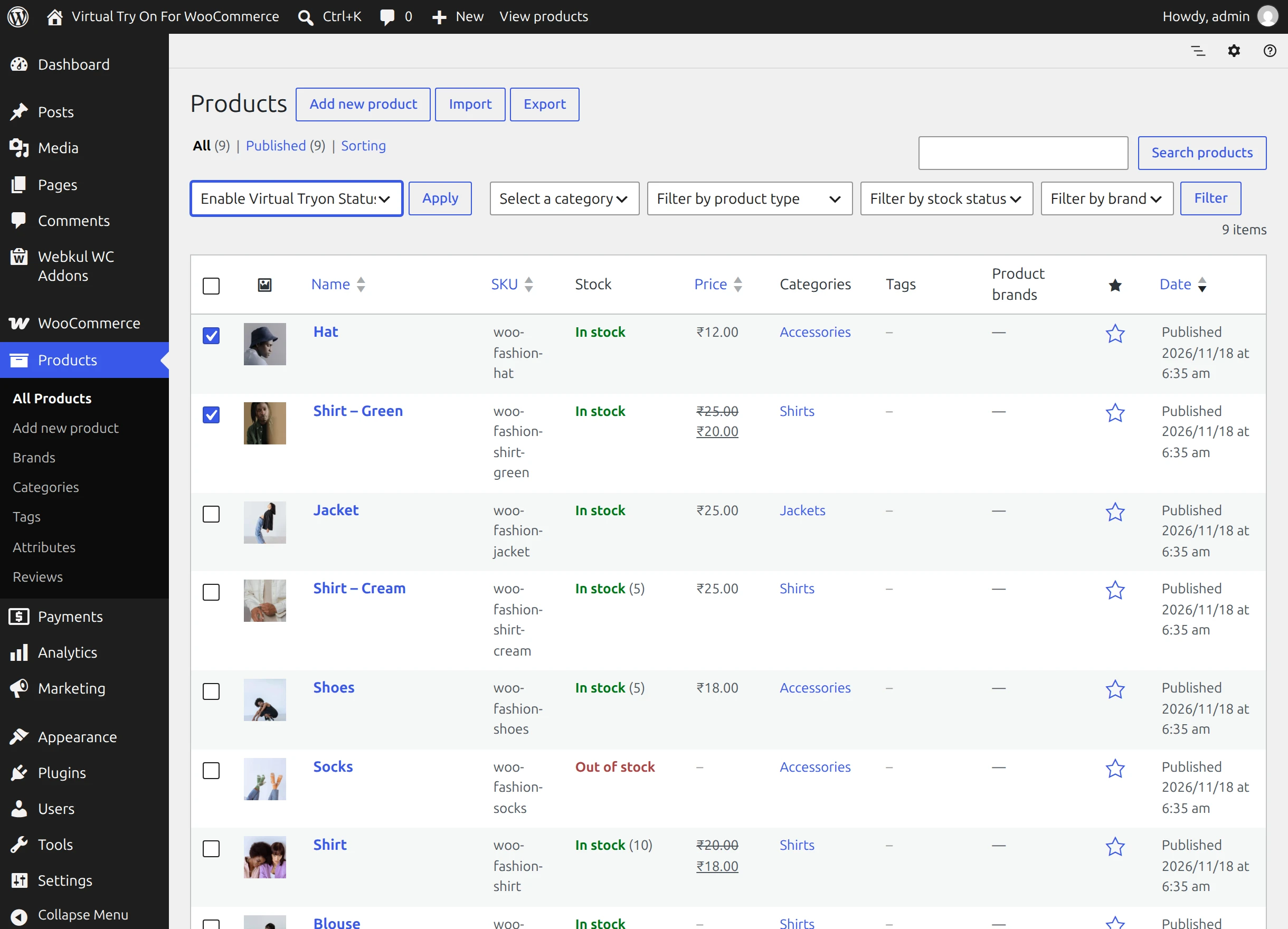
To enable or disable virtual try-on across multiple products at once:
- Navigate to Products → All Products.
- Select the target apparel items using the checkboxes.
- Open the Bulk actions dropdown and select Enable Virtual Tryon Status or Disable Virtual Tryon Status.
- Click Apply. A confirmation banner verifies the update.
The Storefront Customer Experience
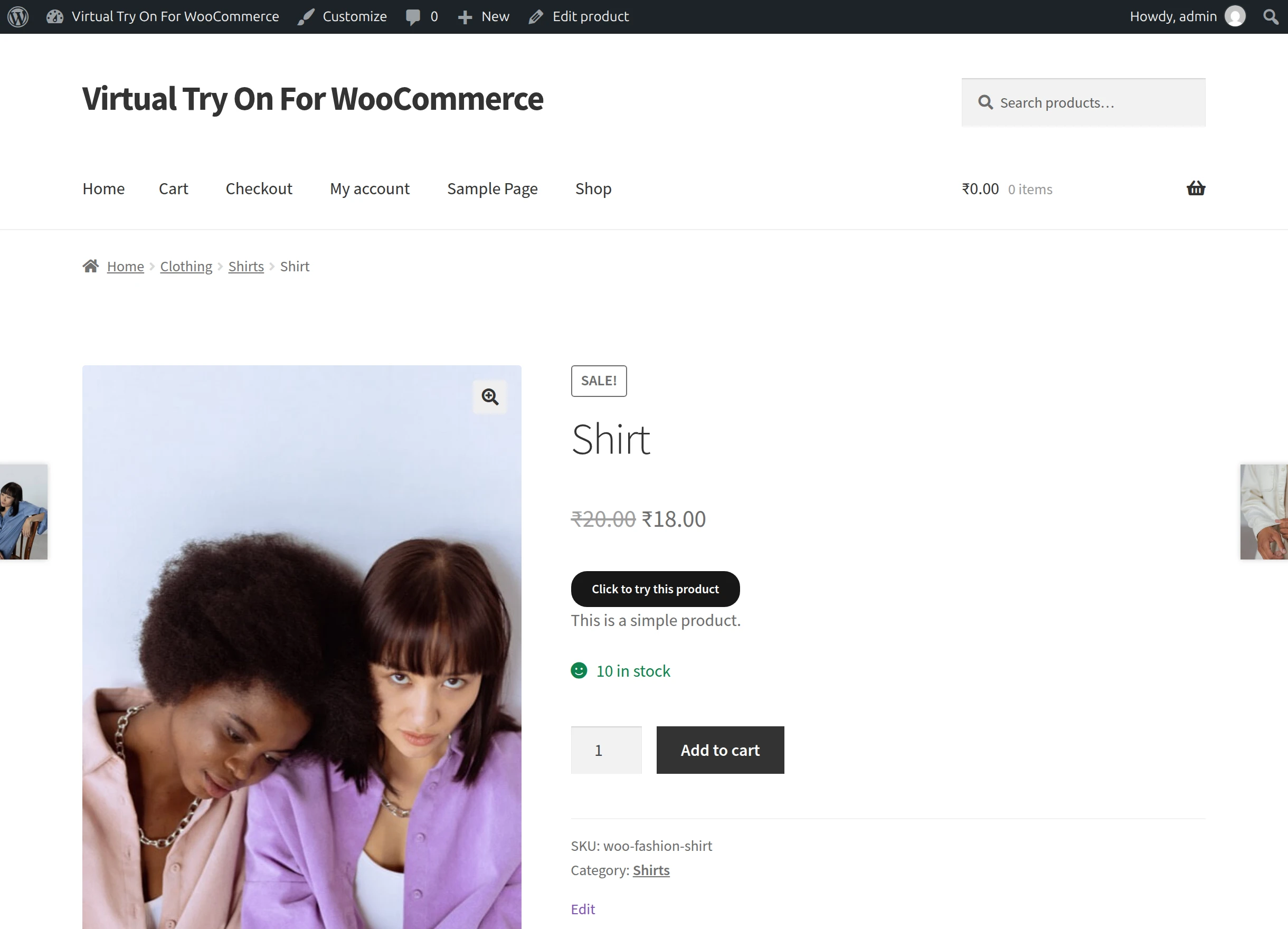
When shoppers visit an apparel product page, they are greeted by an interactive fitting room:
Step 1: Launch Try-On
Shoppers click Click to try this product located conveniently above the Add to cart section.
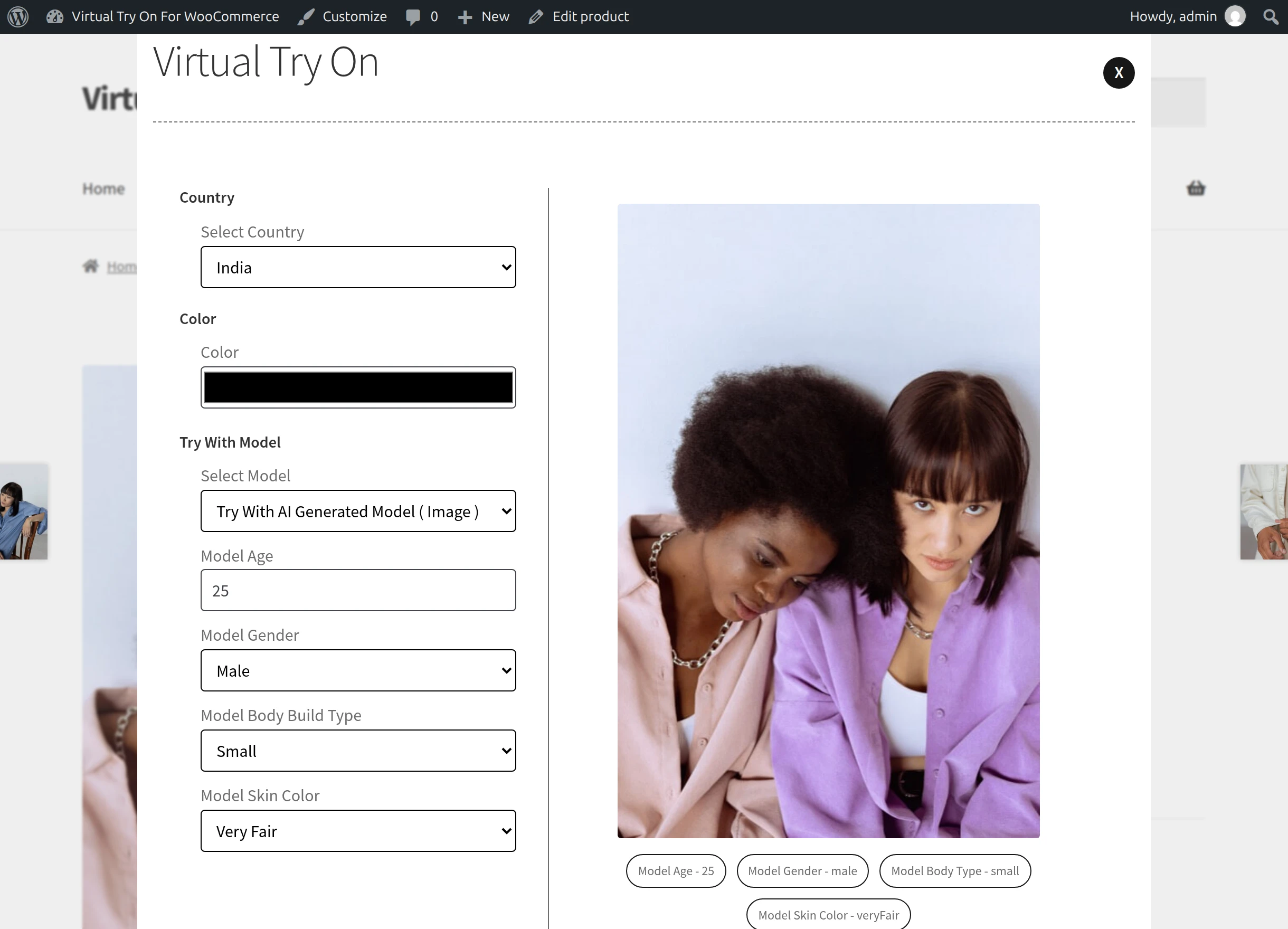
Step 2: Try With AI Generated Model
Shoppers can customize a virtual model that mirrors their demographics by selecting:
- Country: Demographic regional representation
- Color: Garment color tint
- Age: Model age (5 to 100)
- Gender: Male or Female
- Body Build Type: Small, Mid, or Plus
- Skin Color: 8 realistic shades from Very Fair to Deep
Clicking TRY NOW generates a photorealistic fitting image within seconds.
Step 3: Try With Personal Photo Upload
Alternatively, shoppers select Try With Your Own Model (Image), upload a front-facing photo from their device, and click TRY NOW. The AI engine drapes the clothing onto their personal physique while preserving facial identity and posture.
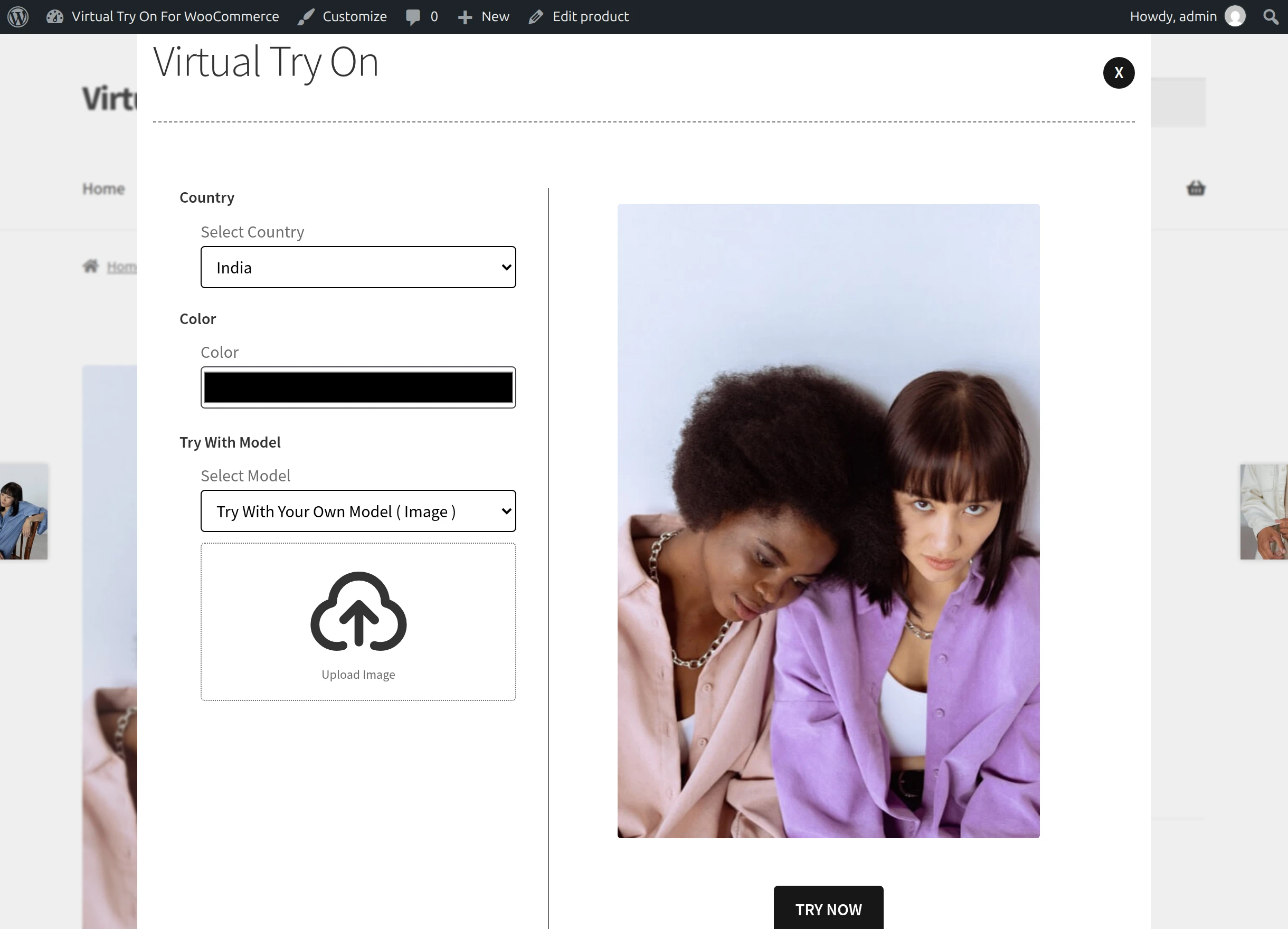
Step 4: Compare & Add to Cart
Shoppers can review their fittings via the View History feature, compare styles, select their preferred size, and proceed to checkout with high purchasing confidence.
Summary & Support
Virtual Try On for WooCommerce brings state-of-the-art AI fitting rooms to your store, dramatically improving buyer confidence, reducing costly returns, and streamlining catalog imagery creation.
For assistance, custom feature integrations, or enterprise inquiries, visit the Webkul Support Portal or contact support at [email protected].