
Customer Workflow
The customer experience in Virtual Try On for WooCommerce is engineered to be effortless, intuitive, and engaging. Without leaving the single product page, shoppers can explore different fits and visual styles before adding items to their shopping cart.
1. Single Product Page Entry Point
On any clothing product where virtual try-on is enabled, shoppers see a prominent action button positioned directly adjacent to pricing and above the Add to cart section:
Click to try this product
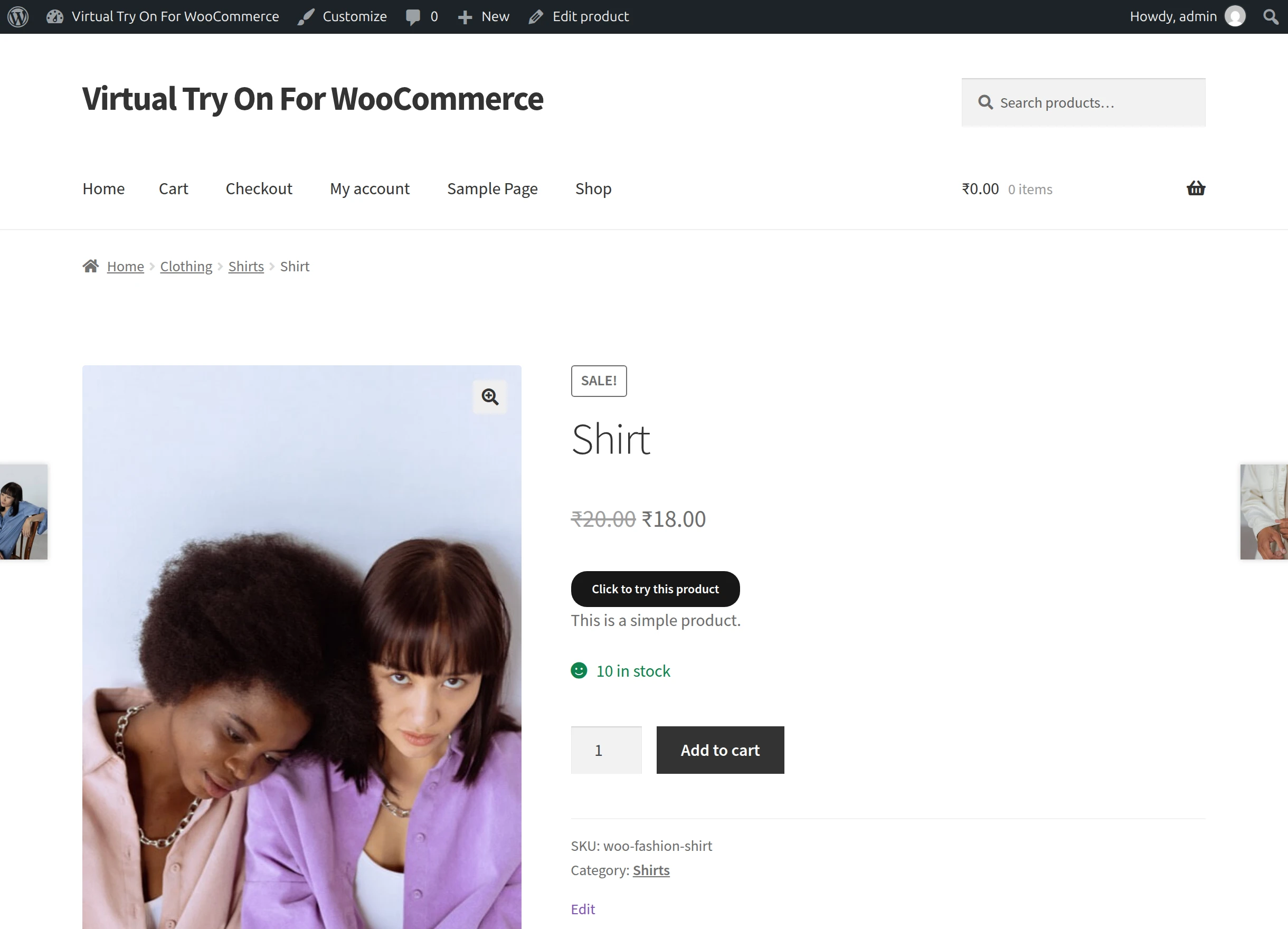
Clicking the button immediately opens the modal fitting room.
2. Option A: Virtual Try With AI-Generated Model
If shoppers prefer not to upload personal photographs, they can configure a photorealistic virtual model that matches their personal attributes.
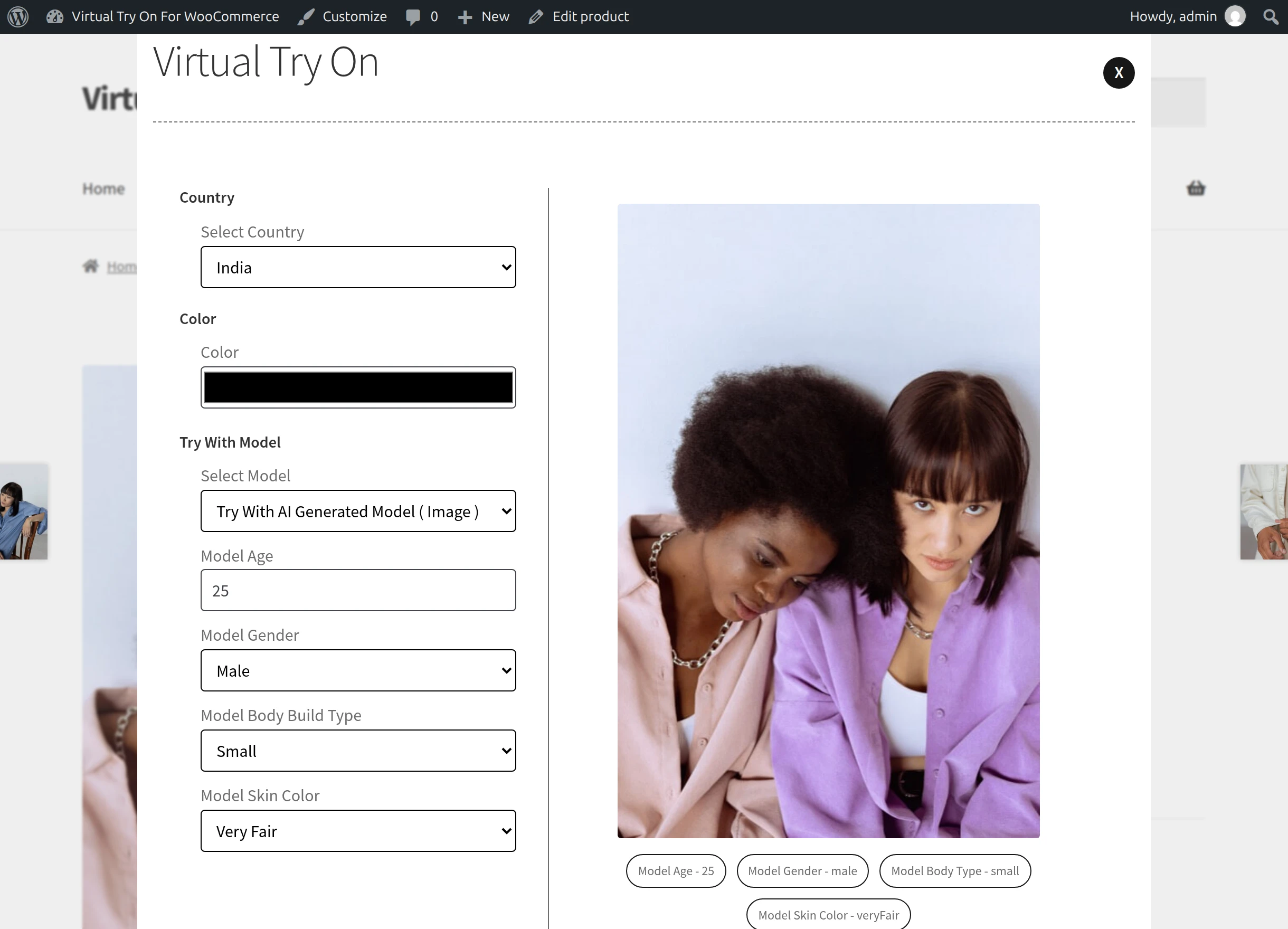
Configurable Model Attributes:
- Select Country: Choose your desired country from the dropdown to reflect regional facial features and demographic representation.
- Color: Select a preferred clothing tint or shade using the visual color picker.
- Try With Model: Ensure Try With AI Generated Model (Image) is selected.
- Model Age: Enter the approximate target age (between 5 and 100 years, default 25).
- Model Gender: Select Male or Female (options respect any gender restrictions set by the store administrator).
- Model Body Build Type: Choose between Small, Mid, or Plus build.
- Model Skin Color: Select from 8 distinct complexion tones:
- Very Fair
- Fair
- Light
- Medium
- Tan
- Brown
- Dark Brown
- Deep
Generation & Preview:
- Click TRY NOW.
- The button displays an animated GENERATING status while the AI engine fits the garment onto the virtual model.
- The photorealistic try-on result appears instantly in the preview window.
- Shoppers can click TRY AGAIN to test alternate ages, builds, or color combinations.
3. Option B: Virtual Try With Your Own Model (Photo Upload)
Shoppers who want to see the clothing directly on themselves can switch to the personal photo upload mode.
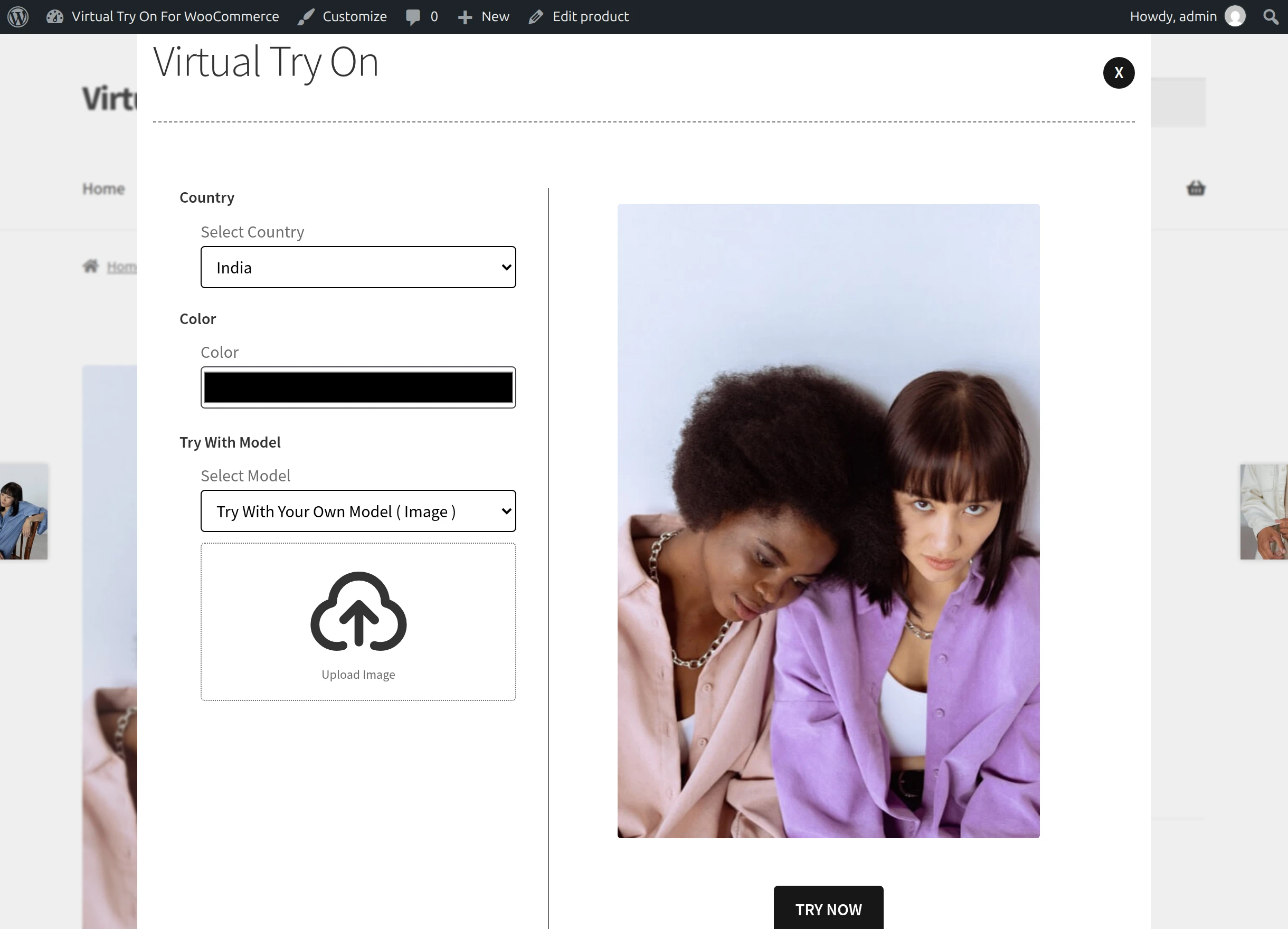
Upload Instructions:
- In the Try With Model dropdown, select Try With Your Own Model (Image).
- An Upload Image field appears.
- Click to choose a clear, front-facing photograph from your device (desktop or mobile camera).
- Click TRY NOW.
Photo Upload Guidelines for Shoppers
For the highest quality fitting result:
- Use a well-lit, front-facing photo standing straight.
- Ensure the upper or lower body is clearly visible without heavy shadows.
- Avoid wearing bulky jackets or loose blankets in the input photo.
- Supported formats: JPG, PNG, and WebP.
The AI fits the selected product onto the uploaded photo while meticulously preserving the shopper's face, posture, hairstyle, and background.
4. Session Try-On History
Shoppers can review earlier fittings during their visit:
- Click View History at the bottom of the modal.
- A carousel of previous try-on generations created during the current session is displayed.
- Shoppers can compare different fits side by side before finalizing their size and color selection and clicking Add to cart.