
Cart, Checkout & Orders
A bundle travels through the whole purchase as one line item that knows its contents. This page shows each station of that journey — all captured live.
In the cart
The cart shows the bundle as a single line at its calculated bundle price, with every included product listed underneath as "Included: … x N":
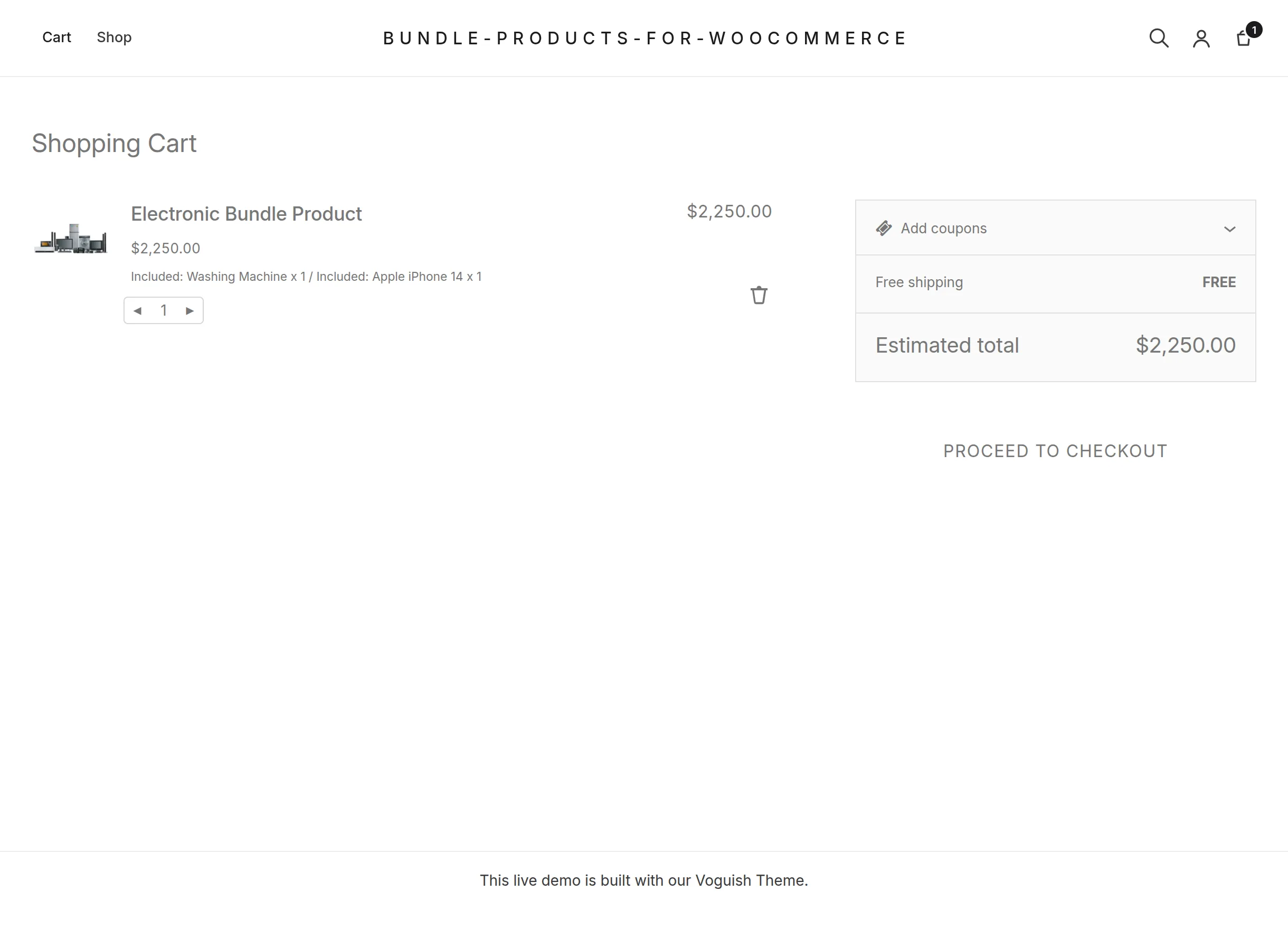
- Works in both the block cart (shown above) and the classic cart shortcode; the classic cart additionally lists the child products under the bundle's name.
- Dynamic bundles keep their discounted, selection-based price; fixed bundles keep the flat price — recalculated server-side on every cart load.
- Quantity changes in the cart re-run the stock and purchase-limit checks; the block cart's stepper is capped at what is still allowed.
At checkout
The checkout's Order summary carries the same information — bundle line, price, and the "Included" contents — so customers can confirm exactly what they are buying before paying:
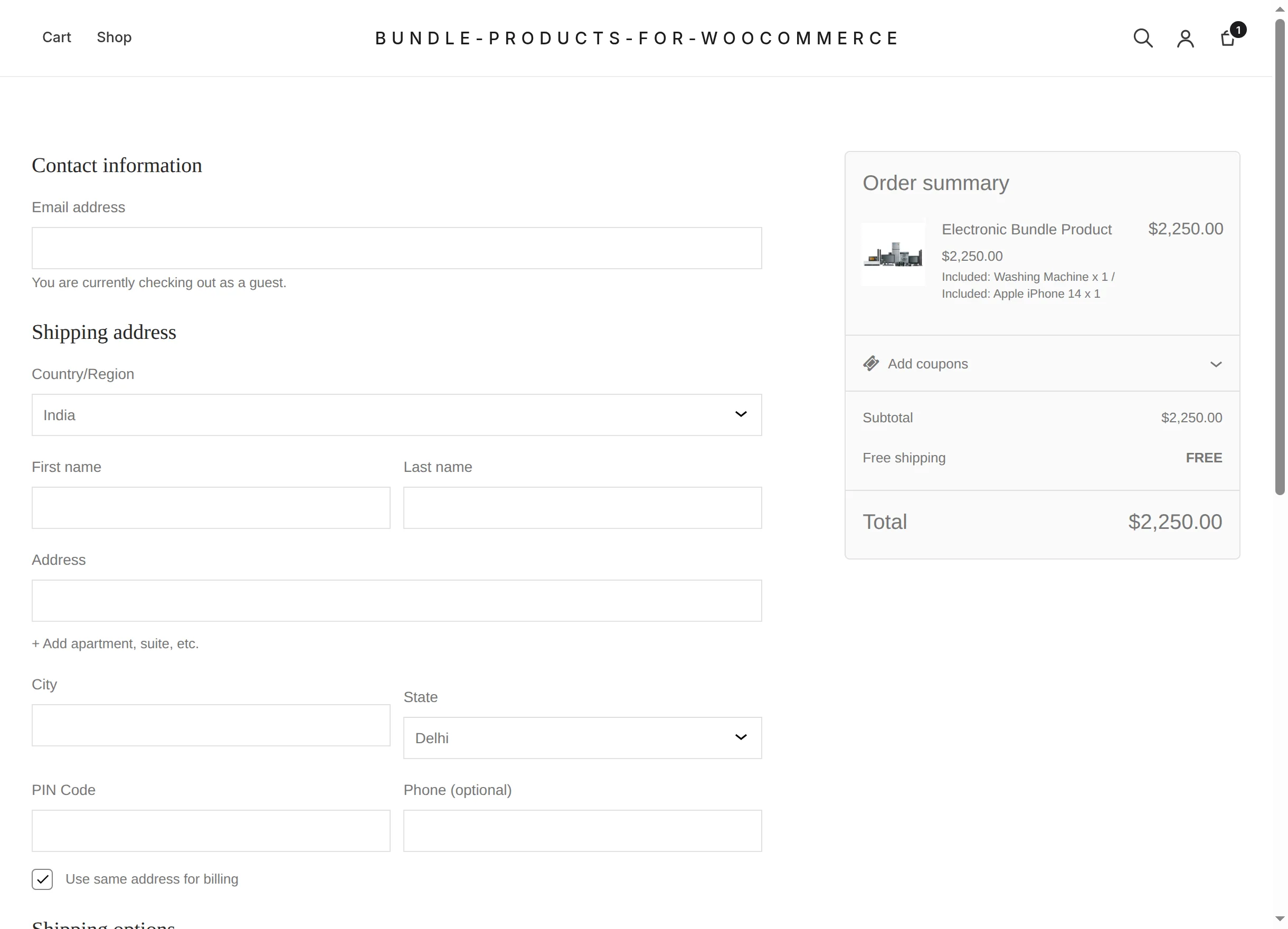
No special payment or shipping configuration is needed; the bundle behaves as one product with one price.
Order confirmation and My Account
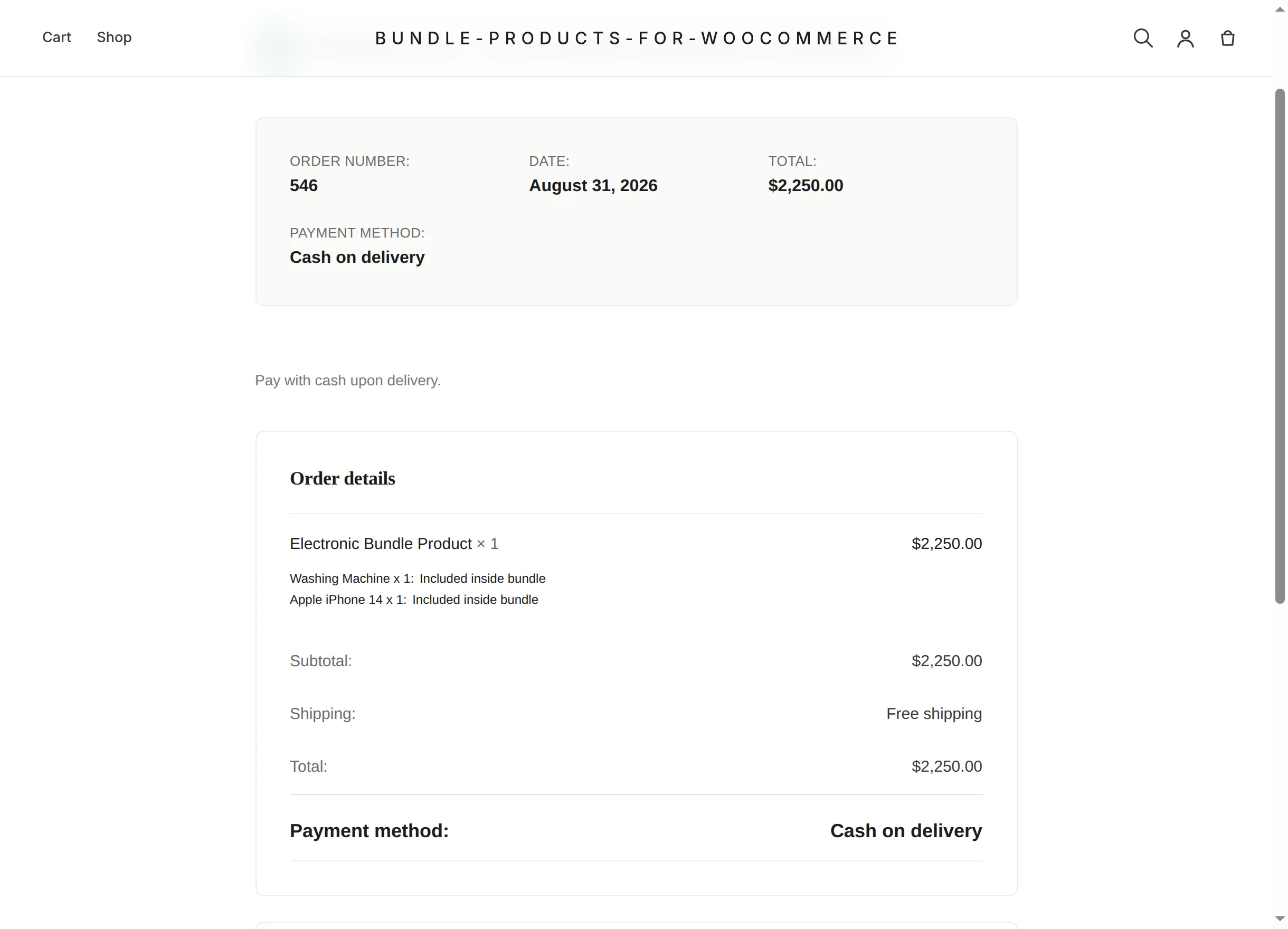
On the order-received page (and the matching order view under My Account → Orders) each bundled product is listed under the bundle line as "… x N: Included inside bundle":
In the admin order screen
The same contents are stored on the order line item, so WooCommerce → Orders shows at a glance what each sold kit contained:
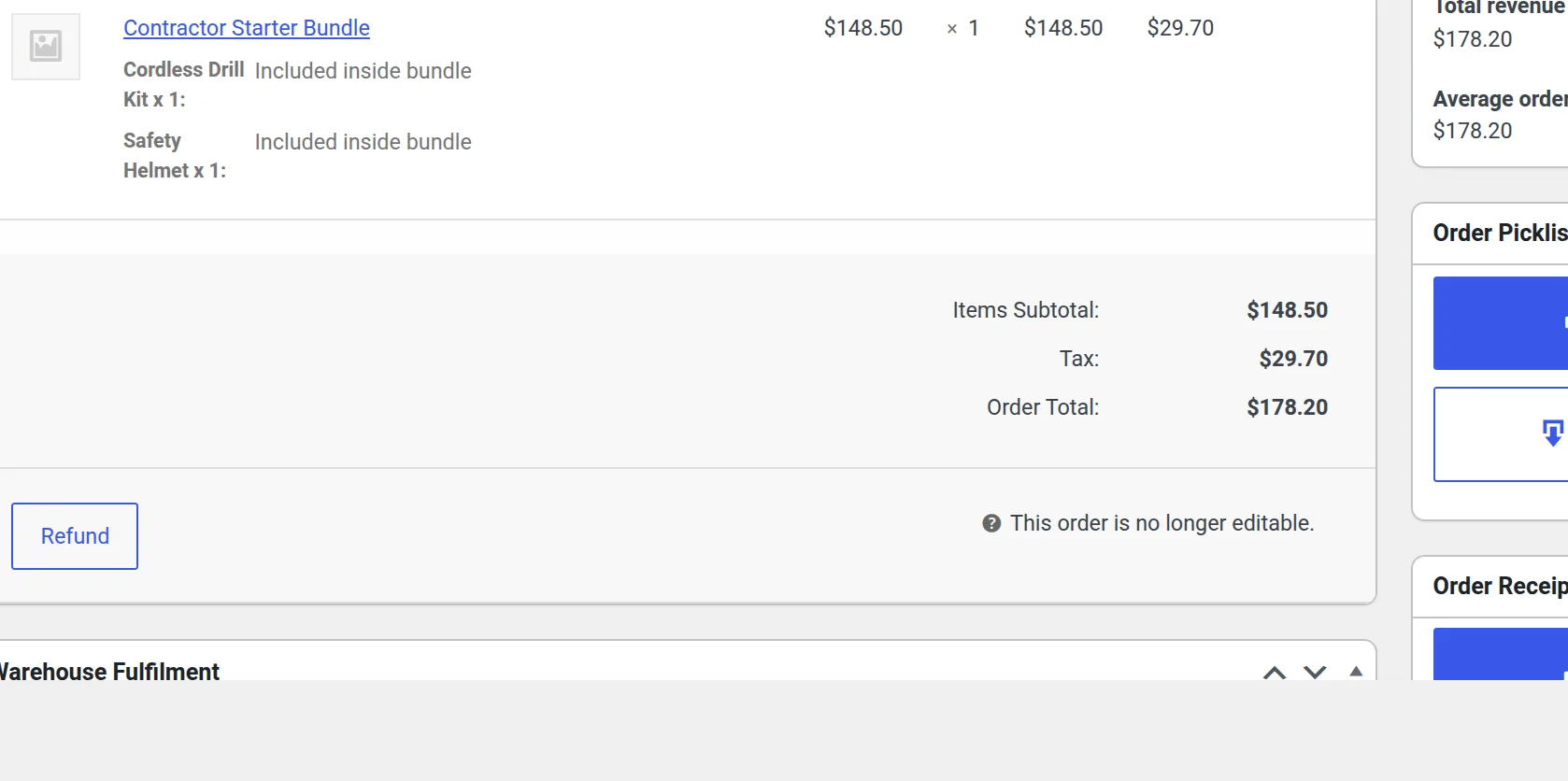
The line's price is the final bundle price (after dynamic calculation and discount). Refunds, taxes and totals work on that single line like on any other product line.
In order emails
WooCommerce's order emails (New Order to the admin, Processing/Completed to the customer, and the rest) render each order line with its visible details — so the bundled products appear under the bundle line as "Included inside bundle" rows, exactly as on the order pages above.
Fulfilment stays simple
Warehouse staff see one order line per kit plus its component list — pick the components, pack one kit. Because components are not separate order lines, their own stock is not decremented; see How stock works.
Next: some ready-to-copy configurations in Practical Examples.