Stock, Quantity & Limits
Three separate mechanisms control "how many": the bundle's own stock, the per-order purchase limit, and the compulsory items count that splits the kit into mandatory and optional parts.
How stock works
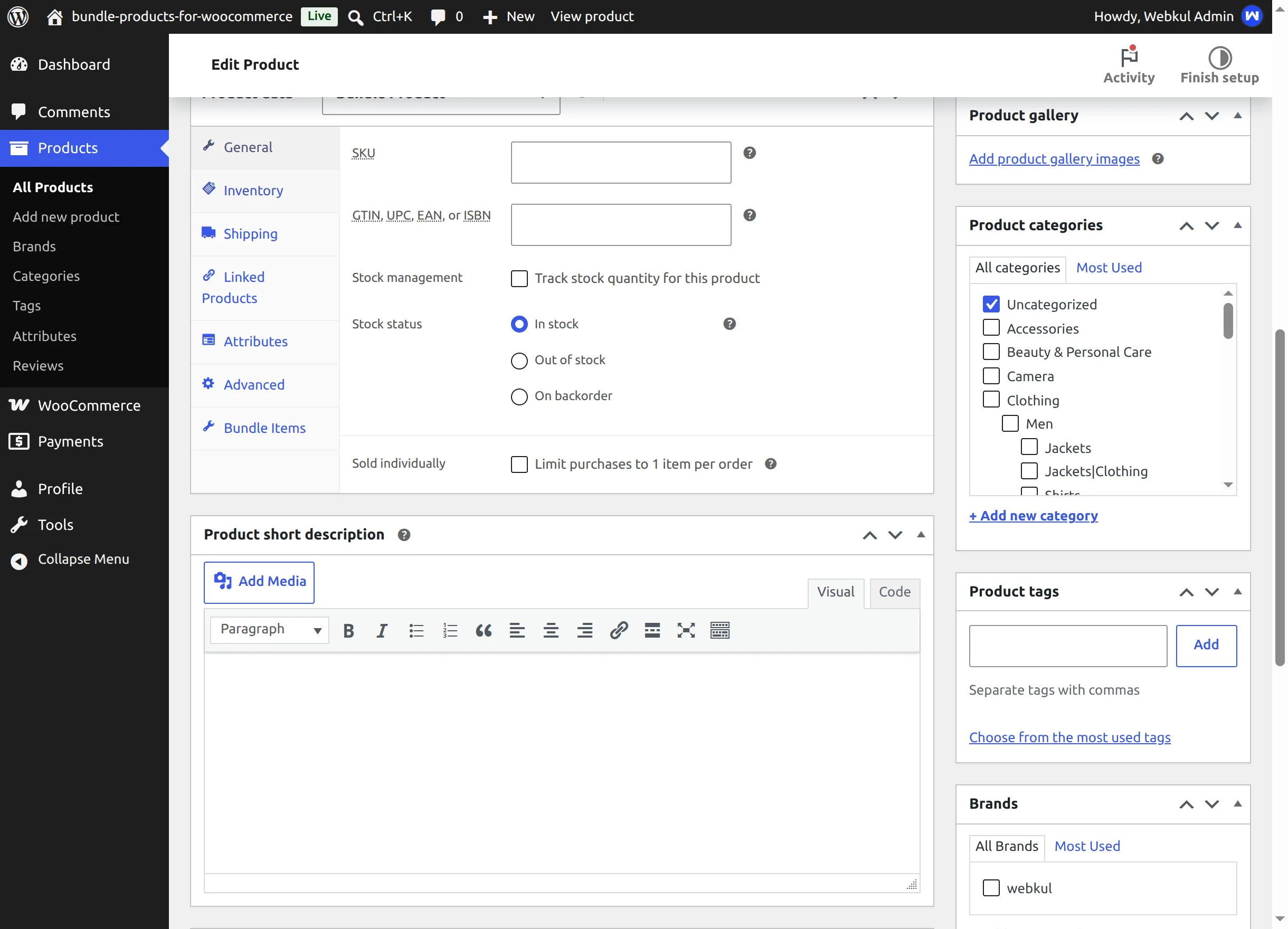
A bundle can manage its own stock like any simple product — open the Inventory tab, tick Track stock quantity for this product and set a quantity:
What is checked when a customer buys:
| Check | When | Effect |
|---|---|---|
| Bundle in stock? | Product page & add to cart | Out-of-stock bundles are not purchasable; adding fails with "This bundle product is out of stock." |
| Enough bundle stock for the requested quantity (cart contents included)? | Add to cart & cart updates | Fails with "Not enough stock for this bundle. Requested X, available Y." (skipped when backorders are allowed) |
| Each included item purchasable and in sufficient stock? | Add to cart | Fails with an item-specific message — see Troubleshooting |
Bundled items' stock is not reduced
Selling a bundle reduces the bundle's stock only. The bundled products are recorded on the order as contents of the kit — they are not separate order lines, so WooCommerce does not decrement their individual stock counters. If you need exact per-component inventory, track stock on the bundle itself and treat it as its own SKU.
Child stock still matters at the door: if a bundled product manages stock and doesn't have enough for the kits being added (item quantity × number of kits), the add to cart is refused with that product's name in the message.
Max Purchase Limit
Max Purchase Limit on the Bundle Items tab caps how many units of this bundle one order may contain. Leave it empty (or 0) for no limit.
It is enforced consistently across every path into the cart:
- The product page's quantity picker won't go past the limit (or past available stock, whichever is lower).
- Adding more via repeated add-to-carts is blocked server-side: "You can only purchase a maximum of N bundles per order."
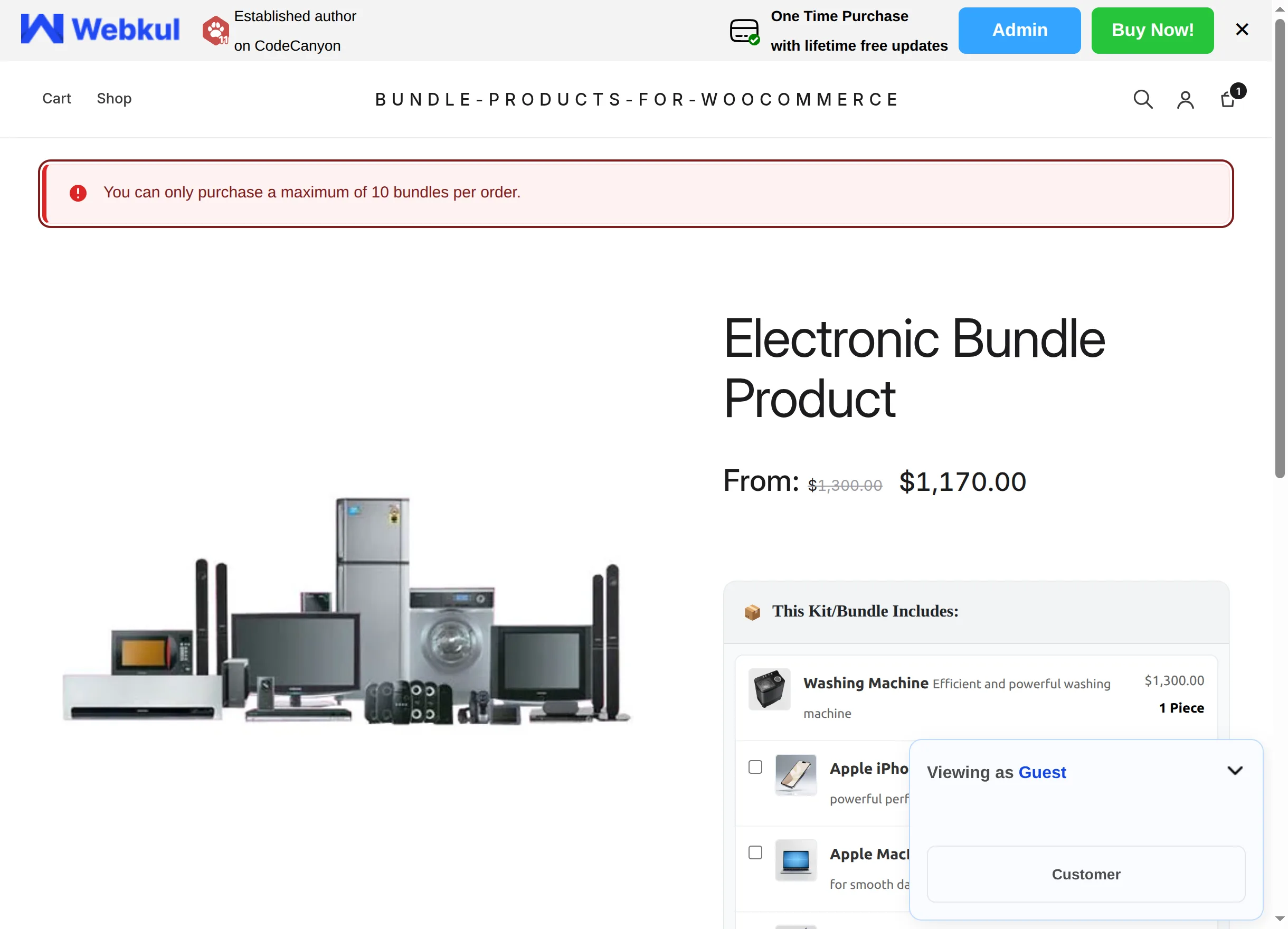
- Editing quantities in the classic cart re-runs the same check.
- In the mini-cart and block cart/checkout the quantity stepper is capped at what is still allowed, and over-limit quantities are corrected automatically with the same error notice.
Compulsory Items Count
Compulsory Items Count defines where the mandatory part of the kit ends:
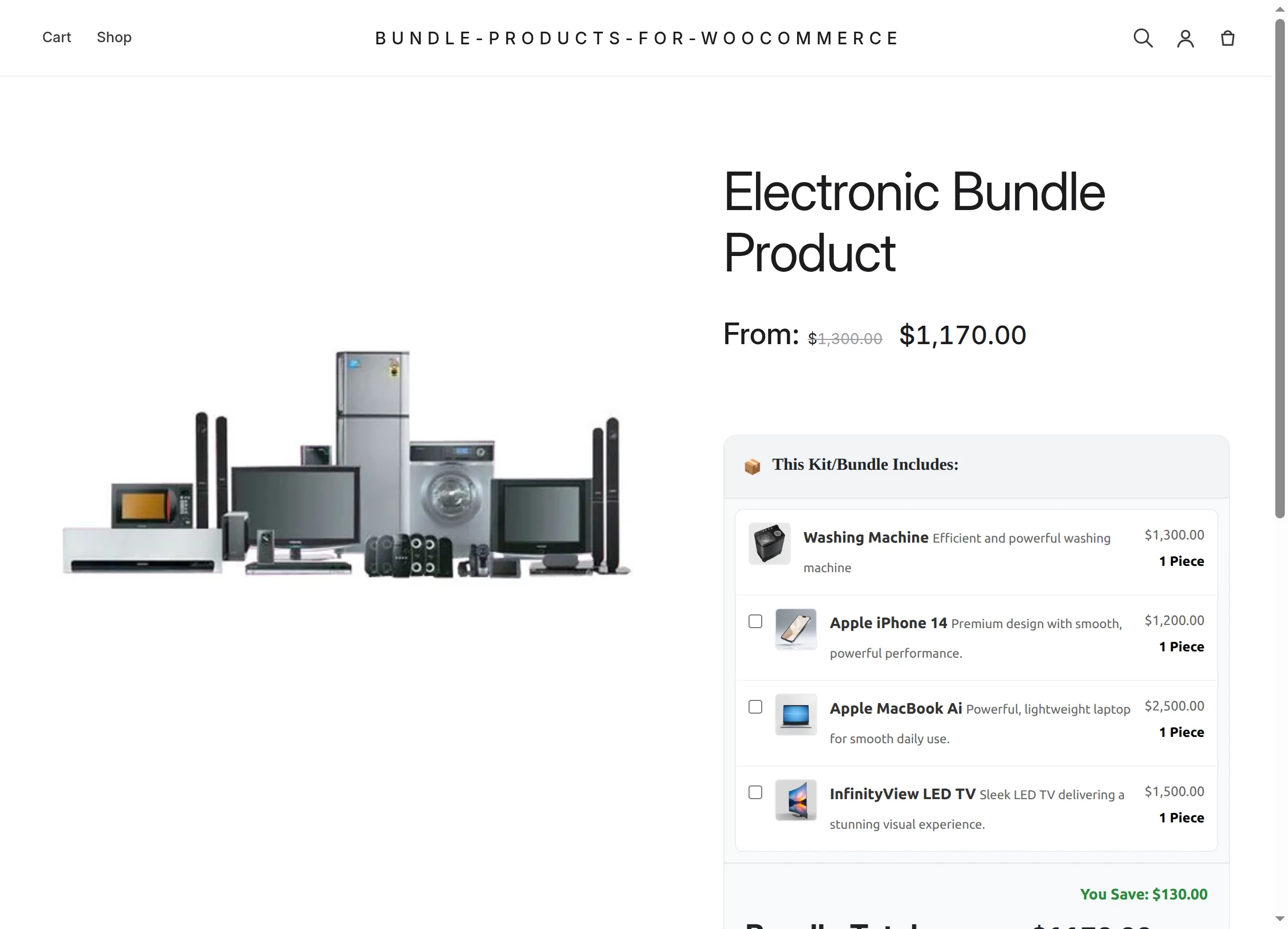
- The first N rows of the Bundle Items Configuration table are always included.
- Every row after position N becomes an optional checkbox on the product page (unticked by default).
- Empty or
0= every item is mandatory; no checkboxes are shown. - Items that are variations are always included regardless of position.
The demo bundle uses 1: the Washing Machine is fixed, while iPhone, MacBook and TV are opt-in:
Per-item quantities
Each bundle item row has its own Quantity — how many units of that product one kit contains. Customers cannot change these; they only choose optional items and the number of kits. On the storefront the labels ("2 Pieces") multiply automatically when the customer raises the kit quantity.
Next: see the storefront from the customer's side in Customer Experience.