Creating a Bundle Product
This chapter builds a complete bundle from scratch. You need at least the products that will go inside the bundle already published in your catalog.
Step 1 — Create the product and pick the type
- Go to Products → Add New.
- Enter the bundle's name, description, product image and gallery as you would for any product — these are what customers see on the bundle's own page.
- In the Product data panel, open the type dropdown and select Bundle Product.

The tab list updates: a new Bundle Items tab appears, and the General, Inventory, Shipping, Linked Products, Attributes and Advanced tabs remain available.
Step 2 — Configure the Bundle Items tab
Open the Bundle Items tab. The upper half holds the bundle's commercial settings:
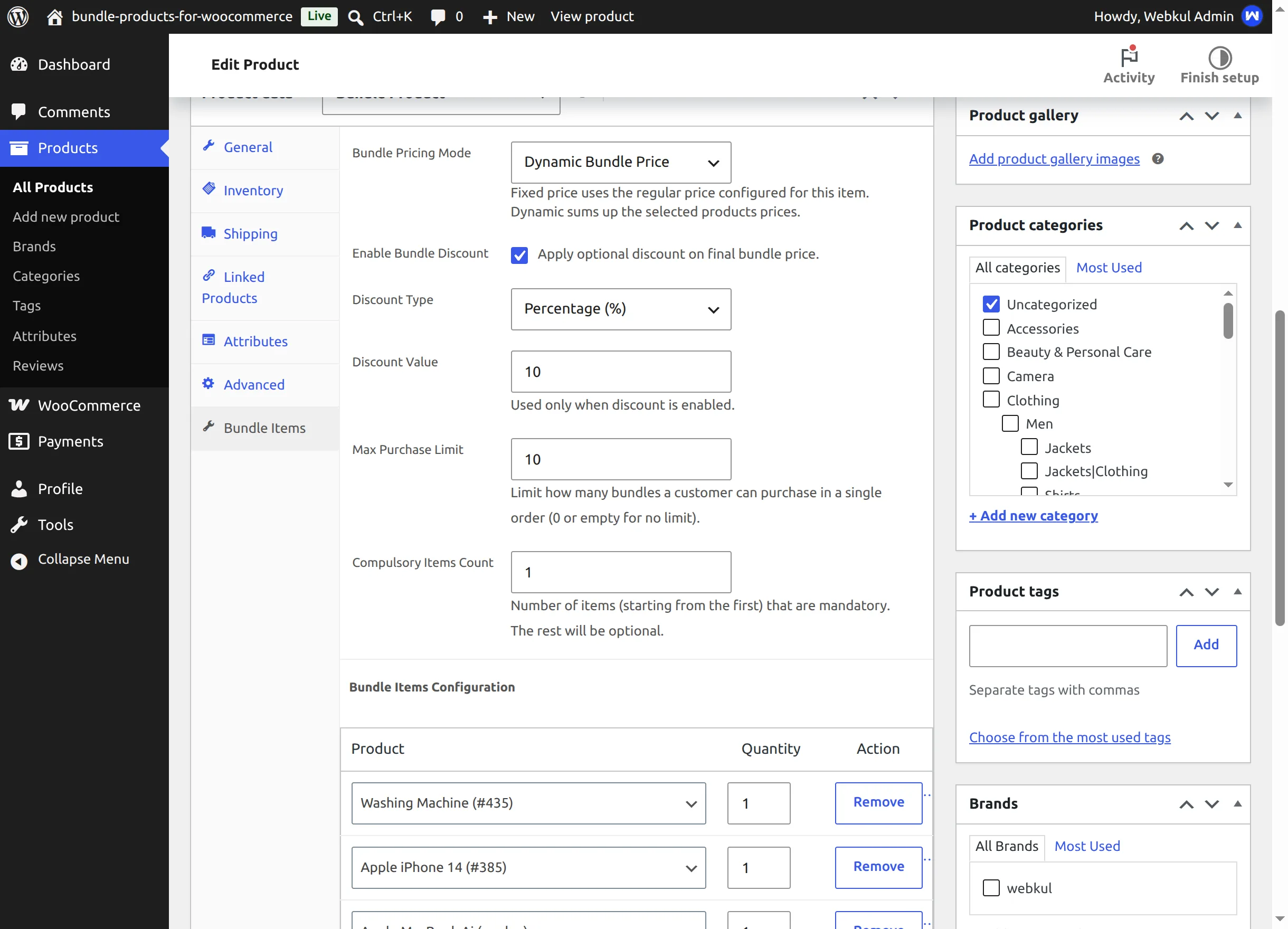
| Setting | What it does | Default |
|---|---|---|
| Bundle Pricing Mode | Fixed Bundle Price charges one flat price; Dynamic Bundle Price sums the selected items' prices. Details: Pricing & Discounts | Fixed Bundle Price |
| Bundle Fixed Price | The flat price used in fixed mode. Only visible while fixed mode is selected. If you leave it empty, the product's Regular price is used instead (and typing a Regular price auto-fills this field once). | empty |
| Enable Bundle Discount | Turns the bundle discount on; the two fields below appear only while this is ticked. | off |
| Discount Type | Percentage (%) or Fixed Amount. | Percentage (%) |
| Discount Value | The percentage or amount subtracted from the final bundle price. | empty |
| Max Purchase Limit | Maximum number of this bundle allowed per order. 0 or empty means no limit. | no limit |
| Compulsory Items Count | How many items, counting from the top of the items list, are mandatory. Every later item becomes an optional checkbox for the customer. 0 or empty makes all items mandatory. | all mandatory |
Step 3 — Add the bundled products
Scroll to Bundle Items Configuration at the bottom of the tab:
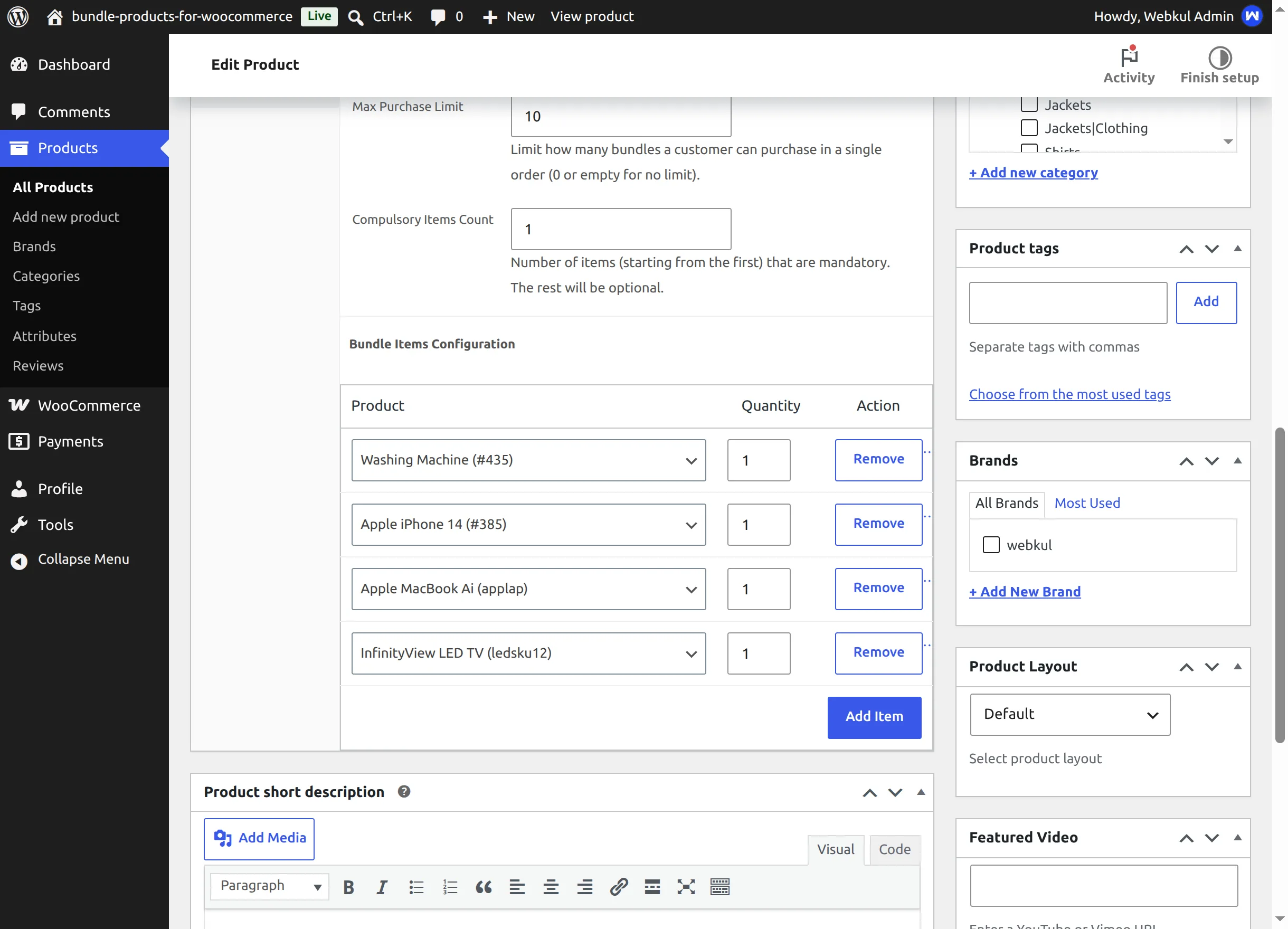
- Click Add Item — a new row appears.
- Click the Product field and start typing. The live search covers your simple products and individual variations:
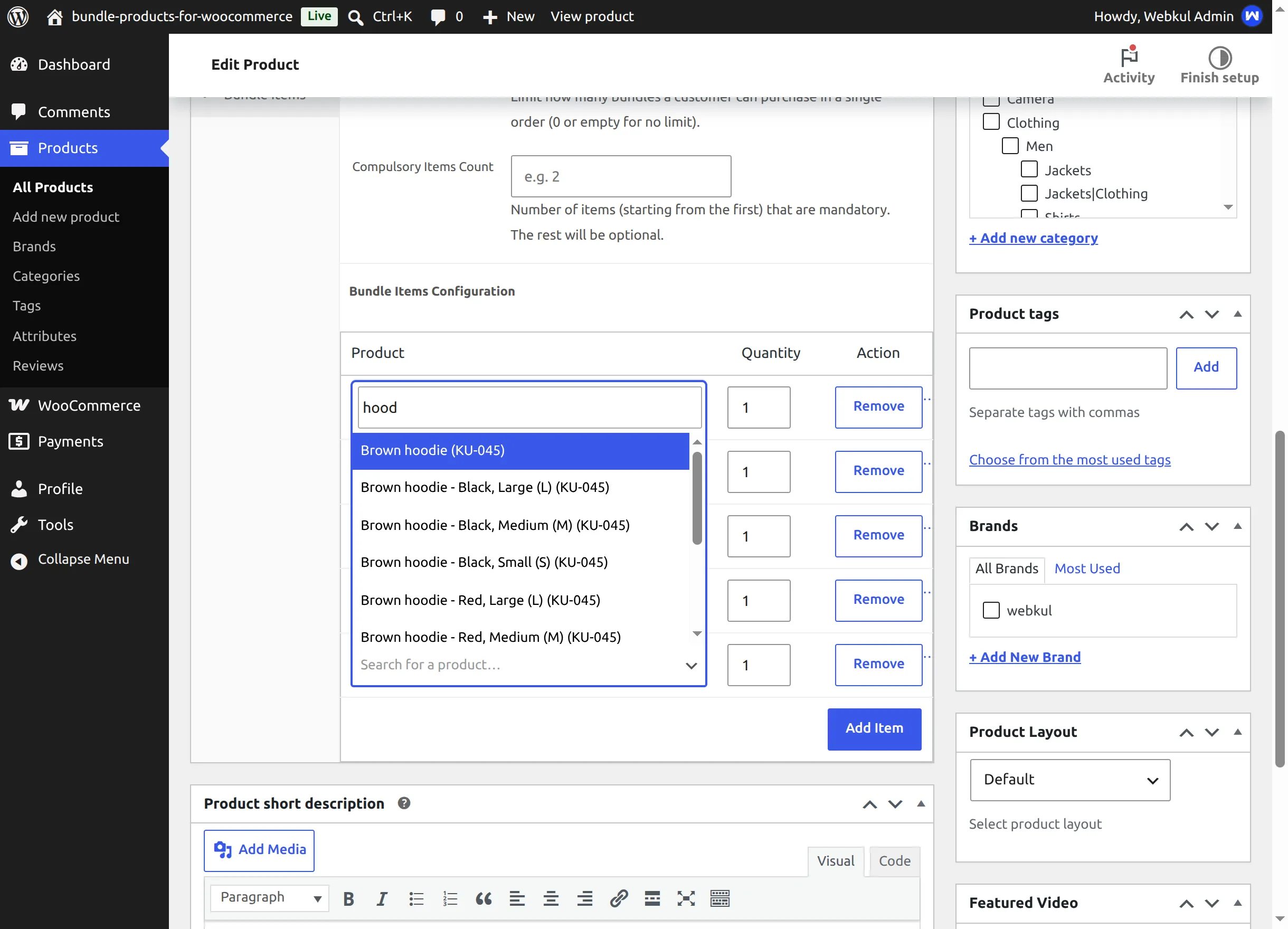
- Pick the product, then set its Quantity — how many units of it one kit contains (for example,
2work gloves per kit). - Repeat for every item. Add mandatory items first — the Compulsory Items Count counts from the top of this table.
- Use Remove to take an item out of the bundle.
Order matters
With Compulsory Items Count = 1, only the first row is always included — rows 2, 3, 4… become optional checkboxes on the storefront, in the same order. Arrange the table so your "core" products sit at the top.
Variations are always mandatory
A row that points to a specific variation (e.g. Brown hoodie – Black, L) is always included in the kit regardless of its position — only simple products become optional.
Step 4 — Prices, stock and publishing
- General tab — the Regular price seeds the Bundle Fixed Price in fixed mode. (The Sale price field is visible but not used by bundle pricing.)
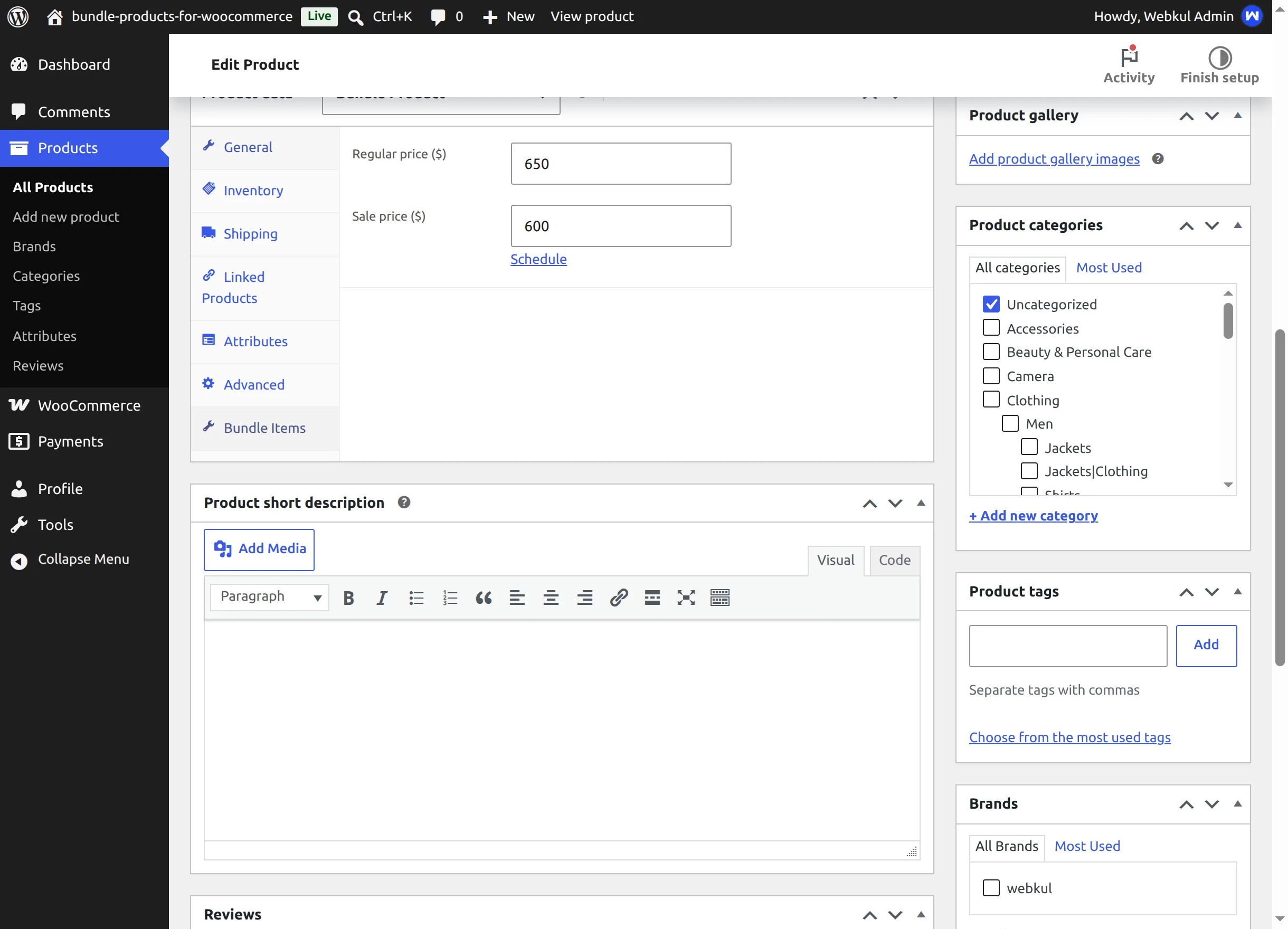
- Inventory tab — optional: give the bundle its own SKU and stock. See Stock, Quantity & Limits.
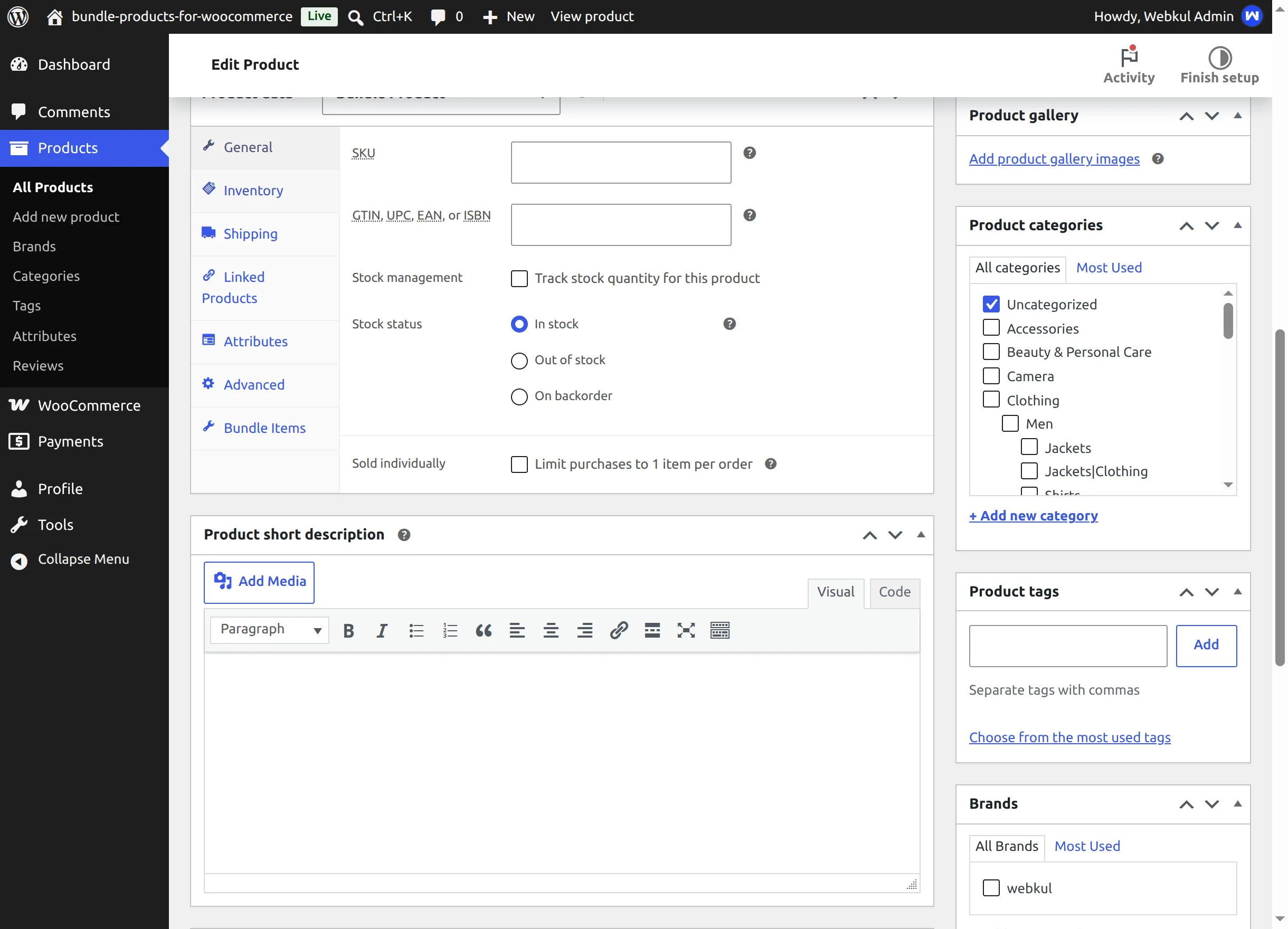
- Click Publish.
Expected result
Visit the product page. You should see the "This Kit/Bundle Includes:" box listing your items, the price presentation matching your pricing mode, checkboxes on any optional items, and a quantity picker with an Add to cart button. A complete tour of that page is in Customer Experience.
The bundle page shows no add-to-cart form?
A bundle is only purchasable when it has at least one item and — in fixed mode — a price (Bundle Fixed Price or Regular price). It must also be in stock. See Troubleshooting.