
Icecat Account
Every catalog request the connector makes is authenticated with your Icecat username. The Account tab (Webkul WC Addons → IceCat Connector → Account) shows the connection at a glance and is where you edit or remove it.
Open Icecat vs Full Icecat
| Open Icecat (free) | Full Icecat (paid) | |
|---|---|---|
| Cost | Free — register here | Paid Icecat subscription |
| Catalog coverage | Products of Icecat's sponsoring brands | The complete Icecat catalog |
| What the connector needs | Username only | Username plus App Key |
The App Key is found on your My Profile page at icecat.biz. Without it, searching a Full-Icecat-only product returns the error "To access Full Icecat content, an app_key is required.", and some brands return "Product has brand restrictions or access is limited."
The Connection Card
When an account is connected, the tab shows a status card:
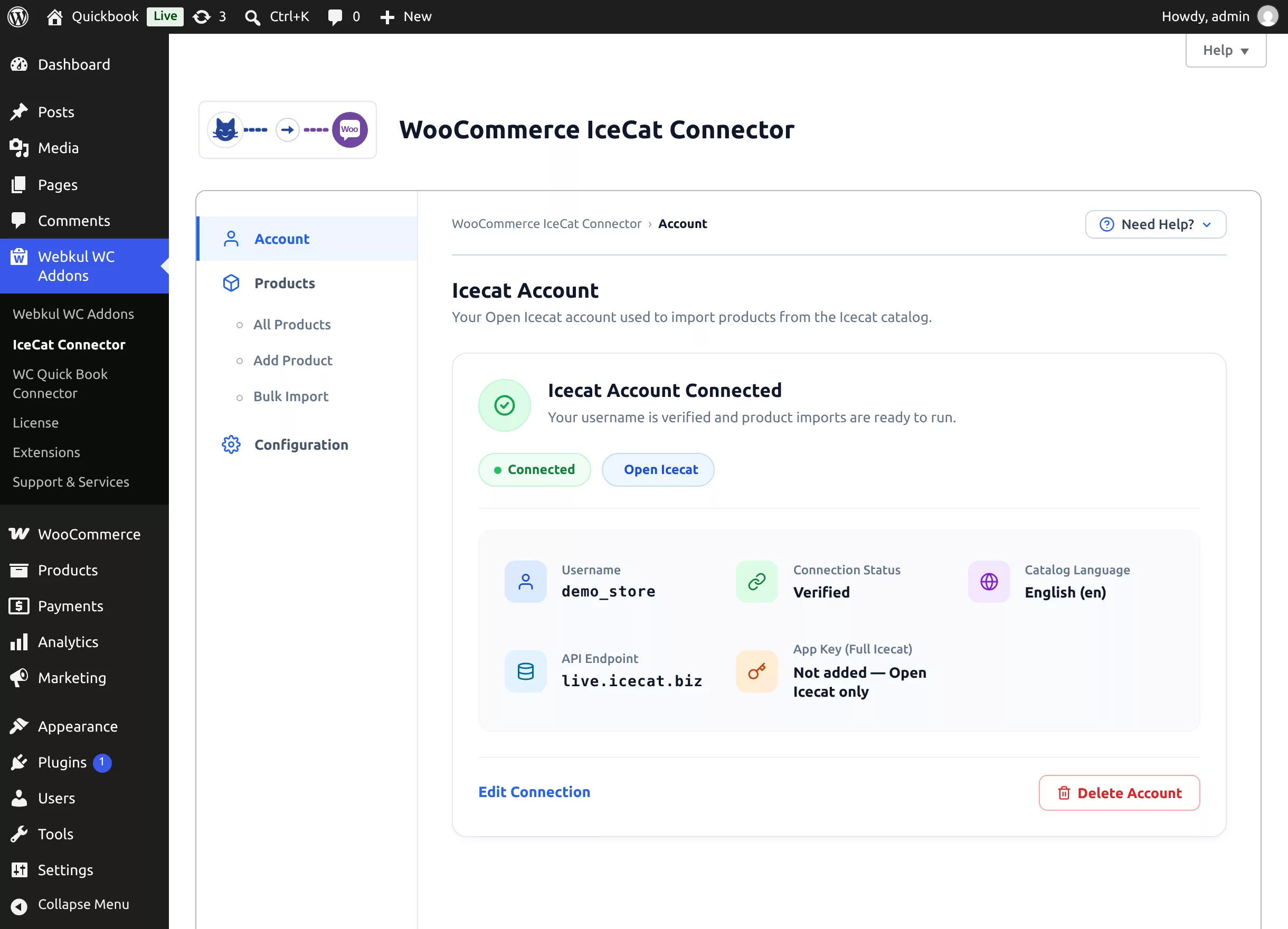
- Connection badges — Connected / Not Verified and the account mode (Open Icecat).
- Username — the Icecat account in use.
- Connection Status — Verified once the username has passed a live API check.
- Catalog Language — the default import language (change it in the Setup Wizard preferences or per import).
- API Endpoint — always
live.icecat.biz. - App Key (Full Icecat) — masked when saved, or "Not added — Open Icecat only".
Edit the Connection
Click Edit Connection to change the username or App Key.
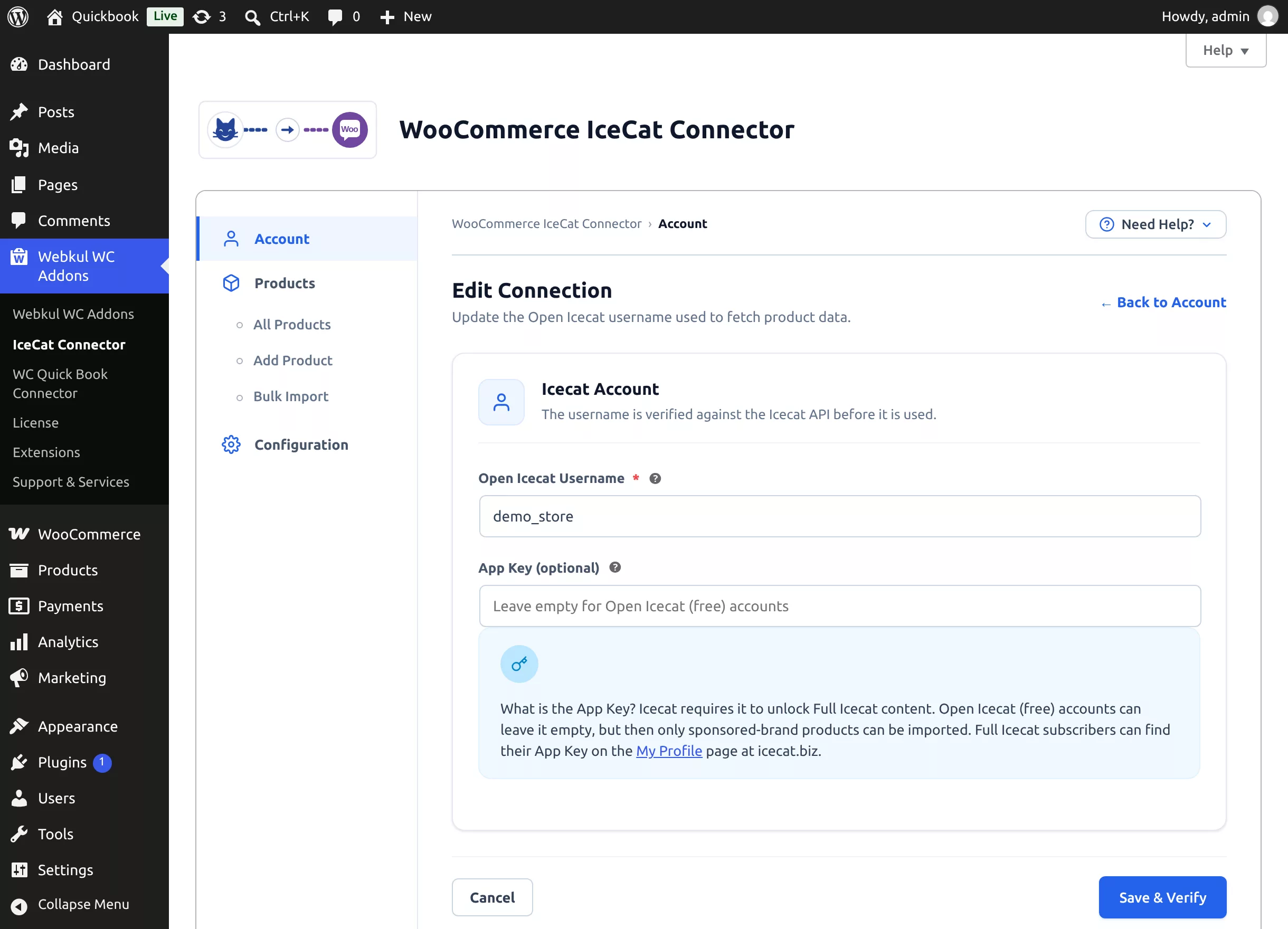
- Enter the Open Icecat Username (required).
- Optionally enter the App Key — leave it empty for free Open Icecat accounts.
- Click Save & Verify.
The connector saves the details and verifies them live:
- The username is checked against an Open Icecat product.
- A saved App Key is additionally checked against Full-Icecat-only content — a wrong key is rejected with a clear message rather than silently ignored.
Success returns you to the Account tab with the Connected badge; failure shows "Connection to Icecat failed. Please check your username and try again." without breaking the previously verified state.
First-time connection
When no username is saved yet, the Edit Connection screen shows a registration callout — follow the registration link to create a free Open Icecat account, then come back and save it.
Delete the Account
Click Delete Account on the connection card. A confirmation dialog warns:
Are you sure you want to delete the Icecat account "…"? Product imports will stop working until you connect an account again.
Confirming removes the saved username and App Key and marks the connection as not verified. Products already imported stay in your store — only new imports and updates stop until you connect an account again.
Troubleshooting
| Symptom | Cause | Fix |
|---|---|---|
| "…the Icecat user is unknown" | Username typo, or the account doesn't exist | Check the spelling; register if needed |
| "The App Key could not be verified…" | Wrong or expired App Key | Copy the key from My Profile, or clear it to use Open Icecat |
| Verification times out | The server can't reach live.icecat.biz | Allow outbound HTTPS from your hosting to live.icecat.biz |