
Manage Products
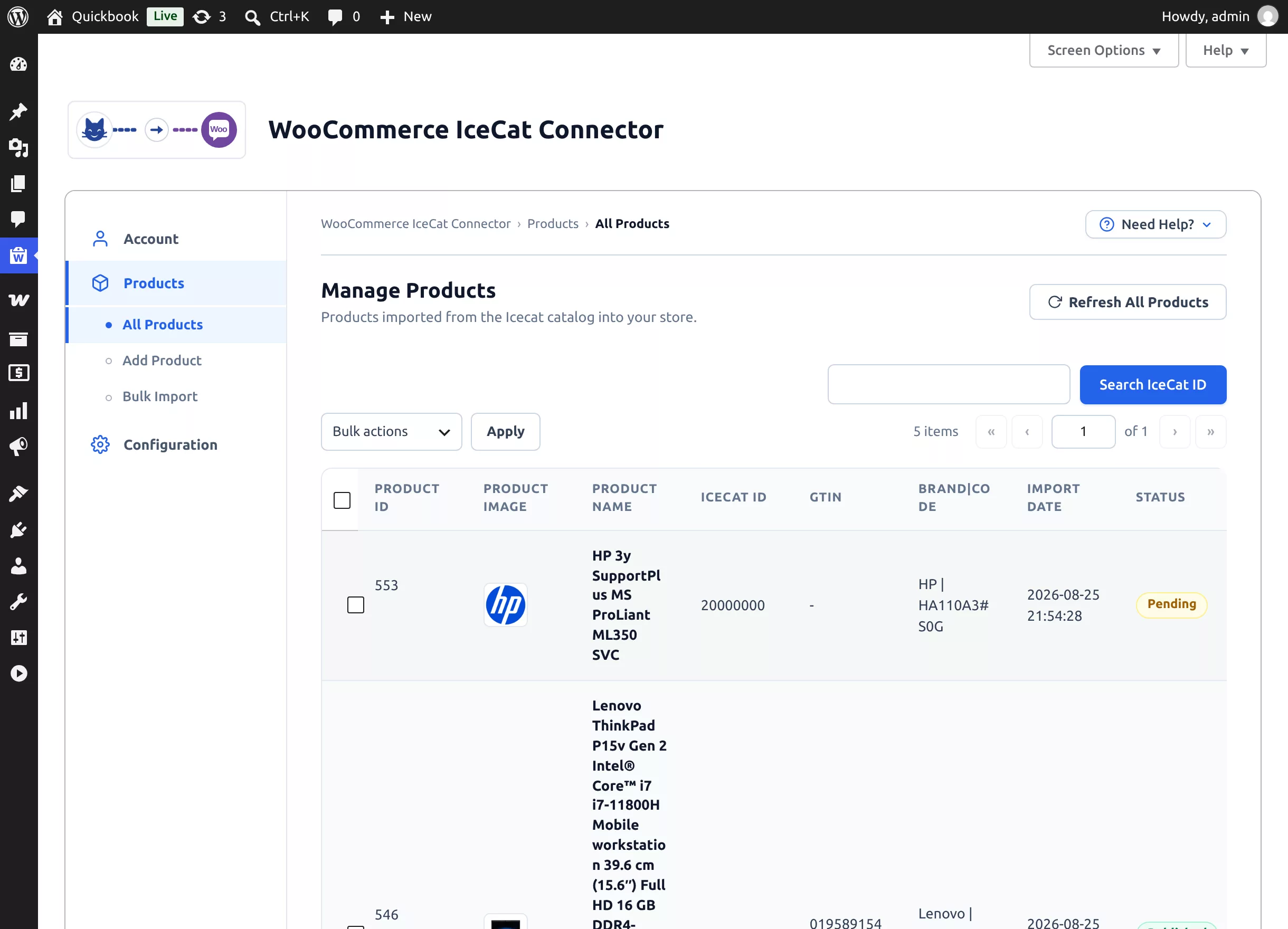
Webkul WC Addons → IceCat Connector → Products → All Products lists every product imported from Icecat, newest first.
What the List Shows
| Column | Content |
|---|---|
| Product Id | The WooCommerce product ID, with row actions: Edit (opens the WooCommerce product editor), Delete (with confirmation), and Icecat (opens the product's page on icecat.biz). |
| Product Image | The featured image (appears once background image import finishes). |
| Product Name | The imported title. |
| Icecat id / GTIN / Brand|Code | The catalog identifiers the product was imported with. |
| Import Date | When the product was created from Icecat. |
| Status | The WooCommerce status — Published, Pending, Draft, or Trash — as a colored pill. |
Use Screen Options (top-right) to change how many rows show per page (default 10), and the Search IceCat ID box to find a product by its catalog ID.
Background image notice
While image jobs are still queued you'll see "Product images are importing in the background. N images left." above the list. It clears automatically when the queue finishes — no action needed.
Bulk Actions
Tick one or more products, choose an action from Bulk actions, and click Apply:
| Action | Effect |
|---|---|
| Delete | Permanently deletes the WooCommerce product and its downloaded Icecat images, and removes it from this list. Row-level Delete asks for confirmation first — "This action cannot be undone." |
| Update | Re-fetches each selected product from Icecat (in its own import language) and updates its content immediately. Success and failure notices list the affected product IDs. |
| Trash | Moves the WooCommerce product to the trash (recoverable from Products → All Products in WooCommerce). |
| Product Publish | Publishes the selected products and makes them visible in the catalog — e.g. "Product ID:- 546 published successfully!" |
Selecting no rows shows "Please select at least one item to perform this action on."
Refresh All Products
The Refresh All Products button (top-right) re-imports the latest Icecat data for every product in the list:
- Click the button; a dialog confirms — "WooCommerce products will start updating from Icecat with the latest product details in the background."
- Click Refresh Products. The page reloads and a progress card appears.
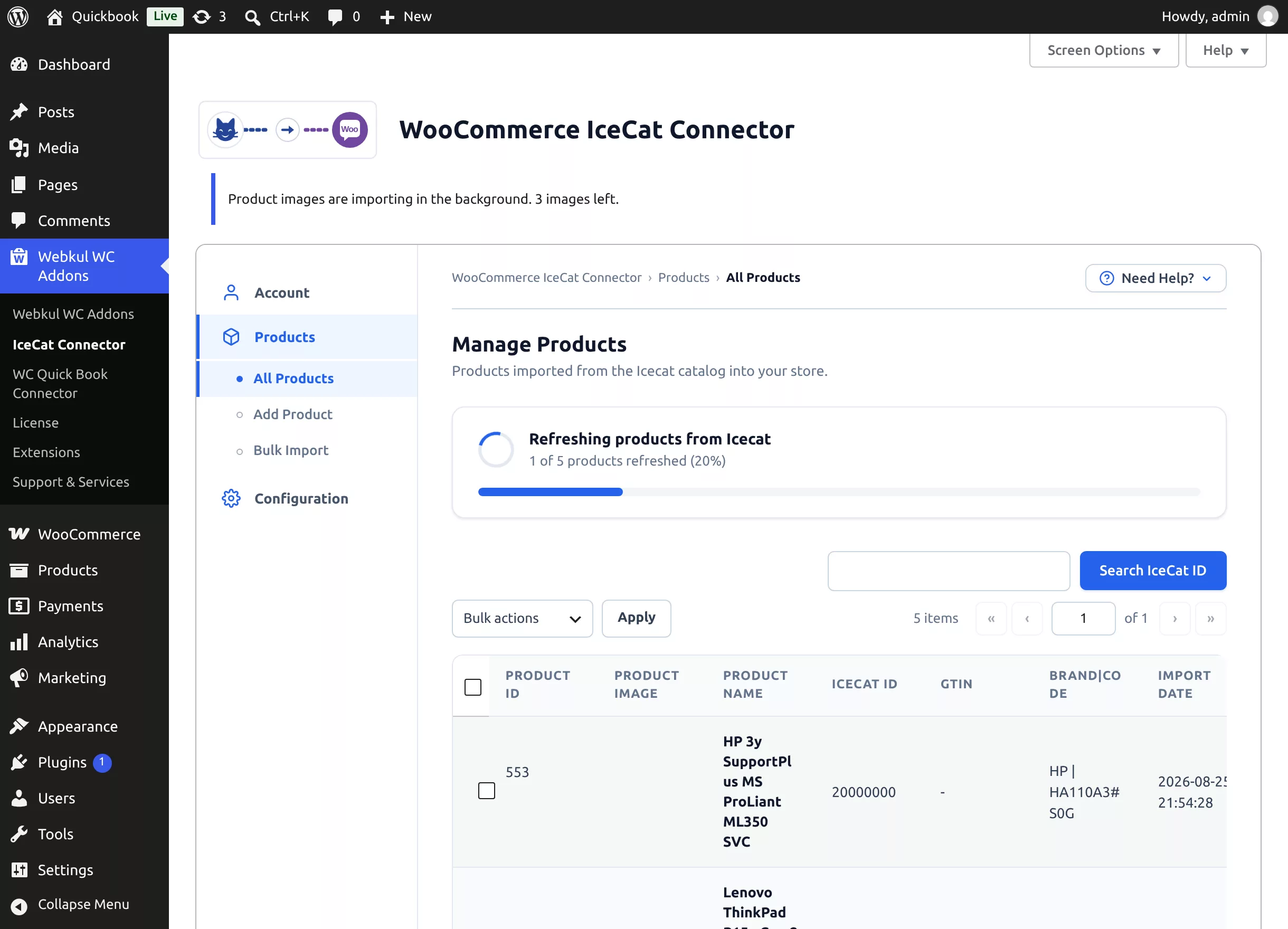
The card shows "X of Y products refreshed (Z%)" and updates itself every few seconds; when everything is done, a toast confirms "All products have been refreshed successfully." The refresh runs in the background — you can leave the page and come back.
Related Pages
- Import a single product: Add a Product
- Import many at once: Bulk Import (CSV)
- Update one product from its edit page: Update Products