
Bulk Import (CSV)
Webkul WC Addons → IceCat Connector → Products → Bulk Import imports (or updates) many catalog products in one run. You upload a CSV, the connector queues every row, and the import happens in the background while a progress dialog keeps count.
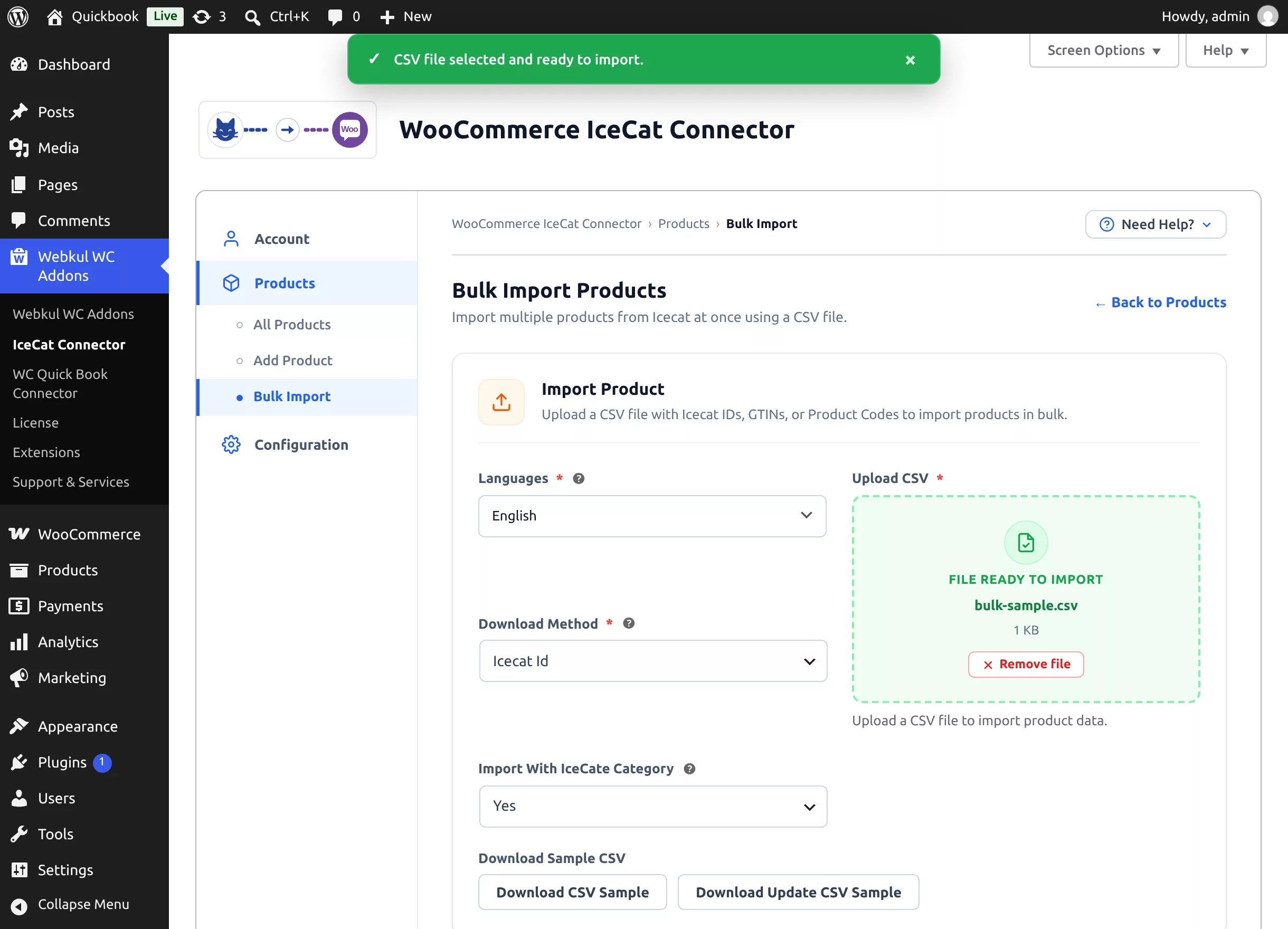
The Import Form
| Field | Notes |
|---|---|
| Languages | The catalog language for every product in this run. |
| Upload CSV | Drag & drop or choose a .csv file (5 MB max). A toast confirms "CSV file selected and ready to import."; a non-CSV file is rejected with "Invalid file type. Please upload a .csv file." |
| Download Method | Selects which sample CSV the two download buttons produce — it does not restrict your file's format. |
| Import With IceCate Category | Yes assigns each product's own Icecat category; No lets you pick WooCommerce categories for the whole batch. |
| Import With WooCommerce Category | Shown when the previous field is No — one or more store categories for the imported products. |
CSV Formats
Column headers are matched by name (case-insensitive) and may be in any order. Use Download CSV Sample / Download Update CSV Sample to get a correctly formatted starting file for the selected method.
Create new products:
| Method | Required headers | Sample row |
|---|---|---|
| Icecat ID | icecat_id | 86199272 |
| GTIN | gstin | 5900511132816 |
| Product Code & Brand | product_code,brand | 13281,Trefl |
Update existing products — add a woo_product_id column with the WooCommerce product ID to update instead of create:
| Method | Required headers | Sample row |
|---|---|---|
| Icecat ID | icecat_id,woo_product_id | 116622454,123456 |
| GTIN | gstin,woo_product_id | 6974260729534,123456 |
| Product Code & Brand | product_code,brand,woo_product_id | LUMTB540X1/00,Philips,123456 |
The GTIN header is spelled gstin
The connector (and its sample files) use the header gstin for GTIN columns. A file with a gtin header is rejected as "Invalid CSV format. Please use one of the sample CSV layouts." — always start from the downloaded sample.
Running the Import
- Fill the form, attach the CSV, and click Import.
- The rows are queued and a toast confirms "Import started. Products are importing in the background."
- The Importing Products dialog opens with a progress bar and running totals.
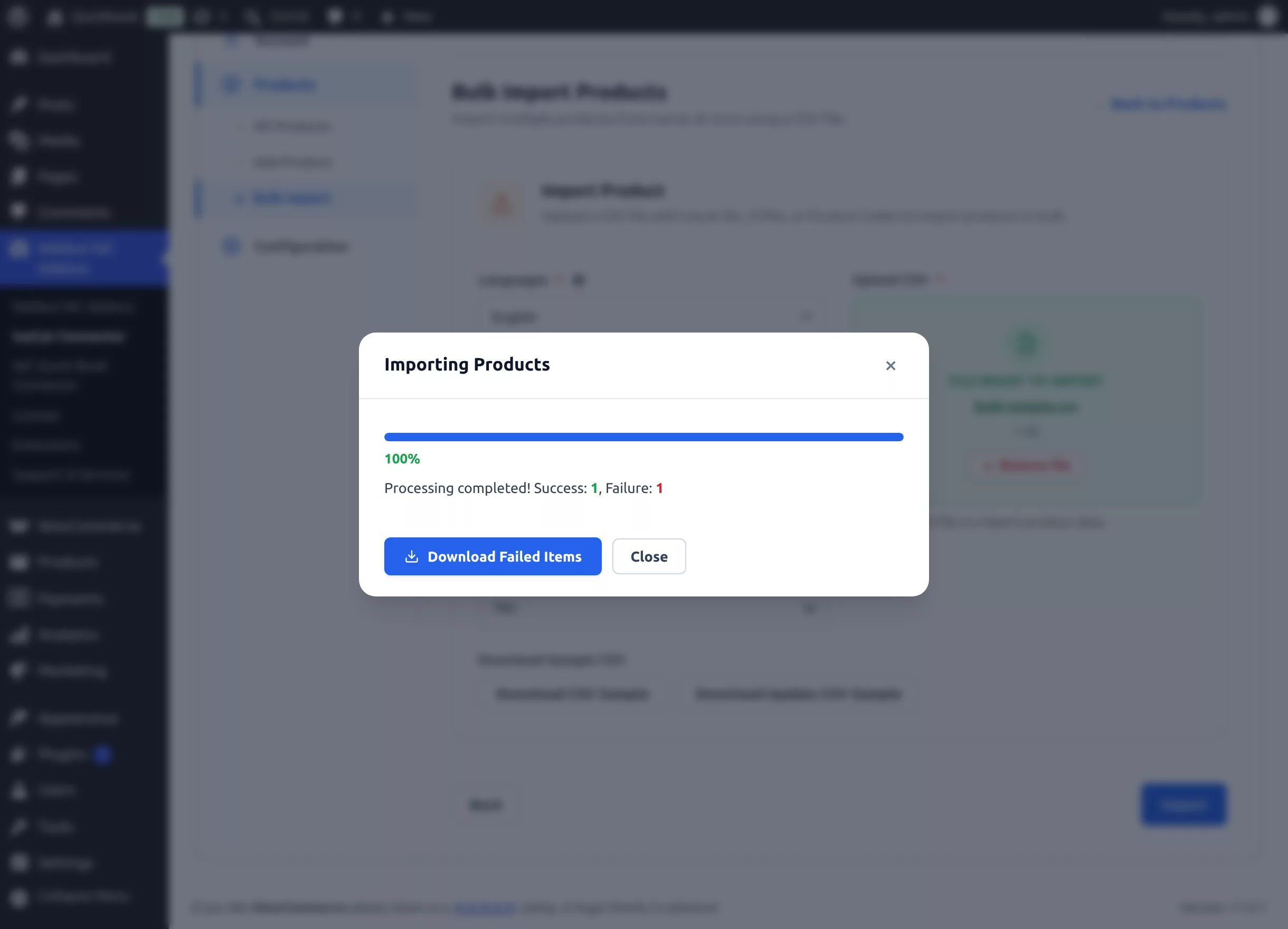
- The dialog polls every few seconds and shows "Processing… Success: X, Failure: Y", then "Processing completed!"
- You can close the dialog and keep working — a View Progress button on the form reopens it while the run continues.
- Only one import runs at a time: starting another shows "An import is already in progress. Please wait for it to finish."
Failed Items
When a run finishes with failures, the dialog shows Download Failed Items — it saves a failed_items.csv containing the rows that could not be imported (unknown IDs, restricted brands, etc.), so you can correct them and re-import just those rows.
Validation Messages
| Message | Meaning |
|---|---|
| "Invalid file type. Please upload a .csv file." | The chosen file isn't a .csv. |
| "The CSV file is too large. Please split it into smaller files." | Over the 5 MB limit. |
| "Invalid CSV format. Please use one of the sample CSV layouts." | Headers don't match any supported layout (check gstin!). |
| "The CSV file has no rows to import." | The file only contains the header row. |
Related Pages
- Watch imported products arrive: Manage Products
- Import behavior (status, stock, categories, background processing): Configuration