
Update Products
Catalog content changes — specs get corrected, images improve, descriptions grow. The connector gives you four ways to bring the latest Icecat data into your store.
1. Update One Product From Its Edit Page
Every simple product in WooCommerce gets an IceCat Details box in the sidebar of its edit page (Products → All Products → Edit).
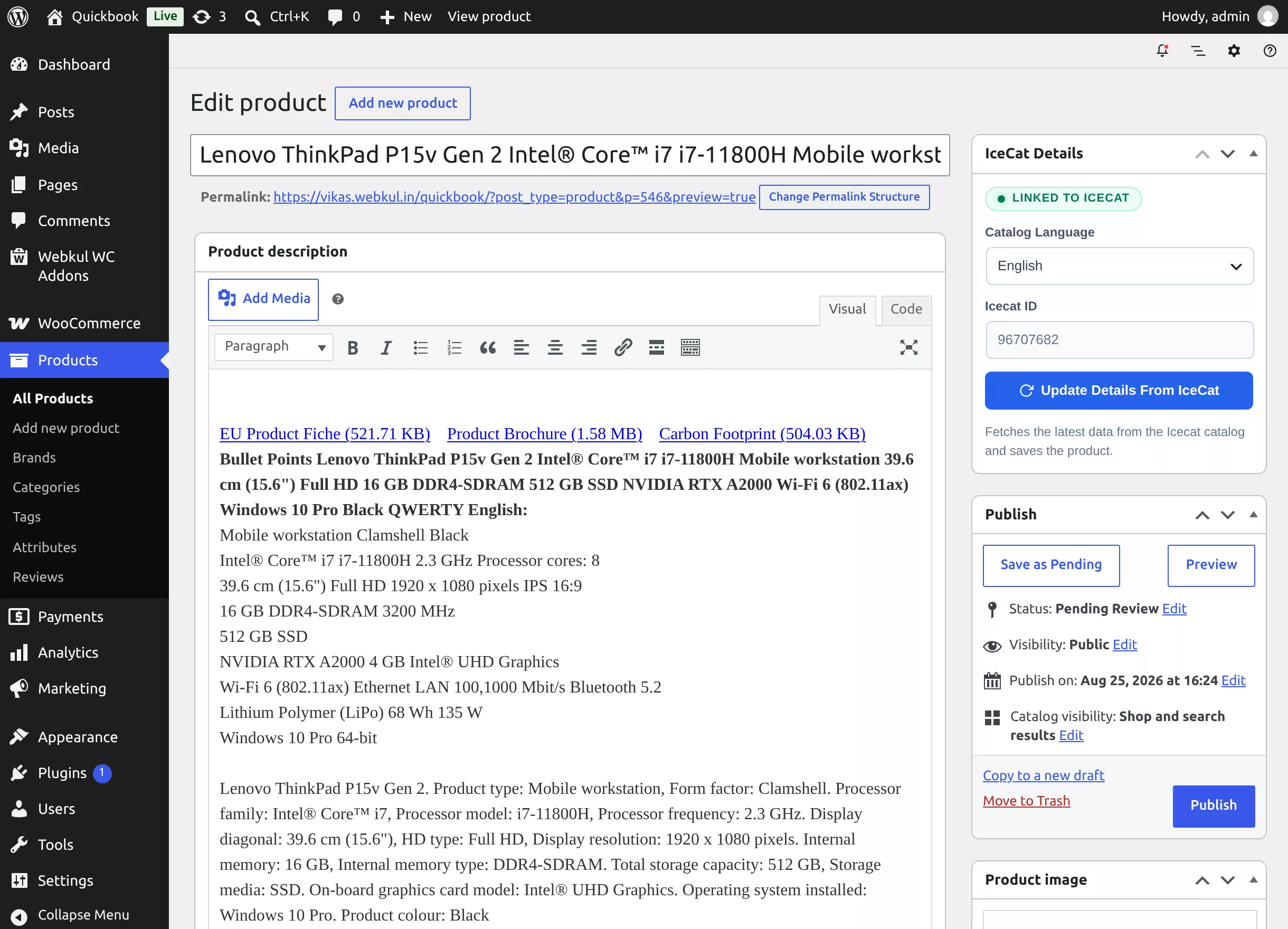
For a product that is Linked to Icecat (green badge):
| Control | Purpose |
|---|---|
| Catalog Language | The language used when fetching updates (defaults to the language the product was imported with). |
| Icecat ID | The linked catalog ID — read-only for linked products. |
| Update Details From IceCat | Fetches the latest data from the Icecat catalog and saves the product — title, descriptions, images, attributes, SKU, and dates. |
Click the button (it shows "Updating from Icecat…") and the product saves with fresh catalog data.
2. Link an Existing Product to Icecat
The same box on a simple product that was not imported from Icecat shows a grey Not linked to Icecat badge, an editable Icecat ID field, and a Replace Details From IceCat button.
- Choose the catalog language.
- Enter the product's Icecat ID.
- Click Replace Details From IceCat — the product's details are replaced with the catalog data, and the product becomes linked.
One product per Icecat ID
An Icecat ID can only be linked to one WooCommerce product. Entering an ID that's already in use fails with "Icecat id N already assigned to this WooCommerce product id - M".
3. Bulk Update From the Product List
On All Products, tick the products to refresh, choose the Update bulk action, and click Apply. Each selected product is re-fetched from Icecat immediately; notices report which product IDs updated and which failed (with the reason from the API).
4. Refresh All Products
The Refresh All Products button on the product list queues every imported product for a background refresh — ideal after changing image quality, or periodically to keep the whole catalog current.
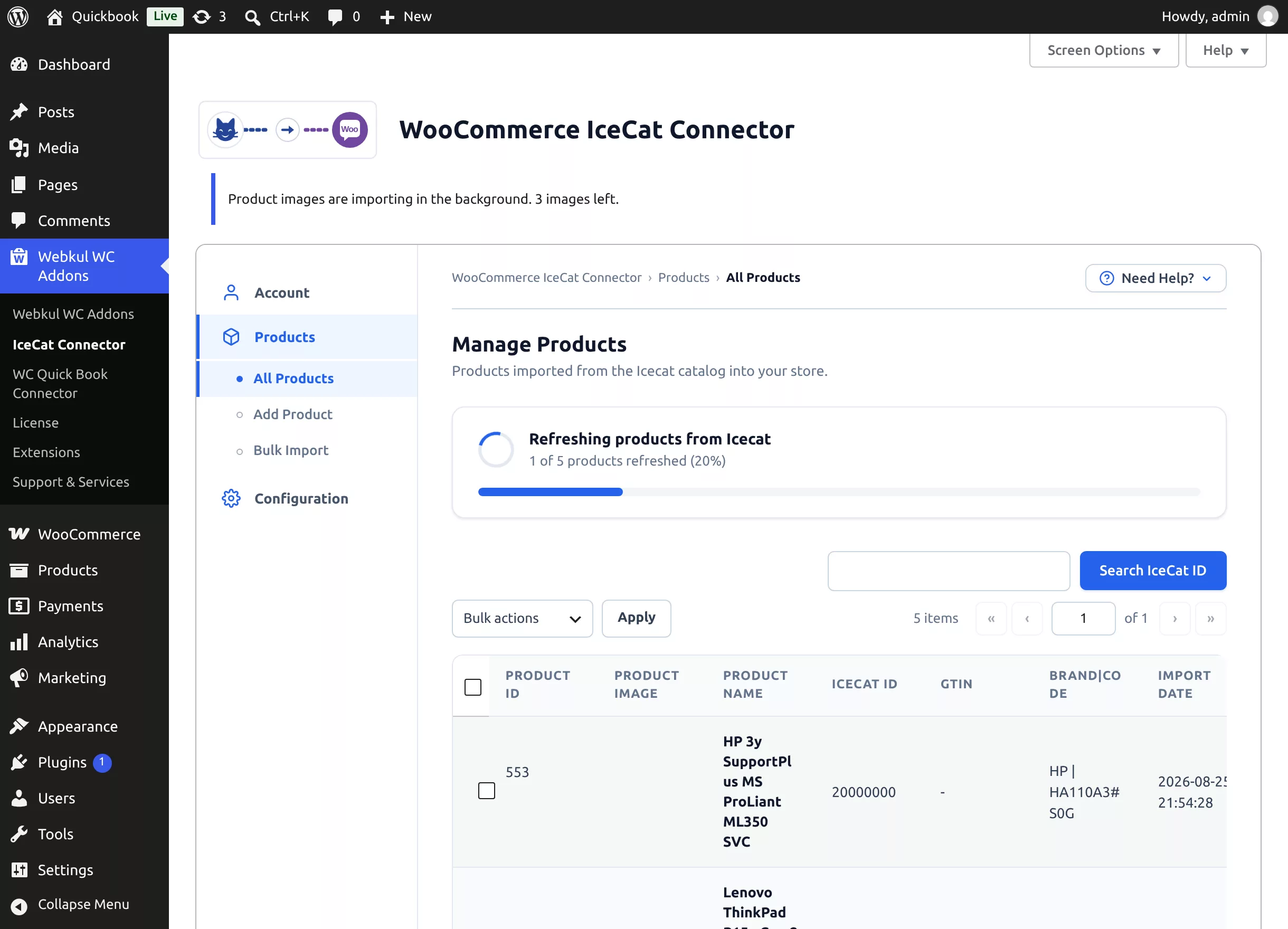
A progress card counts "X of Y products refreshed" and a completion toast confirms when everything is done. See Manage Products for the full walkthrough.
What an Update Changes
An update from Icecat rewrites the catalog-sourced content: title, short and long description, images (old Icecat images are replaced), technical-specification attributes, SKU, and release dates. Store-side data you manage yourself — price, stock adjustments, reviews, and your category assignments — is not part of the catalog payload.
Deleting Icecat Products
Deleting a linked product (from the connector list's Delete action, or permanently from WooCommerce) also removes its downloaded Icecat images from the Media Library and clears it from the connector's list — so re-importing later starts clean.