
Add a Product
Webkul WC Addons → IceCat Connector → Products → Add Product imports a single catalog product in three quick stages: search → review → create.
1. Search the Catalog
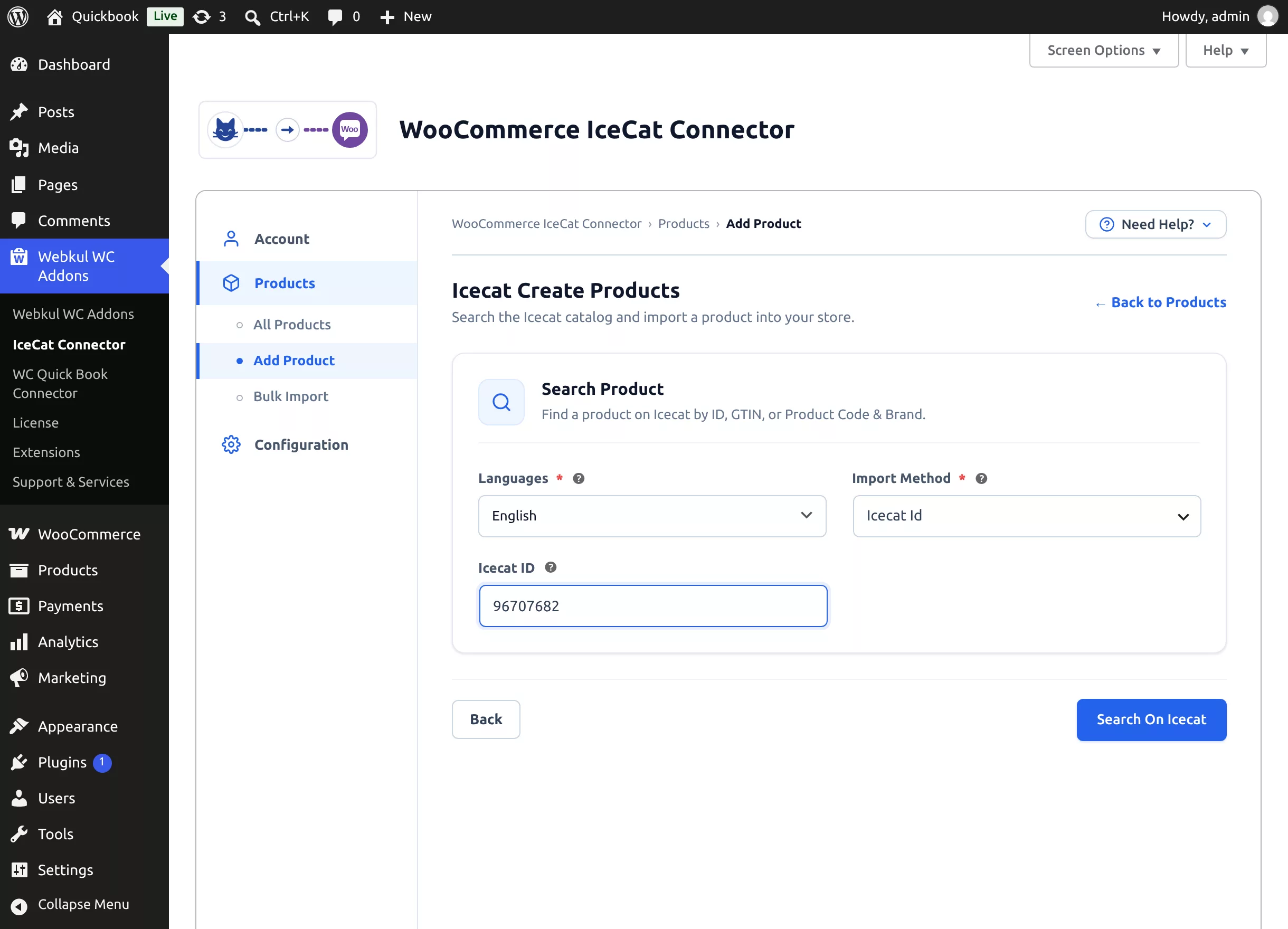
| Field | Notes |
|---|---|
| Languages | The catalog language for this import (defaults to your saved preference). The imported title, descriptions, and attributes arrive in this language. |
| Import Method | Icecat Id · GTIN · Product Code & Brand — the form shows the matching input field(s) for your choice. |
| Icecat ID / Product GTIN / Product Brand + Product Code | The identifier(s) to look up. GTIN is the product's EAN/UPC barcode number; Product Code is the manufacturer part number (e.g. 21A90010PB) together with its brand (e.g. Lenovo). |
Click Search On Icecat (the button shows "Searching on Icecat…" while the live catalog is queried). Your language and method choices are remembered for next time.
If the search fails
An unknown identifier lands on a clear No Product Found screen — "No product information was found in the Icecat catalog for <your search>" — including the exact reason returned by Icecat ("Icecat says: …") and a Try Another Search button. Free Open Icecat accounts will also see reasons for restricted content — see the FAQ for the messages and what they mean.
2. Review the Product
The connector shows everything it fetched before creating anything:
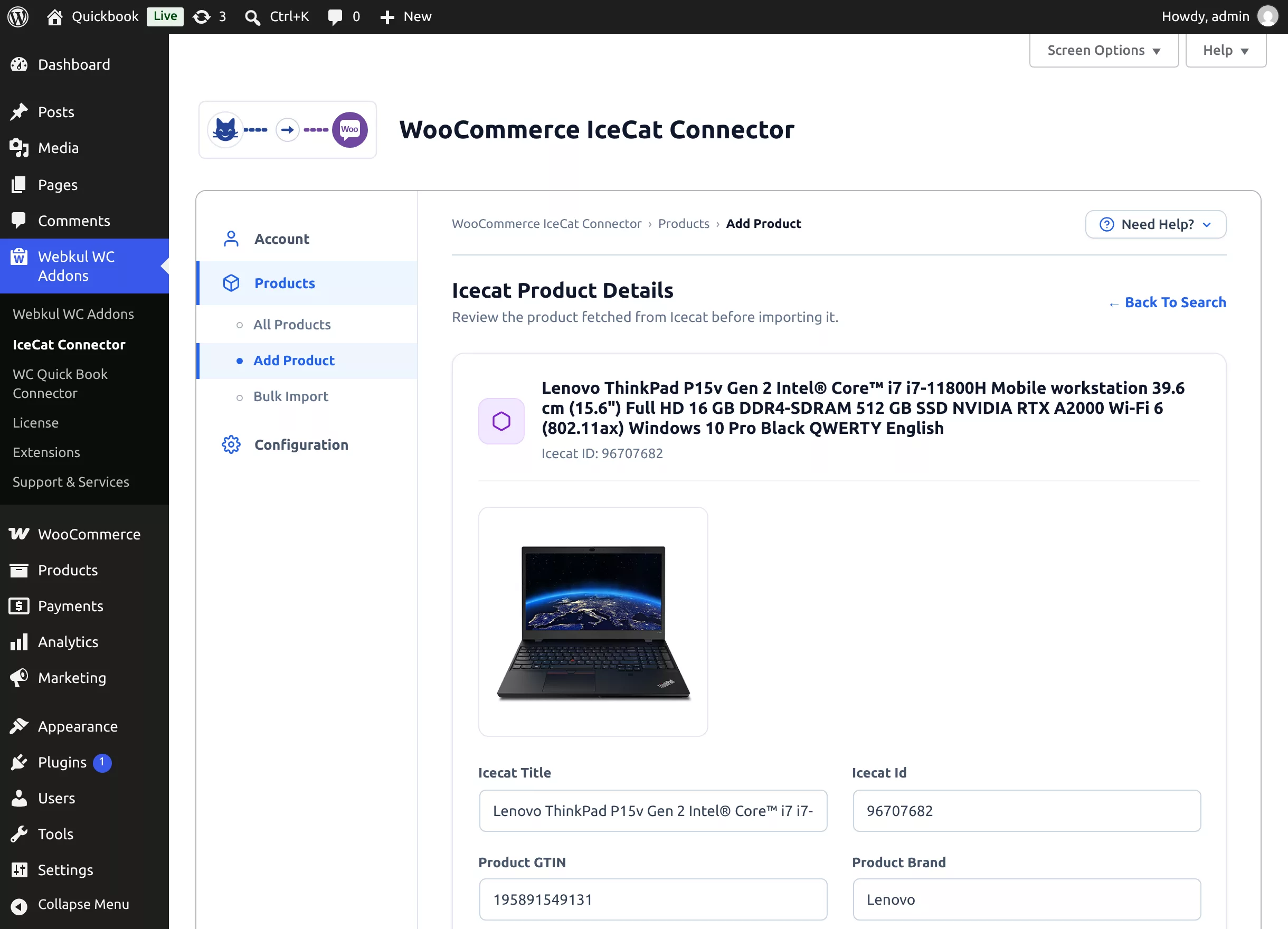
- The product card with the Icecat title, Icecat ID, and hero image
- Read-only fields: Title, Icecat Id, GTIN, Brand, Product Code, and the Short Description
- Import With IceCate Category — Yes assigns the product's own Icecat category (created in WooCommerce automatically, e.g. Laptops); No reveals an Import With WooCommerce Category multi-select so you pick your own categories (none selected → Uncategorized)
Already in your store?
If this catalog product was imported before, a banner shows "We have already this product in our store with product ID - N" with a link to edit it. The create button is replaced by Update Existing Product — one click refreshes the existing product with the data you just fetched, so you can't import a duplicate.
3. Create the Product
Click Create Product as Draft / Publish / Pending Review — the label reflects your Product Status setting.
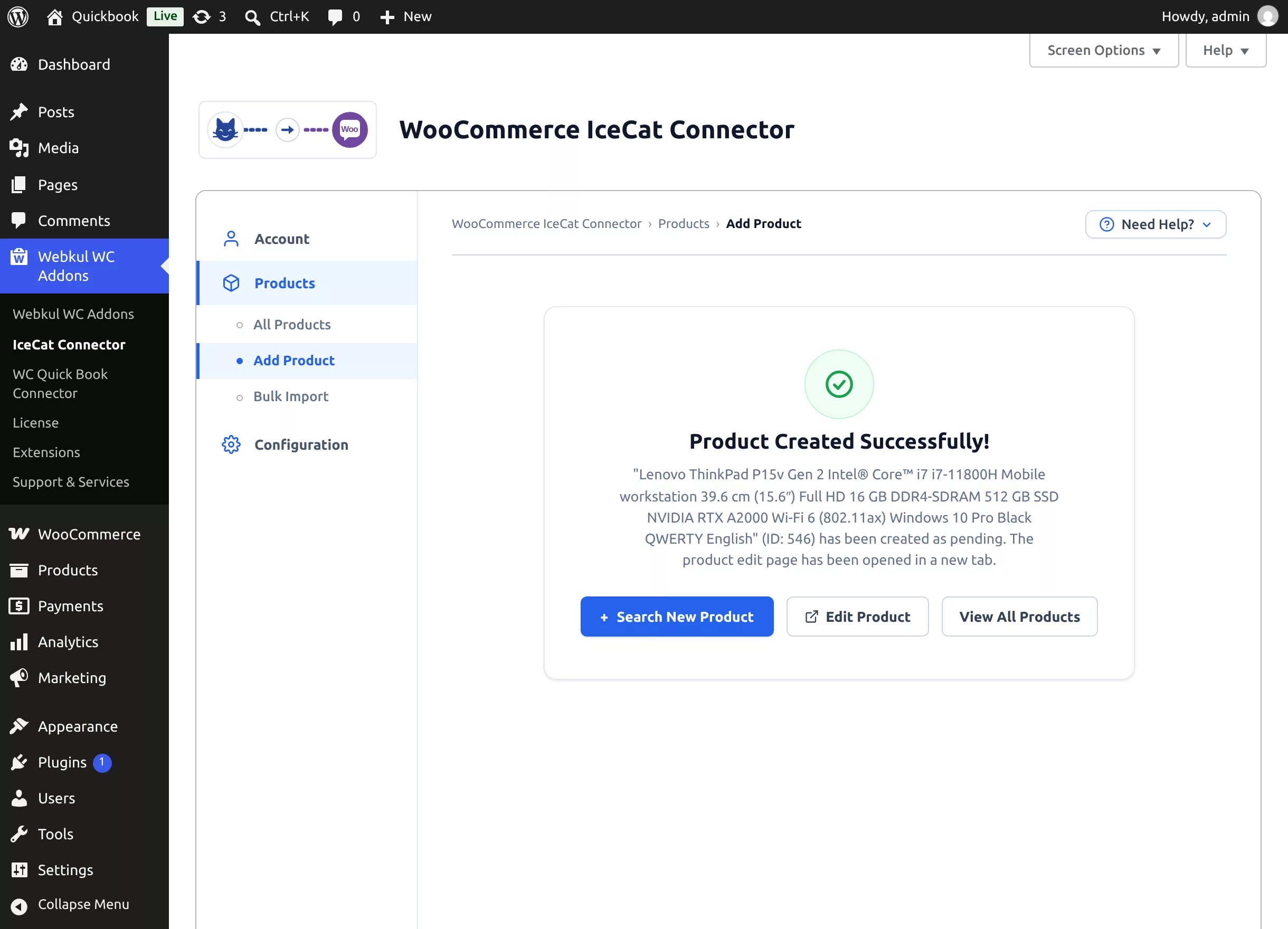
On success:
- The product is created with the title, short and long description (including the technical spec content), SKU (the manufacturer's product code), GTIN, category, stock quantity, and status from your settings.
- Technical specifications are saved as product attributes; the featured image and gallery are downloaded from Icecat (in the background, by default — see Configuration).
- The product edit page opens in a new tab automatically, and the success screen offers Search New Product, Edit Product, and View All Products.
What Shoppers See
An imported product behaves like any WooCommerce simple product on your storefront:
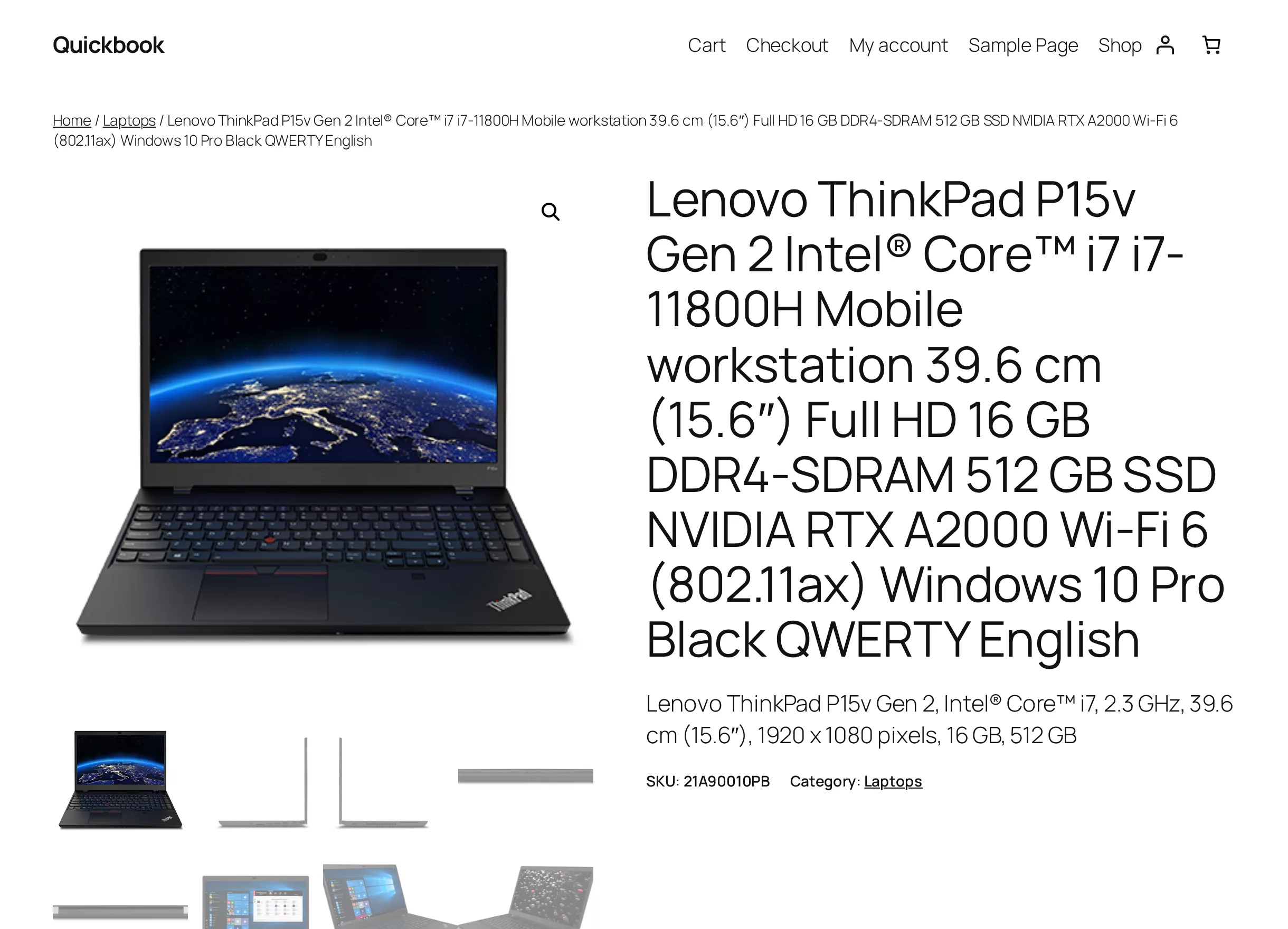
- The full image gallery with zoom
- The Description tab with Icecat's long description and specification content
- The Additional information tab listing the imported technical attributes
- Its category, SKU, and stock availability
Add your price in the WooCommerce editor before publishing — Icecat supplies content, not pricing.
Next
- Import many products at once: Bulk Import (CSV)
- Keep imports current: Update Products