
Setup Wizard
The Setup Wizard walks you through connecting your store to Icecat in four steps — Welcome, Account, Preferences, Ready — and verifies your username against the live Icecat API before you import anything.
Have your Icecat username ready
The wizard asks for your Open Icecat username. If you don't have one yet, register free at icecat.biz/registration — see Icecat Account for the difference between Open and Full Icecat.
When the Wizard Opens
- Automatically after activation — activating the plugin redirects you straight into the wizard.
- Until setup is completed, opening the connector dashboard also redirects to the wizard.
- Any time later via the connector page's Help tab → Launch Icecat Setup Wizard.
The wizard runs as a clean full-screen page outside the normal admin chrome, with a progress bar across the top showing all four steps and quick links to the user guide, video channel, and support desk on every screen.
Step 1 — Welcome
The welcome screen previews what the connector does — Account Configuration, Catalog Import, Flexible Search, Bulk CSV Import, and Automatic Sync.
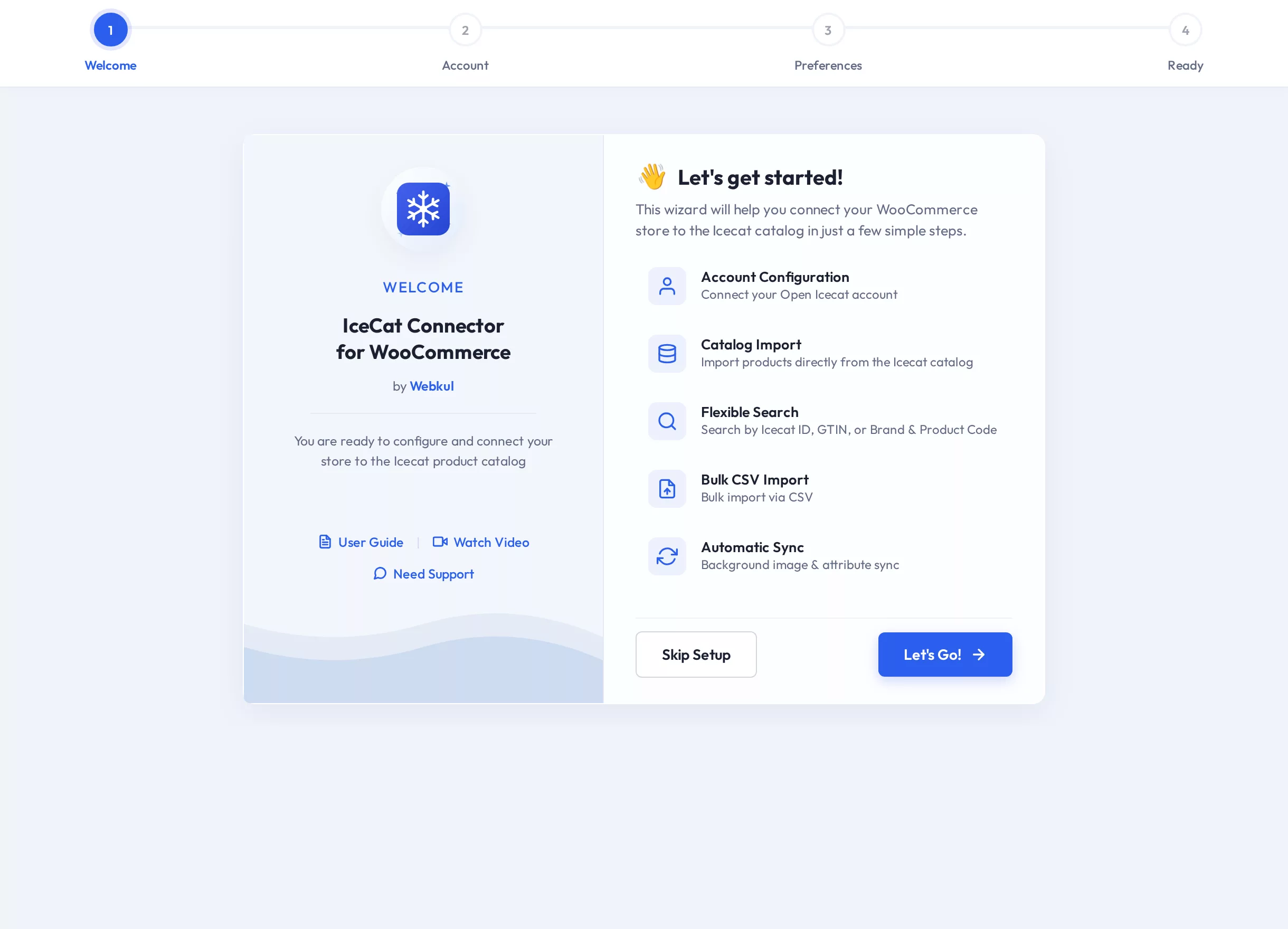
- Click Let's Go! to begin.
- Skip Setup exits to the dashboard; you can finish connecting later from the Account tab.
Step 2 — Account
Enter the account used for every catalog request.
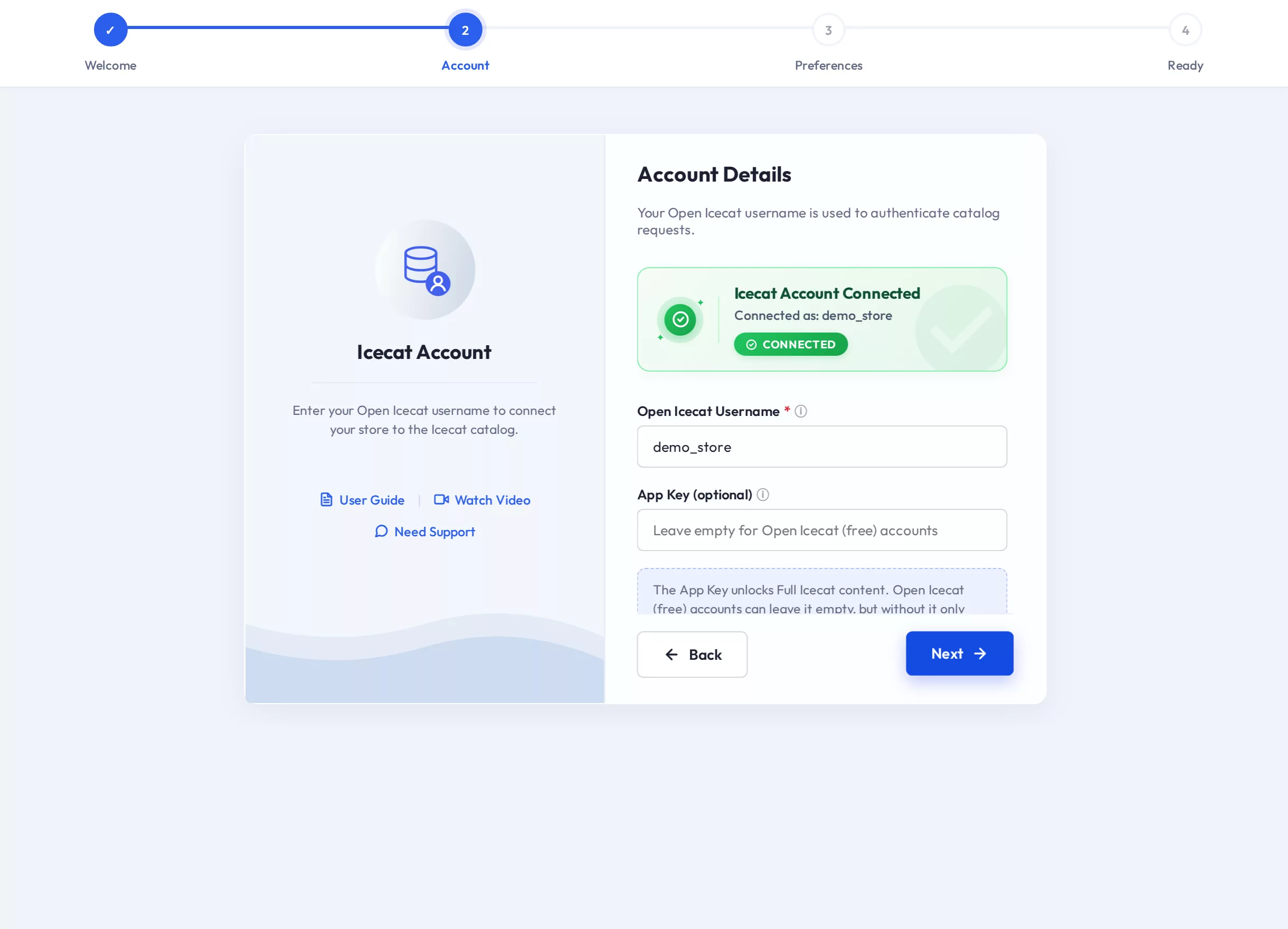
| Field | Required | Notes |
|---|---|---|
| Open Icecat Username | Yes | The username of your Icecat account. |
| App Key | Optional | Only for Full Icecat subscriptions — find it on your My Profile page at icecat.biz. Leave empty for free Open Icecat accounts. |
Click Next. The wizard then:
- Verifies the username against the live Icecat API.
- If you entered an App Key, additionally verifies that the key really unlocks Full Icecat content — a wrong key fails with "The App Key could not be verified — it does not unlock Full Icecat content."
A green Icecat Account Connected card confirms success. If the username is unknown, Icecat answers with an error such as "…the Icecat user is unknown" — check the spelling or register the account first.
Changing the username later
Editing the username or App Key resets the verified status — the wizard (or the Account tab's Save & Verify) must verify the new details before imports run again.
Step 3 — Preferences
Defaults used when importing products. You can change all of them later — this step mirrors part of the Configuration tab.
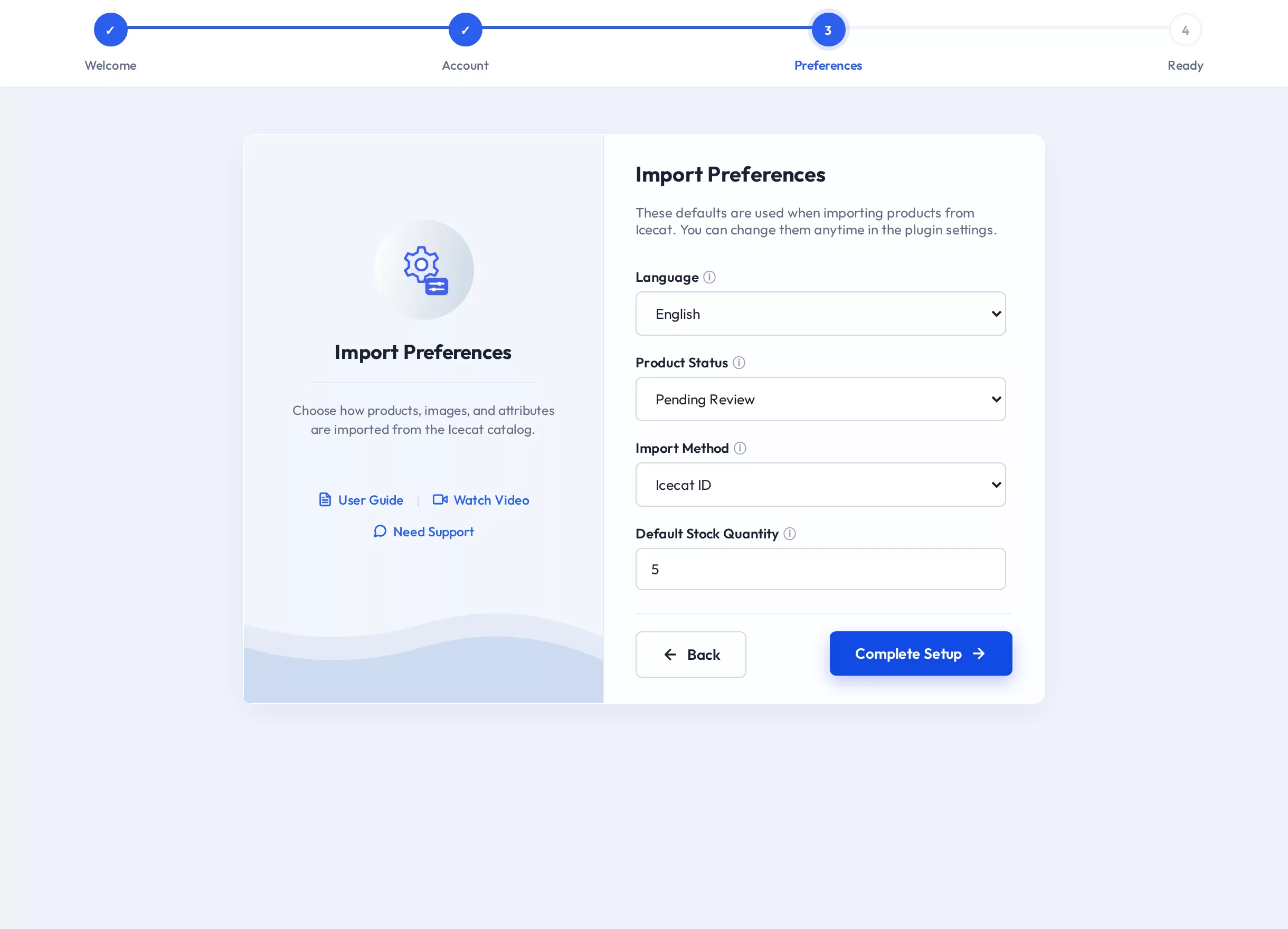
| Setting | Options | Use |
|---|---|---|
| Language | ~80 catalog languages | The default language for imported product content. |
| Product Status | Draft · Publish · Pending Review | The status every newly imported product receives. |
| Import Method | Icecat ID · GTIN · Product Code & Brand | The search method pre-selected on the Add Product page. |
| Default Stock Quantity | number ≥ 0 | Stock assigned to new products (stock management switches on when above 0). |
Click Complete Setup to save.
Step 4 — Ready
A summary of your configuration: connection status, username, language, import method, and product status.
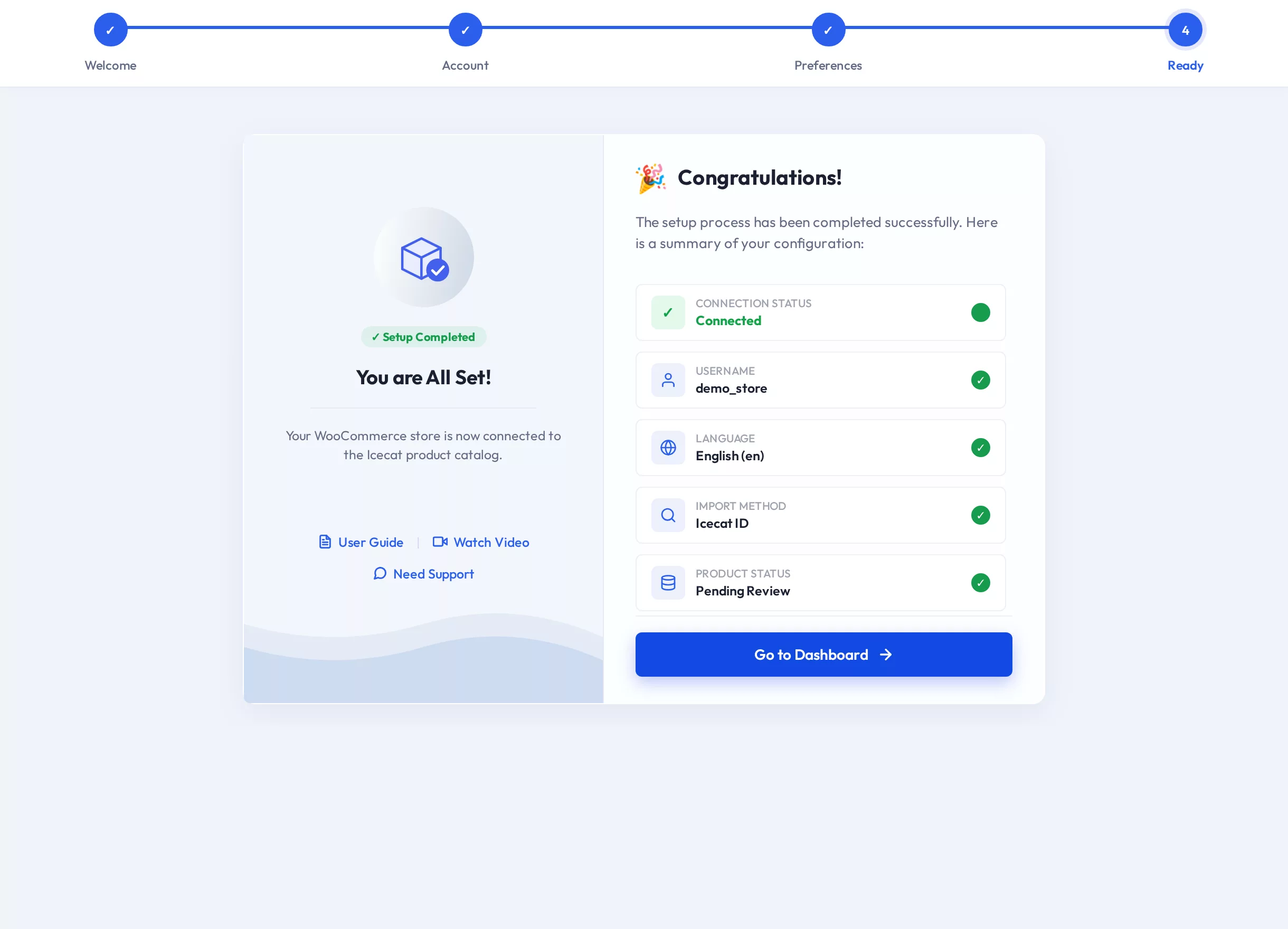
Click Go to Dashboard to land on the connector's product list — you're ready to import your first product.