
Overview
The connector lives inside your WordPress admin under Webkul WC Addons → IceCat Connector (wp-admin → Webkul WC Addons → IceCat Connector). Everything — connecting your account, importing, and configuring — happens on this one page, organized by a left sidebar.
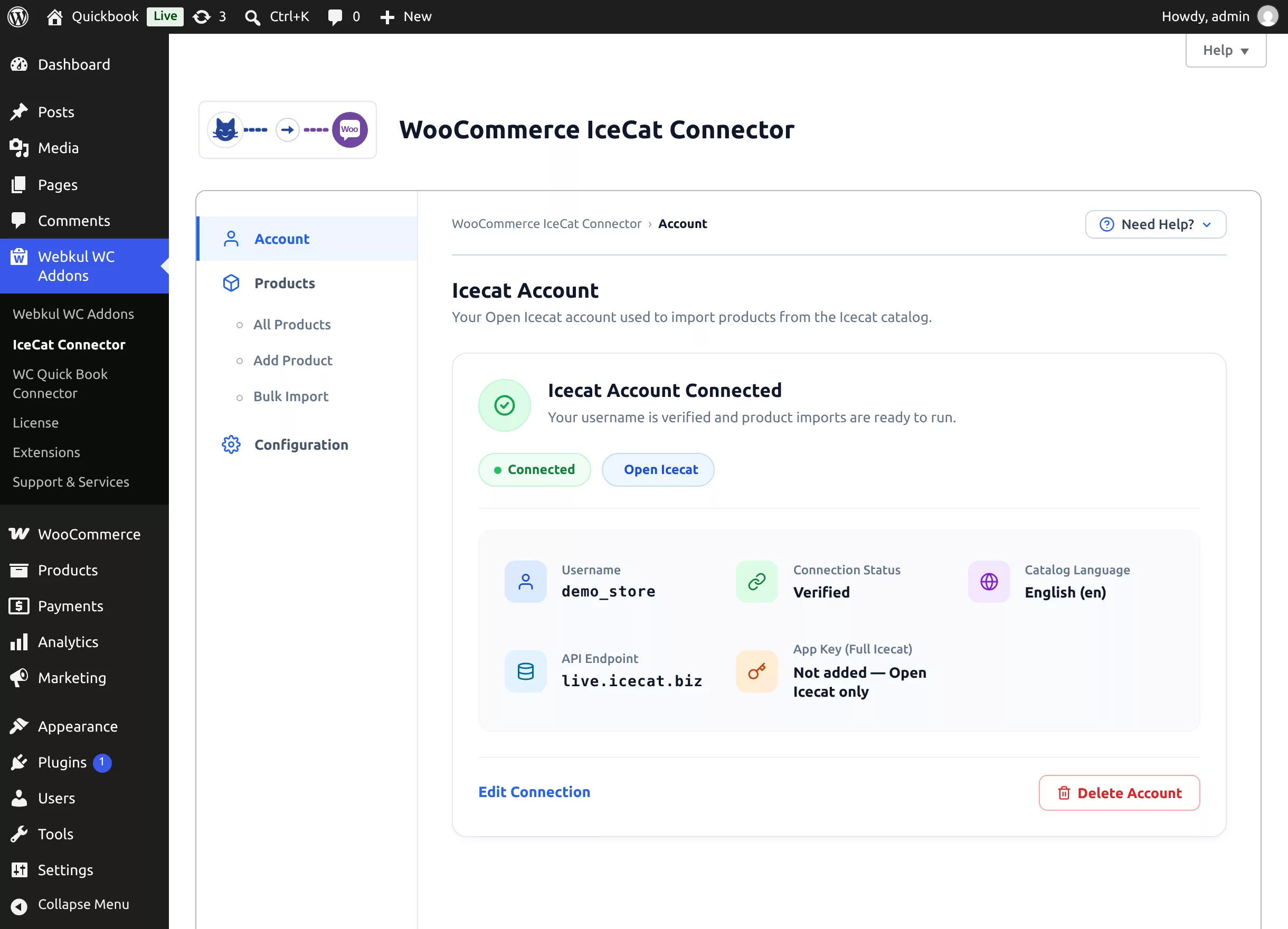
The Admin Layout
| Section | What it's for |
|---|---|
| Account | Connect, verify, edit, or delete the Icecat account used for every catalog request. |
| Products → All Products | The list of every product imported from Icecat, with search, bulk actions, and Refresh All Products. |
| Products → Add Product | Search the catalog by Icecat ID, GTIN, or Product Code & Brand and import a single product. |
| Products → Bulk Import | Upload a CSV and import (or update) many products in the background. |
| Configuration | Import settings — image/attribute processing mode, image quality, product status, and default stock quantity. |
A breadcrumb trail at the top of the content area always shows where you are, and the sidebar highlights the active section.
Until your account is connected
Before an Icecat account is connected and verified, only the Account tab is available — the Products and Configuration sections appear once the connection is in place.
Need Help? Menu
The Need Help? button (top-right of the connector page) opens quick links:
- User Guide — this documentation
- Watch Video — Webkul's video channel
- Need Support — the Webkul support desk
Screen Options
On All Products, the standard WordPress Screen Options panel (top-right) lets you set how many products the list shows per page (default 10).
Help Tab: Re-run the Setup Wizard
The WordPress Help tab on the connector page contains Launch Icecat Setup Wizard, which re-opens the guided onboarding at any time — useful when you change Icecat accounts or want to review your import preferences. See Setup Wizard.
Quick Links From the Plugins Page
On Plugins → Installed Plugins, the WooCommerce IceCat Connector row includes:
- Settings — jumps straight to the Configuration tab
- Docs and Support links