
Linkly Gateway Configuration
The POS Linkly Terminal Gateway holds your Linkly Cloud credentials and the switches that control Linkly on the POS.
Open the settings
- Go to WooCommerce → Settings → Payments.
- Find POS Linkly Terminal Gateway (Linkly terminal for WooCommerce Point of Sale) in the payment providers list and select Manage. A Test mode badge appears next to the name while test mode is on.
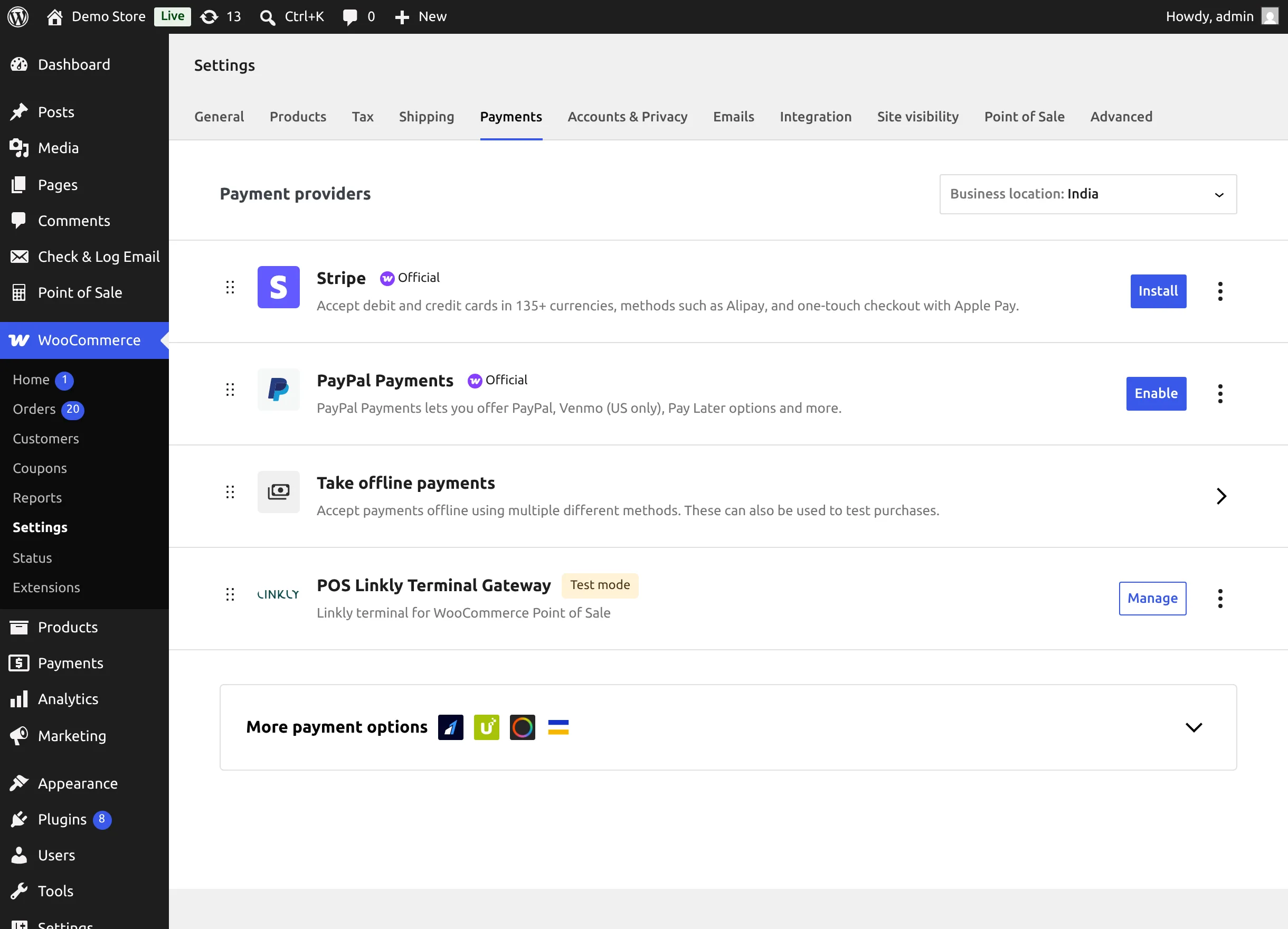
You can also select Settings in the plugin's row on the Plugins screen.
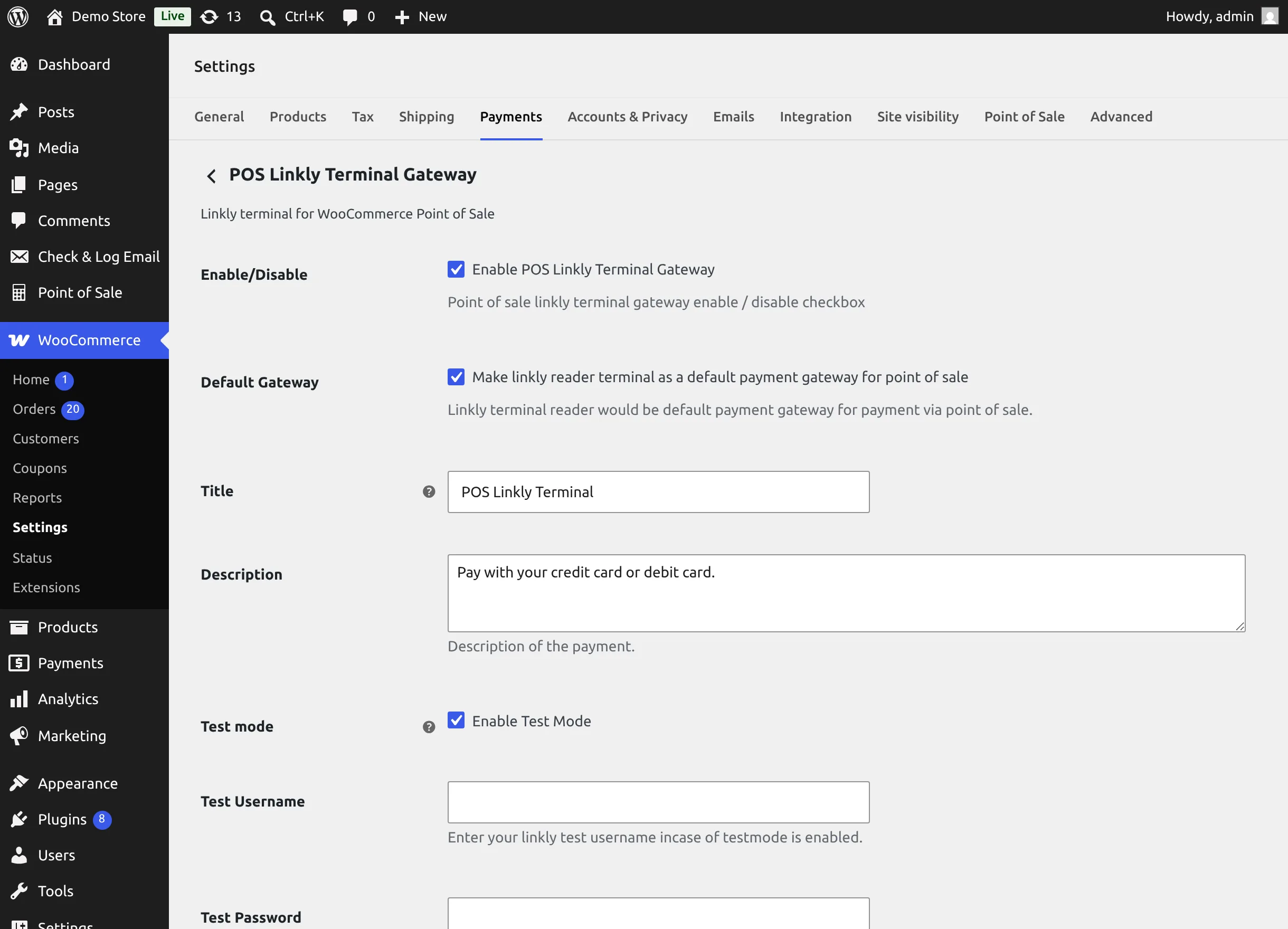
Settings
| Setting | Description | Default |
|---|---|---|
| Enable/Disable | Enable POS Linkly Terminal Gateway. Turns Linkly on for the POS. | Off |
| Default Gateway | Make linkly reader terminal as a default payment gateway for point of sale. | Off |
| Title | Title of the payment gateway. | POS Linkly Terminal |
| Description | Description of the payment. | Pay with your credit card or debit card. |
| Test mode | Enable Test Mode — use the Linkly sandbox and the test credentials. | Off |
| Test Username / Test Password | Your Linkly test (sandbox) credentials, used while test mode is on. | Empty |
| Live Username / Live Password | Your Linkly live credentials, used while test mode is off. | Empty |
Select Save changes when you are done.
Enable/Disable
While the gateway is disabled, the POS Linkly Reader payment method is hidden on every POS till, the Linkly icon is removed from the POS header, and terminal pairing is refused with "POS Linkly Terminal Gateway is not enabled." Enable it before cashiers pair their terminals.
Default Gateway
When enabled, POS Linkly Reader is moved to the first position in the POS payment options and the POS pay screen opens on the Other Payments tab with it already selected. See Take a Linkly Payment.
Title and Description
These fields are stored with the WooCommerce gateway. The label cashiers see on the POS pay screen comes from the Payment Name of the POS payment method — change it under POS Payment Method.
Test mode and credentials
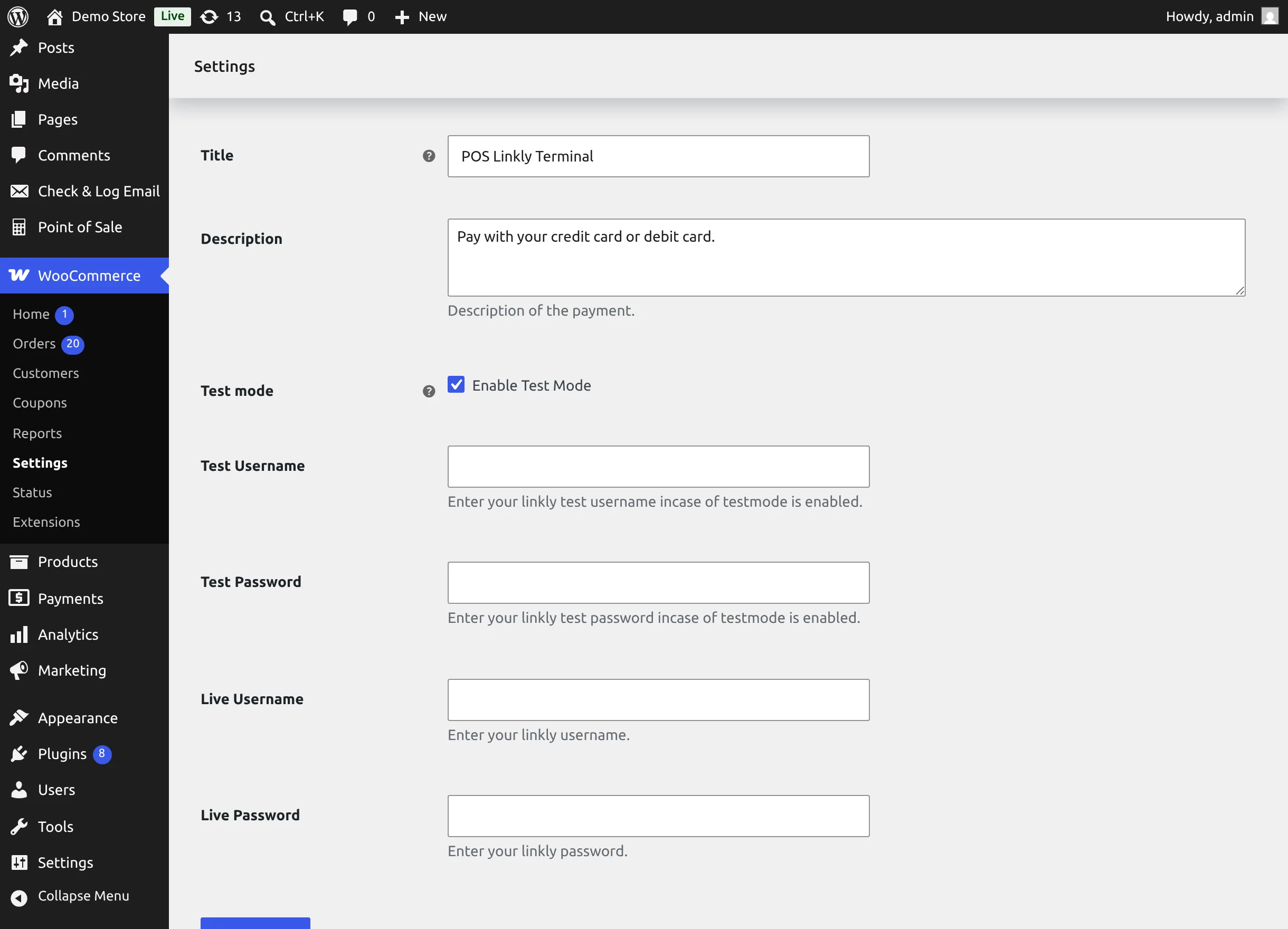
- With Test mode on, pairing and payments go to the Linkly sandbox using Test Username and Test Password.
- With Test mode off, they go to Linkly Cloud production using Live Username and Live Password.
- Only the credentials for the current mode are needed. If they are empty, pairing fails with "Invalid linkly credentials."
Re-pair after switching modes
A pairing is made against either the sandbox or production. After you switch Test mode, have cashiers pair their terminals again with a pair code from a terminal registered in that environment.
Your Linkly credentials are issued by Linkly. Keep them private — they are only stored in your WordPress settings and are never shown on the POS.
Next step
Check the POS Payment Method.