
Installation
Before you start
- WooCommerce and the Webkul WooCommerce Point of Sale System must be installed and active. The connector declares both as required plugins, so WordPress will not activate it without them.
- Have your Linkly Cloud credentials ready for the gateway configuration step.
See the full requirements.
Install the plugin
- In the WordPress admin, go to Plugins → Add New Plugin → Upload Plugin.
- Select Choose file, pick the
woocommerce-pos-linkly-terminal-connector.zipfile from your Webkul Store or CodeCanyon download, and select Install Now. - When the upload finishes, select Activate Plugin.
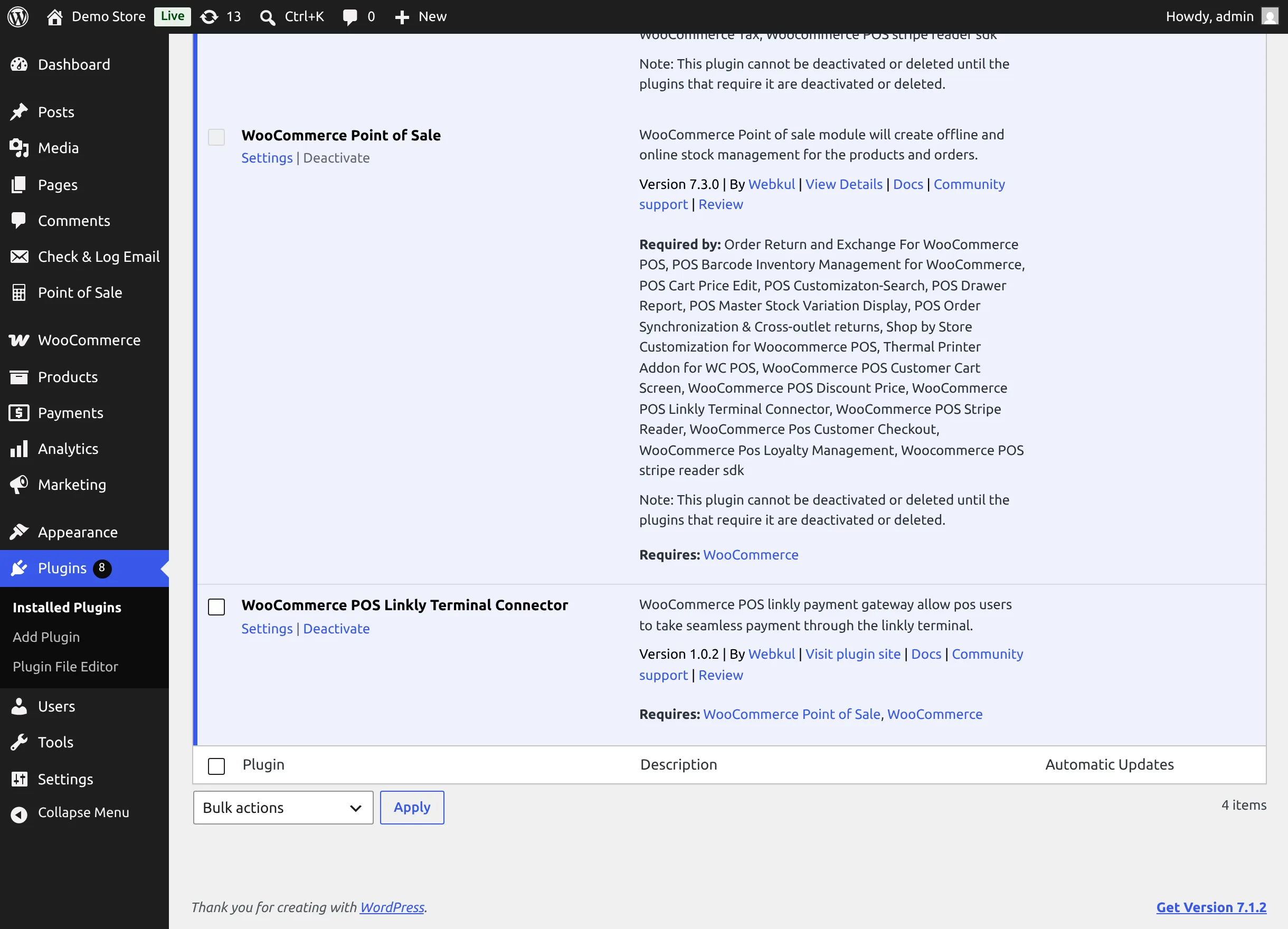
The plugin appears on the Plugins screen as WooCommerce POS Linkly Terminal Connector. Its row has a Settings link that opens the gateway settings, plus Docs, Community support, and Review links.
What activation does
- Creates a POS payment method named POS Linkly Reader (description POS Linkly reader payment gateway), with status Enable. See POS Payment Method.
- Adds POS Linkly Reader to the Additional Payment Option list of every existing outlet. Remove it from outlets that don't have a terminal — see Enable Linkly on Outlets.
- Registers the POS Linkly Terminal Gateway under WooCommerce → Settings → Payments. It is disabled until you enable it.
Deactivating removes the POS payment method
Deactivating the plugin deletes the POS Linkly Reader payment method. When you activate it again, the method is recreated and added to all outlets again — review your outlets' payment options after reactivating.
Upgrading from 1.0.1
Version 1.0.1 created the POS payment method with a different internal slug. When you update, the connector renames it automatically (or removes the duplicate), so existing outlets keep working.
Multisite networks
On a WordPress multisite network, network activation creates the POS Linkly Reader payment method on every site, and each new site created later gets it automatically. Configure the gateway credentials on each site separately.
If Point of Sale is not active
If WooCommerce Point of Sale is deactivated while the connector stays active, the admin shows: "Woocommerce POS Linkly Reader Payment is activated but not effective. It requires Point of Sale in order to work at Point of Sale end." Reactivate WooCommerce Point of Sale.
Translate the plugin
The plugin is translation-ready (text domain wkpos_linkly). Webkul's guide How to translate WooCommerce plugins ↗ explains the process.