
Enable Linkly on Outlets
Linkly payments are offered per outlet. Keep POS Linkly Reader on the outlets that have a Linkly terminal and remove it from the rest.
See which outlets offer Linkly
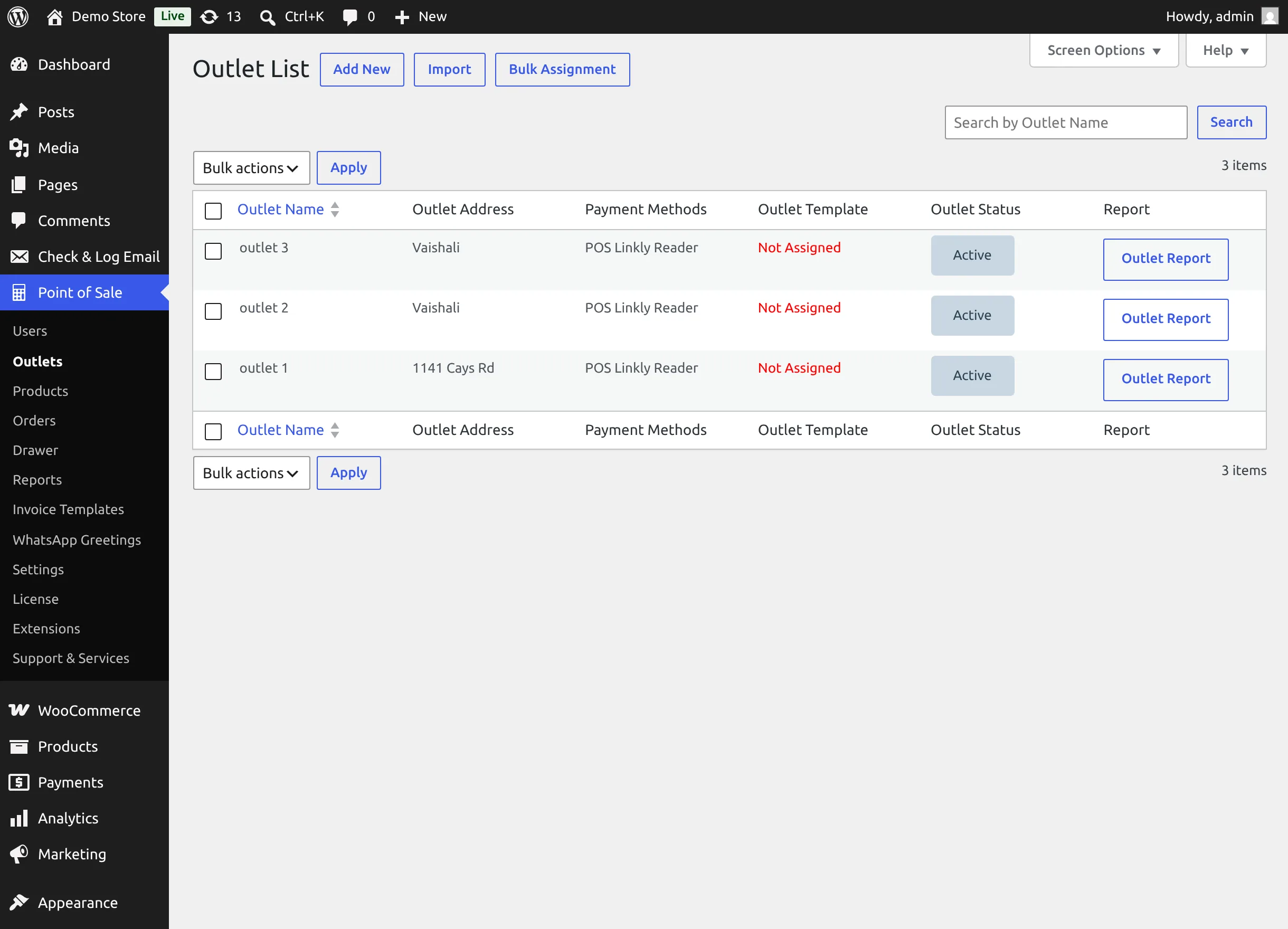
Go to Point of Sale → Outlets. The Payment Methods column of the Outlet List shows POS Linkly Reader for each outlet that offers it.
Add or remove Linkly on an outlet
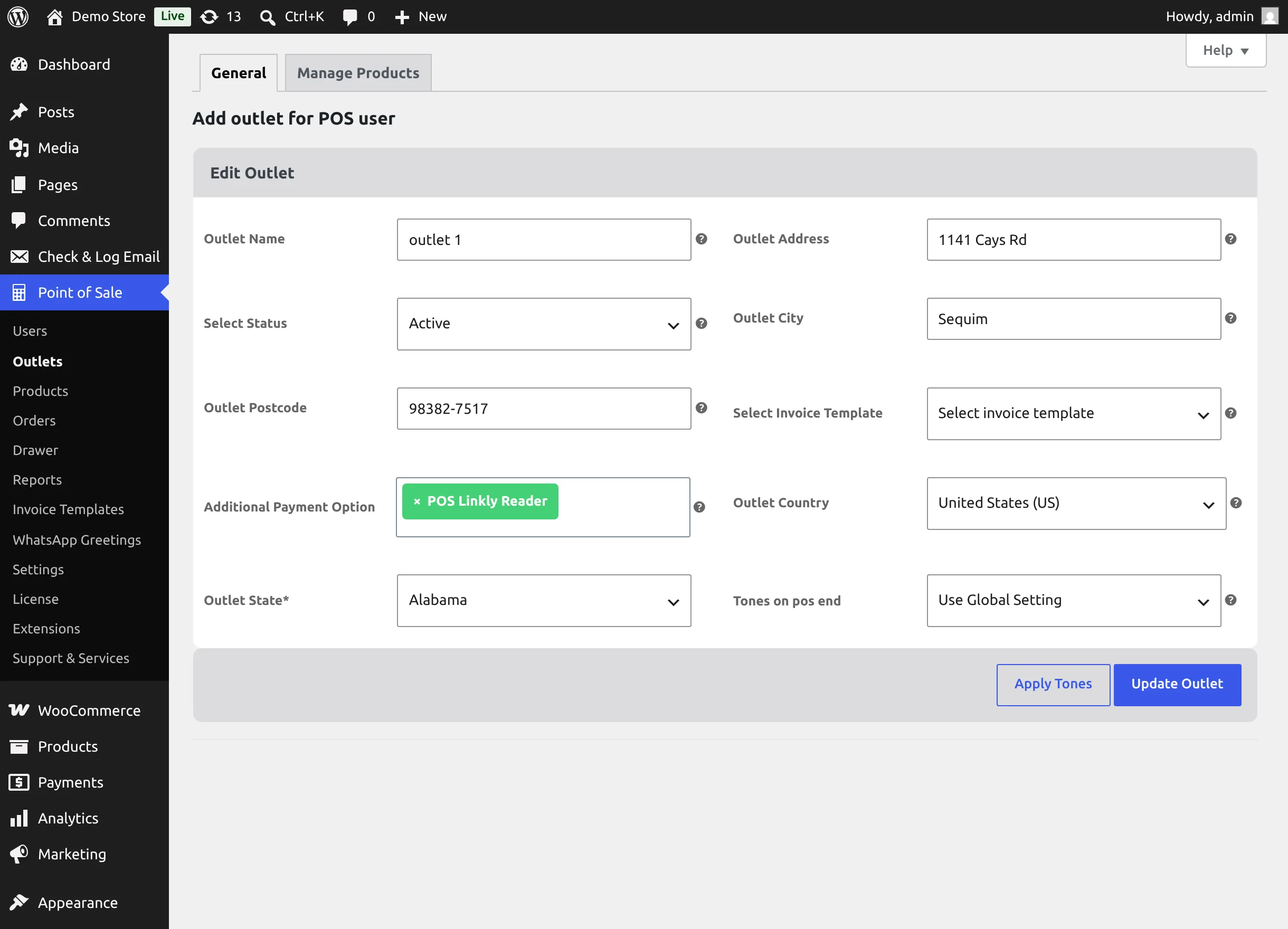
- Hover the outlet and select Edit.
- In Additional Payment Option, add POS Linkly Reader — or select the × on its tag to remove it.
- Select Update Outlet.
Cashiers assigned to that outlet see the change the next time the POS loads its data.
New outlets
Activation adds POS Linkly Reader only to the outlets that exist at that moment. When you create a new outlet later, check its Additional Payment Option and add POS Linkly Reader if the outlet has a terminal.
Next step
Have each cashier pair the Linkly terminal.