
Pair the Linkly Terminal
Before a cashier can take Linkly payments, their POS login must be paired with a Linkly PIN pad. Pairing is done once per POS user and is remembered until it is changed.
Before you pair
- The gateway is enabled and the credentials for the current mode are saved.
- The cashier's outlet offers POS Linkly Reader (Enable Linkly on Outlets).
- The Linkly terminal is showing its pair code (on a Linkly PIN pad this is shown in its Linkly Cloud pairing screen; the Linkly Virtual PIN pad shows it when first started). Use a terminal from the same environment — sandbox for test mode, production for live.
Find the Linkly icon
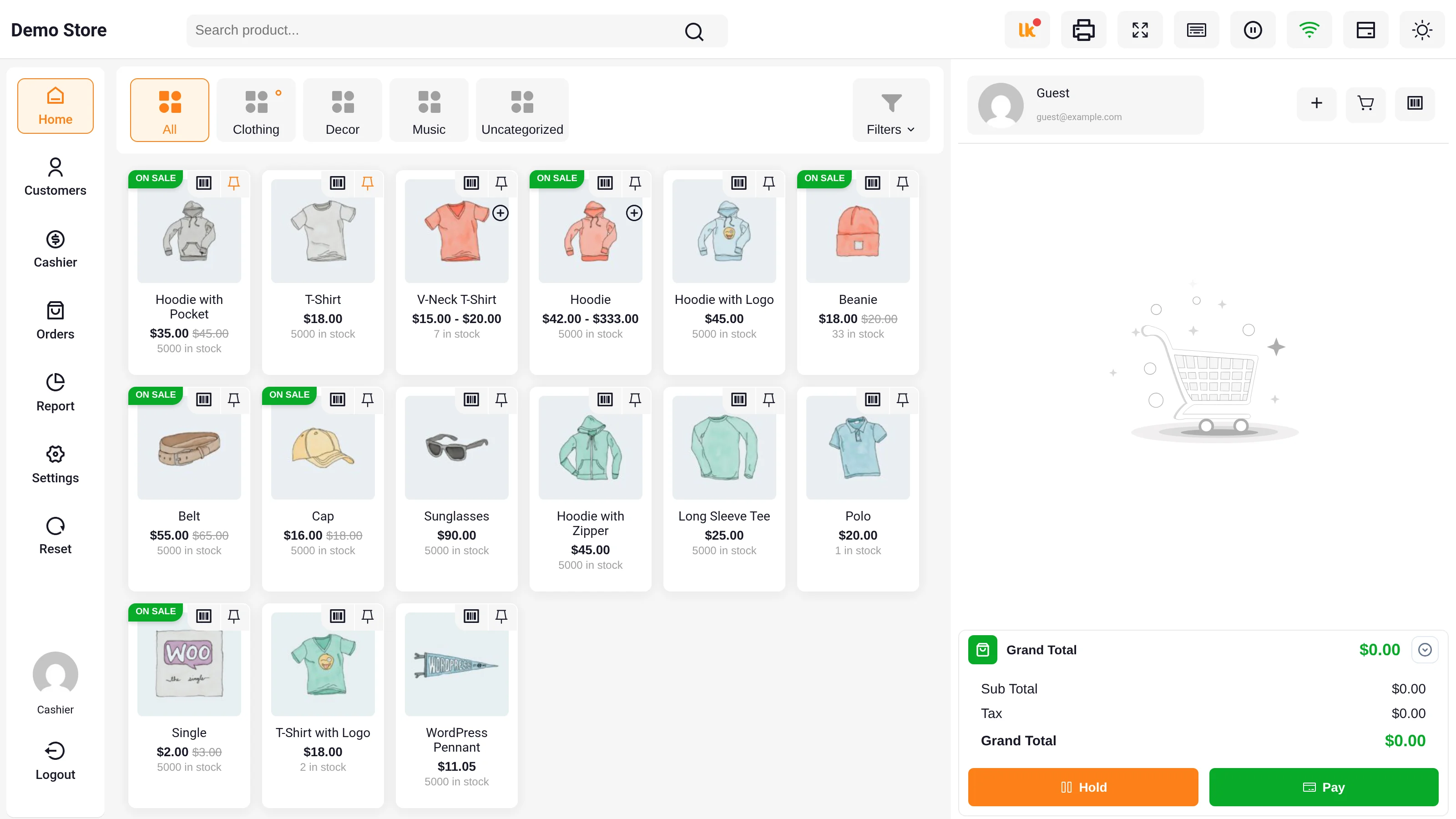
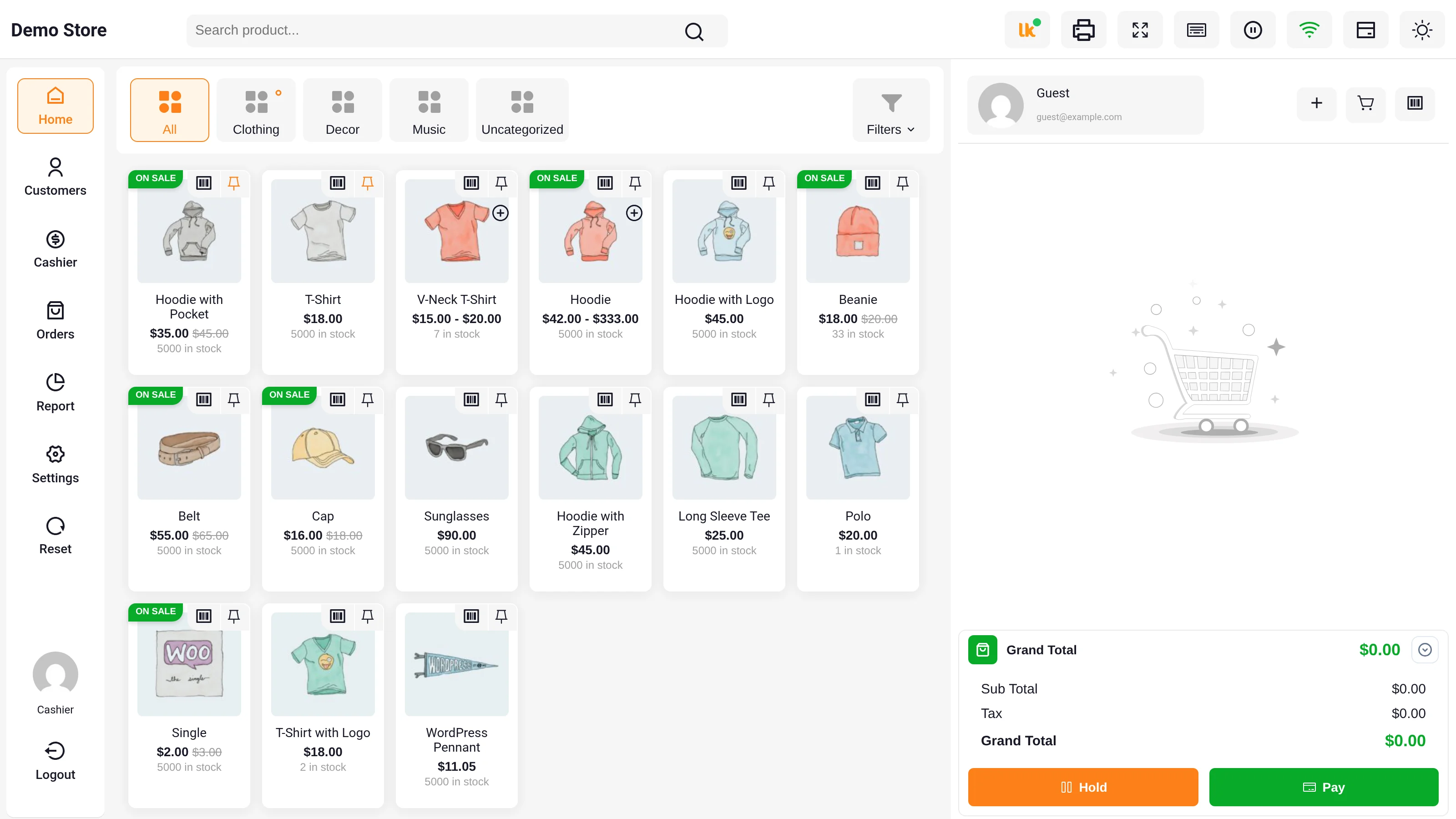
Log in to the POS. The orange Linkly icon sits at the right of the POS header, with a small status dot. Before the till is paired the dot is red and the hover text reads Linkly Not Connected.
What the status dot means
Each time the POS opens with a saved pair code, it asks Linkly whether that pairing still works. The dot shows the result, and hovering the icon shows the matching text.
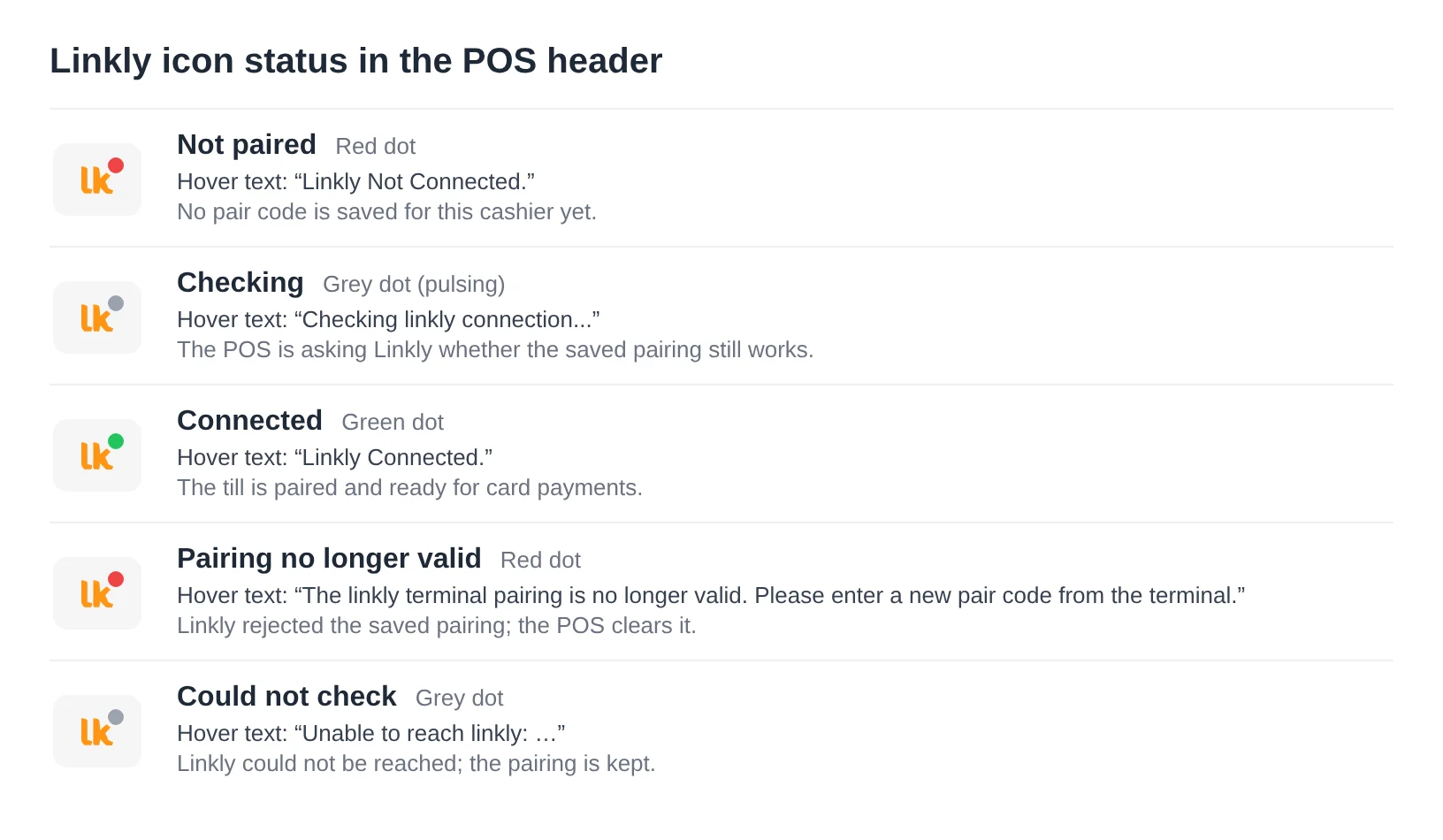
| Dot | Status | Hover text | What to do |
|---|---|---|---|
| Red | Not paired | Linkly Not Connected. | Enter the pair code. |
| Grey, pulsing | Checking | Checking linkly connection... | Wait a moment — the POS is contacting Linkly. |
| Green | Connected | Linkly Connected. | Nothing — the till is ready for card payments. |
| Red | Pairing no longer valid | The linkly terminal pairing is no longer valid. Please enter a new pair code from the terminal. | The saved pairing was removed. Pair again. |
| Grey | Could not check | Unable to reach linkly: … | Linkly could not be reached, so the pairing is kept. Check the internet connection; payments still try the saved pairing. |
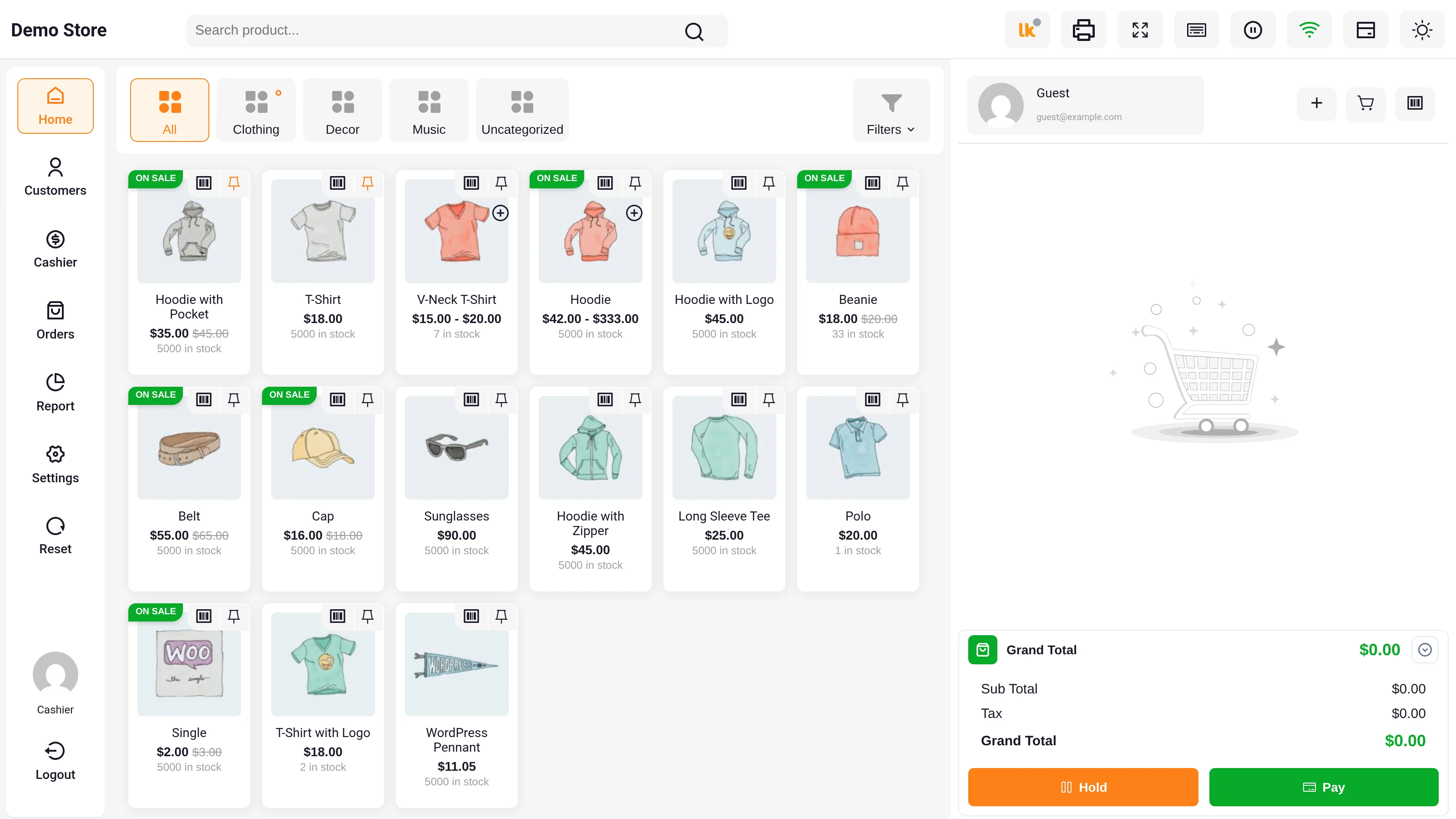
Don't see the icon?
The icon only appears while the POS Linkly Terminal Gateway is enabled. Ask your administrator to check Enable/Disable, then reload the POS.
Enter the pair code
- Click the Linkly icon. A pairing box opens under the header. The first time, the field is empty and shows Enter terminal pair code.
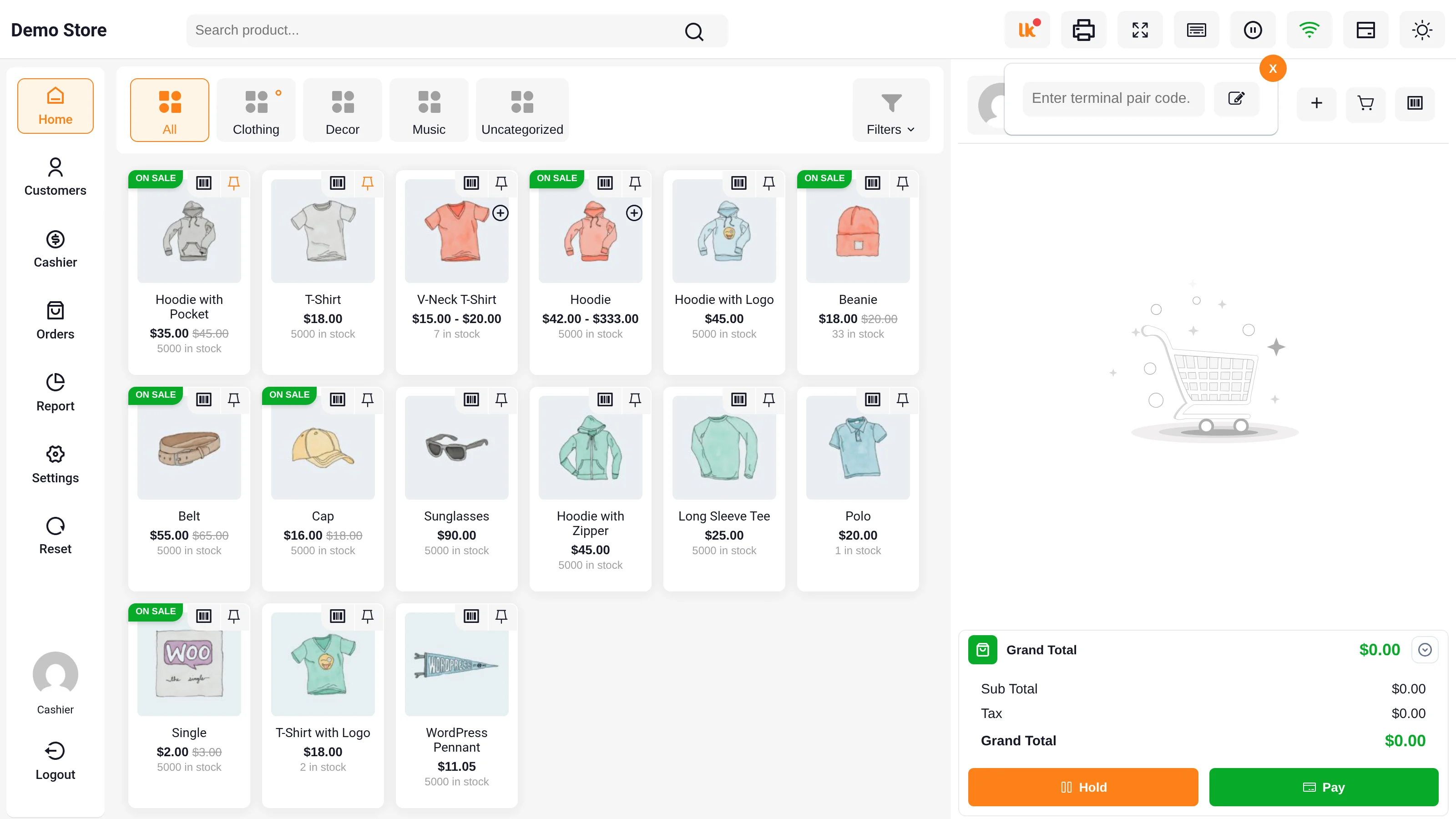
If a code is already saved, the box shows it read-only.
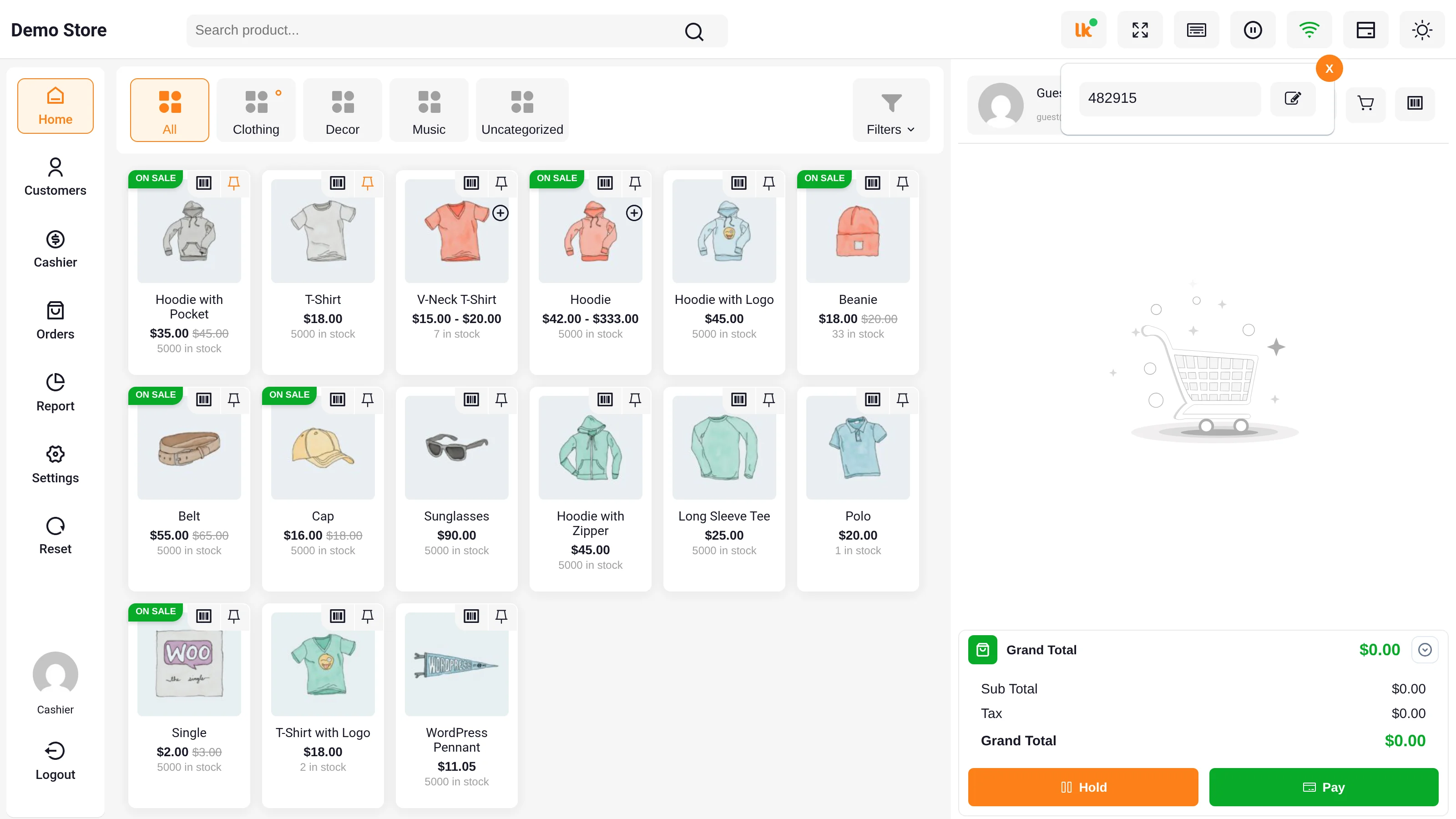
- Click the Edit (pencil) button to unlock the field.
- Type the pair code shown on the Linkly terminal.
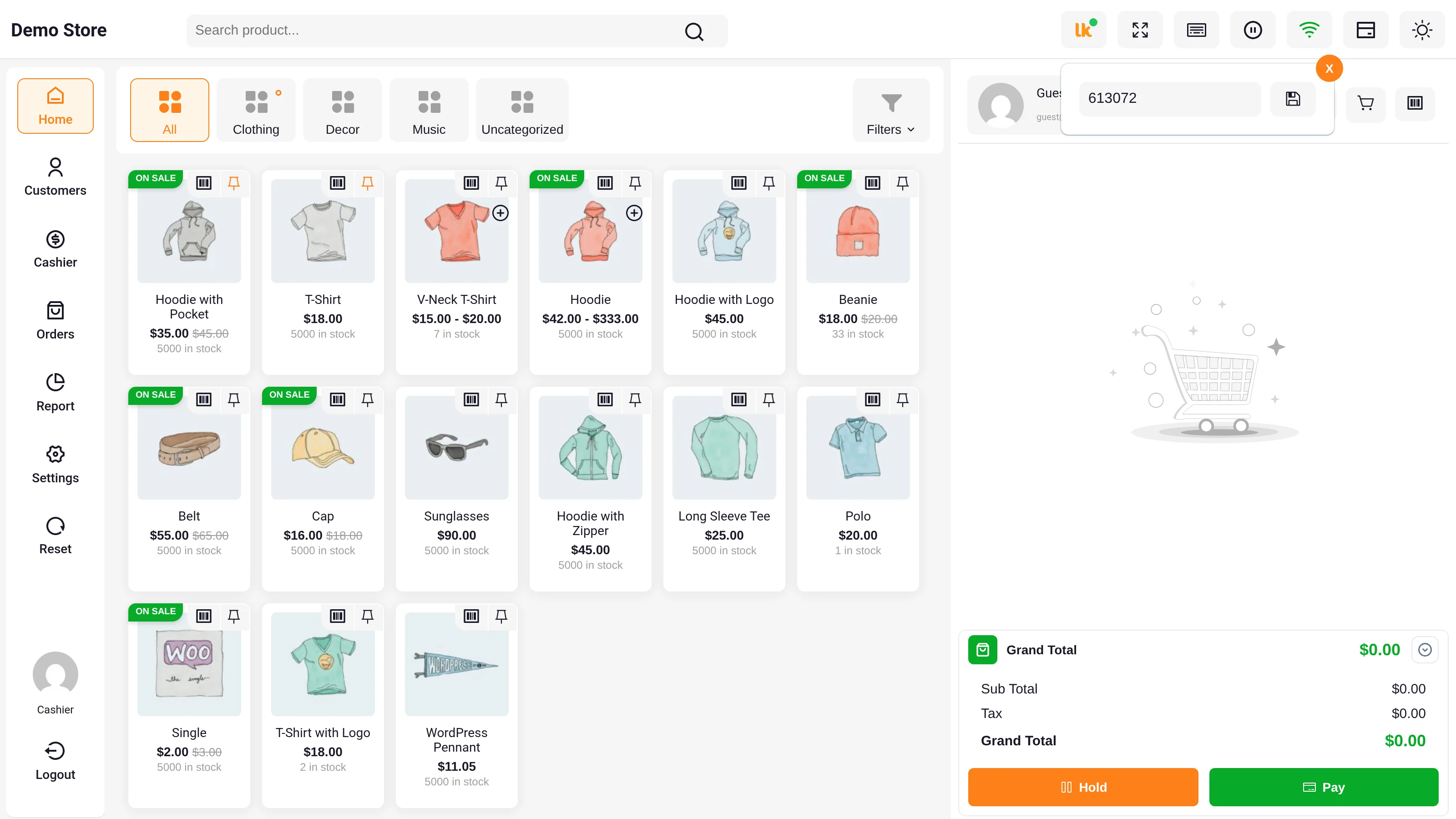
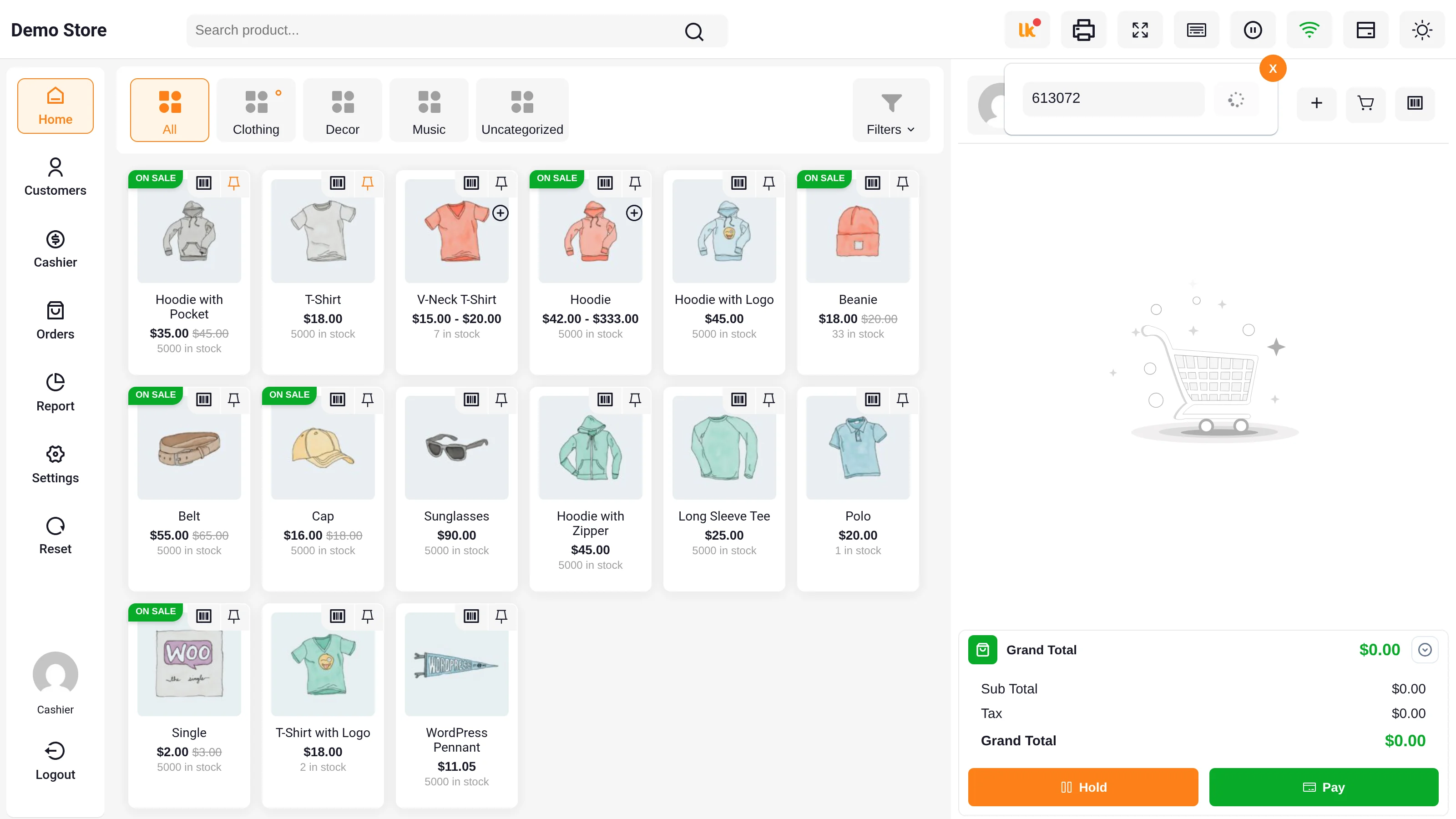
- Click the Save (disk) button. The button turns into a spinner while the POS connects to Linkly, and it can't be clicked again until Linkly answers.
- On success the POS shows "Pair code saved successfully" and the icon status changes to Linkly Connected.
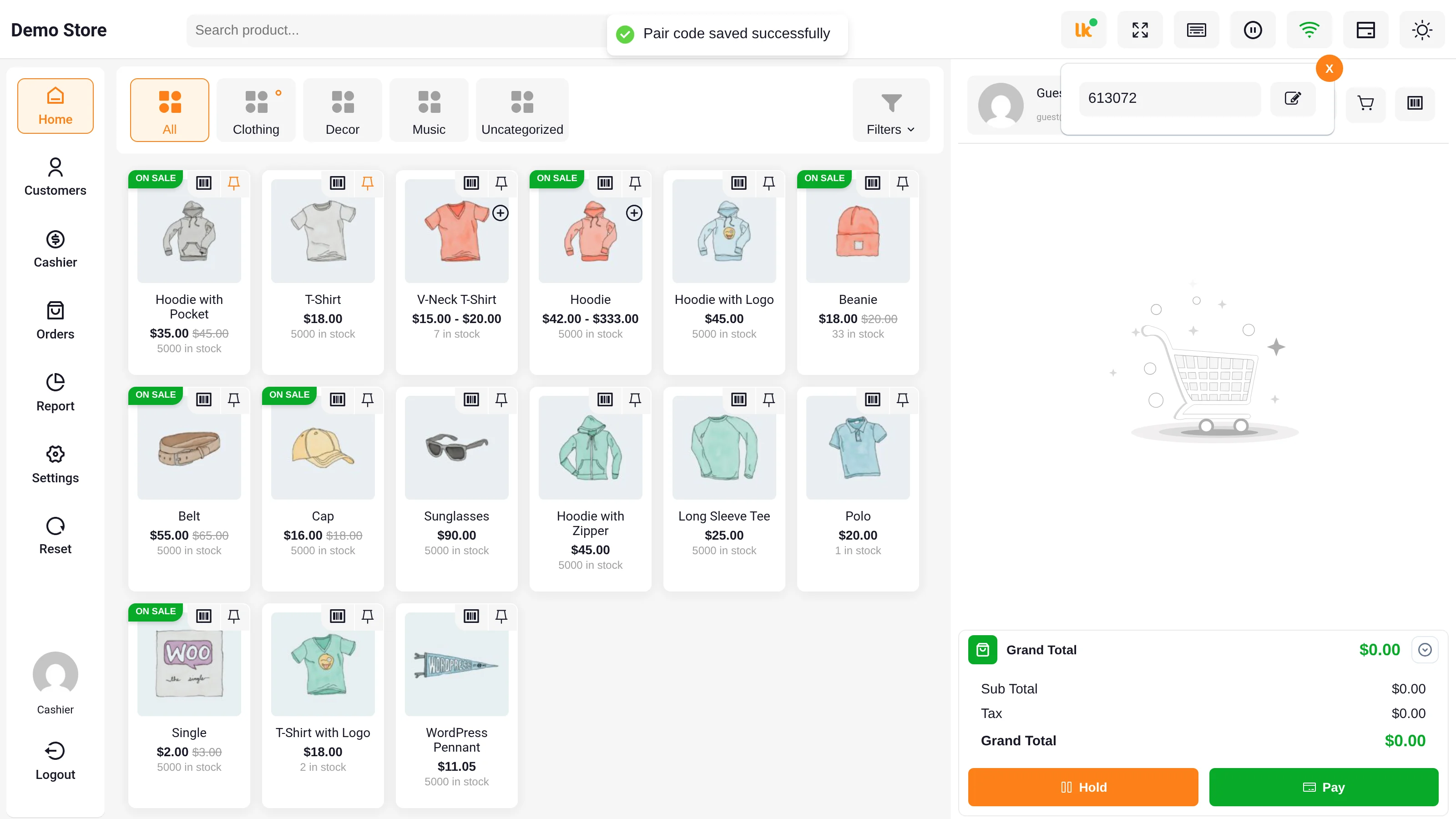
Close the box with the X button. The dot on the Linkly icon is now green.
If pairing fails
The error is shown at the top of the POS, for example:
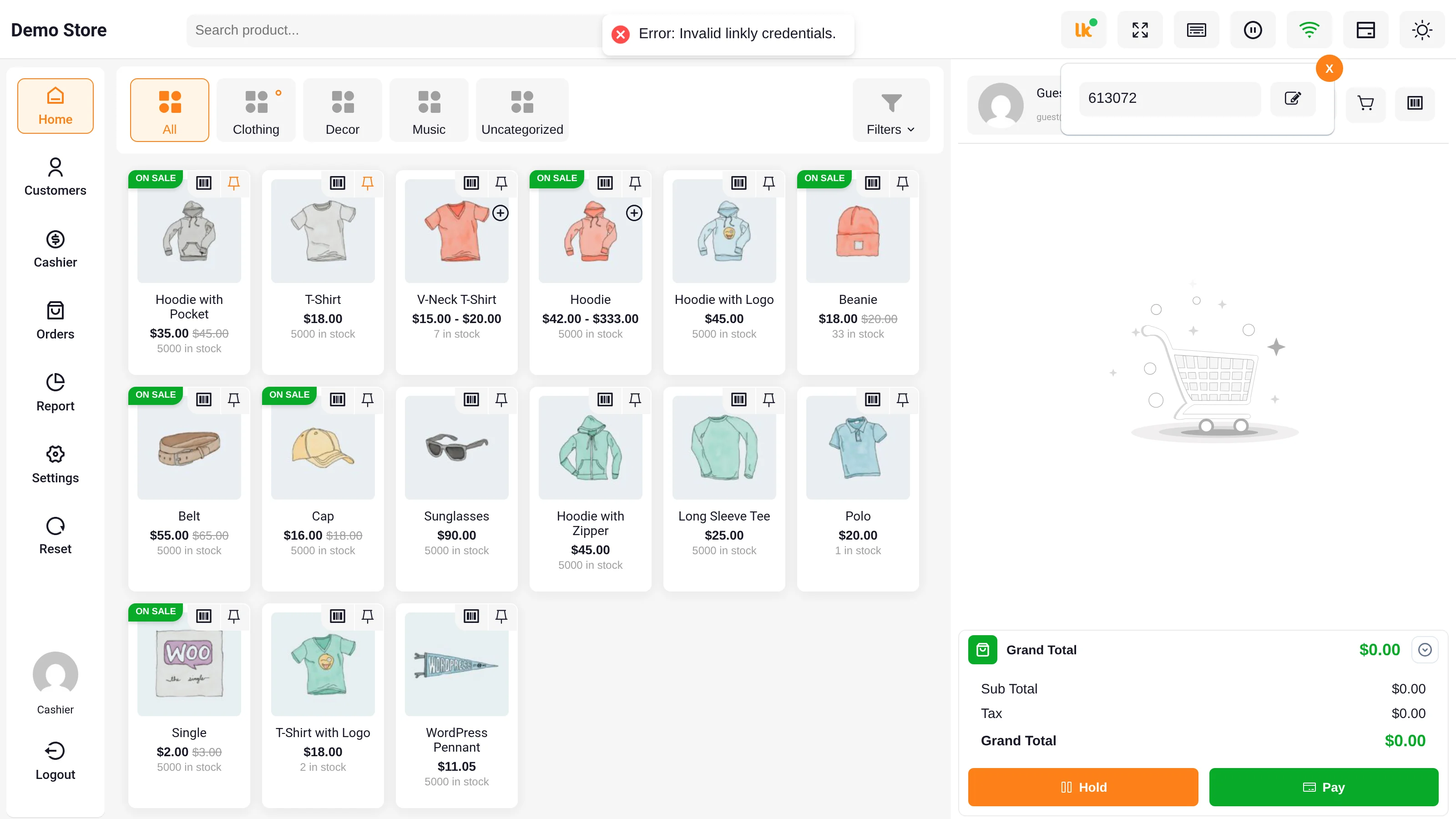
| Message | Meaning | What to do |
|---|---|---|
| Invalid linkly credentials. | The username or password for the current mode (test or live) is empty. | Ask the administrator to fill them in the gateway settings. |
| Invalid secret key | Linkly did not accept the pairing — wrong pair code, wrong credentials, or a terminal from the other environment. | Re-check the pair code on the terminal and that test mode matches the terminal. |
| POS Linkly Terminal Gateway is not enabled. | The gateway is disabled. | Enable it in the gateway settings. |
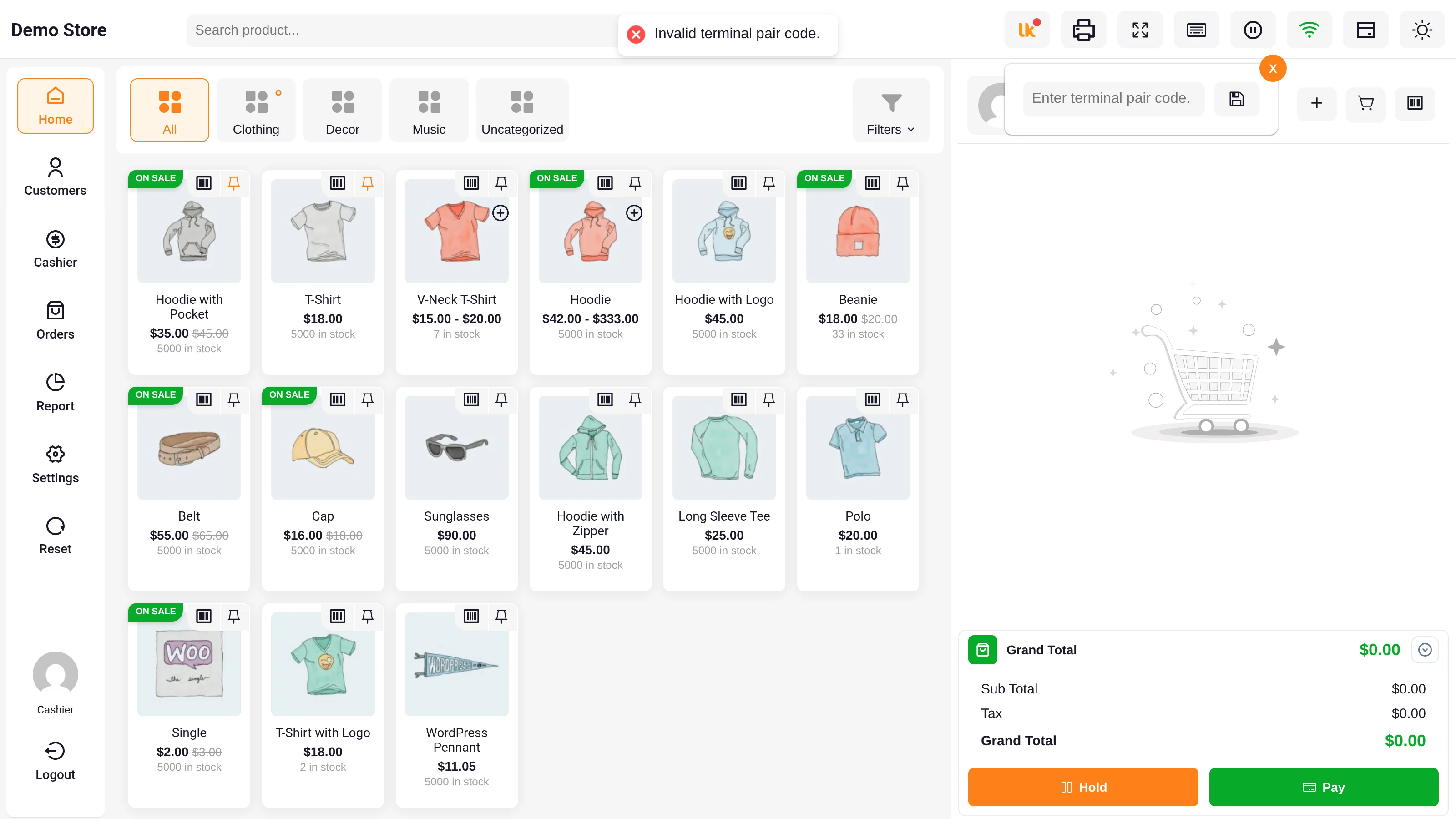
| Invalid terminal pair code. | The field was empty. | Enter the pair code. |
If you select Save with an empty field, the POS shows Invalid terminal pair code. without contacting Linkly.
More fixes are in Troubleshooting.
If the pairing stops working
Linkly can stop accepting a saved pairing, for example after the terminal is re-registered or paired with another POS. When the POS opens and finds this, the dot turns red, the hover text reads The linkly terminal pairing is no longer valid. Please enter a new pair code from the terminal., and the saved code is removed.
Read the new pair code on the terminal and enter it again. If this happens during a sale, the POS asks for the new code straight away — see If the terminal pairing is rejected.
Change the paired terminal
To move a cashier to a different terminal, open the pairing box, select Edit, enter the new terminal's pair code, and Save. Each POS user keeps their own pair code, so two tills at the same outlet can use two different terminals.