
Take a Linkly Payment
Take a payment
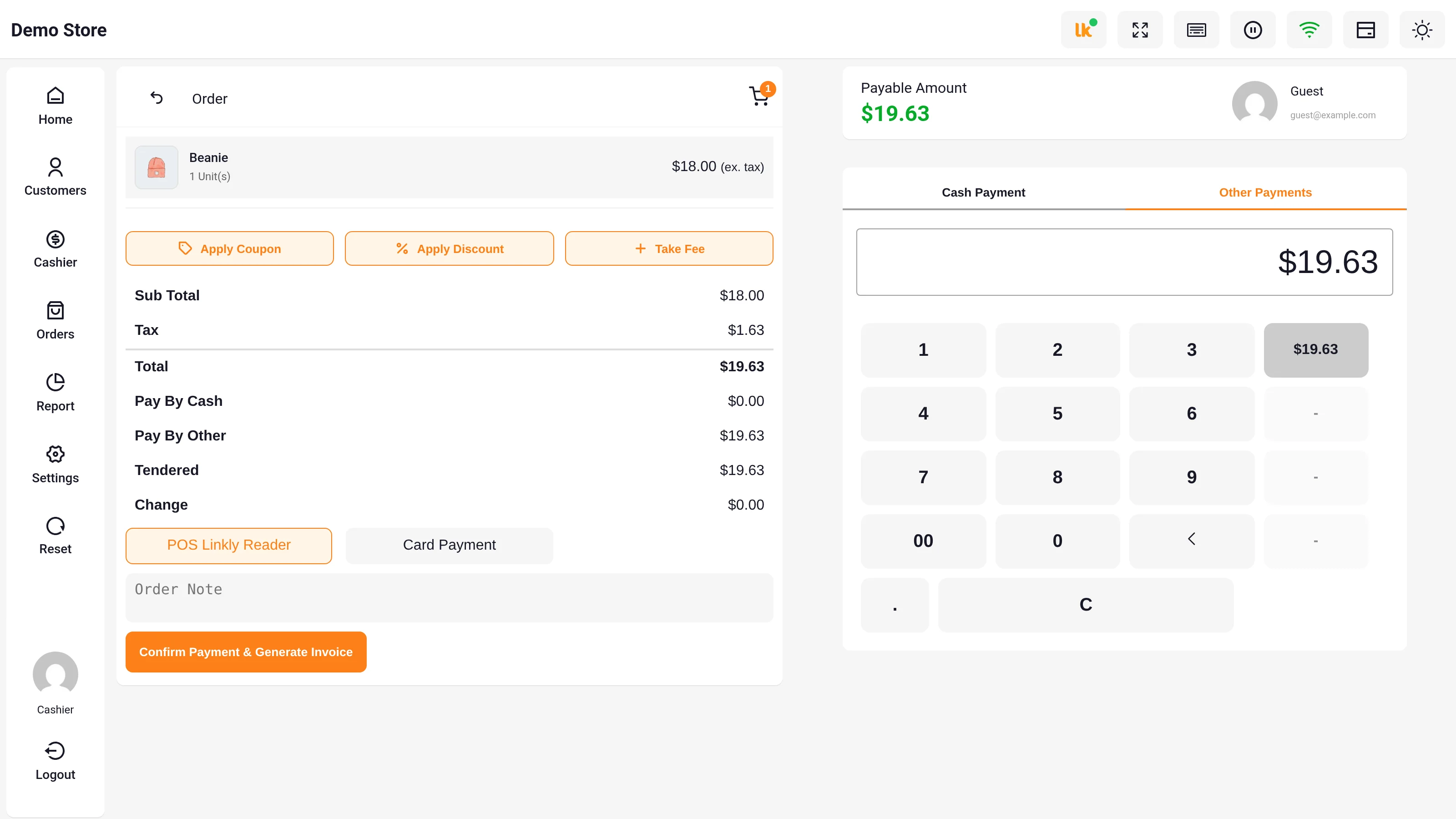
- Add products to the cart in the POS and select Pay.
- On the pay screen, open Other Payments and select POS Linkly Reader. If Linkly is the default gateway, this is already selected.
- Enter the amount to charge on the keypad — select the amount button (for example $19.63) to charge the full payable amount.
- Select Confirm Payment & Generate Invoice.
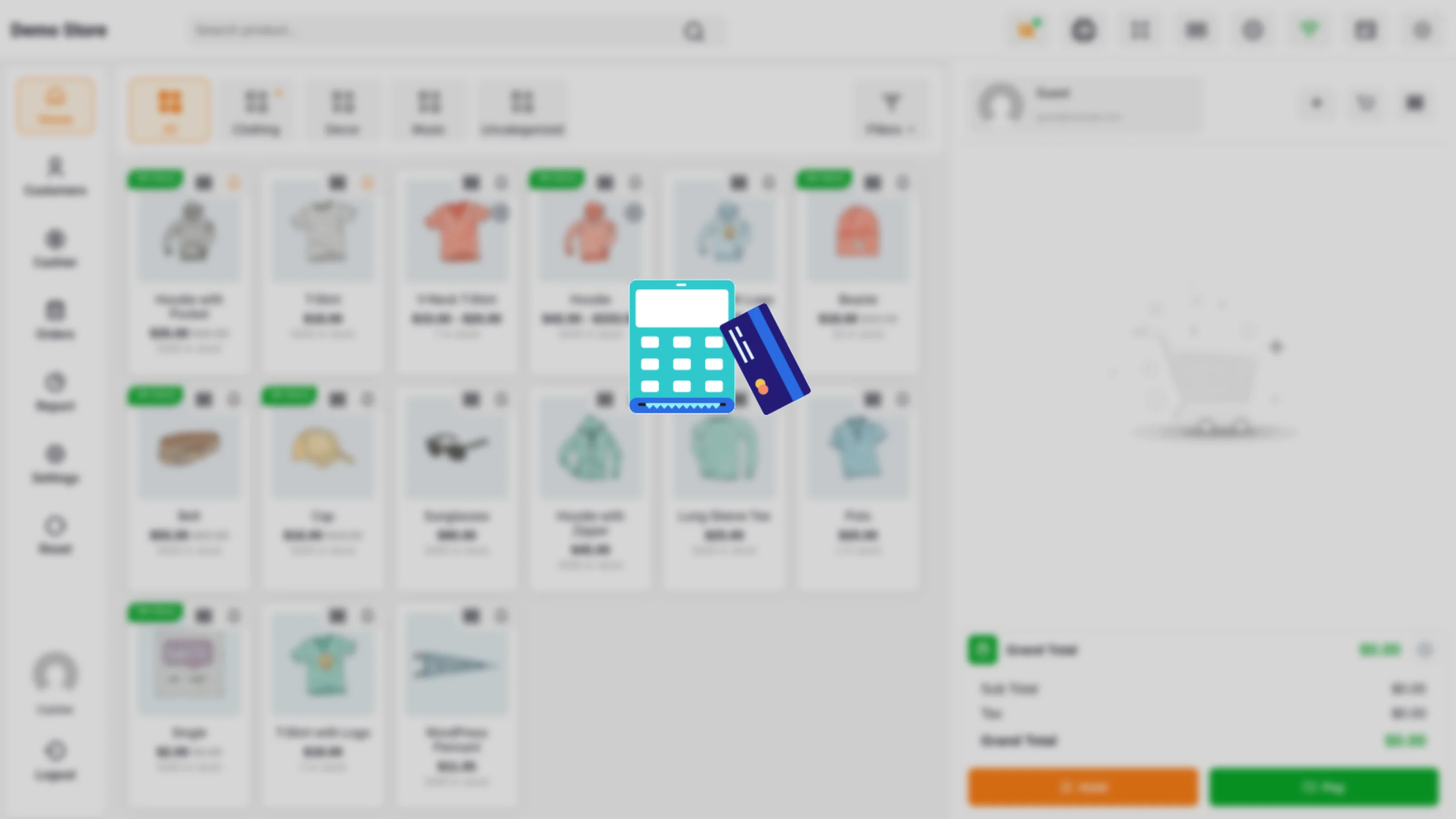
The POS creates the order and sends the amount to the paired terminal. A card reader animation covers the POS while the customer pays.
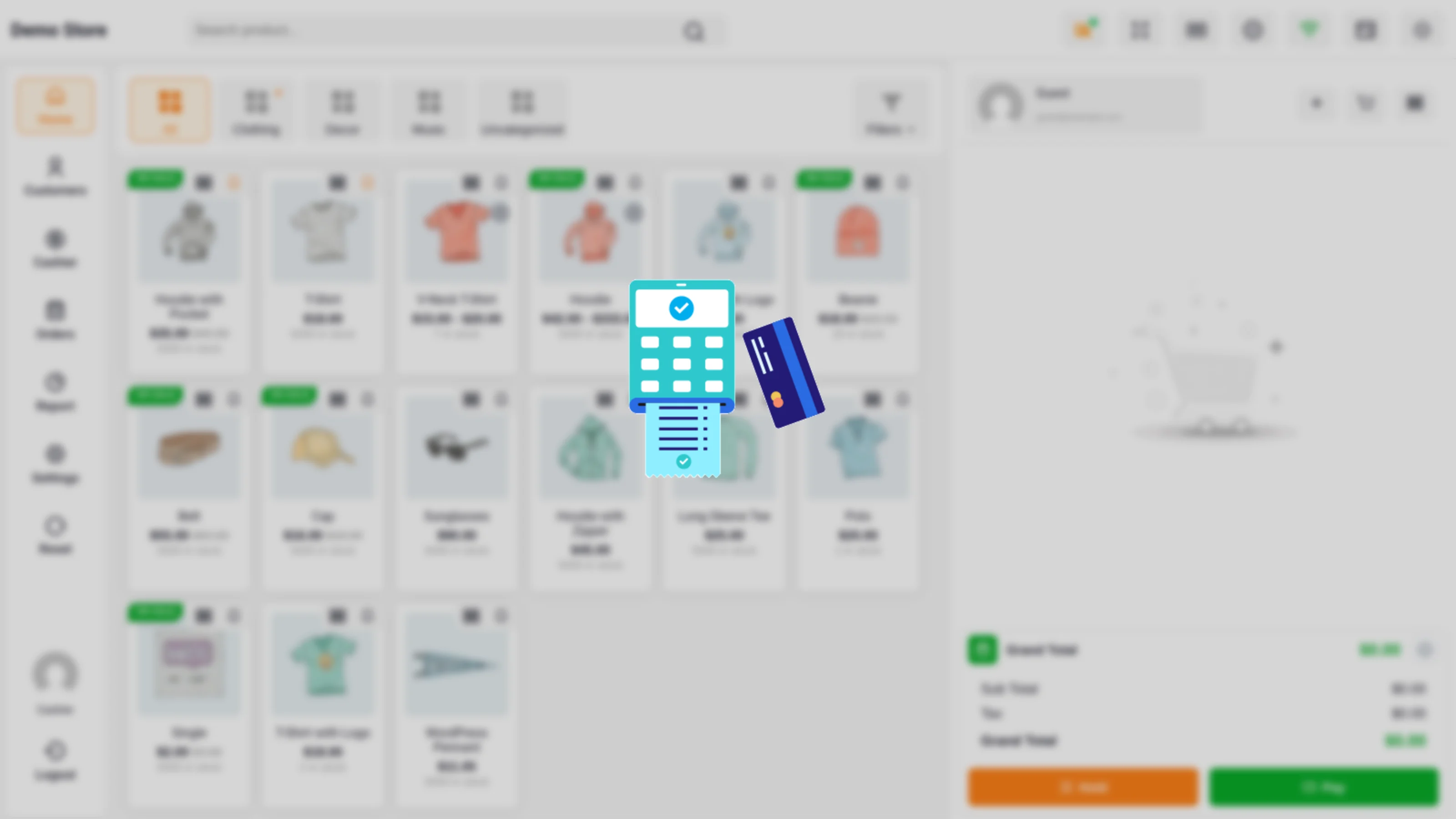
- The customer taps, inserts, or swipes their card on the Linkly terminal and completes any PIN or signature step.
The till must be paired first
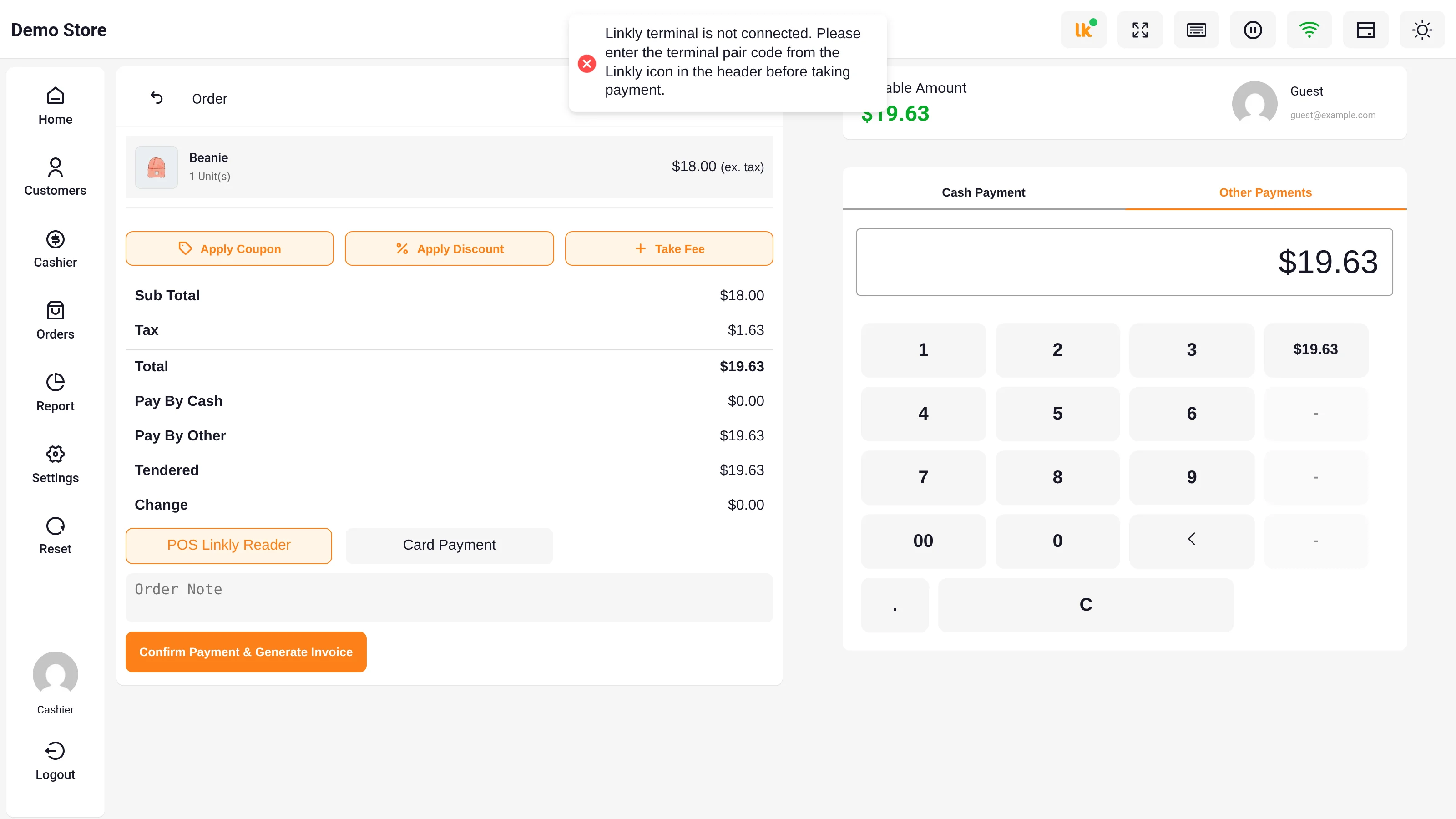
If the cashier's till isn't paired, the POS stops before creating the order and shows "Linkly terminal is not connected. Please enter the terminal pair code from the Linkly icon in the header before taking payment." Pair the terminal and select Confirm Payment & Generate Invoice again.
After the payment is approved
- The order status changes from Pending payment to Completed.
- The Linkly transaction response is saved on the WooCommerce order.
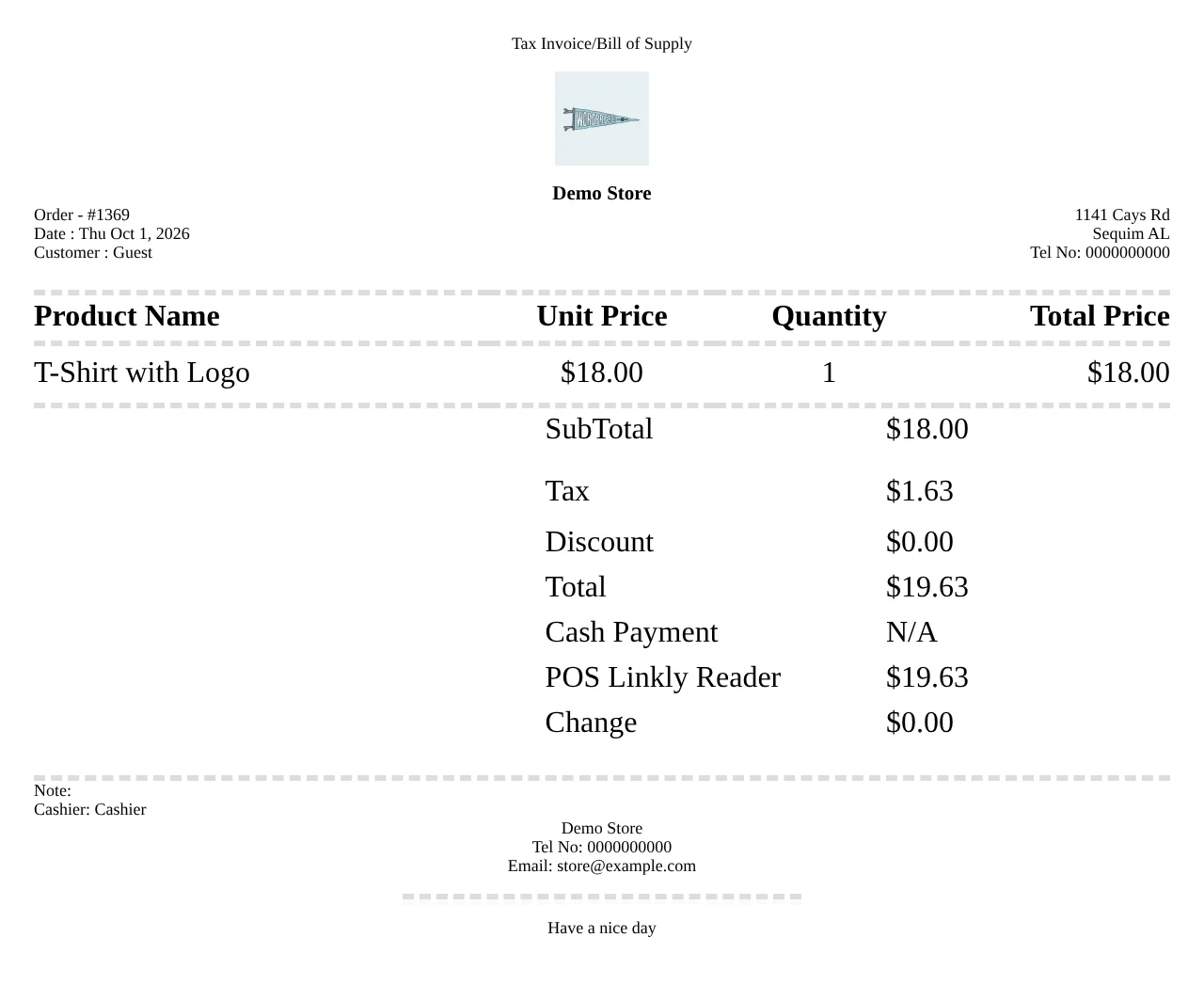
- If POS invoice printing is enabled, the invoice print window opens. The invoice lists the amount paid with POS Linkly Reader. If printing is disabled, the POS shows "Payment created successfully."
If the payment is declined or fails
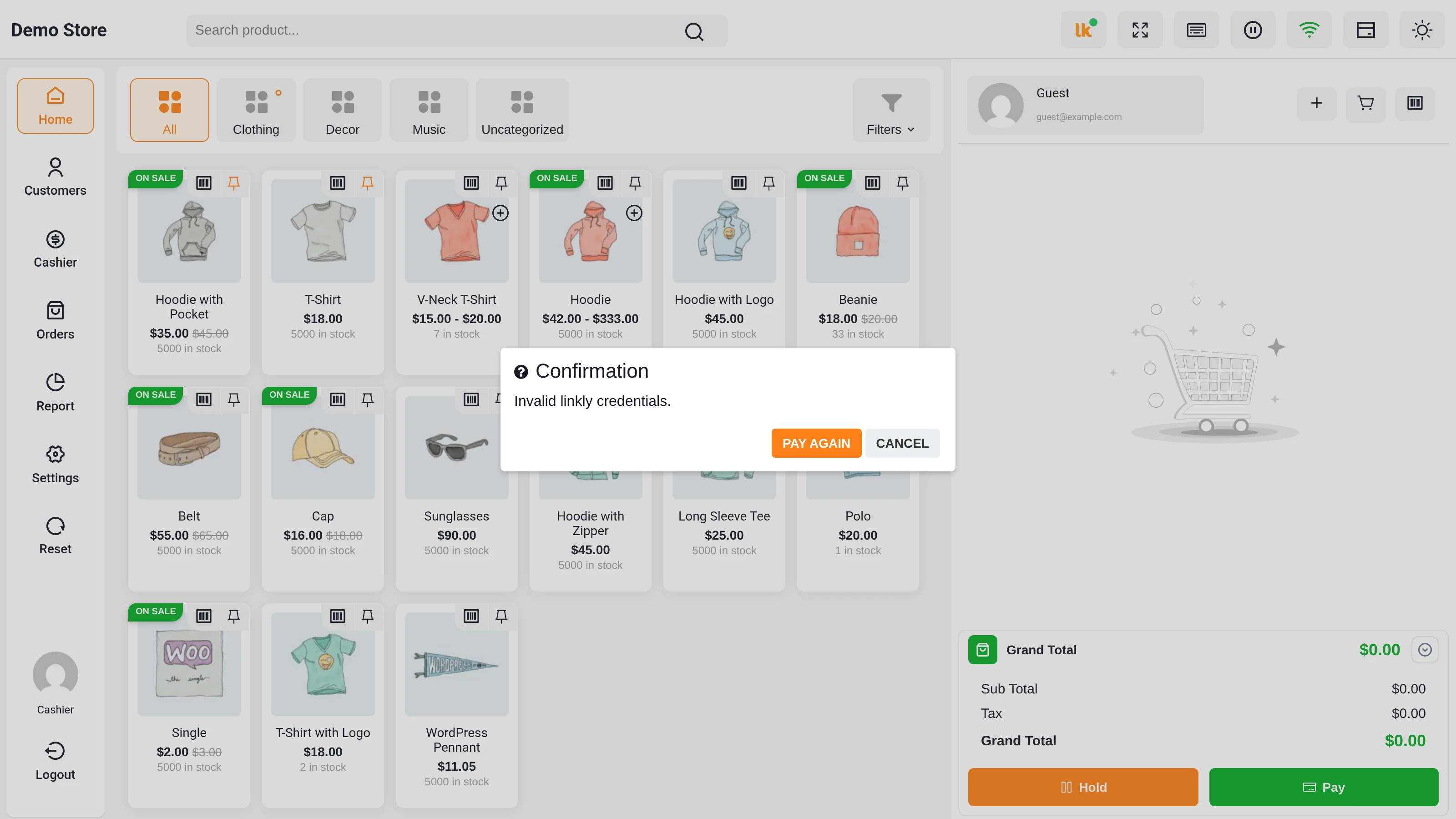
The POS shows a Confirmation box with the reason — the terminal's response (for example a declined card) or an error from Linkly — and two buttons:
- Pay again sends the payment to the terminal again for the same order.
- Cancel closes the box. The order stays Pending payment; you can take payment for it another way.
If the terminal takes longer
The POS waits up to 25 seconds for the terminal, then keeps checking the same transaction every few seconds while the customer finishes. If there is still no result after five minutes, it shows Payment not confirmed yet:
The payment result has not been received from the linkly terminal yet. Please check the terminal and click Check again. Do not take the payment again until it is confirmed.
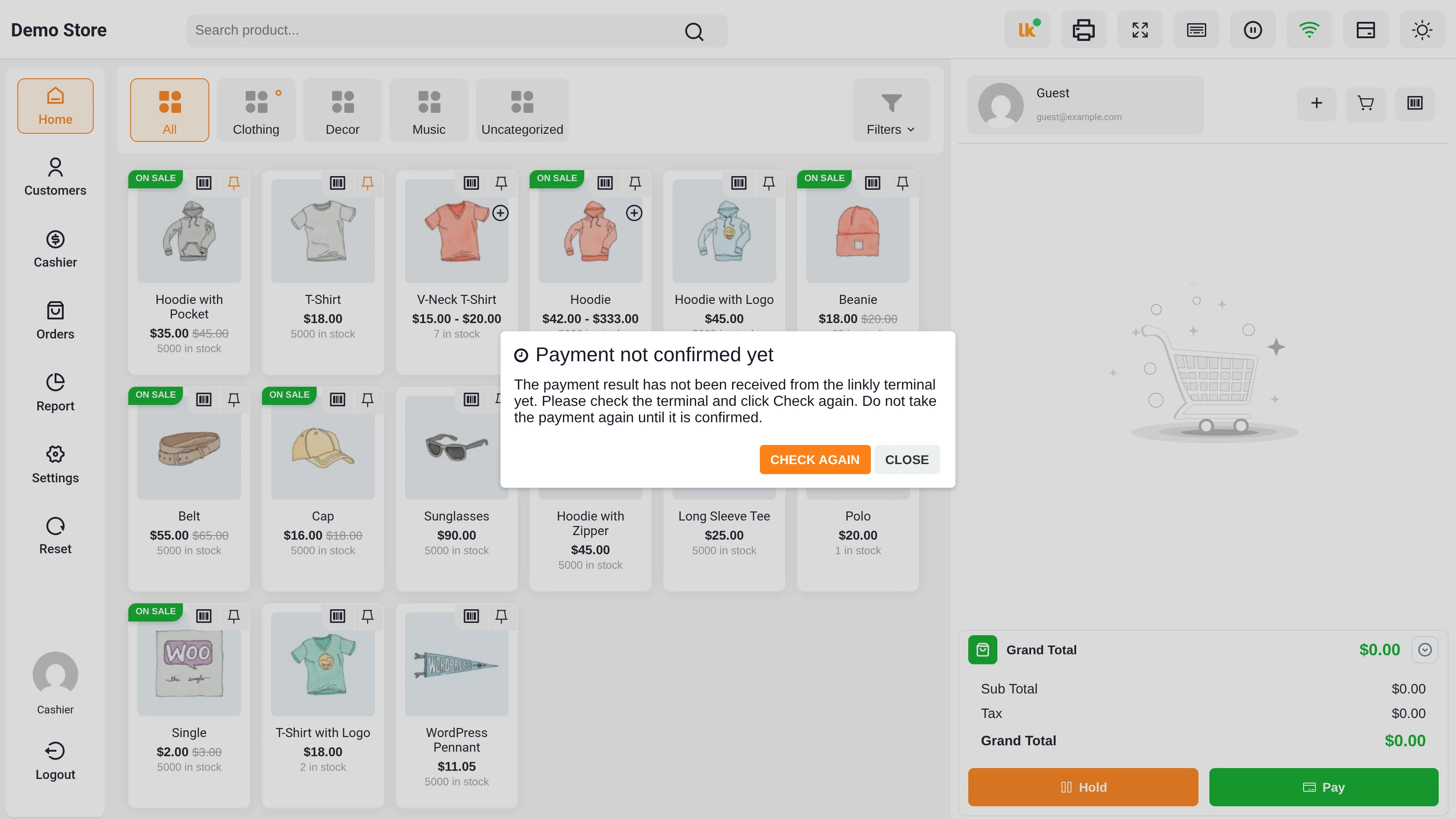
- Check again resumes checking the same transaction, and the card reader animation shows again while the POS waits.
- Close leaves the order Pending payment.
Because a started transaction is always resumed rather than restarted, selecting Pay again or Check again never charges the customer twice for an order.
If the terminal pairing is rejected
If Linkly no longer accepts the till's pairing when a payment starts, no card is charged. The POS removes the saved pair code, turns the Linkly icon dot red, and opens Linkly terminal not connected with a field for a new code:
The linkly terminal pairing is no longer valid. Please enter a new pair code from the terminal.
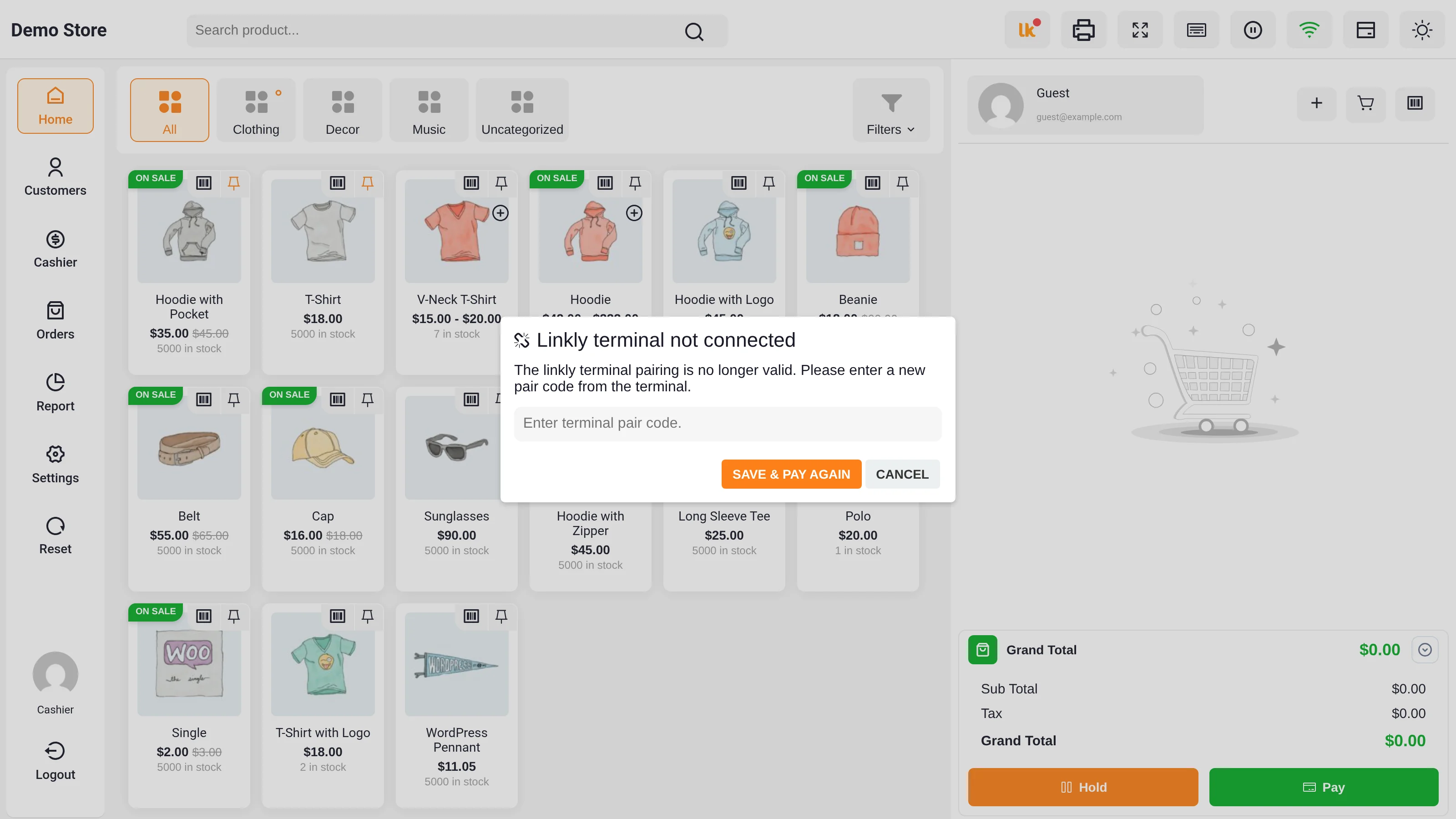
- Read the new pair code on the Linkly terminal and type it in the field.
- Select Save & pay again. The POS saves the pairing and sends the same order to the terminal again.
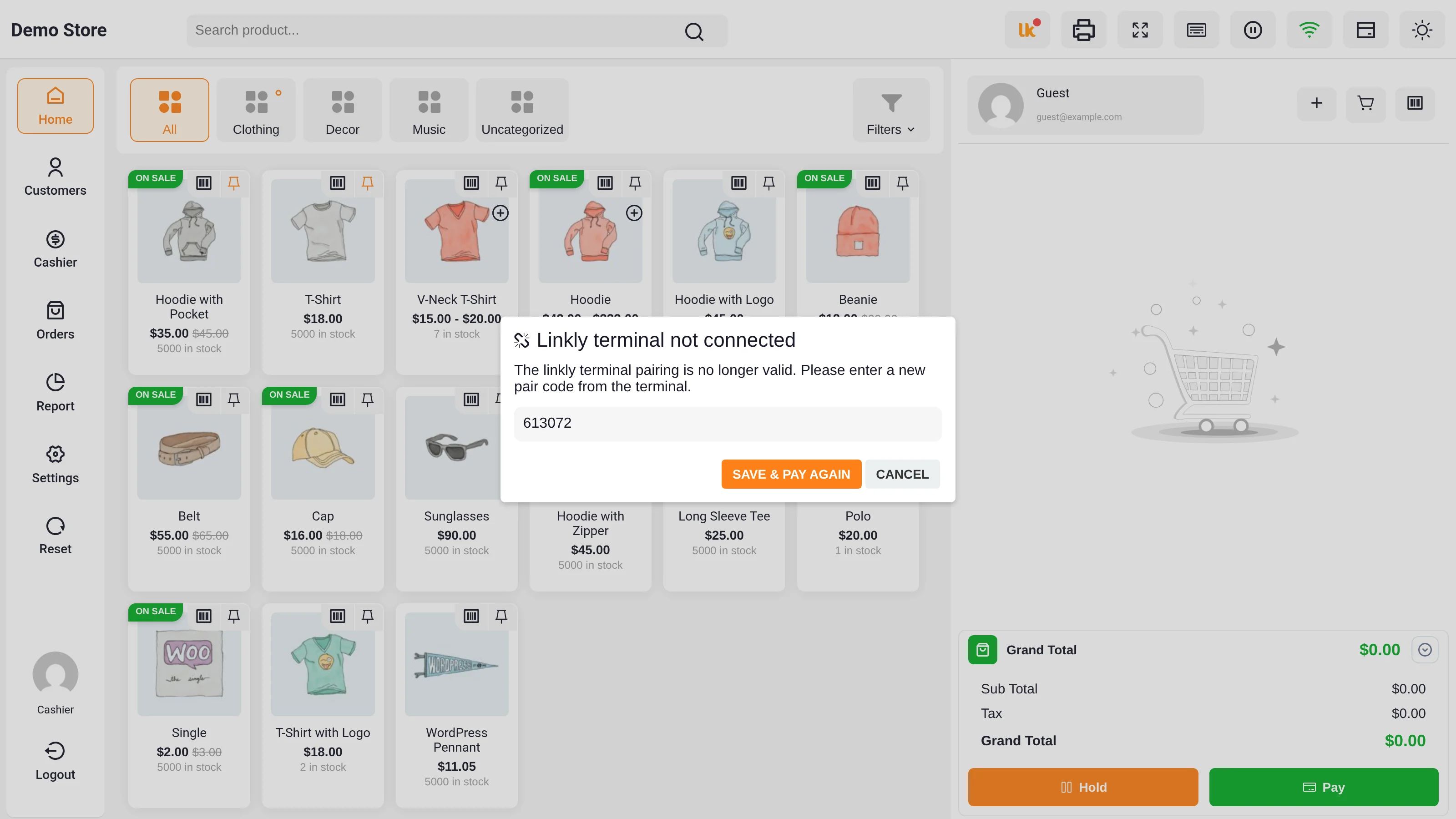
Cancel closes the box and leaves the order Pending payment. Pair the till later from the Linkly icon. Leaving the field empty shows Invalid terminal pair code.
Orders in the admin
Linkly orders appear under WooCommerce → Orders and Point of Sale → Orders like other POS orders. An order that was not approved stays Pending payment until it is paid.
Pay an installment with Partial Payments
If you use the WooCommerce POS Partial Payment add-on, cashiers can collect an installment through the Linkly terminal:
- Open the order's installment (EMI) list in the POS and choose the installment to pay.
- Select POS Linkly Reader as the payment option and confirm.
- The installment amount, plus any penalty, is sent to the terminal. When approved, the installment is recorded; when nothing remains to pay, the order is marked Completed.
A partial-payment sale paid through Linkly is marked Partial Payment instead of Completed after approval.