
POS Payment Method
On activation the connector creates the POS Linkly Reader payment method for the WooCommerce Point of Sale. This is what cashiers select on the pay screen.
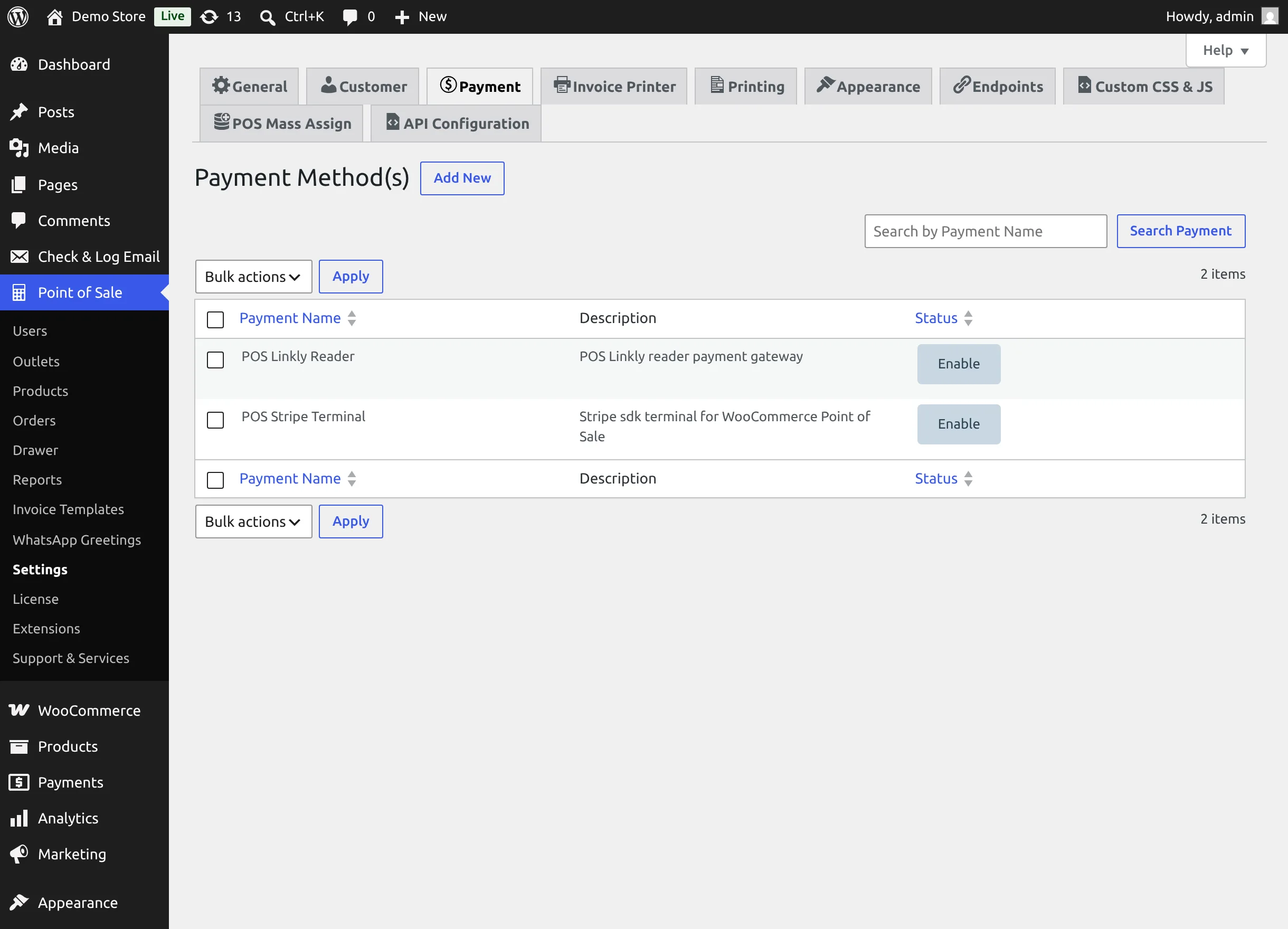
Find the payment method
- Go to Point of Sale → Settings and open the Payment tab.
- POS Linkly Reader is listed under Payment Method(s) with the description POS Linkly reader payment gateway.
Edit the payment method
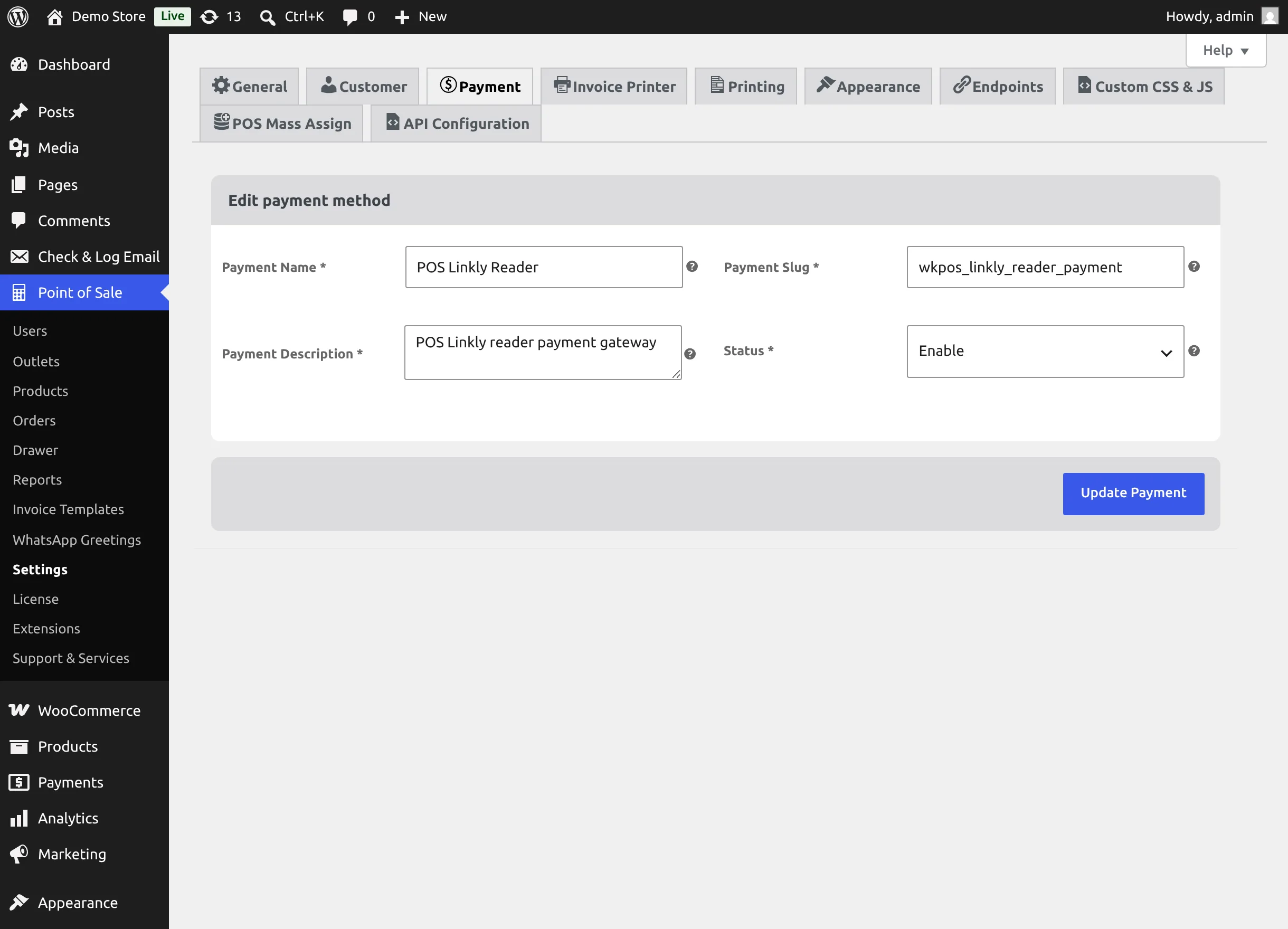
Hover the row and select Edit to open Edit payment method.
| Field | What to do |
|---|---|
| Payment Name | The label shown on the POS pay screen and on invoices. You can rename it, for example to Card (Linkly). |
| Payment Slug | Leave it as wkpos_linkly_reader_payment. The connector recognises the Linkly method by this slug — changing it stops Linkly payments. |
| Payment Description | Internal description. |
| Status | Enable or Disable the method in the POS. |
Select Update Payment to save.
Don't delete the payment method
If you delete POS Linkly Reader, it is only recreated when the plugin is deactivated and activated again. To stop taking Linkly payments temporarily, disable the gateway in Linkly Gateway Configuration instead.