
General Settings Tab
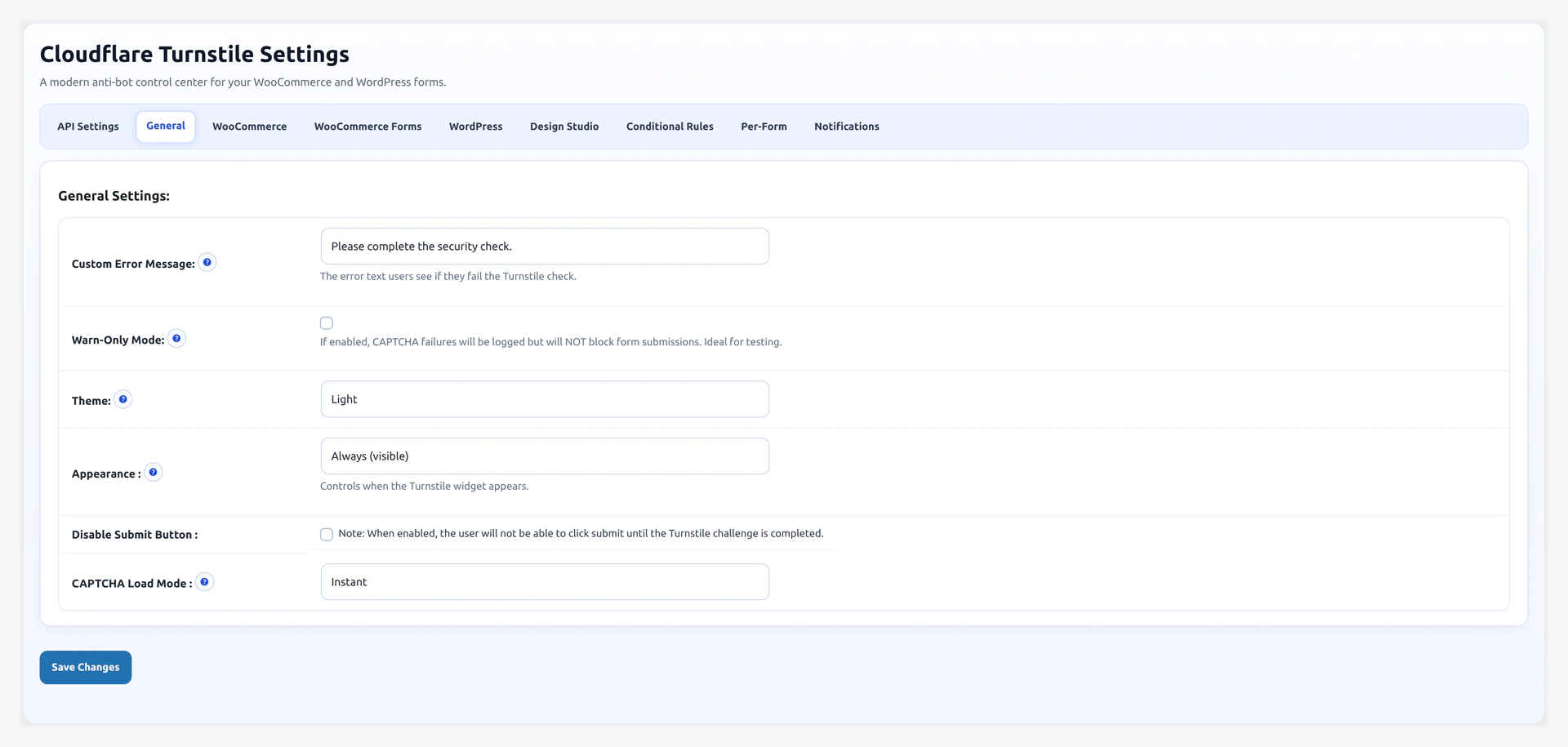
Controls how the widget looks and behaves on every form by default. Can be overridden per-form on the Per-Form Config tab.
URL: wp-admin/admin.php?page=wkcft-settings&tab=wkcft_general
Fields
Error Message
- Option key:
wkcft_error_message - Type: Text
- Default:
Please complete the security check. - Where shown: Displayed to the user when CAPTCHA validation fails
Keep it short and action-oriented. Examples:
Please complete the security check.(default)Please verify you are not a robot.Security check failed. Please try again.
Per-form override
Want different messages per form? Set them on Per-Form Config.
Warn Only (Test Mode)
- Option key:
wkcft_warn_only - Type: Checkbox
- Default: Off
When on, the plugin logs validation results but does not block failed submissions. Useful for:
- Staging environments where you want to test without locking out your QA team
- Soft-launching on a live site — see analytics data first, block later
- Debugging a false-positive issue without angry customers
Remember to turn this OFF
Leaving warn-only on means real bots get through. Turn off once you have confirmed the plugin works correctly.
Theme
- Option key:
wkcft_theme - Type: Select
- Default:
light
| Option | Widget Appearance |
|---|---|
light | Light background, dark text (matches most WordPress themes) |
dark | Dark background, light text (matches dark-mode themes) |
auto | Follows the visitor's browser/system preference |
Appearance (Visibility Mode)
- Option key:
wkcft_appearance - Type: Select
- Default:
always
| Option | What Visitors See |
|---|---|
always | Widget always visible. Best for clarity — visitors see proof of protection |
interaction-only | Widget only appears when the visitor interacts with the page (mousemove/touch). Invisible otherwise |
execute | Widget is invisible. Cloudflare silently validates in the background. Only shows a challenge if Cloudflare detects bot-like behavior |
Picking an appearance mode
alwaysfor trust-building (shows visitors the form is protected)executefor zero friction on high-trust forms (existing customers)interaction-onlyas a middle ground — invisible until someone actually interacts
Disable Submit Button
- Option key:
wkcft_disable_submit_button - Type: Checkbox
- Default: Off
When on, the form's submit button stays disabled until the Turnstile widget reports "passed". This prevents visitors from clicking submit before the token is ready.
Trade-off: slightly slower perceived UX on the first submit attempt, but zero chance of the "missing-input-response" error.
Load Mode
- Option key:
wkcft_load_mode - Type: Select
- Default:
instant
| Option | Behavior |
|---|---|
instant | Cloudflare API loads with the page — widget shows immediately |
lazy | API loads after a delay (see Lazy Delay below) — lighter initial page load |
Use lazy on pages where the form is below the fold or on sites with heavy Core Web Vitals focus.
Lazy Delay
- Option key:
wkcft_lazy_delay - Type: Number (milliseconds)
- Range: 1000 - 5000
- Default:
2000 - Only active when: Load Mode =
lazy
How long to wait after page load before the Cloudflare API script loads.
Common picks:
1000— 1s delay, barely noticeable2000— 2s, balanced (default)5000— 5s, only loads when visitor is engaged
If the visitor scrolls to the form or interacts with the page before the timer fires, the script loads immediately (no wait).
Complete Field Reference
| Field | Option Key | Type | Default |
|---|---|---|---|
| Error Message | wkcft_error_message | text | Please complete the security check. |
| Warn Only | wkcft_warn_only | yes/no | no |
| Theme | wkcft_theme | select | light |
| Appearance | wkcft_appearance | select | always |
| Disable Submit Button | wkcft_disable_submit_button | yes/no | no |
| Load Mode | wkcft_load_mode | select | instant |
| Lazy Delay | wkcft_lazy_delay | number (ms) | 2000 |
How These Interact With Per-Form Config
Any value you set here is the global default. The Per-Form Config tab lets you override:
- Theme
- Size
- Language
- Error message
Per-form on forms like login, register, checkout, comments, etc. Every form that does NOT have an override uses the value from this tab.
Recommendations
For Most Stores
| Field | Pick |
|---|---|
| Error Message | Default |
| Warn Only | Off |
| Theme | light (or auto if you have dark mode) |
| Appearance | always |
| Disable Submit Button | Off |
| Load Mode | instant |
For Sites With Heavy Page Weight
| Field | Pick |
|---|---|
| Load Mode | lazy |
| Lazy Delay | 2000 |
| Appearance | interaction-only |
For Staging / Soft Launch
| Field | Pick |
|---|---|
| Warn Only | On |
| Appearance | always (so you can see it is rendering) |
Related Pages
- API Settings — Tab 1
- Design Studio — Visual customization
- Per-Form Config — Override per form
- Shortcode — Attributes that can override these per-instance