
WooCommerce Forms
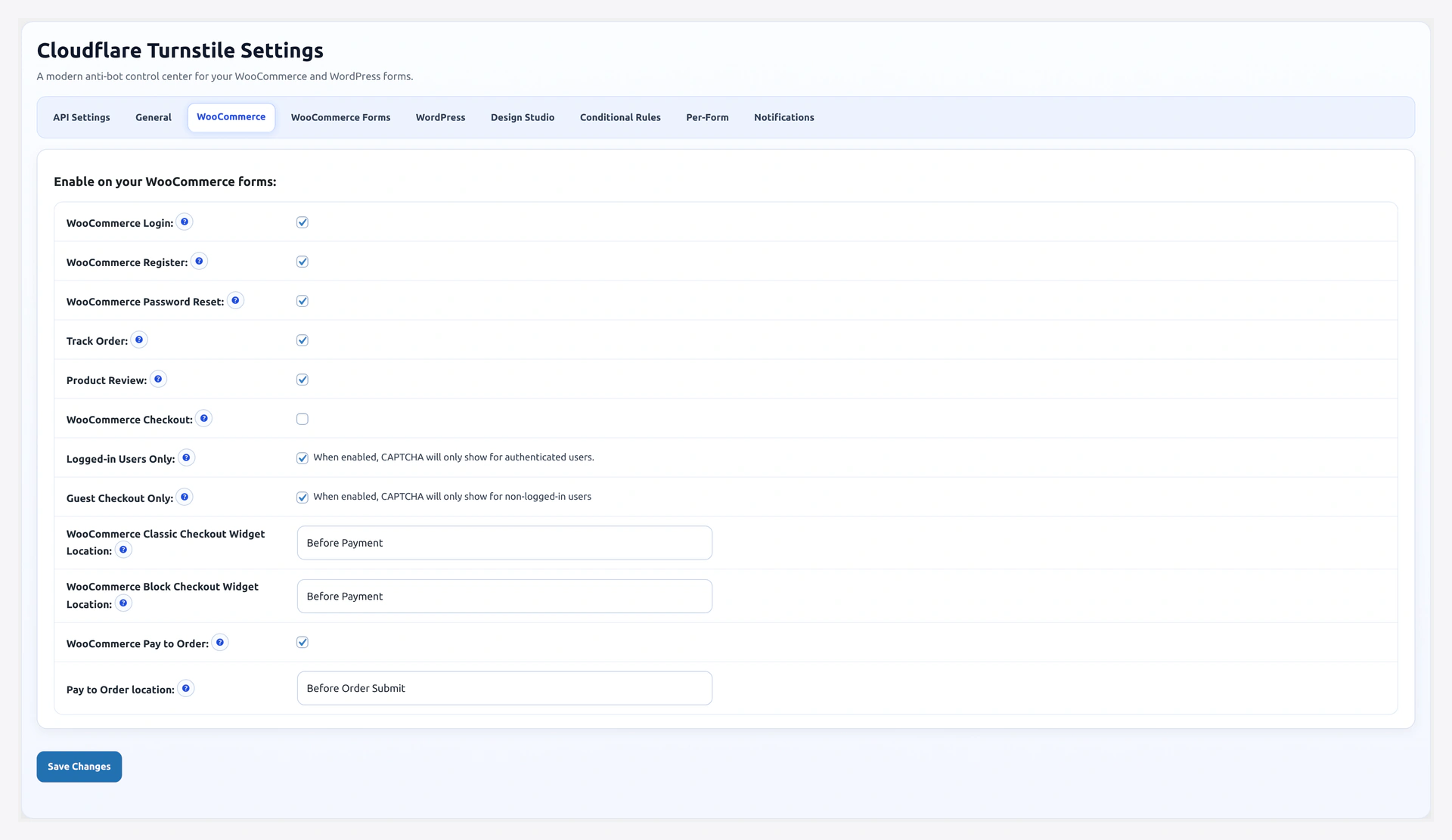
Every native WooCommerce form that accepts user input is supported. Enable each one with a checkbox.
Settings tab: wp-admin/admin.php?page=wkcft-settings&tab=wkcft_woocommerce
Forms Covered
Account Forms
| Form | Enable Option | Where Used |
|---|---|---|
| Login | wkcft_login | /my-account/ login form, shortcode [woocommerce_my_account] |
| Registration | wkcft_register | /my-account/ register form |
| Lost Password | wkcft_password_reset | /my-account/lost-password/ |
| Track Order | wkcft_track_order | /track-order/ page, shortcode [woocommerce_order_tracking] |
| Product Review | wkcft_product_review | Single product page, review submission |
Checkout Forms
| Form | Enable Option | Where Used |
|---|---|---|
| Classic Checkout | wkcft_block_checkout | [woocommerce_checkout] shortcode |
| Blocks Checkout | wkcft_block_checkout | WooCommerce Blocks Checkout page |
| Pay for Order | wkcft_pay_to_order | Order payment page (/checkout/order-pay/) |
Full Blocks coverage on Checkout Blocks.
Checkout Options
Widget Position (Classic Checkout)
- Option key:
wkcft_checkout_pos - Values:
| Value | Position |
|---|---|
beforepay | Above payment methods |
afterpay | Below payment methods |
beforesubmit | Directly above the Place Order button |
beforebilling | Above billing fields |
afterbilling | Below billing fields |
Most stores pick beforesubmit — visitors see the widget right before they click Place Order.
Widget Position (Blocks Checkout)
- Option key:
wkcft_block_checkout_pos - Values:
| Value | Position |
|---|---|
beforepay | Above payment methods block |
afterpay | Below payment methods block |
beforesubmit | Above the Place Order button |
carttotals | Inside the cart totals summary |
Logged-In Only
- Option key:
wkcft_logged_in_only - Type: Checkbox
When on, the checkout widget appears ONLY for authenticated users. Guest checkouts skip it entirely.
Use when your shop is members-only or when you use Skip logged-in reversed — only logged-in users see CAPTCHA.
Guest Only
- Option key:
wkcft_checkout_guest_only - Type: Checkbox
Opposite — widget only appears for guests (not logged in). Logged-in customers never see it.
Pick one, not both
If you tick both Logged-in only and Guest only, the widget renders for everyone (mutually exclusive inputs cancel out). If you tick neither, also renders for everyone. Pick exactly one if you want selective behavior.
Pay-for-Order Options
Enable
- Option key:
wkcft_pay_to_order - Type: Checkbox
The pay-for-order page loads when WooCommerce redirects a customer to complete a pending payment (e.g., after abandoned checkout, or an admin-generated order with email invoice).
Position
- Option key:
wkcft_pay_to_order_pos - Values:
| Value | Position |
|---|---|
beforepay | Above payment methods |
afterpay | Below payment methods |
Enable Steps
- WooCommerce → Turnstile Settings → WooCommerce tab
- Tick each form you want
- Pick checkout position if enabling checkout
- Pick guest / logged-in visibility if needed
- Save Changes
- Flush caching plugin
- Test in incognito
Test Plan
Open each form in a private window and check:
Login
- Visit
/my-account/ - Widget appears below password field
- Enter wrong credentials — error + widget persists
- Enter right credentials — login works (widget passed silently)
Register
- Visit
/my-account/(register form below login) - Widget below registration fields
- Fill and submit — account created
Lost Password
- Click "Lost your password?" on login
- Widget below email field
- Submit — password reset email sent
Checkout (classic)
- Add product to cart, go to
/checkout/ - Widget appears in your configured position
- Complete order — order placed
Checkout (Blocks)
- Enable Blocks checkout on a new page (see Checkout Blocks)
- Add product, go to Blocks checkout
- Widget appears in configured position (React-rendered)
- Place order — succeeds
Pay for Order
- Create a pending order in admin
- Email "pay for order" link to yourself
- Open link — widget renders above Place Order
- Complete payment
Track Order
- Visit your
[woocommerce_order_tracking]page - Widget below the order ID/email fields
- Submit — order details load
Product Review
- Open a product with reviews enabled
- Scroll to review form
- Widget above submit button
- Submit — review posted (pending approval)
HPOS Compatibility
The plugin declares HPOS (Custom Order Tables) compatibility. All form handlers work with HPOS enabled — no code changes needed.
Confirm via WooCommerce → Settings → Advanced → Features → Custom Order Tables.
Dependency Behavior
If WooCommerce is not active:
- This tab renders in read-only mode
- An inline activation link appears at the top
- Checkboxes are disabled
You cannot toggle any WC form if WooCommerce itself is inactive (WP 6.5+ Requires Plugins header enforces the dependency).
Troubleshooting
| Problem | Fix |
|---|---|
| Widget missing on checkout | Classic or Blocks? Classic needs wkcft_checkout_pos set. Blocks auto-injects — flush cache |
| Widget in wrong order on checkout | Change wkcft_checkout_pos or wkcft_block_checkout_pos |
| Login widget overlaps password field | Theme-specific CSS issue. Open DevTools and add .wkcft-turnstile { margin-top: 10px } |
| Track order widget does not show | Some themes override the tracking page template. Use shortcode [wkcft-turnstile] inside the template |
| Product review widget missing | Theme overrides comment_form — use shortcode in your theme's review template |
Related Pages
- Checkout Blocks — Modern block-based checkout
- WordPress Forms — Core WP forms
- Per-Form Config — Different theme/message per form
- Shortcode — For non-WC forms